

PIM Manager documentation · Verified against PIM Manager 3.0.23.3 on Nov 3, 2026
REST API and ServiceNow
A ticketing system such as ServiceNow can ask PIM Manager to switch a disabled admin account on, or to add a temporary group membership, for a set number of hours. PIM Manager checks the request again, applies it and switches the access off by itself when the time is up.
Available in Pro editions; not in Community.
The problem
Many organizations keep admin accounts disabled until someone needs them, and the request and its approval live in a ticketing system. Someone then enables the account by hand, and someone has to remember to disable it again. Giving the ticketing system its own write rights in Entra ID solves the first part and opens a new risk: a broad application identity that can change admin accounts.
How it works
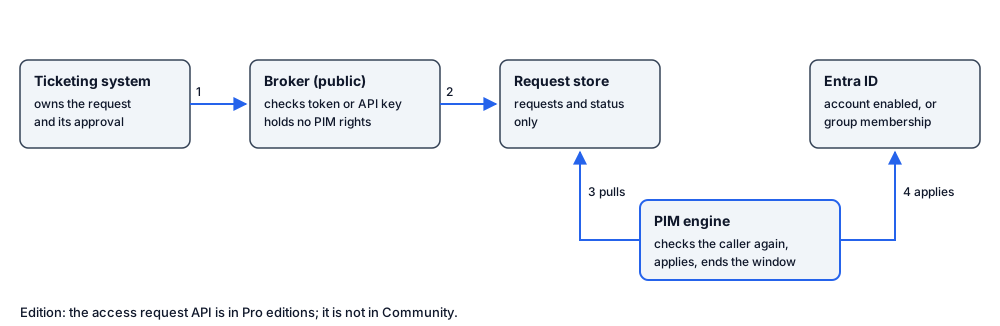
- Your ticketing system approves the request in its own workflow and calls
POST /api/v1/requestson the access request broker. - The broker checks the caller (an allowed Entra application or a valid API key) and stores the request. The broker holds no PIM rights: its managed identity may only read and write its own request store and send mail as the PIM sender mailbox.
- The PIM engine pulls the request from the store and checks it again: the feature is on, the caller is still allowed, the account is an admin account PIM Manager manages.
- The engine applies it with your engine identity and records it in the audit trail. When the window ends, or the request is canceled, the engine switches the access off again.
The broker is the only public part. The engine does not rely on the broker’s checks: it repeats them itself before it applies a request.
What a system can request
| Type | What PIM Manager does | Limits |
|---|---|---|
enable |
Enables a disabled admin account for the number of hours you send, then disables it again. The account keeps its PIM eligibilities; only the account status changes. | 1 to 744 hours. A Revoked account is never enabled by a request. Two overlapping windows never shorten each other: the later end wins. |
group |
Adds the admin to one PIM group as an active member for the number of hours you send, then removes the membership. It is marked as ad hoc everywhere it appears. | 1 to 744 hours. Refused when the admin already holds a managed, standing assignment to that group: PIM Manager does not change delegated access through the API. |
proposal |
Turns the request into a pending change. An administrator reviews and commits it in PIM Manager; nothing is applied by the machine. | Needs the intake switched on (IntakeEnabled). Activation requests are refused, and so is a proposal where the requestor and the target admin are the same person. |
For enable and group, the approval is your ticketing system’s: PIM Manager treats the request as approved by the caller’s workflow and applies it for up to 744 hours without a person in PIM Manager deciding. Only allow-listed applications and keys can call it, so control who can approve in your ticketing system. Use proposal when a person in PIM Manager must decide.
What a system cannot do
- It cannot activate a role. Activation stays in Microsoft Entra PIM, with its own MFA and approval rules.
- It cannot create admins, groups, roles or delegations, and it cannot change a standing assignment. A proposal only becomes a pending change that an administrator decides.
- It cannot read anything except the status of its own requests. A request made by another caller answers “not found”.
- It cannot re-enable a Revoked account.
Authentication
The API accepts one of two credentials. Prefer the Entra application.
- Entra application token. The ticketing system signs in with its own Entra application (client credentials) and sends the token for the “PIM access request API” app registration. Only application tokens count: a token issued to a signed-in user is refused. The application’s client id must be on the allow list in the RFA broker & API card, under Settings > Access requests (RFA) (RFA is PIM Manager’s short name for access requests), in API applications (RfaBroker.ApiAppIds).
- API key. For a system that cannot use an Entra application. A SuperAdmin creates the key in the same RFA broker & API card, under API keys, with the scopes
requests.write(create and cancel) andrequests.read(read status), and a lifetime of 1 to 3650 days; choose the shortest lifetime your system can renew within. The key is shown once; PIM Manager stores only its hash. The system sends it in theX-Api-Keyheader. A revoked or expired key is refused.
The broker limits how many calls one address can make in a minute and answers 429 with a Retry-After header when the limit is reached. With the deploy option for allowed addresses, the broker accepts calls only from the networks you name.
The calls
| Call | Purpose |
|---|---|
POST /api/v1/requests |
Create a request. Answers 202 with the request id, or 200 with the existing request when the same ticket arrives again. |
GET /api/v1/requests/{id} |
Read the state of one of your own requests. |
POST /api/v1/requests/{id}/cancel |
End a window early. The engine switches the access off on its next pass. |
GET /api/v1/openapi.json |
The OpenAPI description of the API. |
The request body:
| Field | Required | Meaning |
|---|---|---|
userPrincipalName |
Yes | The admin account. |
ticket |
Yes | Your ticket number, at most 100 characters. It makes a retried call safe. |
type |
No | enable (default), group or proposal. |
hours |
For enable and group |
1 to 744. |
groupName |
For group |
The PIM group. |
requestType, groupTag, requestor |
For proposal |
requestType is group-add, delegation-request, group-membership or admin-group-assignment; groupTag names the PIM group; requestor names who asked. |
reason |
No | At most 500 characters. |
Retries never open a second window
The request id comes from the caller, the ticket, the type, the account and the group. When your system sends the same ticket twice, PIM Manager answers with the first request’s status and opens no second window.
States
A request moves through submitted, approved and active, and ends as ended, cancelled or rejected. A proposal ends as forwarded once it is a pending change in PIM Manager. The status text says why a request was rejected, for example that the account is not managed here or that the caller is not allowed. windowEndUtc tells you when an active window ends.
Set it up
- Deploy the broker with Deploy-PimRfaBroker from the PIM Manager release package. It creates the broker’s storage, network and container app, and switches on the container app’s built-in Microsoft Entra sign-in (Azure Container Apps authentication, also called Easy Auth). It lets the portal open without a sign-in, because the portal uses a mailed PIN; the API still refuses a call without a valid application token or API key. With the tenant id it also registers the “PIM access request API” app, and with the database server it records the broker in PIM Manager and switches the access request portal and the API on. Run it first without
-Applyto see the plan. - In the RFA broker & API card under Settings > Access requests (RFA), add the client id of your ticketing system’s Entra application, or create an API key.
- Point your ticketing system at
https://<your broker>/api/v1/openapi.jsonand build the call from the description.
The same broker also hosts the access request portal, where a disabled admin signs in with a one-time PIN mailed to their own address and asks for the account themselves.
Related pages
Verified against PIM Manager 3.0.23.3 on Nov 3, 2026Download PDF