

PIM Manager documentation · Verified against PIM Manager 3.0.23.3 on Nov 3, 2026
Support access
Vendor access is a common way into a tenant, yet a support team that cannot see anything cannot help with a hard case. Invardia has no access to your PIM Manager installation by default. Access exists only when you ask for help with a troubleshooting case and create the Invardia Support app yourself, and you remove it again when the case is closed.
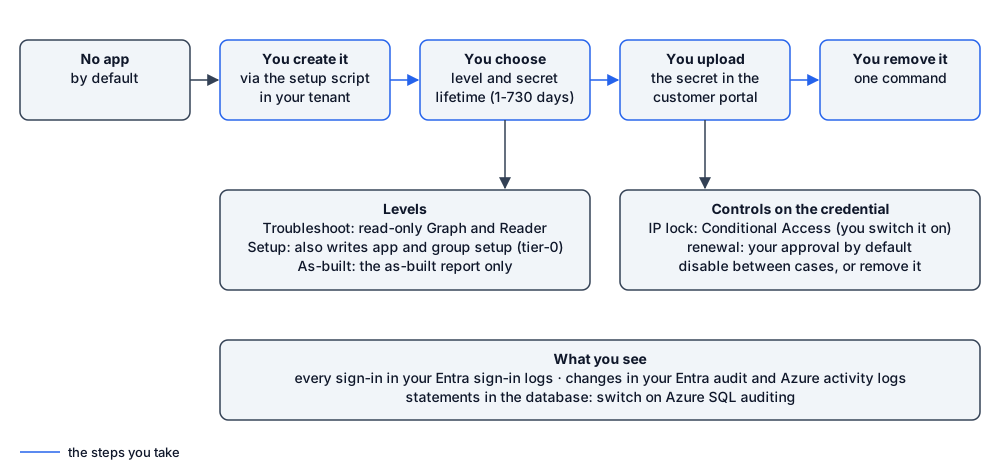
No access by default
- A PIM Manager installation has no Invardia Support app. It gives Invardia no identity, no credential and no network path into your tenant or your subscription.
- The Support app is a troubleshooting aid you create on request. It is not part of the install, and no PIM Manager component runs as it.
- It is not given a PIM Manager role. Its database rights, described below, do let it change PIM Manager’s stored data and settings directly, including who holds a Manager role. Azure SQL auditing records such statements; PIM Manager’s audit trail does not.
You create it and decide
When you open a support case and want Invardia to look inside your installation, you follow the steps on Remote support access. You decide:
- That it exists. You create the app in your own tenant with Invardia’s setup script, and you own it.
- Its level. Troubleshoot or Setup, as the table below shows.
- Its secret. You run the script, and it creates a client secret that lives as long as you choose (1 to 730 days, 90 if you do not choose) and shows it to you once. You upload it yourself in the customer portal under Remote support.
- How it is renewed. You choose in the portal. The default is Approval required: the secret is not renewed unless you approve. Automatic is an option you can pick; it is not the default. See Renewal and self-ownership for how a renewal works.
- When it ends. You remove it with one command when the case is done.
Renewal and self-ownership
Two facts belong together here.
What you do. You create the app, you create its first secret with the script, you upload it, and you choose how it is renewed. You can renew it yourself at any time: run the script again with -Action NewSecret, which creates a new secret, removes the old one so only one is live, and shows the new one once; then upload it in the portal.
What the app can do. The script makes the app the owner of itself and gives it the Microsoft Graph permission Application.ReadWrite.OwnedBy, at both levels. That is how a renewal you approve in the portal, or an Automatic renewal you chose, is carried out: the app uses its current secret to add its next one. It also means that whoever holds a valid secret can add another credential to the app. Your portal choice decides when Invardia renews; it is not a technical limit on a holder of the secret.
What limits it:
- Your Entra audit log. Every credential added to or removed from the app is recorded there, with the time and the actor.
- The IP lock. With the Conditional Access policy switched on, a sign-in of the app from anywhere but Invardia’s support address is blocked, so a copied secret does not work from another network.
- A short lifetime. Choose the shortest lifetime that covers the case.
- Removing it after the case. No app, no secret, no renewal.
If you want only yourself to be able to add a credential, remove the app from its own Owners in Microsoft Entra ID (App registrations > the app > Owners) and renew with -Action NewSecret yourself. A later run of the script without -Action adds the ownership back. At the Setup level this is not enough on its own: Application.ReadWrite.All lets the app change any app registration, itself included.
What each level grants
Two scripts give the access. Invardia’s setup script gives the app its rights in Microsoft Entra ID and Azure. Grant-PimSupportAccess, which you run from the PIM Manager package, gives it access to this installation.
| Level | Microsoft Entra ID and Azure | This PIM Manager installation |
|---|---|---|
| Troubleshoot | Read-only Microsoft Graph application permissions (directory, applications, users, groups, roles, PIM policies and schedules, access reviews); Reader and Log Analytics Reader on the resource groups you name; Key Vault Reader (no secret values) | Membership of the database admin group, and the app’s own database user in the database owner role (db_owner), with read access and a view of the schema; plus the as-built access. Only if you create the Support app at this level and grant it access |
| Setup | Troubleshoot, plus Application.ReadWrite.All, AppRoleAssignment.ReadWrite.All, DelegatedPermissionGrant.ReadWrite.All, Group.Create, GroupMember.ReadWrite.All and RoleManagement.ReadWrite.Directory in Graph; Contributor and User Access Administrator on the subscriptions you name, and at the tenant root only if you choose it | Membership of the database admin group and the database owner role (db_owner), as at Troubleshoot; ownership of PIM Manager’s own app registrations and groups; plus the as-built access. Only if you create the Support app at this level and grant it access |
| As-built | Nothing more | Start the as-built report job and read the one storage container it writes to. When you name a database: the database admin group membership and the database owner role, as above. The report describes the configuration without secrets, people or object ids, and is deleted after one day |
At both levels the app is also the owner of itself and holds Application.ReadWrite.OwnedBy; Renewal and self-ownership explains what that allows and how you limit it.
Database rights at every level
The table lists these rights; this section explains them. Troubleshoot is read-only in Microsoft Entra ID and Azure, but not in the PIM database. Whatever level you grant with Grant-PimSupportAccess, it also gives the app database rights until you take them back with -Remove, so that support can run PIM Manager’s own repair scripts:
- membership of the database admin group;
- its own database user, created from the app’s client id, in the database owner role.
At the as-built level this happens only when a database is named. These rights reach everything in the one PIM database, including the audit tables, and nothing outside it. They exist only if you create the Support app and grant it access.
Setup is tier-0
The Setup level can grant application permissions, including to the app itself, and assign Microsoft Entra roles. With User Access Administrator on your subscriptions it is owner-level access to them. Grant it for an install or a repair, then lower it or remove it.
Controls on the credential
- IP lock. The setup script creates a Conditional Access policy that blocks the app everywhere except Invardia’s support address. It is created switched off; you switch it on. Conditional Access for workload identities needs Microsoft Entra Workload ID Premium licenses.
- Without Workload ID Premium, your controls are a short secret lifetime, keeping the app disabled between cases, and removing it when the case is done.
- Self-ownership. See Renewal and self-ownership.
- Disable without removing. Disabling the app in Microsoft Entra ID blocks new sign-ins and keeps its grants, including its database rights, for the next case. Removing it is the stronger control.
What you see
- Every sign-in of the app appears in your Microsoft Entra sign-in logs, under service principal sign-ins.
- Changes it makes in Microsoft Entra ID appear in your Entra audit log, and changes in Azure in the Azure activity log.
- PIM Manager’s audit trail records changes made through PIM Manager. Statements the app runs directly against the database are not in it. Switch on Azure SQL auditing to your Log Analytics workspace to record them.
How you end it
- Run Grant-PimSupportAccess with
-Remove. It drops the app’s database user and takes back the admin group membership, the ownerships and the as-built access. - Remove the app with one command. Its Azure role assignments and its Conditional Access policy go with it:
iwr https://invardia.com/support/New-InvardiaSupportApp.ps1 -OutFile .\New-InvardiaSupportApp.ps1
.\New-InvardiaSupportApp.ps1 -TenantId <tenant id> -Action Remove
- Delete the environment in the customer portal under Remote support.
Access tokens issued before the removal stay valid until they expire, typically within about an hour. If you only delete the app registration, new sign-ins stop at once, but the database user stays until you run step 1. New-InvardiaSupportApp lists every change the script makes.
Verified against PIM Manager 3.0.23.3 on Nov 3, 2026Download PDF