

PIM Manager documentation · Verified against PIM Manager 3.0.23.3 on Nov 3, 2026
Admin accounts
Admin accounts outlive the people and projects they were created for, and onboarding a new administrator safely takes many manual steps. PIM Manager runs the whole lifecycle of a dedicated admin account, from the first sign-in to offboarding.
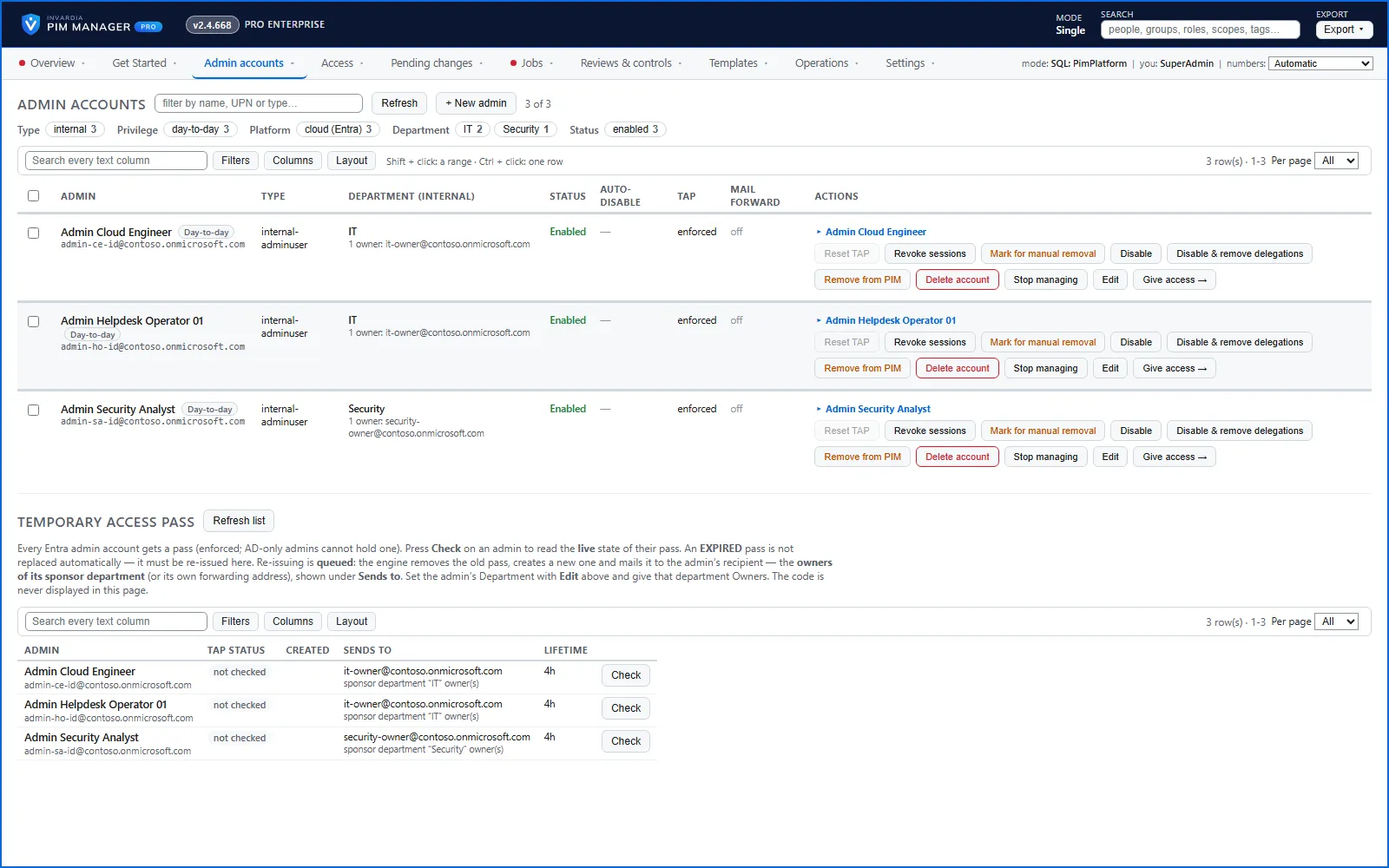
Created when due
Each administrator gets a separate admin account that follows your naming convention. You can stage an account for a future start date; the engine creates it when it is due, with name, job title, company and usage location set and kept in step. The Admin accounts page shows each account’s sponsor department, whose owners approve for the admin and receive mail about the account.
First sign-in with a Temporary Access Pass
A new cloud admin account gets one Temporary Access Pass, so the person can sign in and register their own MFA.
- The pass waits until the account exists, respects the start date, and follows your tenant’s own pass policy.
- It is mailed to the admin’s everyday office address (the forwarding address on the admin record) or to the owners of the sponsor department. If no valid address resolves, PIM Manager issues nothing and tells you what to set.
- The code appears only in the mail: never on screen, in a web response or in the audit trail.
- When a pass has expired, an administrator issues a new one with Reset TAP. The re-issue is queued and applied by the engine.
Auto-disable and offboarding
- Auto-disable date: when the date passes, the engine disables the account, and by default does nothing else: sign-in sessions are not revoked and memberships stay. The account stays in your directory, disabled, and an auto-disable date never deletes it.
- Automatic offboarding: when a SuperAdmin switches on Automatic offboarding (off by default), the engine also revokes the account’s sign-in sessions and removes its memberships and eligibilities in the groups PIM Manager defines.
- Offboard now and remove from PIM: one administrator can do each of these for a day-to-day admin. A second administrator approves first for a sensitive admin (level L0 or tier T0, the high-privilege naming pattern, Purpose HighPriv, or a break-glass account), or for every admin when maker/checker is on (Pro; Community has no maker/checker). That approval needs the Approvals switch, Approval-gated offboarding + revoke, off by default; see The Approvals switch. A break-glass account is not offboarded, even with an approval.
- Delete account: a SuperAdmin, or an Admin whose delegated scope and level cover the account, deletes it alone, without a second administrator.
- Disabled and revoked stay that way: the engine does not switch an account marked Disabled or Revoked back on.
- Absent is not disabled: a live admin account you have not defined is reported on every run, not disabled for being missing.
- Delete is a person’s decision: the only delete is Delete account on a PIM-managed admin account, confirmed by typing DELETE. The engine revokes sessions first, does not delete a break-glass account and deletes a limited number of accounts per run. Entra ID keeps a deleted user restorable for 30 days.
Read the step-by-step in howto-offboard.
Take accounts in and out of management
- Import reads an admin account that exists in the directory but not in PIM Manager, and offers its group memberships as rows to keep.
- Ignore leaves an account out of the lists, with who ignored it, when and why, and Stop ignoring brings it back.
- Stop managing takes an admin out of PIM Manager without changing anything in Entra ID.
Consultants and guests
- Invite a consultant: invite an external consultant as a guest and place them in a delegation group in one staged change. Only an operator with the guest-invite right, or a SuperAdmin, may do it.
- Owner switch: a department or service owner can switch one of their own consultants on or off from the Manager; the change is queued, applied by the engine and audited.
- Company review: each external company confirms on a schedule who still works for them. A consultant reported as gone is disabled at once, and removing their access waits for an internal approver. Available in Pro editions; not in Community.
Access requests for a set time
A consultant or occasional administrator does not need standing access:
- A disabled admin opens the access request portal, signs in with a one-time PIN sent to their contact address, and asks for the account to be enabled for a set period.
- From the same portal, an admin can request temporary membership of the permission groups you chose to offer.
- The rule for that admin or department approves the request at once or sends it to the department’s approver. When the period ends, the engine switches the access off by itself.
Every request, approval and expiry is in the audit trail. Available in Pro editions; not in Community.
On-premises admin accounts
With the hybrid worker, admins whose platform is Active Directory are created and kept up to date in on-premises AD. Read more in hybrid-ad.
Verified against PIM Manager 3.0.23.3 on Nov 3, 2026Download PDF