

PIM Manager documentation · Verified against PIM Manager 3.0.23.3 on Nov 3, 2026
Architecture
A tool that governs privileged access must not become a new outside dependency or a second way into your tenant. PIM Manager runs entirely in your own Azure subscription, as a few components that each do one job with their own identity.
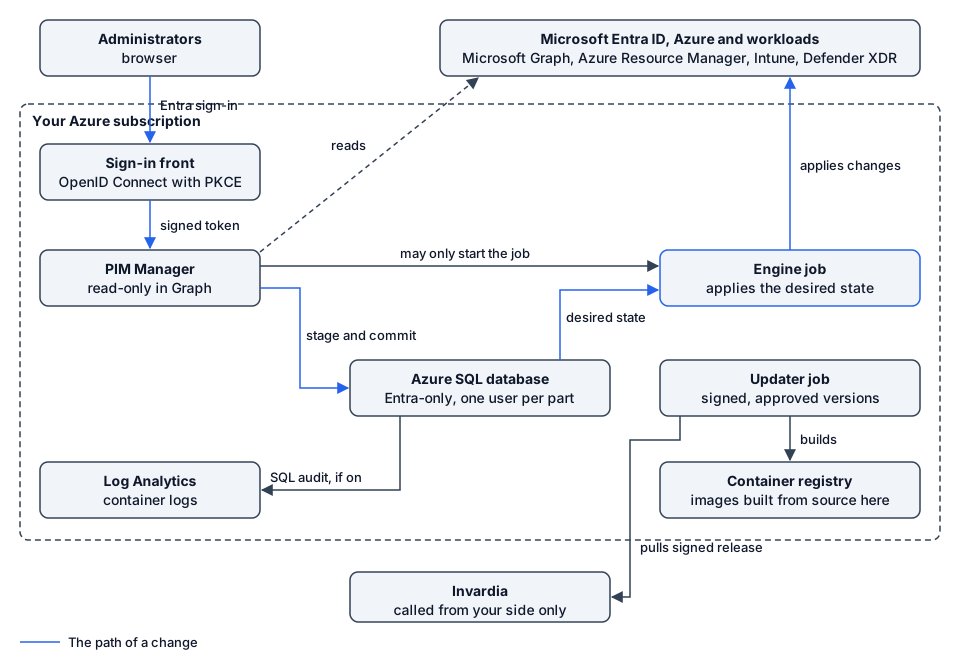
The updater job reads signed releases from Invardia and builds them in your registry.
Components
| Component | What it does |
|---|---|
| Sign-in front | The only part of PIM Manager the network reaches. It signs people in with Microsoft Entra ID and passes PIM Manager an access token for its own API. |
| PIM Manager | The web app where you model delegations, review and commit changes, and see drift, audit and reports. Behind the sign-in front it listens only inside its own container. Its Microsoft Graph rights are read-only. |
| Engine job | A scheduled Azure Container Apps job. It reads the desired state from the database, applies it to Entra ID, Azure and the workloads, and exits. It holds the write rights in your tenant. |
| Azure SQL database | The single store: desired state, settings, the change queue, commit backups and the audit trail. Entra ID sign-in only. |
| Container registry | Holds the PIM Manager image, built in your own registry from the released source. An image-pull identity with no other rights pulls it. |
| Log Analytics workspace | Receives the container logs, and the SQL audit if you switch it on. |
| Updater job | Takes each signed, approved release, builds it in your registry, updates the database, updates each component, verifies them and rolls back on failure. It is a full database administrator and Contributor on the PIM resource group; see the updater. If you update by hand, you deploy without it; see Updates. |
Further components, depending on how you install and the features you use:
| Component | When |
|---|---|
| Key Vault | Holds the key that wraps the sign-in front’s session keys, and the secrets or keys a feature needs: an SMTP relay password, the emergency passphrase, the managing tenant’s signing key. Purge protection is on. |
| Access request broker | The access request portal and API (Pro; not in Community). Its own container app with its own storage. |
| Hybrid worker | PIM for on-premises Active Directory (Pro; not in Community). A domain-joined Azure VM in its own network, peered to your domain controllers, with no public IP. |
| Managing and managed tenants | Pro MSP; not in Community. Each tenant runs its own PIM Manager, engine and database; the managing tenant publishes a signed definition set that each managed tenant pulls. |
| PIM Activator | A browser extension with its own app registration. It talks to Microsoft directly as the signed-in user, not to PIM Manager. |
The components that write to your tenant besides the engine, and who authorizes each path, are in the one list on Approval and audit.
How the components talk
| From | To | How |
|---|---|---|
| Your browser | Sign-in front | HTTPS, Microsoft Entra sign-in (OpenID Connect with PKCE) |
| Sign-in front | PIM Manager | Inside the container app only, with the user’s access token; identity headers sent by a caller are removed |
| PIM Manager | Azure SQL | TLS, as its own managed identity: reads, stages changes, writes settings and audit |
| PIM Manager | Microsoft Graph, Azure | HTTPS, as its own managed identity, read-only |
| PIM Manager | Engine job | Azure Resource Manager, only if you grant PIM Manager Container Apps Jobs Operator on that one job; otherwise the engine starts on its own schedule (Identities) |
| Engine job | Azure SQL | TLS, as its own managed identity: reads the desired state, writes results, journal and audit |
| Engine job | Microsoft Graph, Azure Resource Manager, Defender XDR, Intune, Power BI, Exchange Online | HTTPS REST, as its own managed identity |
| Updater job | Azure SQL, Azure Resource Manager | TLS and HTTPS, as its own managed identity: applies the schema and updates the components |
| Updater job | Invardia | HTTPS, outbound: reads the signed release for your installation (Pro: the licence feed; Community: the public release channel, with the archive on GitHub) |
| Your installation | Invardia | HTTPS, outbound: status reports and license requests, each of which you can switch off |
Invardia has no connection into your installation: the calls above all start inside your subscription. That changes only if you create the Invardia Support app for a troubleshooting case; it then signs in to your tenant with the rights you gave it, until you remove it. See Support access. In public mode, the database’s firewall admits Azure services, and each connection still needs an Entra token for a database user; see Database.
The image carries no PowerShell modules, no secrets and no customer data. Identity, database and configuration are supplied at run time.
The path of a change
- An administrator signs in through the sign-in front and stages a change in PIM Manager.
- The change waits under Pending changes until someone commits it. The commit backs up the stored model first and saves it in one transaction.
- PIM Manager starts the engine job if it holds the right to; otherwise the engine’s next scheduled start picks the change up, within about five minutes.
- The engine reads the desired state, checks the safety guards, and applies only what differs, as its own managed identity.
- Each step is written to the audit trail.
Some changes follow rules you set instead of a commit, such as auto-extend and the daily reconcile. Approval and audit holds the one list of them.
Network modes
- Public: PIM Manager is reachable over the internet, always behind Microsoft Entra sign-in. A new Manager is created closed and opened only after sign-in is configured and verified. You can add IP allow-rules.
- Private: PIM Manager is reachable only from your virtual network and peered clients. The database gets a private endpoint, its public access is off, and the container registry is Premium because Basic has no network controls.
Read the identities, rights and controls in security-design, the installation path in setup, and what drives size and cost in sizing.
Verified against PIM Manager 3.0.23.3 on Nov 3, 2026Download PDF