

PIM Manager documentation · Verified against PIM Manager 3.0.23.3 on Nov 3, 2026
How to offboard an admin
Disabling an admin account is not offboarding: open sessions live on, and the eligible assignments and group memberships stay, ready to come back the moment someone enables the account again. This guide shows the ways PIM Manager ends an admin’s access, who decides each one, and what each one leaves behind.
What happens by default
- On the auto-disable date, the account is disabled. Nothing else. Its sign-in sessions are not revoked, and its memberships and eligibilities stay.
- Sessions are revoked and memberships removed only with Automatic offboarding, a SuperAdmin setting that is off by default. With it on, memberships and eligibilities are removed only in groups PIM Manager defines.
- One administrator decides for a day-to-day admin. A second administrator approves first for a sensitive admin, or for every admin when maker/checker is on (Pro; Community has no maker/checker). That approval needs Approval-gated offboarding + revoke under Settings > Features & edition, which is off by default: while it is off, an offboarding that needs approval cannot be saved. See The Approvals switch.
- No date, reconcile or engine pass deletes an account. Only Delete account, chosen by a person, does.
Choose the action
| Action | What happens | Who decides |
|---|---|---|
| Auto-disable date in the future | On the date, the engine disables the account. It does not delete it. | The administrator who sets the date, through a normal commit. |
| Offboard at once (an auto-disable date that is not in the future) | The next engine run disables the account. | One administrator for a day-to-day admin; a second administrator approves first for a sensitive admin or when the second approver is on. |
| Remove from PIM | The account is disabled and kept, its sign-in sessions are revoked, and its delegations in PIM Manager are removed. | As for Offboard at once. |
| Delete account | The engine revokes the account’s sessions and deletes it. Entra ID keeps it restorable for 30 days. | A SuperAdmin, or an Admin whose delegated scope covers the account at their own level or a less privileged one, confirmed by typing DELETE with a justification. No second administrator is asked. A department sponsor who may not delete the account can propose the delete; it is then approved on Approvals by someone who may. |
A sensitive admin is an admin on level L0 or tier T0, an admin whose name follows the high-privilege naming pattern, an admin with Purpose HighPriv, or a break-glass account. A break-glass account is not offboarded or deleted, even with an approval. Maker/checker (Pro; Community has no maker/checker) sends every offboarding of every admin to a second administrator.
What Automatic offboarding adds
Automatic offboarding is a setting under Settings > Approvals & policy. It is off by default, and only a SuperAdmin can switch it, after a confirmation.
| Automatic offboarding off (default) | Automatic offboarding on | |
|---|---|---|
| The auto-disable date passes | The account is disabled. Its memberships and eligibilities stay until you remove them, for example with Remove from PIM. | The account is disabled, its sign-in sessions are revoked, its memberships and eligibilities in the groups PIM Manager defines are removed, and the owners of its department get the offboarding notice. |
| The account’s status is Revoked | The account is disabled and its sign-in sessions are revoked. Its memberships and eligibilities stay. | The same steps as above run. |
| The account is marked Retire | No offboarding steps run. | The same steps as above run. |
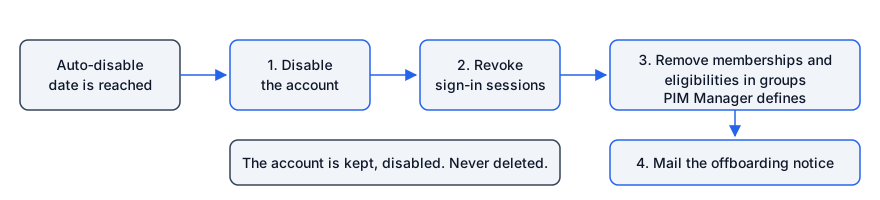
The engine saves its progress after each step. If a step fails, the next run resumes where it stopped. A removal that keeps failing is tried on three runs, then recorded for you to review by hand. The account-disable circuit breaker limits how many accounts one run disables (see Guards).
What offboarding does not do
Offboarding acts on the account and on the groups PIM Manager defines. It does not touch:
- Entra roles assigned to the person directly, outside a group;
- Azure role assignments, including PIM for Azure eligibilities, held by the person directly;
- memberships in groups PIM Manager does not manage, memberships through a nested group outside PIM Manager, and dynamic groups (the managed ones are reported, the rest are left as they are);
- the person’s account in on-premises Active Directory;
- the account’s authentication methods, including a Temporary Access Pass;
- applications or groups the person owns.
Revoking sign-in sessions stops new tokens. An access token that was already issued stays valid until it expires, which is up to about an hour for an application that does not use continuous access evaluation.
Check the person in Reviews & controls > Delegation overview and in the Microsoft Entra admin center for anything on this list.
What you need
- You have the Admin role in PIM Manager.
- For a sensitive admin, or when the second approver is on: a second administrator, and Approval-gated offboarding + revoke switched on under Settings > Features & edition. That switch is off by default, and while it is off the approval request queue on the Approvals page takes no action, so PIM Manager refuses to save an offboarding that needs approval and tells you how to go on.
Step 1: set the auto-disable date
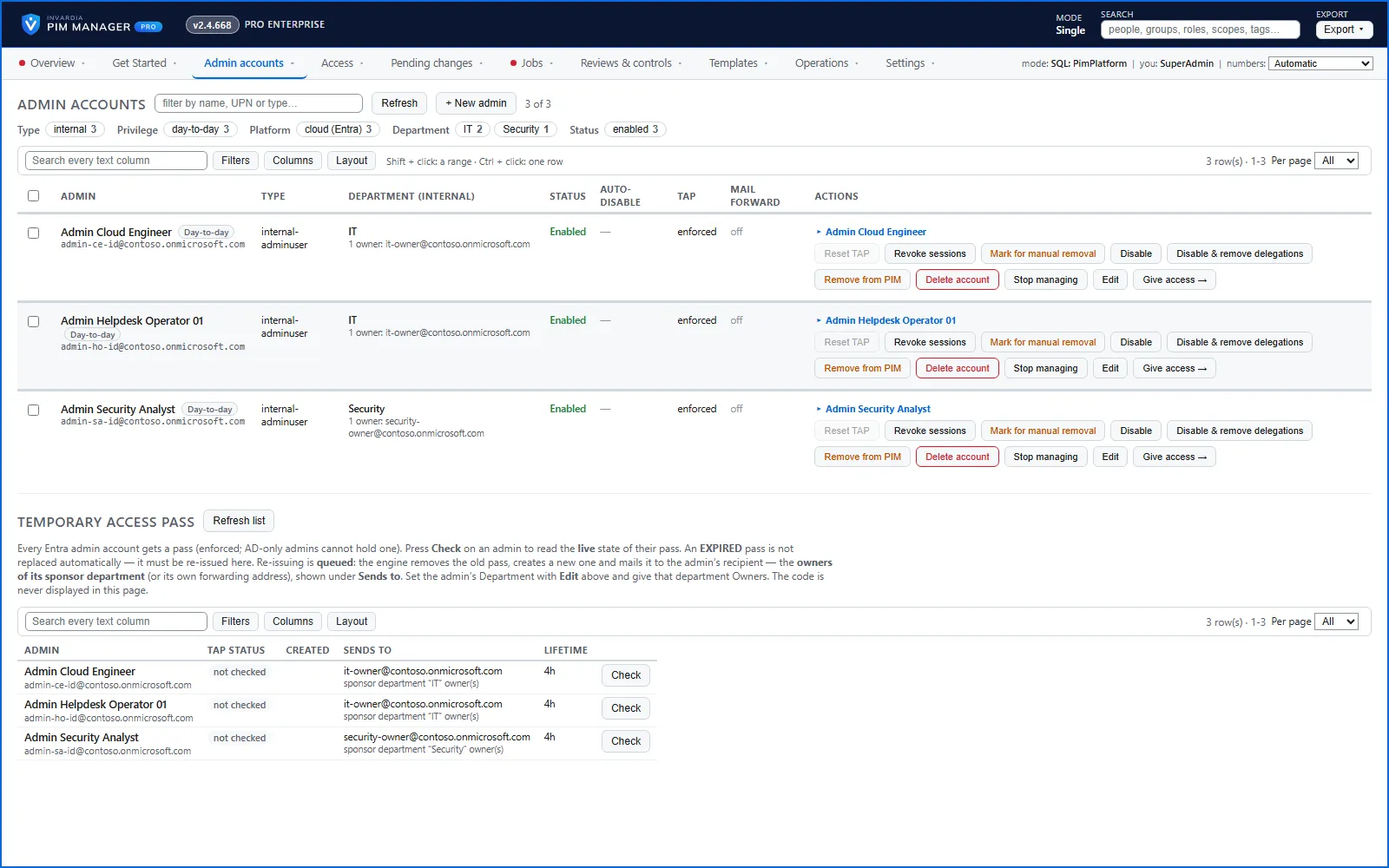
- Open Admin accounts.
- On the admin’s row, press Edit.
- In Auto-disable date, pick the date. The text under the field says what happens on that date.
- Save.
The Auto-disable column shows the date. It turns orange when the date is within 14 days, and red with in the past if the date has passed but the account is still enabled, which means something stopped the engine; check Jobs > Engine logs & errors.
Step 2: offboard at once
A date that is not in the future offboards the account at once. You start it yourself, and it is in the audit trail with your name and reason.
For a day-to-day admin:
- When you save, PIM Manager asks for a justification. Enter it.
- The change is committed at once, and the engine starts.
For a sensitive admin, or when the second approver is on:
- When you save with a justification, the change is not saved; an offboarding approval request is raised instead.
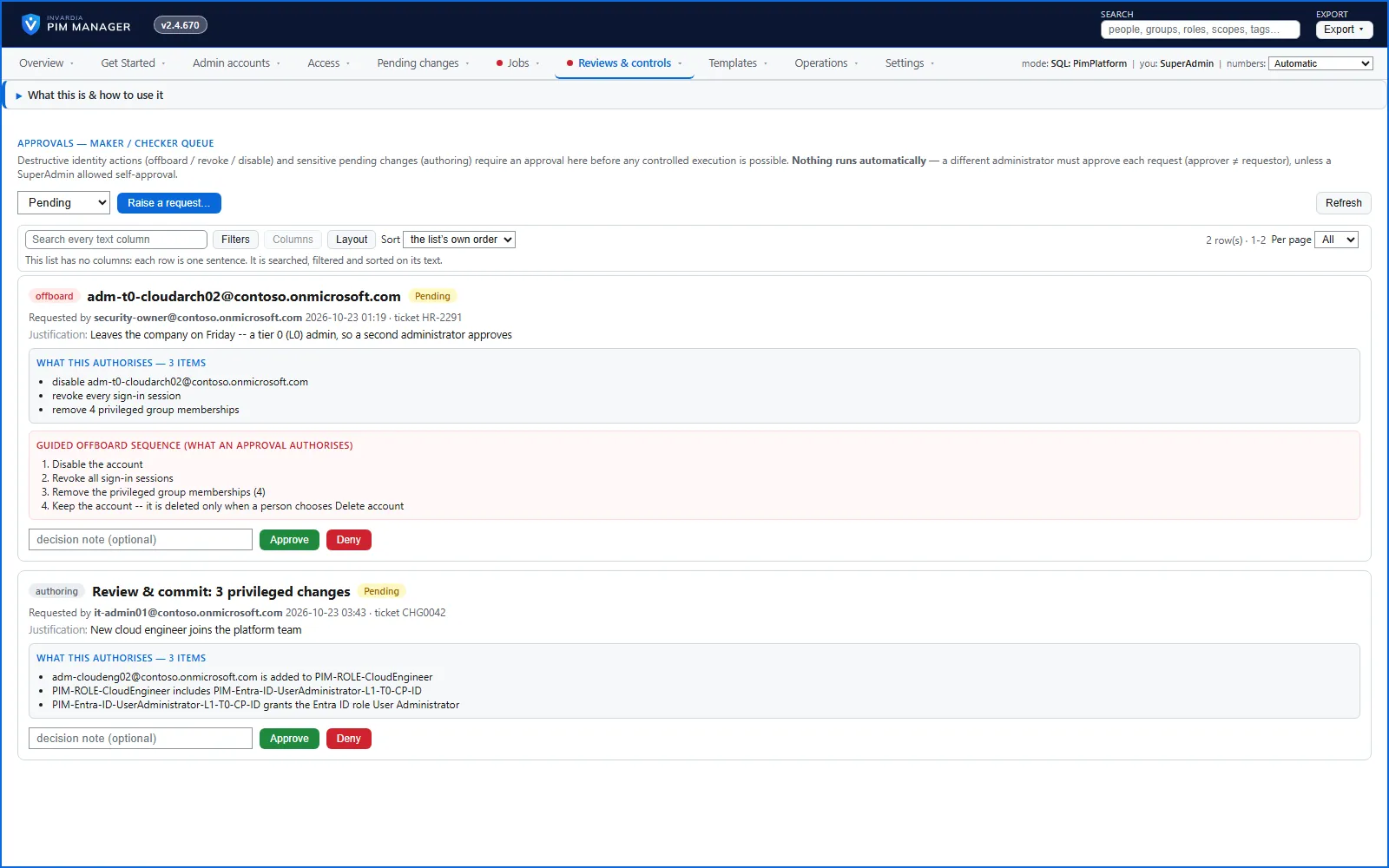
- A different administrator opens Reviews & controls > Approvals, reads the request and approves it.
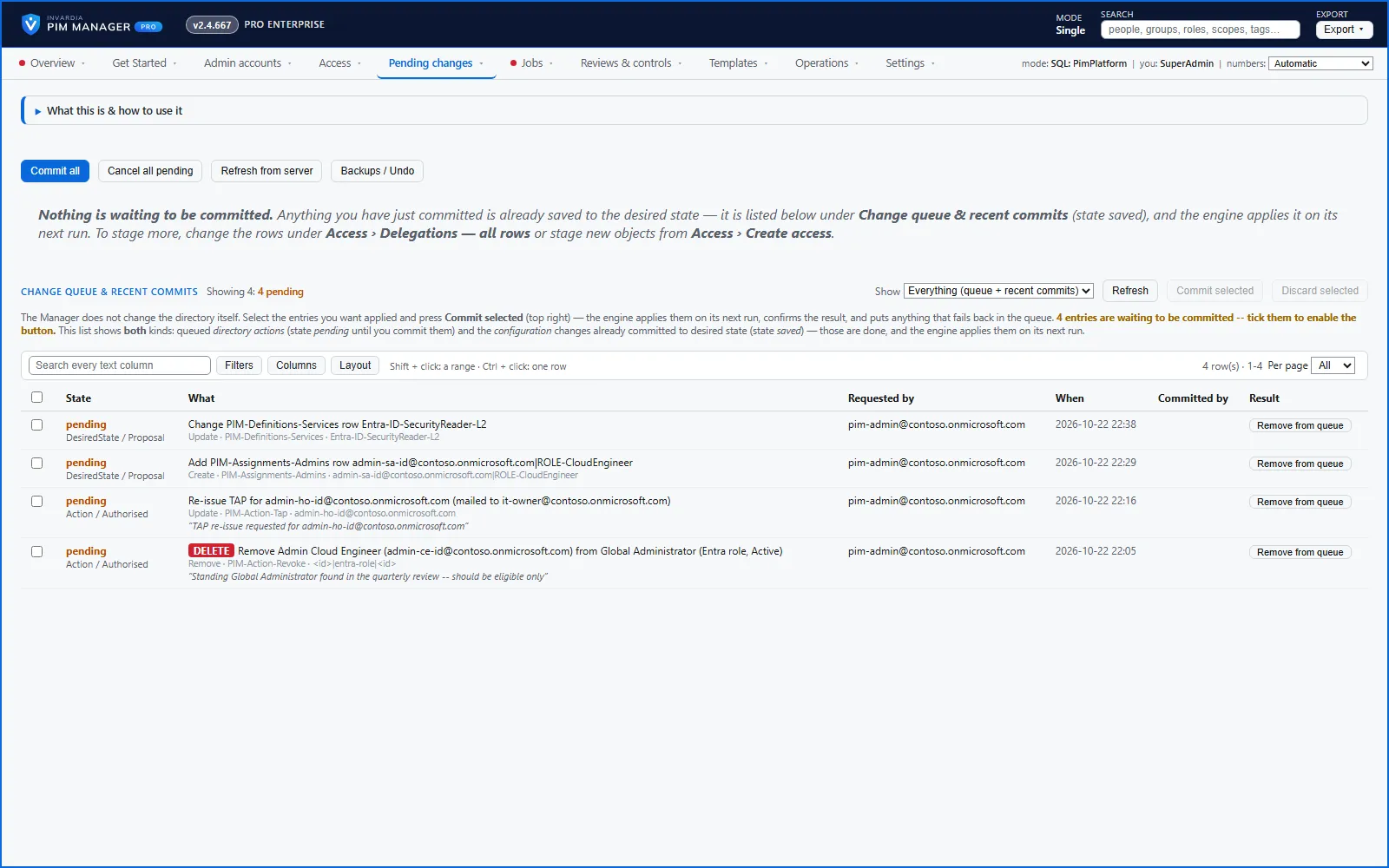
- The approver runs the approved offboarding. PIM Manager stages it as a pending change; the approval cannot be used twice.
- Open Pending changes and commit it.
Step 3: check the result
- After the date, or after the commit, the next engine run carries out the change. Jobs > Engine logs & errors shows each step per account.
- The admin’s row on Admin accounts shows the account as disabled.
- With Automatic offboarding on, the owners of the admin’s department receive the offboarding notice.
- Every step is in Operations > Audit trail.
Consultants
A consultant whose company says they left, or who does not answer a company review, is disabled, not offboarded. Removing their access is a separate, approved step. See How to onboard a consultant.
Undo
To change your mind ahead of the date, clear the auto-disable date and save; nothing happens. After the date, removed memberships come back only when you give the access again through normal delegation rows and commit them. A deleted account can be restored in Microsoft Entra ID for 30 days; its access then comes back through the same delegation rows.
Verified against PIM Manager 3.0.23.3 on Nov 3, 2026Download PDF