

PIM Manager documentation · Verified against PIM Manager 3.0.23.3 on Nov 3, 2026
Why PIM Manager
Standing privileged access is the access an attacker wants most, and Microsoft’s native tools make it hard to remove at scale. PIM Manager turns Microsoft Entra PIM into a governed, group-based model that you run in your own Azure subscription.
In short
- One model, applied for you. You define admins, role groups, permission groups and policies once; the engine makes the tenant match, and shows where it differs.
- Just-in-time through nested groups. People activate a role group for their job instead of holding roles, under the PIM policies you choose.
- Changes a person reviews. What you change waits in Pending changes until someone commits it, and guards hold large removals and every policy change set for a SuperAdmin.
Standing access is the risk
An administrator who holds a role all the time is a permanent target. If that account is phished, its token is stolen, or its session is hijacked, the attacker gets the role at once, with no prompt, no approval and no time limit.
The roles that matter most are the ones that control everything else:
- Microsoft Entra ID roles such as Global Administrator, Privileged Role Administrator and Conditional Access Administrator. They change who can sign in and what they can do.
- Azure roles such as Owner and User Access Administrator at a management group or subscription. They change who controls your workloads and your data.
- Workload roles in Intune, Defender XDR, Power BI and other services. They reach devices, alerts and business data.
Microsoft Entra Privileged Identity Management (PIM) answers this with just-in-time access: a person is eligible for a role and activates it for a few hours when the work needs it, with multifactor authentication, a reason and, where you require it, an approval. Outside that window the person holds nothing.
Native PIM gets hard at scale
PIM works well for a handful of administrators. It gets hard when you have dozens of administrators, hundreds of roles and scopes, and people who join, move and leave every month.
| Problem | What it looks like |
|---|---|
| Assignments per person | Onboarding one administrator means one assignment per role, per scope, per administrative unit. One missed click is a gap; one extra click is over-privilege. |
| Hundreds of roles | Entra ID alone has more than a hundred built-in roles. Add Azure scopes, Intune, Defender and Power BI, and the number of possible assignments grows into the thousands. |
| No desired state | The portal shows what is assigned, not what should be. The intended model lives in a spreadsheet or in someone’s head. |
| No drift view | When someone adds a role by hand, nothing tells you. You find out in an audit, or after an incident. |
| Hard audit questions | “Who can reach Global Administrator?” means walking every role, every group and every scope by hand. |
| Offboarding gaps | Disabling an account does not remove its eligible assignments. Every assignment the person held must be found and removed, one by one. |
The result is predictable: administrators ask for standing access because activating role after role is slow, and the estate drifts away from what anyone decided.
From PIM v1 to PIM v2
PIM v1 and PIM v2 are names for two ways of using Microsoft Entra PIM. They are not Microsoft products or versions.
PIM v1 is the pattern most tenants start with: Entra roles and Azure roles are made eligible for each person directly. It is just-in-time, but every person carries their own copy of every assignment. A change to a job function means a change to every person who has it.
PIM v2 builds on PIM for Groups and nested groups. A person is made eligible for a role group that describes their job function. The role group contains permission groups, and each permission group holds one capability: one Entra role, one Azure role at the scopes it needs, or one workload role. The roles are assigned to the groups, not to people.
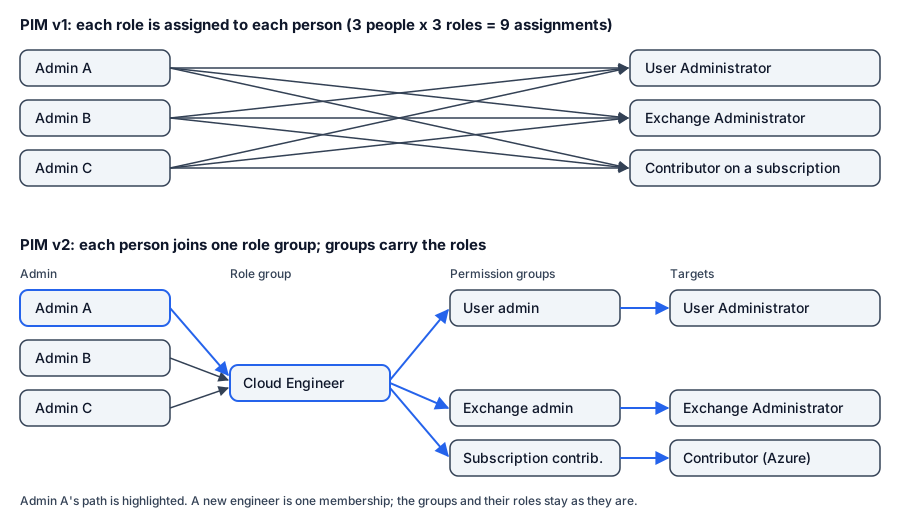
The person activates their role group and the permission groups the task needs, and least privilege holds underneath. The numbers change too: for 10 engineers who each need 20 Entra roles and 5 Azure roles at 3 management groups, direct assignments take 350, nested groups take 70 (see Nested groups). In short:
- Onboarding an administrator is one membership instead of one assignment per role.
- Adding a permission to a job function is one change to the role group instead of one change per person.
- Taking a job’s access away from a person is one membership removal, and the whole access path of that job goes with it.
- “Who can do X?” is answered by following the chain from the role back to the people.
PIM v2 has its own hard parts. A group that holds an Entra role must be role-assignable, a flag you set only when the group is created, and a tenant can have at most 500 of them. A nested membership into a role-assignable group can only be Eligible. Doing this by hand across hundreds of groups is where most PIM v2 designs fail. See How to design.
What PIM Manager brings
PIM Manager makes PIM v2 the easy path. It runs in your own Azure subscription. Its main parts are a web portal (the Manager), an engine that applies changes, and one Azure SQL database that holds your model. See Architecture.
- One desired state. Your administrators, role groups, permission groups and their targets live in one governed database. You change the model; the engine makes the tenant match it.
- Nested groups, built for you. The wizards create role groups and permission groups with your naming convention, set the role-assignable flag by one rule, and write every nesting into a role-assignable group as Eligible.
- Every workload from one model. Entra ID roles (tenant-wide or scoped to an administrative unit), Azure roles at any scope, Intune and Defender XDR roles, and further workload roles in Pro editions. See Workload roles.
- Drift you can see. A scheduled check compares the live tenant with your model and lists what is missing, changed or extra, area by area.
- Changes you review first. Every change you make to the model waits in Pending changes until you commit it, and the engine applies what you committed. A policy change also waits for a SuperAdmin of your tenant to approve that exact change set. The few things that change on a schedule, such as an auto-disable date or an approved access request, are listed, with who authorizes each, in What writes to your tenant.
- It changes only what you define. The engine leaves groups, roles and admins that are not in your model alone; in PIM Manager only a SuperAdmin can delete or revoke them, by hand. Break-glass accounts are not disabled, revoked or offboarded, and an empty model changes nothing.
- Fast activation. The PIM Activator browser extension activates a person’s eligible access from the browser: open it, tick the rows, press Activate. Multifactor authentication, a justification and approval still apply wherever the PIM policy requires them.
What you get
- Where it runs. PIM Manager is installed into your own Azure subscription and runs as your own managed identities. Your team runs it; see Setup and Sizing.
- What it costs in Azure. The Azure resources are on your own Azure bill. Invardia’s cost calculator shows the license and the Azure resources for your size in one view. Price your own region with the Azure pricing calculator; Sizing lists what drives the cost.
- How it is installed. One guided install script creates everything in your subscription. The Get Started steps that follow are in Setup.
- From the first run. The first scheduled drift check shows how your live tenant compares with your model, and Delegation overview lists the active privileged assignments people hold, before you change anything.
- Community edition. Free for one tenant: the Manager and the engine, Entra ID roles, PIM for Groups, administrative units, Azure roles, Intune and Defender XDR roles, the access map, staged changes, the admin lifecycle with Temporary Access Passes and offboarding, policy templates, drift, reports, the audit trail, alerts and break-glass protection. Support is through GitHub issues.
- Pro editions. Add governance and integrations, such as access reviews, Discovery and gaps, the second approver, revoke from the portal, access requests, the REST API, the MCP server, hybrid Active Directory and more workload connectors, plus support from Invardia. Pro MSP adds managing and managed tenants. See Platform and editions.
Prices and trials are on invardia.com/pricing.
Microsoft licenses you need
PIM Manager drives Microsoft Entra Privileged Identity Management, so your tenant needs the Microsoft licenses for PIM:
- Microsoft Entra ID P2 or Microsoft Entra ID Governance for the people who use PIM. Microsoft’s licensing guidance counts, among others, users with eligible or time-bound assignments to Entra or Azure roles, eligible or time-bound members and owners of groups in PIM for Groups, and users who approve activation requests.
- The workload’s own license for each workload you delegate into, such as Intune or Defender XDR.
- An Exchange Online plan for the shared mailbox PIM Manager sends mail from.
PIM Manager’s prerequisite check looks for the Microsoft Entra ID P2 service plan in your tenant. If your tenant is licensed through Microsoft Entra ID Governance only, you confirm that prerequisite in PIM Manager. The access reviews in PIM Manager Pro run in PIM Manager itself and do not use Microsoft Entra access reviews. Check Microsoft’s current licensing guidance for the exact counting rules.
Read on:
- Features: everything PIM Manager does.
- How to design: the PIM v2 model, step by step.
- Security design: the identities, rights and controls PIM Manager uses.
Verified against PIM Manager 3.0.23.3 on Nov 3, 2026Download PDF