

PIM Manager documentation · Verified against PIM Manager 3.0.23.3 on Nov 3, 2026
How to enable access reviews
Auditors ask who confirmed that each admin still needs their access, and when. This guide switches on PIM Manager’s department reviews, so each department’s owners re-confirm their admins on a fixed cycle and the answers are carried out and recorded.
Available in Pro editions; not in Community. How reviews work is described in Access reviews.
What you need
- You have the SuperAdmin role in PIM Manager.
- A Pro license that covers this tenant is installed. Settings > Features & edition shows the license state and, for every Pro feature, why it is or is not available.
- For a reviewer’s Remove of a whole account to be approved, the Approvals switch is on (step 2). Without it, such a request waits and nobody can approve it.
Step 1: show the Access reviews page
- Open Settings > Settings and choose Features & edition.
- In the Features card, switch on Access Review.
- Reload the page. Reviews & controls > Access reviews appears in the menu.
Showing the page does not start a review.
Step 2: switch on Approvals
A reviewer’s Remove of a whole account, and an unanswered person under the rule request removal, become offboarding requests in the approval request queue. That queue acts only when its switch is on. It is off by default.
- On Settings > Features & edition, in the Features & edition card, switch on Approval-gated offboarding + revoke.
- Press Save Features & edition and reload the page.
Leave it off if reviewers only remove ticked access: those removals go to Pending changes and need no switch. Which other requests the switch covers is listed in The Approvals switch.
Step 3: give each department owners
- Open Reviews & controls > Departments & owners.
- Check that every department that sponsors admins has at least one owner. The owners are the default reviewers of their department.
A department without a reviewer is not started, and the alert recipients are told about it every day.
Step 4: link each admin to a department
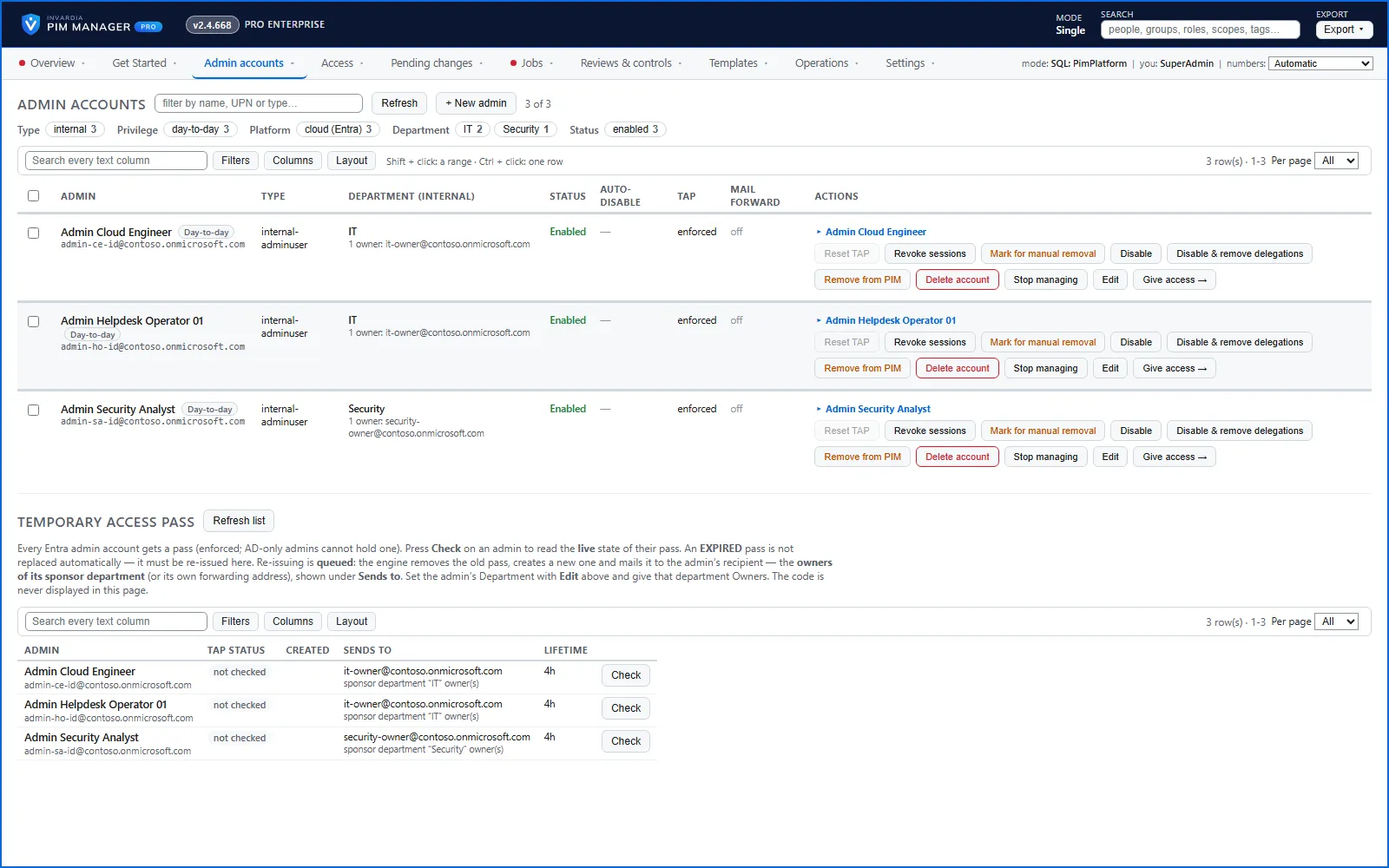
- Open Admin accounts.
- Check the Department (internal) column. Every admin you want reviewed needs a department.
- For an admin without one, press Edit, choose Department (internal) and save.
Step 5: set the review rules
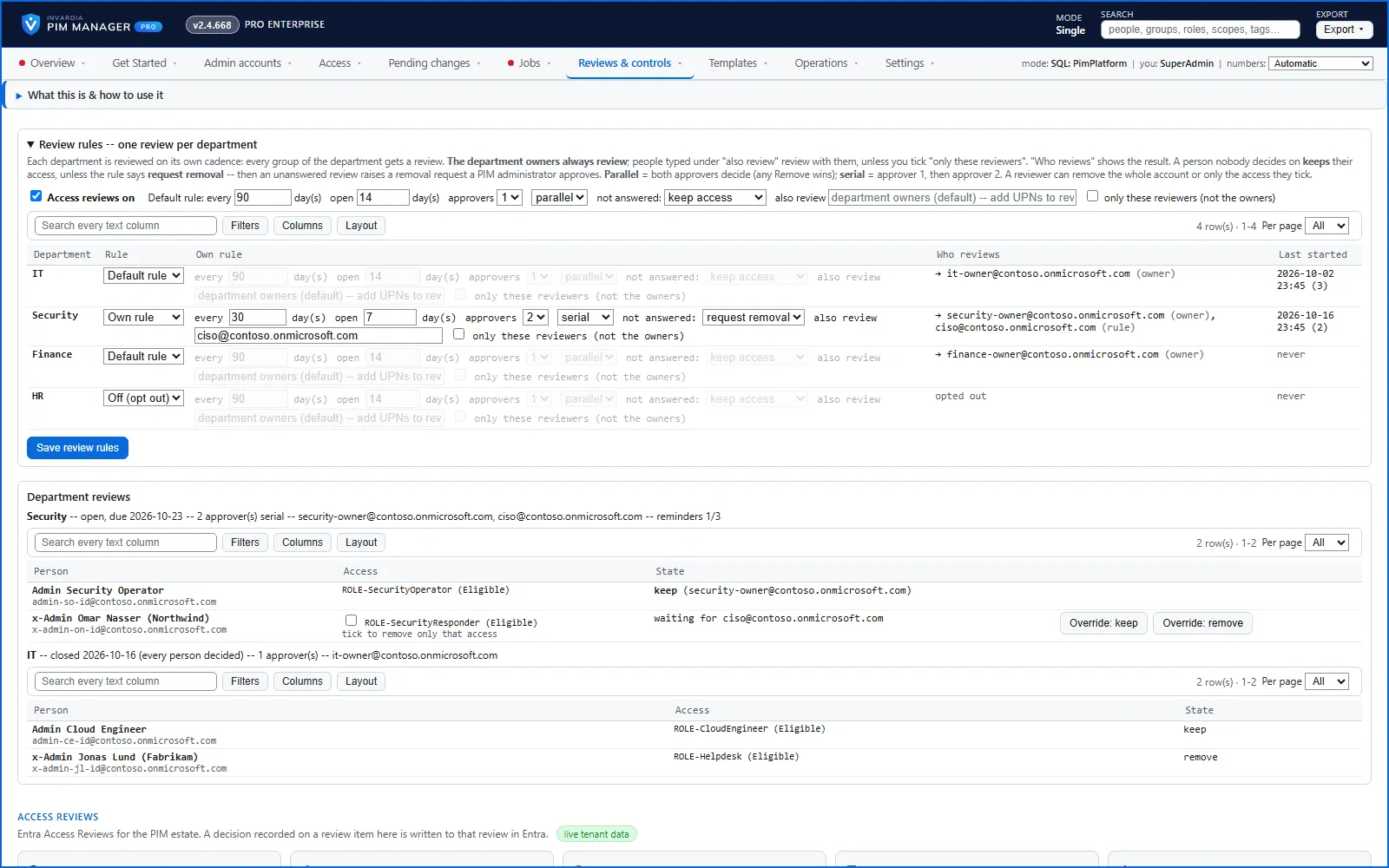
- Open Reviews & controls > Access reviews. The Review rules – one review per department box is at the top.
- Tick Access reviews on.
- Set the default rule:
- every n day(s): how often each department is reviewed (90 by default).
- open n day(s): how long reviewers have to answer (14 by default).
- approvers: 1, or 2 with parallel (both decide, any Remove wins) or serial (approver 1, then approver 2).
- not answered: keep access (the default) or request removal.
- also review: extra reviewers by sign-in name. Tick only these reviewers to let them review instead of the department owners.
- In the department table, choose per department Default rule, Own rule or Off (opt out).
- Read the Who reviews column. It shows, per department, who really reviews. A red no reviewer means step 3 is not done for that department.
- Press Save review rules. The page answers Saved – the next access-review-cycle run starts what is due.
Step 6: check that the job runs
- Open Jobs > Job schedule.
- Find access-review-cycle and check that it is on. It starts the reviews that are due, and sends the reminders and the escalations.
Step 7: follow the first round
- When a department’s review starts, its reviewers get a mail and see it on Reviews & controls > My people under Access reviews waiting for you.
- On Reviews & controls > Access reviews, Department reviews lists every review with its state, due date, reviewers and reminders sent. The Last started column in the rules table shows when each department last began.
- A Remove of a whole account appears on Reviews & controls > Approvals for a PIM administrator. A Remove of ticked access appears under Pending changes for an administrator to commit.
To try it on one department first, give that department an Own rule and set the other departments to Off (opt out).
Check the result
- On Reviews & controls > Access reviews, the Last started column shows a date for each department whose review began.
- Department reviews lists the open review with its due date and its reviewers.
- A reviewer opens Reviews & controls > My people and sees the review under Access reviews waiting for you.
- If nothing started, open Jobs and read the run log of the access-review-cycle job. It says when reviews are not switched on or not licensed, and names each department without an owner.
Undo
- One department: set it to Off (opt out) and press Save review rules. No new review starts for it.
- All departments: untick Access reviews on and press Save review rules. The next access-review-cycle run starts no new review.
- The page: switch Access Review off under Settings > Features & edition.
Decisions already recorded stay in the audit trail. A removal a reviewer asked for still waits on Approvals or Pending changes until an administrator acts on it or discards it.
Verified against PIM Manager 3.0.23.3 on Nov 3, 2026Download PDF