

PIM Manager documentation · Verified against PIM Manager 3.0.23.3 on Nov 3, 2026
How to use Discovery and gaps
New subscriptions, Power BI workspaces and roles appear in your tenant all the time. When nobody delegates them, admins get access to them by hand, outside PIM. Discovery & gaps lists what is in your tenant and not delegated yet, each with a ready proposal, and you decide per item: create it, or ignore it.
Available in Pro editions; not in Community.
What you need
- The Admin role in PIM Manager to stage a proposal, ignore a gap or start a new read. A Reader can view the page.
- The engine’s identity can read each workload. A workload it cannot read is listed as Not read, with what is missing and the steps to fix it, and is not counted as covered.
What the page lists
PIM Manager compares what is in your tenant with what it delegates, for Entra ID roles, Intune roles, Defender XDR roles, Power BI workspaces, Azure subscriptions and management groups, administrative units and PIM for Groups. It reads them itself on a schedule (Jobs > Job schedule), and Check now starts a new read.
| Status | Meaning | What you can do |
|---|---|---|
| Gap | Nothing delegates it yet | Stage its proposal, or ignore it |
| Covered | A PIM group delegates it; Delegated by names the group | Nothing |
| Orphan group | A group PIM Manager defines that holds nothing | Review it |
| Unmanaged binding | A role bound to a group PIM Manager does not define | Review it |
| Wrong permissions | A role’s live permissions differ from its group’s | Review it |
| Unmanaged privileged group | A group in PIM for Groups that PIM Manager does not manage | Review it |
| Not read | PIM Manager could not read this workload | Fix the cause the page names |
| Ignored | A gap you chose to ignore | Bring it back |
Review-only statuses are never staged and never taken over: PIM Manager does not adopt or change a group it does not manage.
What a proposal creates
Each proposal is one unit: a correctly named group and the role it holds, named by your naming convention.
| Gap | Proposal |
|---|---|
| An Entra ID role | A role-assignable group, tier T0, holding the role as Eligible for 90 days; level L0 for Global Administrator, Privileged Role Administrator and Privileged Authentication Administrator, L1 for the others |
| An Intune role | A group holding the role, tier T1; managers and administrators L3, operators L4, readers L5 |
| A Defender XDR role | A group holding the role, tier T1; operators L3, read-only roles L4 |
| A Power BI workspace | Two groups: Contributor (L4) and Viewer (L5) of that workspace |
| An Azure subscription or management group | Two groups: Reader at that scope (active, L4) and Contributor (eligible, L3). These levels are fixed, whatever the scope’s layer in your management-group tree |
When the group a proposal needs is already defined, the proposal adds the role to it and does not define the group a second time.
Steps
-
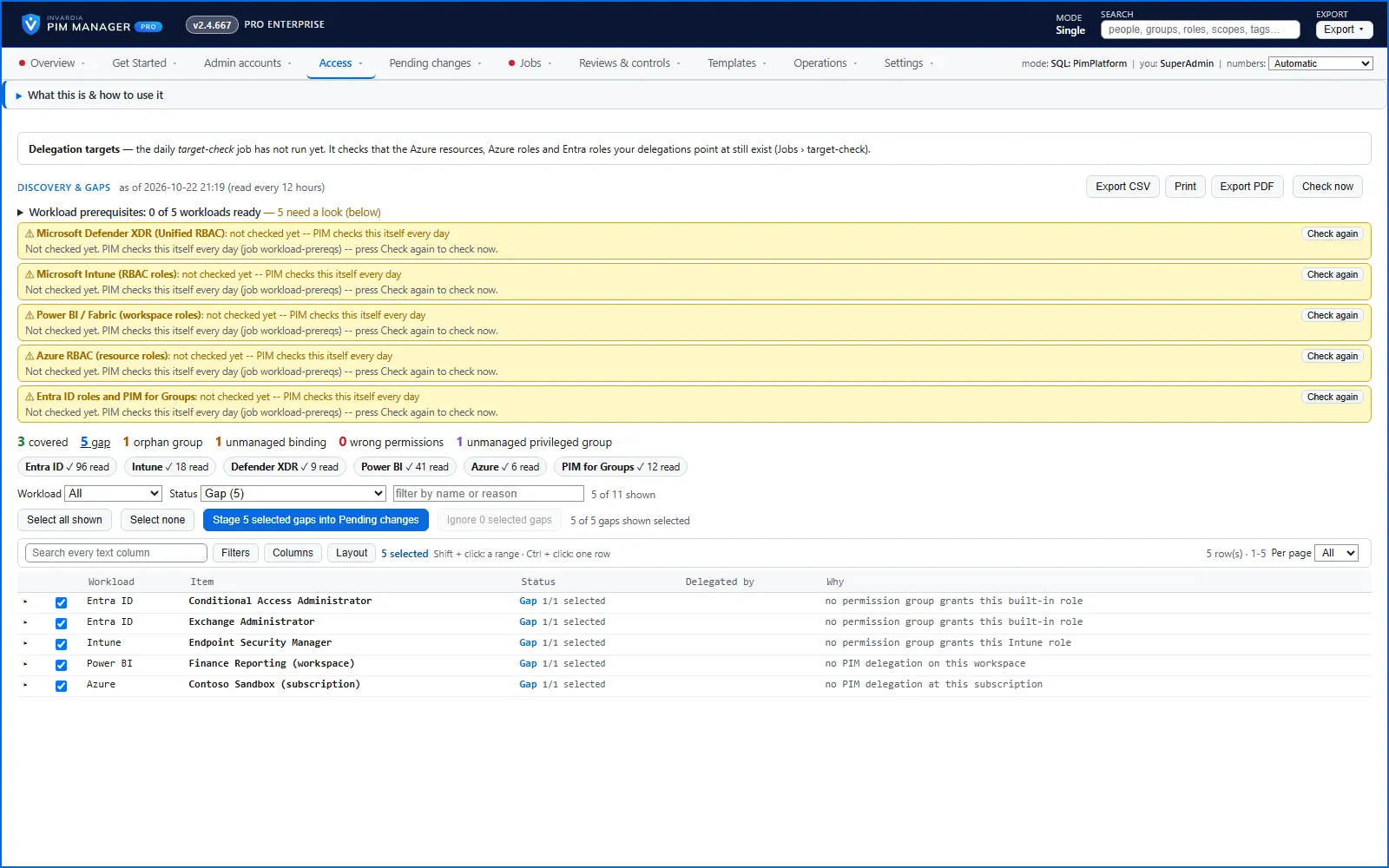
Open Access > Discovery & gaps. The page opens on Status = Gap.
-
Read the boxes at the top first:
- Delegation targets: delegations whose Azure resource, Azure role or Entra role no longer exists. PIM Manager changes nothing there; you decide.
- A block per workload that was not read, with the steps to fix it.
- The workload prerequisites, green or not.
-
Narrow the list with Workload, Status and the text filter. Click a status count to filter on it.
-
Click a row to expand it. The proposal table lists each unit and the rows it stages.
-
To create: the proposals of every gap start ticked. Untick what you do not want, or use Select all shown and Select none. Then press Stage N selected gaps into Pending changes. A line next to the buttons says how many groups and roles that creates, and how many gaps have no ready proposal.
-
To ignore: press Ignore on a row, or tick several and press Ignore N selected gaps and confirm. Ignoring changes nothing in your tenant; the gap leaves the list and the gap count.
-
Open Pending changes > Review & commit queue and press Commit all. Nothing changes in your tenant before you commit.
-
Give the new groups to people: on Access > Access map, select a new group and press Give to a group, then commit.
A missing prerequisite does not block staging. Where a workload’s prerequisites are not ready, an amber note says so: the group is created, and only its role assignment waits until the prerequisites are green.
New resources found later
On Settings > Automation, the card Discovery: new resources decides what PIM Manager does when the discovery sweep finds a new Azure subscription, management group, resource group or Power BI workspace:
- Report only (the default): it is recorded in the audit trail; nothing is staged or created.
- Stage for review: a definition for the new resource waits on Pending changes for an administrator to commit.
- Create automatically: the card says the group is created without a person committing it. In practice the create is queued under Pending changes and applied only when an administrator commits it, as with Stage for review.
Only a SuperAdmin changes this. Discovery never creates a role assignment: a new resource gets an access group, and the group gets its role only through a delegation you commit. Groups created this way stay when you switch back.
Check the result
- After the engine has run, press Check now to start a new read; the result appears in a few minutes.
- Set Status to All: the item shows Covered, and Delegated by names the new group.
- Gaps that are still gaps after the commit: open Jobs > Engine logs & errors for the reason.
Undo
- An ignored gap: set Status to Ignored. The list shows who ignored it and when; press Bring back, or Bring back all shown.
- A staged proposal before you commit: Cancel all pending on Pending changes.
- A committed proposal: undo the commit; see How to undo a commit.
Verified against PIM Manager 3.0.23.3 on Nov 3, 2026Download PDF
← How to delegate Defender XDR to a helpdeskHow to handle drift →