

PIM Manager documentation · Verified against PIM Manager 3.0.23.3 on Nov 3, 2026
Sign-in
A web console for privileged access is a target: a stolen session or a forged identity header would hand an attacker the controls. PIM Manager is reached only through a sign-in front, every request carries a verified token, and what a person may do is decided again on the server.
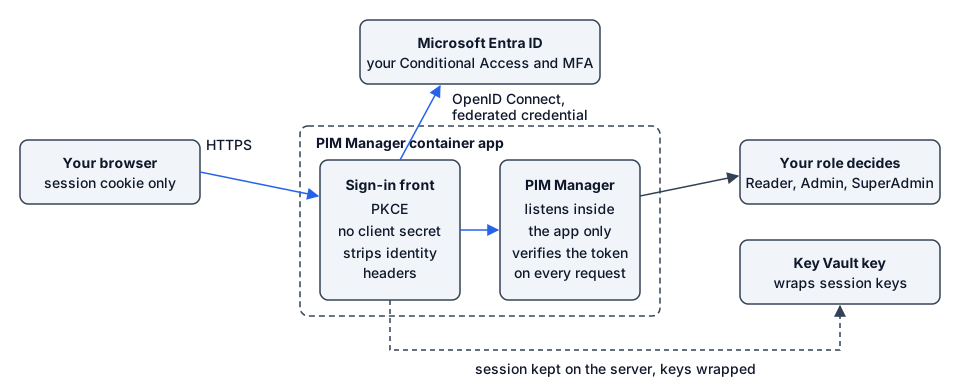
The sign-in front
- The only entry point. The network reaches only the sign-in front. PIM Manager listens inside the container app and is not reachable on its own.
- OpenID Connect with PKCE. The front signs people in with Microsoft Entra ID using the authorization code flow with PKCE. Your Conditional Access and MFA rules apply at each sign-in.
- No client secret is needed for sign-in. The front proves itself to Entra ID with a federated credential of the Manager’s managed identity. It refuses to start if it is given a client secret or a certificate.
- The session stays on the server. The front keeps the session server-side and passes PIM Manager an access token for PIM Manager’s own API. The session keys are wrapped by a Key Vault key on which the Manager’s identity may only wrap and unwrap, so a restart keeps people signed in.
- A fixed session. A session lasts 8 hours by default and is not extended by activity; then the person signs in again.
- Entra ID stays in charge. Inside the session the front renews the person’s token from Microsoft Entra ID about once an hour. Disabling the account or revoking its sessions in Entra ID ends access to PIM Manager at the next renewal.
- No forged identities. The front removes any identity header a caller sends. PIM Manager verifies the user’s token on every request and refuses a request without one.
- Created closed. A new PIM Manager is created with its ingress closed and opened only after sign-in is configured and verified. The installation stops rather than finish with an unprotected console.
The install first sets up the built-in Azure Container Apps sign-in, which uses a client secret of the sign-in app, and switches it off once the sign-in front answers; if the front does not answer, the install falls back to the built-in sign-in. That client secret stays on the sign-in app registration and as a secret of the container app until you remove it. The sign-in front does not use it.
Remove the old sign-in secret
The install creates that secret with a lifetime of 2 years. It is kept so that sign-in can fall back to the built-in sign-in if the front fails. Once people sign in through the front, you can remove it. There is no two-line script for this; you do it in the portals:
- Check that the front is in use. In the Azure portal, open PIM Manager’s container app in the PIM resource group, and under Settings > Authentication check that the built-in authentication is off. Sign in to PIM Manager once to check that it works. If authentication is still on, the install fell back to the built-in sign-in: keep the secret and contact support.
- Delete it from the app registration. In the Microsoft Entra admin center, open App registrations, then PIM Manager’s sign-in app registration (the one people sign in to), then Certificates & secrets > Client secrets. Delete the secrets whose description starts with
easyauth. Leave any other secret alone: it may belong to something else. - Delete the container app’s copy. In the container app, under Settings > Secrets, delete
easyauth-client-secret. After step 2 it holds a value that no longer works. If the portal refuses because the authentication settings still refer to it, leave it there.
After step 2 there is no fallback to the built-in sign-in. The deletions are in your Entra audit log and the Azure activity log.
Who may sign in
The Manager’s sign-in app registration has assignment required. You name the people and groups who may sign in; they are assigned first, the assignments are checked, and only then is assignment switched on, so nobody is locked out. If you choose to let every member account sign in instead, a members-only group is used, so guest accounts cannot.
Recommendation: name people and groups. With every member account allowed, every member of your directory who signs in can read your privileged-access map as a Reader.
What each person may do
Signing in only proves who someone is. The role decides what they may do, and the server checks it on every page and every commit:
| Role | May |
|---|---|
| Reader | View |
| Admin | Stage and commit changes |
| SuperAdmin | Also edit templates and policies, approve guard holds and policy changes, manage Manager access and use the emergency override |
| Delegated | Stage and commit only the rows within their tier, level, service and Azure scope ceilings. Available in Pro editions; not in Community |
- Someone who signs in but is named nowhere becomes a Reader.
- If a role cannot be determined, the person gets read-only access.
- The access model refuses to be left without a SuperAdmin.
- Anything outside a delegated user’s scope is refused and audited.
Browser hardening
Every page is sent with a content security policy that allows only the app’s own sources, HTTP Strict Transport Security, no framing by other sites, no content-type sniffing and a same-origin referrer policy.
Network
- Public mode: reachable over the internet, always behind sign-in. You can add IP allow-rules.
- Private mode: reachable only from your virtual network and peered clients.
AI assistants
The MCP endpoint (Pro; not in Community) accepts only a person signed in with their own Entra account, through a delegated scope on the same sign-in app. The person’s own Manager role decides what the assistant may do, and every call is audited. Read more in integrate-mcp.
Verified against PIM Manager 3.0.23.3 on Nov 3, 2026Download PDF