

PIM Manager documentation · Verified against PIM Manager 3.0.23.3 on Nov 3, 2026
Approval and audit
Two risks matter most once PIM Manager is running: one person making a drastic change alone, and nobody being able to prove afterwards what happened. PIM Manager puts a commit, guards and, where you want it, a second person in front of your changes, and records them.
Changes are committed by a person
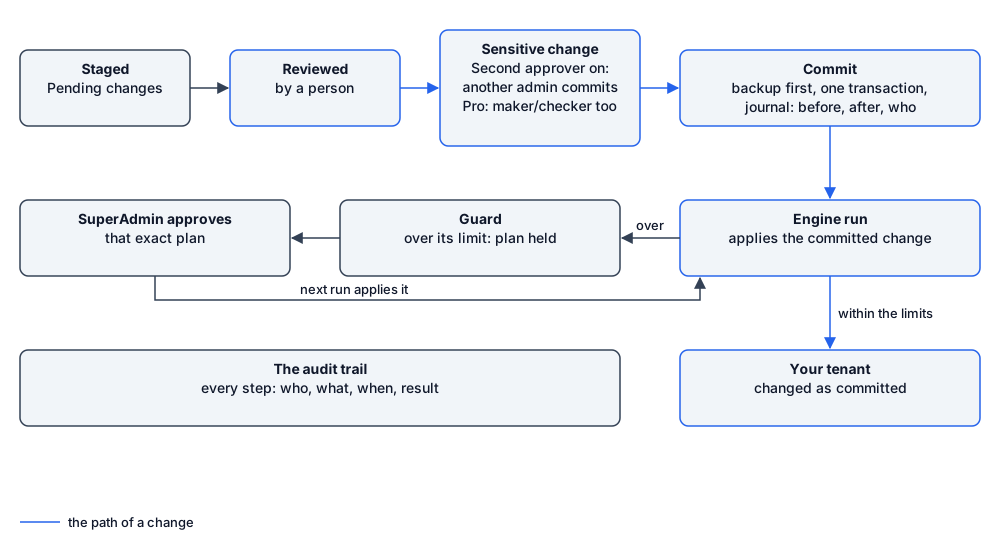
- Changes you stage in PIM Manager reach the tenant only when someone commits them. Nothing you stage is committed automatically. The automatic paths that follow rules you set are listed in What writes to your tenant.
- A commit backs up the stored model first and saves it in one database transaction; if saving fails, the stored model is restored. Changes the engine already made in your tenant are undone through Backups or by committing the inverse, not by that transaction.
- The commit journal records the before and after, who committed and who approved, in the same transaction as the change.
- A commit can be undone by committing its inverse through the same checks: a SuperAdmin any commit, an Admin their own.
- A commit against data that changed in the meantime is refused, never merged over.
What writes to your tenant
Committed changes are not the only path. This table is the one list of the paths by which PIM Manager’s components write to your tenant, your Active Directory or your Azure resources, and who authorizes each. Other pages link here instead of repeating it.
| Path | What it writes | Authorized by |
|---|---|---|
| Engine, applying a commit | What the commit changed, including a Delete account, a Remove from PIM and a delete of an extra from the Drift page | The person who committed, and the approver where one is required (see Approvals) |
| Engine, daily reconcile | Brings the tenant back in line with the stored model. Access whose definition you removed is removed, unless you set Daily reconcile: removal of leftovers to report only. It does not delete admin accounts | The commit that removed the definition; the setting decides remove or report |
| Engine, auto-extend | Extends time-bound assignments before they end. On by default for rows without their own value; an access review’s Remove or an owner’s Deny stops it | The auto-extend settings, set by a SuperAdmin, and each row’s own value |
| Engine, auto-disable date | Disables the account when its auto-disable date passes. With Automatic offboarding off (the default), that is all it does. It does not delete the account | The administrator who set the date, through a commit |
| Engine, automatic offboarding | When the auto-disable date passes, or the account is marked Retire or its status is Revoked: disables the account, revokes its sign-in sessions and removes its memberships and eligibilities in the groups PIM Manager defines. It does not delete the account. Off by default | A SuperAdmin who switches on Automatic offboarding |
| Engine, consultant disable after a company review (Pro; not in Community) | Disables a consultant’s account when the consultant’s company reports that they left, or does not answer its company review within 21 days. It does not remove their access or delete the account; removing their access is a separate step that an internal approver approves | The external company’s contact, on the review cycle you set for that company |
| Engine, access requests (Pro; not in Community) | Enables an admin account, or adds a time-bound group membership, for 1 to 744 hours, then reverses it | Your ticketing system’s approval, or the request portal’s rules. Off until you switch the feature on |
| Engine, discovery of new resources (Pro; not in Community) | With Discovery: new resources set to Create automatically or Stage for review, queues the creation of the permission groups for a new Azure subscription, management group, resource group or Power BI workspace on Pending changes. Even with Create automatically, nothing is created until a person commits it. The default is Report only, which only records the new resource in the audit trail | A SuperAdmin who chooses the setting, and the person who commits the queued change |
| Managed tenant pull job (Pro MSP; not in Community) | Applies the managing tenant’s signed baseline in the managed tenant | The managing tenant’s commit and signature, within the signing keys and settings the managed tenant trusts; see MSP |
| Hybrid worker (Pro; not in Community) | Groups, accounts and memberships in the on-premises Active Directory organizational units you name | The same commits, for the AD side; see Hybrid Active Directory |
| Hybrid worker, AD membership after an activation (Pro; not in Community) | When someone activates a mirrored PIM group, adds their AD admin account to the matching AD group for the time left on the activation, and takes it out when the activation ends | The person’s own PIM activation, under that group’s PIM policy |
| Mail sender | Mail from one sender mailbox | The notification settings |
| Updater (none when you update by hand with the update command) | The PIM resource group and the database, as a database administrator. Nothing in Microsoft Entra ID | A signed release, inside your update controls; see Updates and license and the updater’s database rights |
| Invardia Support app | What its level allows | Only if you create it for a support case; see Support access |
A reviewer’s Remove in an access review is not a separate path: it becomes an approval request or a staged change, and then follows the first row.
Approvals
| Change | Who approves |
|---|---|
| Delete account on an admin account | One person decides: a SuperAdmin, or an Admin whose delegated scope and level cover the account, typing DELETE with a justification. No second administrator is asked, also for a sensitive admin and with the second approver on. A department sponsor who may not delete the account can propose the delete; someone who may delete it approves it on Approvals |
| Removing an admin from PIM, or disabling or offboarding an admin right away | One administrator may do it alone. A second administrator approves when the admin is sensitive (level L0 or tier T0, the high-privilege naming pattern, Purpose HighPriv, or a break-glass account), or when the second approver is on |
| A sensitive change: a privileged role or scope, tier 0 or tier 1, a guest in a privileged group | A different administrator commits it, when you set Second approver to Sensitive on Pending changes. Pro: with maker/checker switched on, a different administrator also approves it first on the Approvals page. Community has no maker/checker |
| Any PIM policy change set | Any SuperAdmin of the tenant, under Approvals, including the SuperAdmin who saved the policy choices. No setting requires a second person for a policy change set |
| The break-glass account list | A second SuperAdmin, unless self-approval is on |
| A guard hold | A SuperAdmin of the tenant, for exactly the held list. With Require a second person on the Guards page, a different SuperAdmin approves the release |
- Deleting an admin account is done by a person, through Delete account. No date, reconcile or engine pass deletes one.
- The approval request queue on the Approvals page depends on a switch that is off by default; policy change sets, break-glass changes and guard holds do not. See The Approvals switch.
The Approvals switch
The approval request queue on the Approvals page acts only when a SuperAdmin switches on Approval-gated offboarding + revoke under Settings > Features & edition. It is off by default. While it is off, nobody can raise, approve or carry out these request types:
| Request type | Raised by |
|---|---|
| Offboard | Offboarding, disabling or removing from PIM a sensitive admin, or any admin when the second approver is on; a reviewer’s Remove of a whole account in an access review; an unanswered person when the review rule says request removal; a consultant’s removal after a company review |
| Revoke | A bulk revoke of more assignments than the approval threshold |
| Disable | Disabling an account through the queue |
| Admin delete | A department sponsor’s proposal to delete an admin account they may not delete themselves |
| Authoring | A sensitive change when maker/checker is on (Pro). Community has no maker/checker, so no authoring request is raised; the Second approver setting on Pending changes still makes a different administrator commit the change |
While the switch is off, PIM Manager refuses to save an offboarding that needs a second administrator and says so on screen, so a sensitive admin cannot be offboarded at once. A request that a job raises, such as an access review’s Remove, waits in the queue and can be approved only after the switch is on.
These approvals work whatever the switch says:
- a PIM policy change set, approved on the Approvals page above the request queue (see Policy changes and self-approval);
- a change to the break-glass account list, approved on Settings > Emergency access (break-glass) (see How to add a break-glass account);
- a guard hold, released on the Guards page.
Who may approve
- An approver cannot approve their own request, with one exception: the setting Allow an administrator to approve their own requests. It is off by default, only a SuperAdmin can switch it on, the change is audited, and it is meant for a tenant with a single administrator. A PIM policy change set is not such a request; see Policy changes and self-approval.
- An approval is bound to the exact change set or list; if the list changes, it is held again. Each approval needs a reason and is audited with who, when, why and every item.
Policy changes and self-approval
PIM Manager does not require a second person for a PIM policy change set. A SuperAdmin can save policy choices on Templates > Policy settings and approve the resulting change set alone, for example one that removes the approval requirement on Global Administrator. Require a second person on the Guards page does not cover policy change sets.
The controls are:
- only a SuperAdmin can save policy choices and approve a change set, so keep the SuperAdmin role to a few named people;
- the approval covers exactly the change set shown; a different set is held again;
- every approval is in the audit trail with the approver, and the change set lists each weakening change;
- for a second pair of eyes, hand the change set to your change board with Download for change board (.xlsx) before you approve, and review policy approvals in the audit trail.
See How to approve a held policy change.
Approval of a role activation itself stays with native Microsoft Entra PIM, which the engine configures. PIM Manager is not in the activation path.
Guards
Guards stop changes that would not heal by themselves. A SuperAdmin sets the numbered limits on the Guards page, inside a fixed range:
| Guard | Default | Range |
|---|---|---|
| Rows one commit may take out of one list | 25 | 5 to 200 |
| Removals per scope per engine run | 5 | 1 to 25 |
| Accounts disabled per run | 3 | 1 to 25 |
| Accounts deleted per run | 5 | 1 to 25 |
- Above a limit, the run changes nothing in that scope and holds the list for a SuperAdmin.
- A change that would remove the tenant’s last Global Administrator is held; removing the last PIM Manager SuperAdmin is refused.
- Strict mode: guards are stricter right after an update that changed engine code: for a day, every numbered limit is halved, never below 1. The Guards page shows the configured and the effective limit; a SuperAdmin can end Strict mode early with a reason, which is audited.
- Approvals, releases and held lists are never restored from a configuration backup or copied to another environment, so a used approval cannot come back.
- Some actions have no limit and cannot be approved for the engine’s automatic passes: touching a listed break-glass account, deleting an account by a prune or reconcile, and removing objects PIM Manager does not own. An object PIM Manager does not own is not removed automatically; a SuperAdmin can delete it on the Drift page or revoke it on Delegation overview (Pro; in Community, remove it in the Microsoft Entra admin center or the Azure portal), both as a commit (see How to handle drift).
Every guard trip is mailed to your administrators, listed on the Guards page and written to the audit trail. Read more in guards.
Emergency override
In a genuine emergency, a SuperAdmin can lift the approval requirement on the activation of PIM groups for a limited time.
- What it covers. The approval rule on the membership activation policies of the PIM groups that PIM Manager manages and whose policy template requires approval. It does not change Entra role policies or Azure role policies, and it does not touch owner policies.
- A blank group list means every group. You can name the groups the override covers. If you leave the list blank, it covers every approval-protected PIM group in the tenant.
- One person. One SuperAdmin with the passphrase starts it; no second person approves it, and the policy mass-change breaker does not hold it. Give the passphrase only to people you would trust to do this alone.
- It needs a passphrase, checked against a hash held in your Key Vault with a timing-safe comparison, and a lockout after repeated wrong attempts.
- The window lasts 4 hours by default and at most 24 hours; the normal policy is restored automatically when it ends.
- Every step is audited and the owners are notified.
The audit trail
- PIM Manager and the engine write to one audit trail in your database: actor, source, action, target, before and after, and whether it was a dry run.
- It is append-only for PIM Manager’s and the engine’s identities, enforced by a database trigger. A database administrator can still change it. The database administrators include the updater’s identity and, while you have one, the Invardia Support app; see Database access. Switch on Azure SQL auditing to keep a record outside the database.
- It is kept by default. A SuperAdmin can set a retention of 13 months or more; a daily job then removes older rows and records its own run in the trail.
- The Audit page shows and filters it. Exporting the full trail is available in Pro editions, not in Community.
- Container logs go to the Log Analytics workspace in your subscription. Every change can optionally be copied there as well.
Dry runs and pauses
The engine has a dry-run mode that plans without changing anything, and scheduled jobs can be paused one by one or all at once.
Verified against PIM Manager 3.0.23.3 on Nov 3, 2026Download PDF