

PIM Manager documentation · Verified against PIM Manager 3.0.23.3 on Nov 3, 2026
How to onboard a consultant
A consultant works for another company, so you cannot see when they change employer, and their admin account can outlive the contract by years. This guide creates a consultant’s admin account that is sponsored by one of your departments and confirmed by the consultant’s employer on a fixed cycle.
The employer confirmation (company review) is available in Pro editions, not in Community.
What you set up
- The external company: who the consultant works for, and the 1 or 2 contacts there who confirm their consultants.
- The internal department: the department that sponsors the consultant. Its owners approve for the consultant and receive the consultant’s mail, including the Temporary Access Pass.
- The admin account, linked to both.
What you need
- You have the Admin role in PIM Manager.
- The sponsoring department exists, with at least one owner, on Reviews & controls > Departments & owners.
Step 1: register the external company
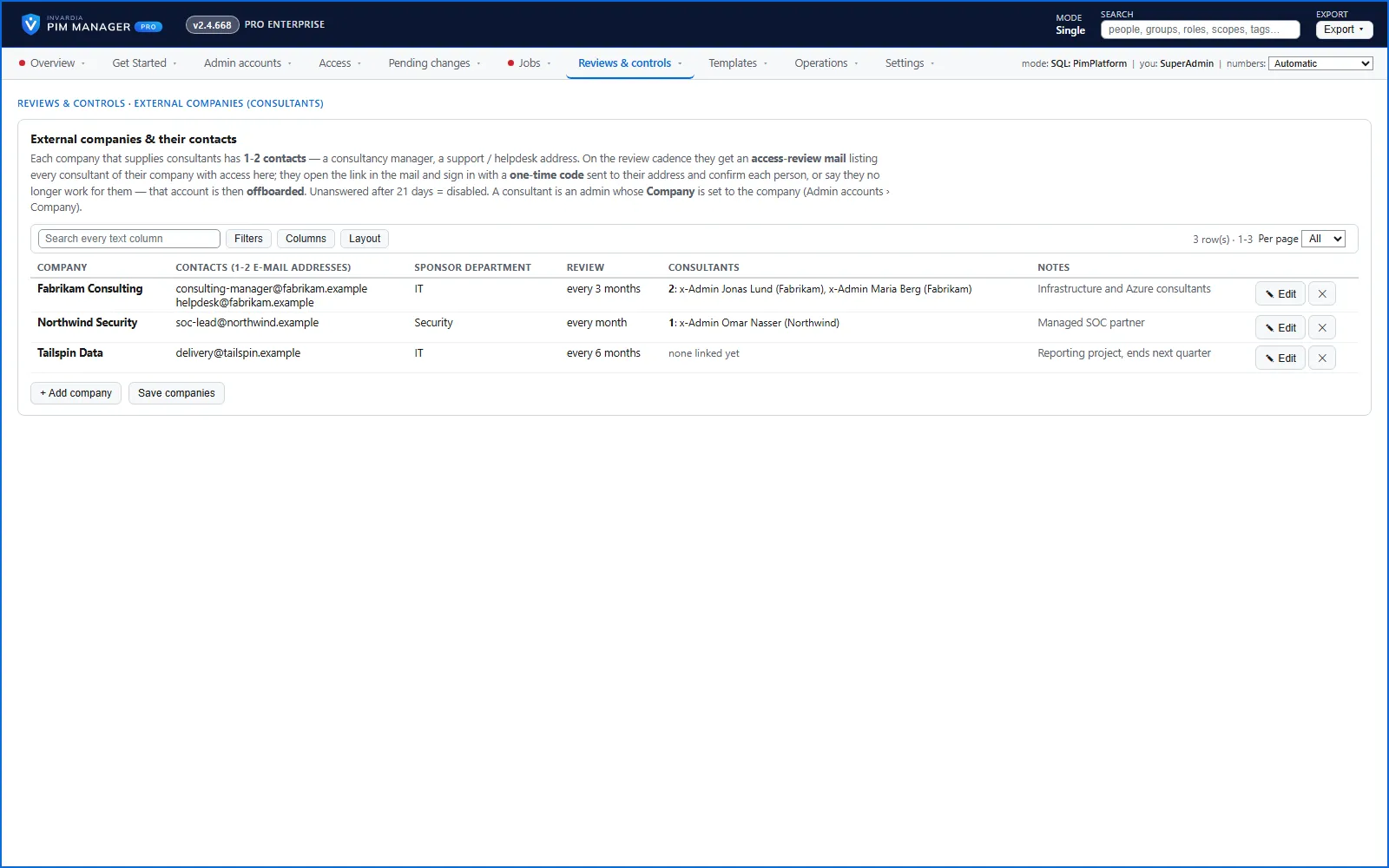
- Open Reviews & controls > External Companies (Consultants).
- Press + Add company. A new row opens in edit mode with these fields:
- Company: the company’s name, for example Example Consulting.
- Contacts (1-2 e-mail addresses): a consultancy manager and, for example, a helpdesk address, separated by a semicolon.
- Sponsor department: the internal department that sponsors this company’s consultants.
- Review: every month, every 3 months (the default), every 6 months or every year.
- Notes: optional.
- Press Save on the row. It saves at once, and the row shows the saved values.
The Consultants column shows none linked yet until you create the first consultant.
Step 2: create the consultant’s admin account
The wizard starts from the Admin accounts page.
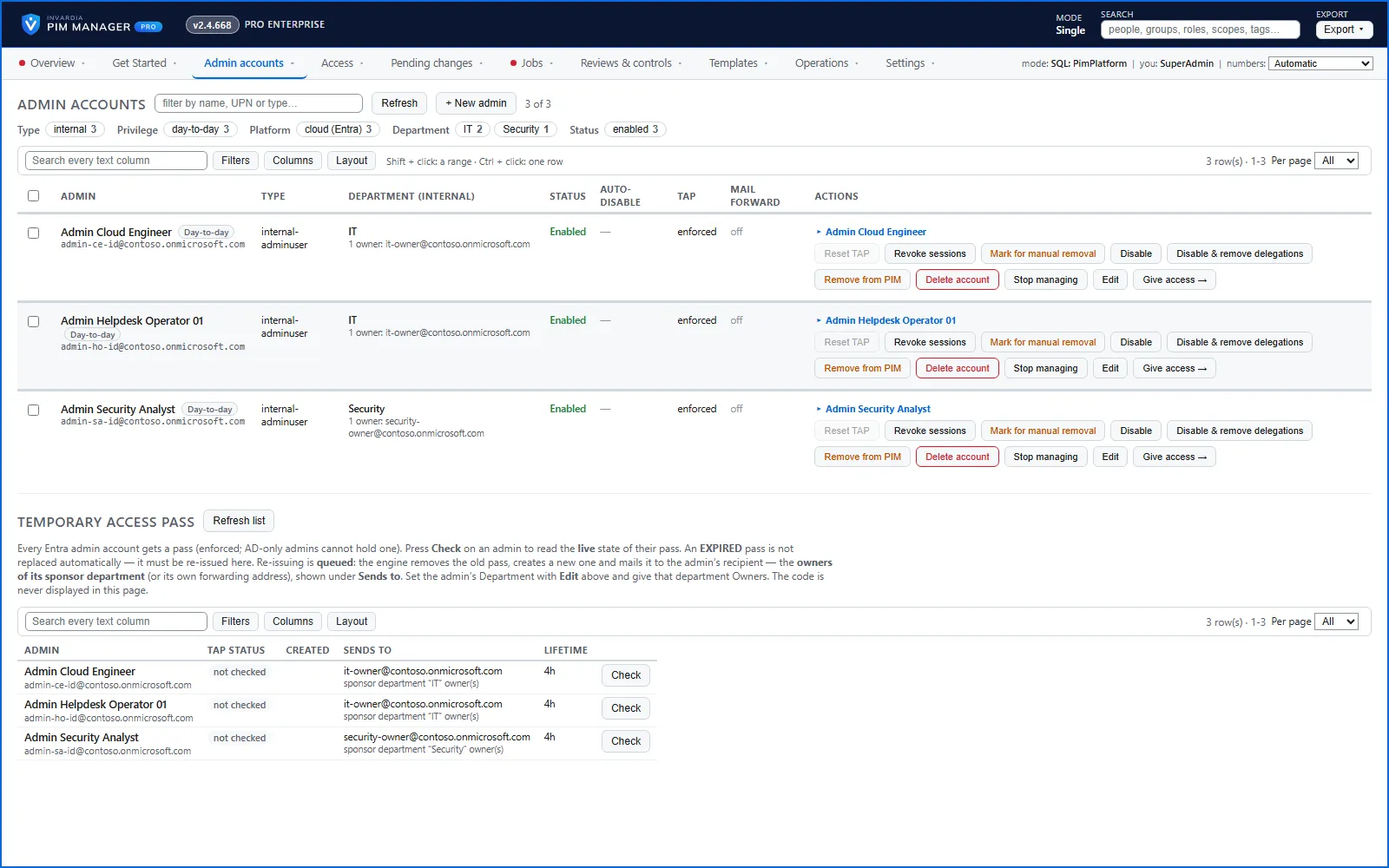
- Open Admin accounts and press + New admin. The New admin account wizard opens on the Person step.
- Admin type: choose Consultant – local account in this tenant, or Consultant – B2B guest (their own identity). For a guest, also enter the guest’s own external e-mail address; the invitation goes there.
- First name, Last name and Initials: the wizard builds the sign-in name from your naming convention and shows a live preview.
- Company: choose the external company from step 1. If the list is empty, add the company first.
- Department (internal): choose the sponsoring department.
- UPN suffix: the domain after the @ in this tenant. It defaults to the tenant’s admin account domain.
- On Purpose & platform, keep Day-2-day admin unless this is a dedicated Tier-0 account, and choose the Environment (Entra ID for a cloud account).
- On Activation, set Create on; the default creates the account on the next engine run. Under Where this admin’s mail goes, keep forwarding on and enter the consultant’s everyday office address, so the Temporary Access Pass reaches them the first time. Set TAP valid from and TAP lifetime (hours).
- On Lifecycle, keep Status at Enabled and set the Usage location.
- On the role groups step, pick the role groups the consultant needs, keep Assignment type at Eligible, and set a Lifetime (days) that matches the contract.
- On Review, check the name and press Add to pending changes. The account is staged, not created yet.
The first sign-in
- A local account gets one Temporary Access Pass by mail. Sending it to the consultant’s own office address outside your organization is a security decision: whoever reads that mailbox can register the account’s MFA. Keep the lifetime short, keep the pass one-time use in your Temporary Access Pass policy, and set TAP valid from close to the day the consultant starts. If you prefer, leave forwarding off so the pass goes to the owners of the sponsoring department, who hand it over in person.
- A B2B guest gets an invitation at their own external address and signs in with their own identity. Decide before you invite them how their MFA is enforced: with your Conditional Access policies for guests, or by trusting their home organization’s MFA in your cross-tenant access settings.
Step 3: commit
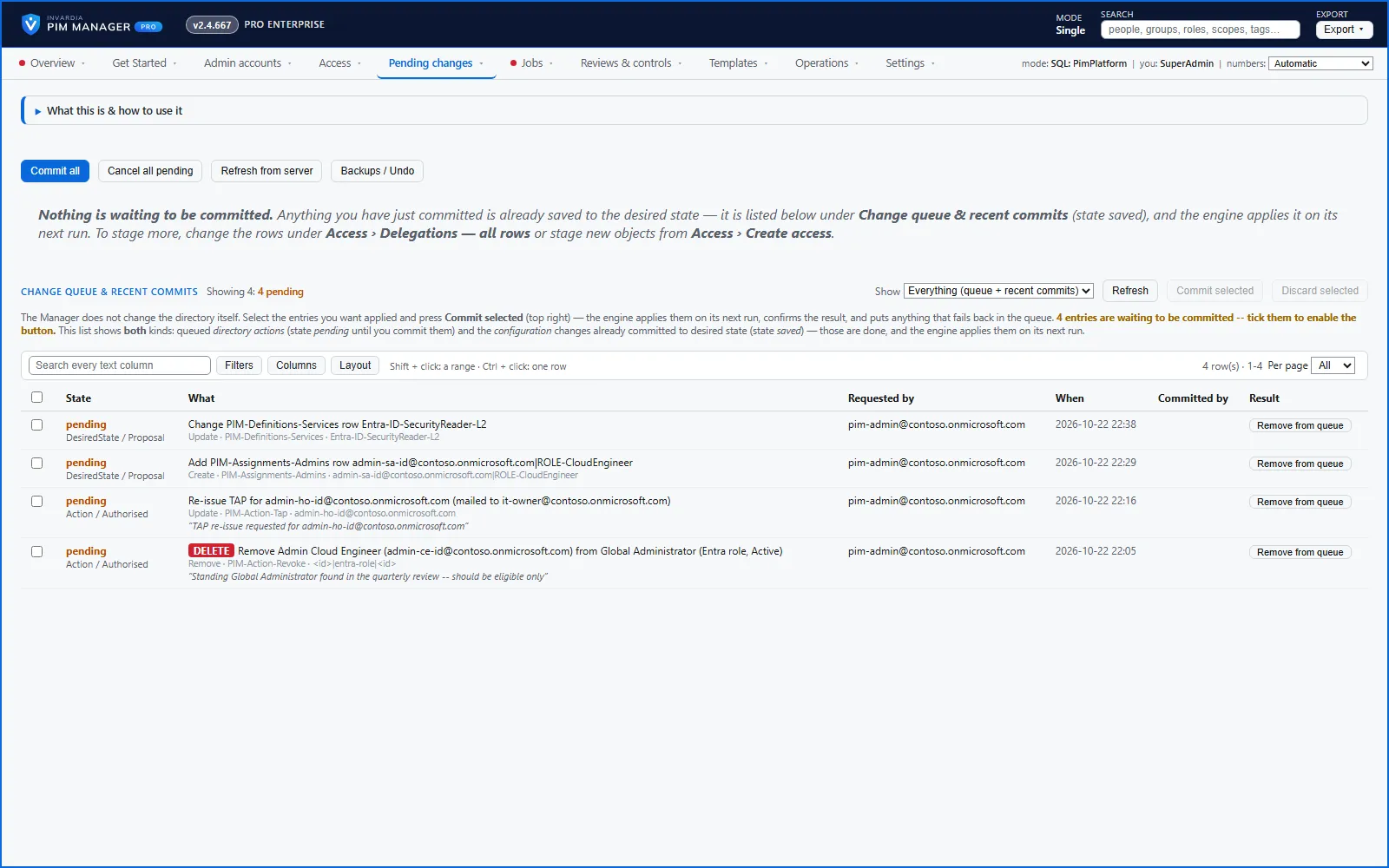
- Open Pending changes. The new admin row and its role-group rows are listed.
- Press Commit all. The engine starts, creates the account, adds the eligible memberships and mails the Temporary Access Pass to the forwarding address.
- If something fails, Jobs > Engine logs & errors names the item and the reason.
What the employer confirmation does
On the company’s review cycle, PIM Manager sends each contact an access-review mail that lists every consultant of their company with access in your tenant. The contact opens the link, signs in with a one-time code sent to their address, and confirms each person, or says they no longer work there.
- Still works for us: nothing changes.
- Left the company: the account is disabled at once, and removing its access waits for an internal approver on Reviews & controls > Approvals. Nothing is removed on an outside party’s word alone.
- No answer: the contacts get reminders on day 5 and day 10, the sponsoring department’s owners are told on day 14, and on day 21 the unanswered consultants are disabled. Their access is not removed by this step; the account can be enabled again through an access request.
The answer page is the access request portal, which must be deployed for contacts to answer online. Without it, answers are recorded in PIM Manager.
A disable from the company review is a disable, not an offboarding. To end the consultant’s access on a known date, see How to offboard an admin.
Check the result
- On Admin accounts, the consultant’s row shows the account, its sponsor department and its company.
- On Reviews & controls > External Companies (Consultants), the Consultants column of the company lists the consultant.
- On Access > Access map, select the consultant: the path runs to the role groups you picked, as eligible memberships.
- The forwarding address, or the department’s owners, received the Temporary Access Pass mail.
Undo
- Before you commit: Cancel all pending on Pending changes.
- After you commit: end the account’s access as for any admin, with an auto-disable date, Remove from PIM or Delete account; see How to offboard an admin.
Verified against PIM Manager 3.0.23.3 on Nov 3, 2026Download PDF