

PIM Manager documentation · Verified against PIM Manager 3.0.23.3 on Nov 3, 2026
Workload roles
Intune, Defender XDR, Power BI and other Microsoft services have role models of their own, next to Entra ID roles and Azure roles. This page shows how PIM Manager delegates those workload roles through the same nested, just-in-time groups, and which level each role gets.
The problem
Each workload keeps its own list of roles and its own assignments: Intune role assignments, Defender XDR Unified RBAC roles, Power BI workspace access. An Intune Administrator or a Defender administrator in the Entra sense covers the whole service, so teams hand out those broad Entra roles because the narrower workload roles live somewhere else. The narrow roles then sit outside PIM, assigned to people by hand, with no expiry and no review.
How PIM Manager delegates them
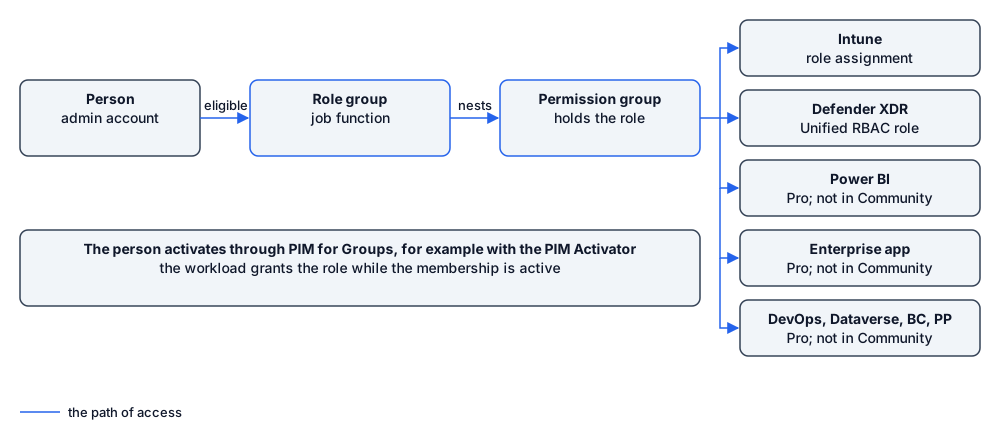
A workload role is delegated like any other capability:
- A permission group holds the workload role. PIM Manager creates the group and gives it the role assignment in the workload.
- The role group of a job function nests that permission group, as for Entra and Azure roles. See Nested groups.
- A person activates the permission group through PIM for Groups, for example with the PIM Activator. While the membership is active, the workload grants the person the role through the group.
The role assignment in the workload stays on the group. What is just-in-time is the person’s membership of the group, with the PIM policy you choose for it.
A workload delegation holds one role. To give a job function several workload roles, nest several permission groups.
Supported workloads
| Workload | What PIM Manager assigns to the permission group | Edition |
|---|---|---|
| Microsoft Intune | An Intune role assignment that covers all devices and all licensed users | |
| Microsoft Defender XDR | A Unified RBAC role assignment, with a custom role that PIM Manager creates and keeps when the row names permissions and data sources | |
| Power BI | A workspace role: Admin, Member, Contributor or Viewer | Pro editions; not in Community |
| Enterprise applications | An app role assignment | Pro editions; not in Community |
| Azure DevOps, Dataverse, Business Central, Power Platform | The workload’s own role or security group | Pro editions; not in Community |
Each connector is a feature switch under Settings > Features & edition: Workload connectors: Intune + Defender XDR, Power BI integration, and Workload connectors: app-role, Azure DevOps, Dataverse, Business Central, Power Platform.
Not covered by a workload connector
- Exchange Online, SharePoint and Teams administration. Their administrator roles, such as Exchange Administrator or SharePoint Administrator, are Entra ID roles. Delegate them as Entra roles. PIM Manager does not manage Exchange Online RBAC role groups.
- Defender device groups. PIM Manager sets data sources on a Defender XDR role, not device groups.
- Intune scope groups and scope tags. PIM Manager does not set scope groups on an Intune assignment, and its screens do not set scope tags. See Intune.
The level rule
Every permission group carries a level (see Tiers and levels). For workload roles the level follows the kind of role:
| Kind of role | Level | Defender XDR |
|---|---|---|
| Administrators and managers | L3 | L3 |
| Operators and contributors | L4 | L3 |
| Readers | L5 | L4 |
Defender XDR sits one step higher than the other workloads.
- Discovery and gaps proposes the level by this rule for every role it finds (Pro editions; not in Community).
- The template packs for Intune and Defender XDR carry the level of each role.
- A workload delegation you create with Access > Create access starts at L3. Check the level in the preview before you commit, and lower it for an operator or reader role.
Workload permission groups are on Tier 1 by default.
Intune
- PIM Manager assigns an Intune role to the permission group. The role must exist in Intune; a custom role is created in Intune first.
- An Intune role assignment has members (the groups of admins), a scope of groups (the users and devices those admins manage) and optional scope tags (which Intune objects the admins see).
- PIM Manager makes the permission group the member and sets the scope to all devices and all licensed users. It sets no scope groups, and its wizards and templates set no scope tags, so the assignment has Intune’s Default scope tag. A helpdesk limited to some users or devices is configured in Intune, outside PIM Manager.
- The engine needs the Microsoft Graph permission
DeviceManagementRBAC.ReadWrite.All. - An Intune assignment that also holds a group PIM Manager does not manage is not removed, because removing it would take the other members’ access too.
Defender XDR
- Defender XDR Unified RBAC must be activated for the workloads you delegate, in the Microsoft Defender portal.
- When the row names permissions and data sources, PIM Manager creates a custom role with the group’s name and keeps it in line. Blank data sources mean all data sources.
- PIM Manager does not limit a Defender XDR assignment to device groups. A template group whose name says Clients or Servers is not limited to those devices: the name records your intent, and the device-group limit is set in the Microsoft Defender portal, on Settings > Endpoints > Device groups, the User access tab of each device group. PIM Manager does not read that setting and does not report it as drift. See How to delegate Defender XDR.
- In the Defender XDR template, the response-action groups are L4, like the read-only groups.
- A new custom role can take a while before Defender lists it. The engine waits and completes the assignment on a later run.
- A role of the same name that PIM Manager did not create, or an assignment shared with other principals, is not changed. The item names what to do.
- The engine needs the Microsoft Graph permission
RoleManagement.ReadWrite.Defender.
Power BI
- PIM Manager gives the permission group a role in a workspace: Admin, Member, Contributor or Viewer.
- It only adds access. A row that asks to remove workspace access is refused, and PIM Manager removes nothing from a workspace. A person loses the access when their group membership ends.
- Discovery proposes a Contributor group (L4) and a Viewer group (L5) for each new workspace, named by your convention with the workspace in the name.
Warning: one workspace per role in Delegate a permission. Delegate a permission names a Power BI group from the workload and the role, not from the workspace. A second workspace with the same role therefore gets the same group name, and PIM Manager uses the existing group of that name: its members get the role in both workspaces. Delegate the second and every later workspace from Access > Discovery & gaps. See How to delegate a Power BI workspace.
- Power BI needs three things that the engine cannot set itself:
- The engine identity is in a security group that the Fabric tenant setting Service principals can access read-only admin APIs allows.
- The Fabric tenant setting Service principals can call Fabric public APIs allows the same group.
- The engine identity is Admin of each workspace it delegates.
A Fabric administrator sets them up with one script. PIM Manager shows the command with your values next to the Power BI rows:
iwr https://invardia.com/support/pim/Initialize-PimWorkloadPrereqs.ps1 -OutFile .\Initialize-PimWorkloadPrereqs.ps1
.\Initialize-PimWorkloadPrereqs.ps1 -Workload PowerBI -AddEngineToWorkspaces
A change to a Fabric tenant setting can take some minutes before Power BI applies it. Details: Initialize-PimWorkloadPrereqs.
Prerequisites are checked first
Each workload has prerequisites, such as an engine permission, a tenant setting or an activated feature. PIM Manager checks the ones an API can answer every day, and shows the result as a chip next to the workload: prerequisites OK or prerequisites missing, with Check again.
While a workload’s prerequisites are missing or not yet checked, the engine creates the groups but holds each new role assignment in that workload. Nothing is written into the workload until the prerequisites are in place. Removals are not held.
Where you set it up
- Switch on the workload’s connector under Settings > Features & edition.
- Run the prerequisite check, and the command it shows if something is missing.
- Start from a template pack under Templates > Workload templates, from a proposal on Access > Discovery and gaps, or from Access > Create access > Delegate a permission with the target Workload.
- Review the level and commit under Pending changes.
To leave out a role binding on purpose, add it to Settings > Hybrid AD & workloads > Workload exemptions, with a reason and an expiry date.
Verified against PIM Manager 3.0.23.3 on Nov 3, 2026Download PDF