

PIM Manager documentation · Verified against PIM Manager 3.0.23.3 on Nov 3, 2026
How to find the least-privileged role for a task
An admin who needs to do one task often asks for Global Administrator because nobody knows which narrower role allows it. Role Lookup answers that from Microsoft Graph: you name the action, and it lists every Entra ID role that grants it, narrowest first.
What you need
- Any role in PIM Manager. Role Lookup only reads.
- The task you want to delegate, as an Entra ID resource action, for example
microsoft.directory/users/basic/update. If you do not know the action, step 1 finds it.
Role Lookup covers Entra ID directory roles, built-in and custom. It does not cover Azure roles or workload roles such as Intune or Defender XDR.
Step 1: find the action, if you do not know it
Start from a role you know can do the task.
- Open Access > Look up a role.
- Press What a role can do.
- In Role display name, type the role, for example User Administrator, and press Look up. A misspelled name gives Did you mean… suggestions to click.
- The actions are listed grouped by area, for example everything under
microsoft.directory/users. Find the action that matches the task and copy it.
Step 2: find the roles that grant it
- Press Find roles by action.
- In Resource action, paste the action. To search a whole area, end it with a wildcard, for example
microsoft.directory/users/*. - Press Find roles.
- The table lists Role (narrowest first), Total actions and Matched on. The first rows grant the action with the fewest actions in total.
A role marked (broad — wildcard) grants the action through a wildcard over a whole area. It is rarely the least-privileged choice.
Step 3: check the candidate
Fewest actions is a good first filter, not the whole answer: a role with few actions can still be powerful, for example one that can grant other roles.
- Press What a role can do and look up the first candidate. Read all of its actions, not only the one you need.
- Check the role’s tier and level in your design. A role that can grant other roles, such as Privileged Role Administrator, controls the tenant; treat it as T0. See Tiers and levels.
- Choose the narrowest role whose other actions you accept.
Step 4: keep the evidence
- On the Find roles by action result, or on What a role can do for the chosen role, press Export CSV or Print.
- Attach it to the change ticket. It records which roles grant the action and why you chose this one.
Check the result
After you delegate the role, check that the right people and only they can activate it:
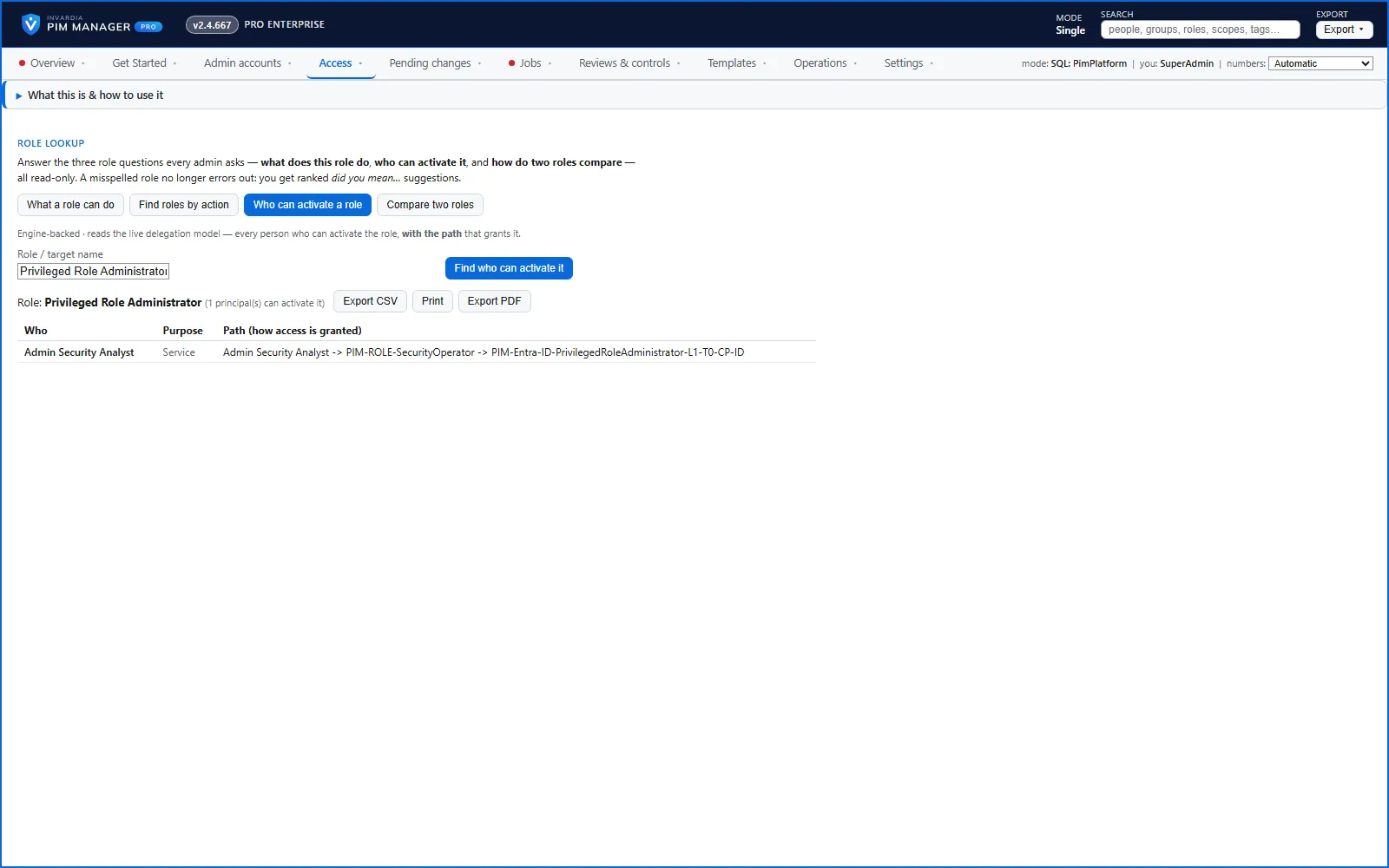
- Press Who can activate a role, type the role in Role / target name and press Find who can activate it.
- The table lists each person and the path that grants the role.
To delegate the role through PIM Manager’s groups, see Nested groups.
Undo
Role Lookup only reads; it changes nothing in your tenant or your model, so there is nothing to undo here. If the role you delegated afterwards turns out to be wrong:
- Before you commit: Cancel all pending on Pending changes.
- After you commit: remove the delegation row on Access > Delegations — all rows and commit, or undo the commit; see How to undo a commit.
Related pages
Verified against PIM Manager 3.0.23.3 on Nov 3, 2026Download PDF
← How to read the access map and see who can activate a roleMSP: how to roll a change to one wave →