

PIM Manager documentation · Verified against PIM Manager 3.0.23.3 on Nov 3, 2026
Tiers and levels
Every permission group in PIM Manager carries a tier (T0-T2), a plane and a level (L0-L9). Together they say how much damage the access can do, so the most sensitive access gets the strictest rules and over-exposure is visible.
The problem
“Admin” covers everything from resetting a password in one office to owning the whole tenant. If every privileged group is treated the same, the rules are either too loose for Global Administrator or too strict for a reader in one subscription. And without a classification, nobody can answer the question an auditor asks first: who can reach Tier 0?
Tiers and planes
The tiers follow Microsoft’s enterprise access model. The plane says which part of the tier the group lives in.
| Tier | Plane | Code | What it covers |
|---|---|---|---|
| T0 | Control plane | CP |
Control of identity and the whole tenant: global roles and services such as Conditional Access. |
| T1 | Management plane | MP |
Management platforms across workloads: logging, security, identity and connectivity services. |
| T1 | Workload / data plane | WDP |
Business data and applications. |
| T2 | App access | APP |
Read or write specific data, for example a partner integration. |
| T2 | User access | USER |
User access to a service, for example the Power BI platform. |
The wizards label the tiers T0 – control plane, T1 – server/app admin and T2 – workstation/helpdesk. Those are short names from the Active Directory tier model; what a tier covers is this table. Choose a group’s tier by what it can reach.
A permission group also names its domain: ID (identity: Entra roles, Intune roles), RES (resources: Azure roles on management groups, subscriptions and resource groups) or DAT (data: Power BI content, SharePoint sites).
Levels L0-L9
The level says how broad the access is within the model. A lower number is broader; a higher number is narrower.
| Level | Tier | Meaning | Example |
|---|---|---|---|
| L0 | T0 | The control plane: the roles that can make themselves or anyone else Global Administrator. | Entra Global Administrator, Privileged Role Administrator and Privileged Authentication Administrator. |
| L1 | T0 | Broad administration across the directory. | Entra User Administrator or Global Reader, tenant-wide. |
| L2 | T0 | Scoped administration: the same roles limited to a part of the directory. | User Administrator in one administrative unit. |
| L3 | T1 (T0 for root-level owner roles, see below) | Administrators of a service, or the top Azure layer. | Intune or Defender XDR administrator roles; Azure roles at the Tenant Root Group. |
| L4 | T1 | Operators and contributors, or the next Azure layer. | A workload operator role; Azure roles at the intermediate root. |
| L5 | T1 | Readers, or the next Azure layer. | A workload reader role; Azure roles at Platform or Landing zones. |
| L6-L9 | T1 | Narrower Azure scopes. | Corp, Online or Management; then subscription, resource group and resource. |
Which Entra roles are L0
The permission wizard places three Entra roles at L0: Global Administrator, Privileged Role Administrator and Privileged Authentication Administrator. Privileged Role Administrator can assign any Entra role, including Global Administrator. Privileged Authentication Administrator can reset the password and the authentication methods of any user, including a Global Administrator, and so take over that account. Every other tenant-wide Entra role is L1, and a role scoped to an administrative unit is L2.
Some L1 roles can still reach Global Administrator in a few steps. Application Administrator and Cloud Application Administrator can add a credential to an application that holds high-privilege permissions and then act as that application. Review who holds them as carefully as the L0 roles, and give their groups an approval policy.
Some delegation template packs name their own level in the group name. Check the level in the wizard’s preview before you stage a pack, and keep these three roles at L0.
Why read-only Entra roles are Tier 0
PIM Manager places every Entra directory role on Tier 0, including read-only roles such as Global Reader and Security Reader. These roles read the configuration of the identity system itself: role assignments, Conditional Access, PIM settings and authentication methods. That is the map an attacker needs first. Their groups are role-assignable and protected like any other Tier-0 group.
Workload roles
For workload roles, the level follows the role: administrators and managers L3, operators and contributors L4, readers L5. Defender XDR is one step higher: operators L3 and readers L4. Discovery and gaps proposes these levels, and the template packs carry them. A workload delegation you create in Create access starts at L3, so check the level before you commit. A service can use several levels for its own rungs without colliding with another service. See Workload roles.
Azure levels follow the CAF layers
For an Azure permission group, the level is the layer of your Cloud Adoption Framework (CAF) management-group tree that the scope sits in. The Tenant Root Group is L3, and each layer below it adds one:
| Scope | Level |
|---|---|
| Tenant Root Group | L3 |
| Intermediate root | L4 |
| The layer below it, for example Platform, Landing zones or Sandbox | L5 |
| The next layer, for example Corp, Online, Management, Connectivity or Identity | L6 |
| A subscription | its management group + 1 |
| A resource group | its subscription + 1 |
| A resource | its resource group + 1 |
The level comes from the depth of the scope, not from the name of the management group, and it never goes above L9. This is the one table of Azure levels; the Glossary follows it.
Root-level Azure roles
The Azure level says how broad the scope is. It does not look at the role. Owner, User Access Administrator or Role Based Access Control Administrator at the Tenant Root Group or at the intermediate root controls every subscription below it, and can give itself or anyone else any Azure role there. Treat a permission group that holds one of these roles at a root-level scope as Tier 0: set its tier to T0 when you create it, keep its members few, and link a policy template that requires approval. Role Based Access Control Administrator with conditions that limit which roles it may assign is narrower than User Access Administrator; prefer it where the work allows.
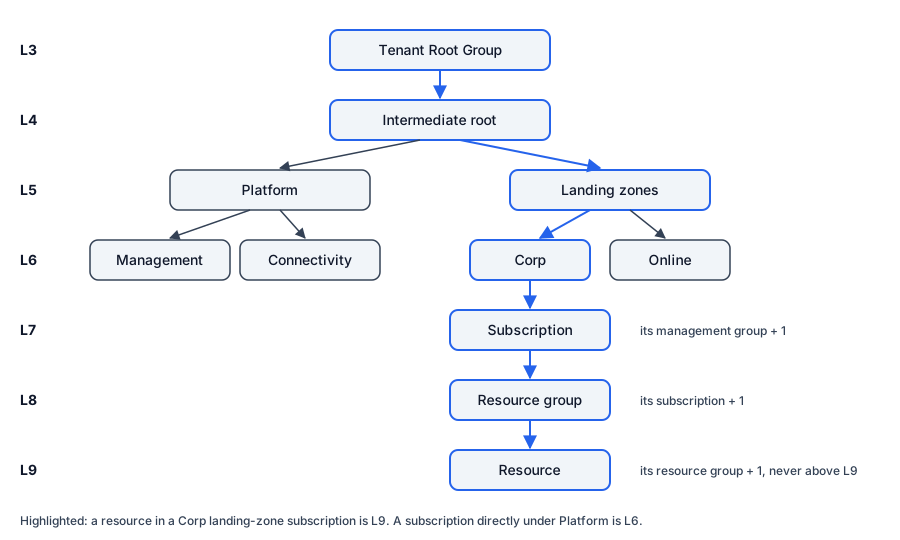
The wizard Permission group — Azure resource reads your management-group tree from its tenant cache and sets the level from the scope you pick. When a scope is not in that tree, the wizard falls back to the role rule above and says so in its preview.
Two other paths set Azure levels differently, so check the level they propose against this table before you commit:
- Delegate a permission sets the level by scope type: tenant root L0, a management group or a subscription L1, a resource group L2, a resource L3.
- Discovery and gaps (Pro; not in Community) proposes a Reader group at L4 and a Contributor group at L3 for every subscription and management group, whatever its layer.
How to delegate an Azure landing zone or subscription uses the wizard that follows this table.
Where the classification is used
- In the group name. The default naming convention puts level, tier, plane and domain in every permission-group name, for example
PIM-Entra-ID-UserAdministrator-L1-T0-CP-ID. See Naming. - In admin accounts. Keep a separate admin account for L0 / T0 work. The default convention names it with an
-l0-t0marker. - In policies. Link a RequireApproval policy template to your Tier-0 groups. The checks warn about a group that elevates into an Entra ID role without approval on activation. See Settings.
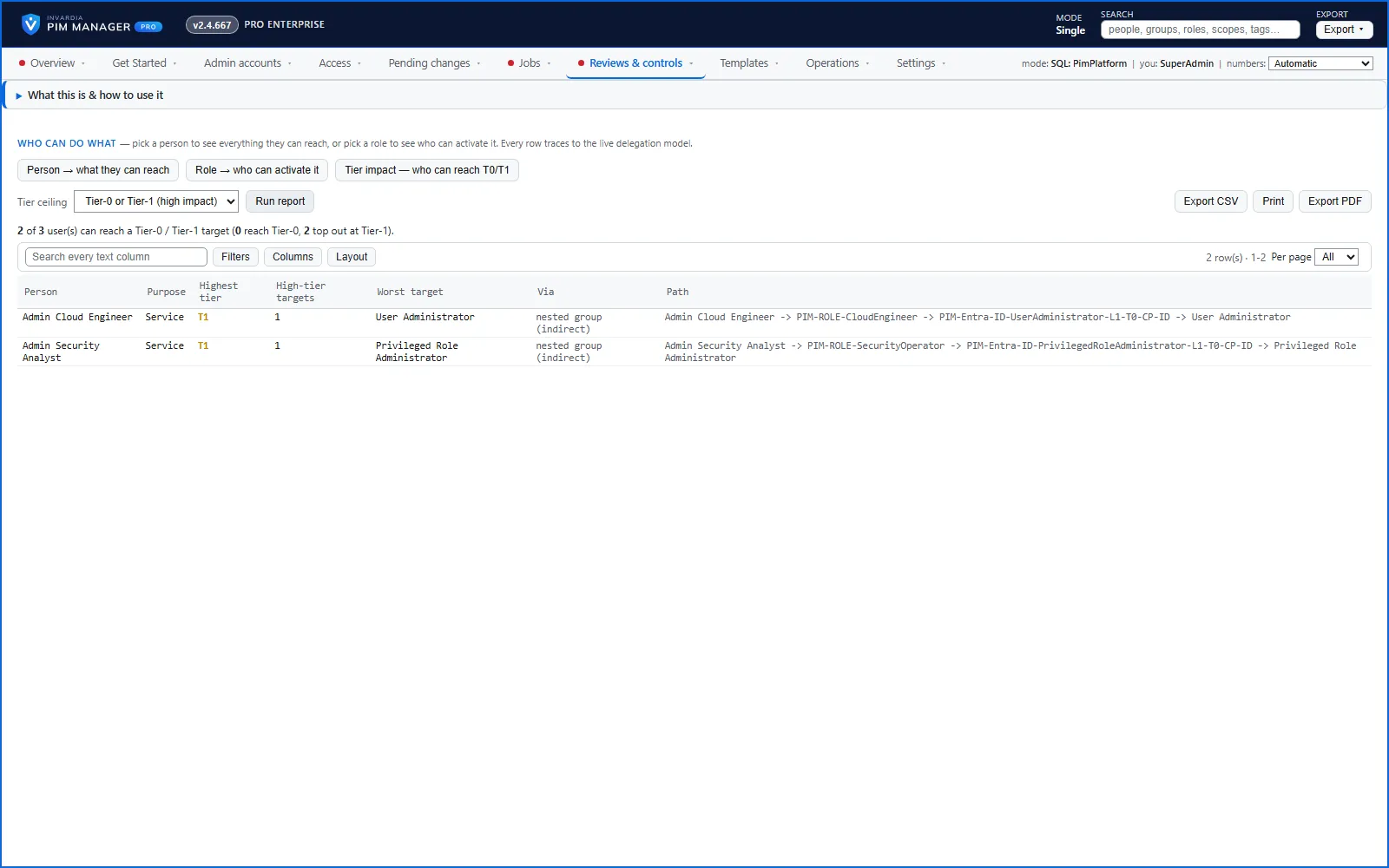
- In reports. Reviews & controls > Reports > Tier impact lists everyone who can reach a Tier-0 or Tier-1 target, including through nested groups, with the full path. Available in Pro editions; not in Community.
- In delegated administration. Manager users can be limited to a tier, level, service or scope. Available in Pro editions; not in Community.
How to classify
- Start with Tier 0. List the Entra roles that control identity (L0-L2) and the root-level Azure role assignments that control every subscription (Tier 0 at L3 or L4).
- Give each workload and Azure scope its tier and plane. Let the wizard set Azure levels from your management-group tree.
- Keep Tier-0 groups small and approval-gated. Make Tier-0 direct groups role-assignable (see Role-assignable groups).
- Run the Tier impact report and check that only the people you expect reach Tier 0.
Verified against PIM Manager 3.0.23.3 on Nov 3, 2026Download PDF