

PIM Manager documentation · Verified against PIM Manager 3.0.23.3 on Nov 3, 2026
Settings
A setting in a privileged-access tool is itself privileged: switching off a guard limit or the second approver changes who can do what. PIM Manager therefore keeps every setting on one page, explains each one where you change it, limits who may change it, and records every change.
The Settings page
Open Settings > Settings. The settings are grouped by subject, with a button per group and Show all:
| Group | What you set there |
|---|---|
| Naming & accounts | The admin account domain, admin name prefixes and environment suffixes, group naming values, naming conventions with a live preview, and filters |
| Features & edition | Feature switches (Features), the Features & edition page switches such as Approval-gated offboarding + revoke (Features & edition), the license, the edition, and per-feature options such as status reports (Feature customization) |
| Approvals & policy | Self-approval, group deletion, operational policy limits, automatic offboarding and the daily reconcile’s removal of leftovers |
| Automation | The environment-wide auto-extend policy |
| Mail & alerting | How mail is sent, the global mail kill switch, redirect and allowlist, alert recipients and the reminder of what waits on you |
| Reports | Every report and alert PIM Manager mails: recipients, delivery and how often |
| Access requests (RFA) | The request portal’s branding and broker (Pro; not in Community) |
| Hybrid AD & workloads | Hybrid Active Directory, the AD OU placement, workload exemptions and template packs |
| Copy & tools | Copy settings, the configuration backup and the as-built document |
On a managing tenant (Pro MSP; not in Community), a group for the rollout waves of managed tenants is added (see MSP).
The other pages name a group as Settings > group, for example Settings > Approvals & policy: open Settings > Settings and press that group’s button. The cards inside a group are named in bold after it.
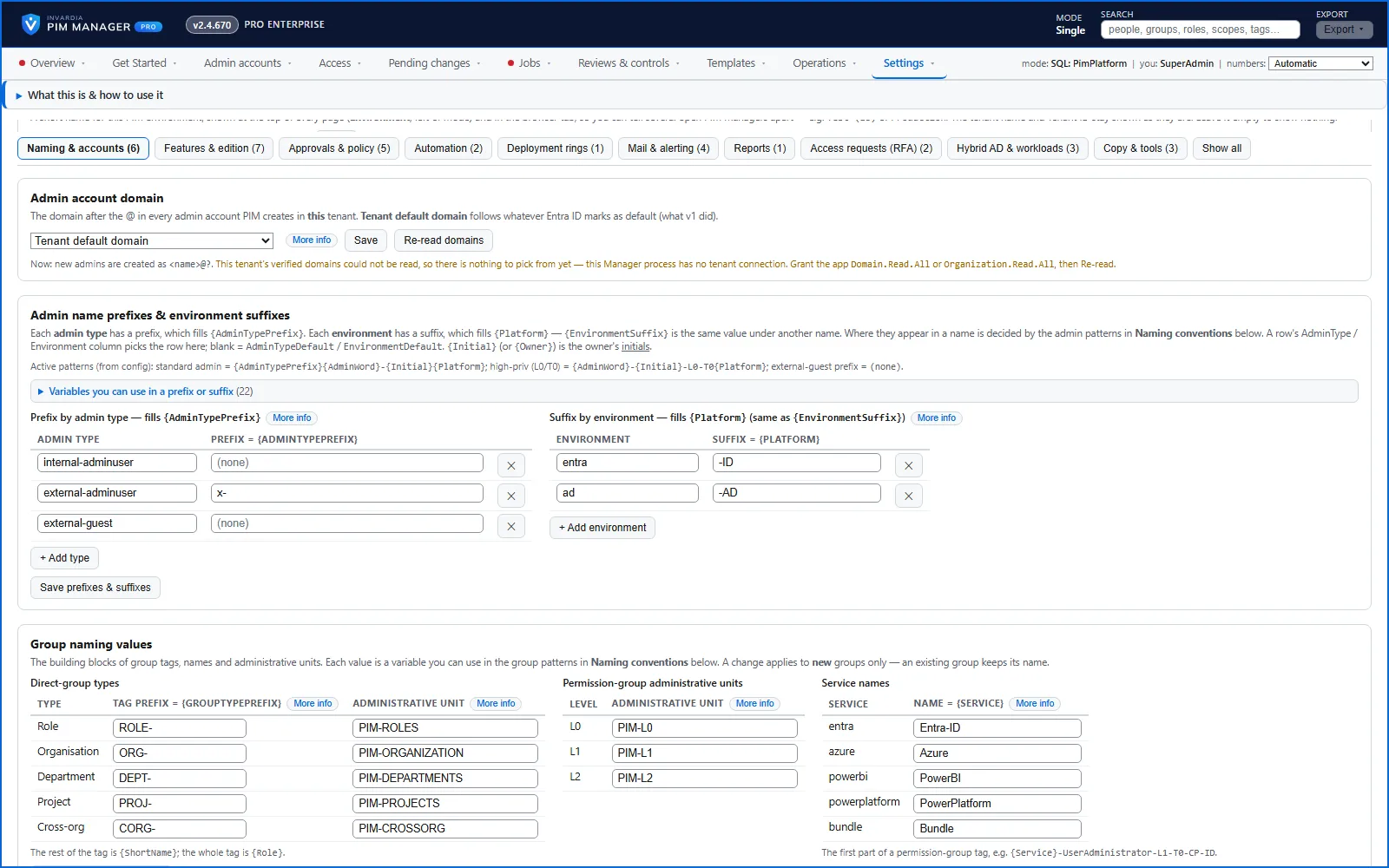
Some settings live next to what they control, not on this page: guard limits on Operations > Guards, review rules on Reviews & controls > Access reviews, policy choices on Templates > Policy settings, PIM Activator targets on Operations > Client onboarding, and the break-glass list on Settings > Emergency access (break-glass).
Every setting explains itself
Each setting has a More info button. It tells you, in the same words for every setting:
- What the setting does and when it takes effect.
- What happens when it is on and when it is off.
- The risk of changing it, and whether the change can be undone.
- What it requires: the role, the edition, and anything else that must be in place.
- What we recommend.
A switch that makes your tenant less safe asks you to confirm first, in one short line, with the details behind More info.
Who may change settings
PIM Manager has four portal roles: Reader, Delegated, Admin and SuperAdmin. You assign them on Settings > Manager access & roles.
- Most settings, every feature switch and every guard limit need the SuperAdmin role.
- A few operational settings need Admin, for example the PIM Activator deployment groups, report recipients and the external companies.
- Everyone can read the settings.
- A change to the break-glass list is not applied directly: it becomes a request that a different SuperAdmin must approve within 72 hours, unless Allow an administrator to approve their own requests is on.
What happens when you change a setting
- You change the value and save. A setting that needs confirmation asks first.
- The Manager checks the value on the server, not only in the page. A value outside its allowed range, or a Pro feature without a Pro license for this tenant, is refused with the reason.
- The change is written to the audit trail (Operations > Audit trail) with who changed it and when.
- Most settings are part of the daily configuration backup, so you can restore earlier values on Operations > Backups & restore. A backup never holds secrets, the license, or the protection switches (automatic offboarding, removal of leftovers, the second person for a guard release); those are changed on their own pages only.
Feature switches follow one more rule: a capability that is switched off is off everywhere, in the engine, the scheduled jobs and the integrations, not only hidden in the menu. Advanced capabilities start switched off.
Settings that need extra care
| Setting | Why it matters |
|---|---|
| Automatic offboarding | Off by default; while it is off, a passed auto-disable date only disables the account. When on, the engine offboards accounts whose auto-disable date has passed, or that are marked Retire or Revoked: it disables them, revokes their sign-in sessions and removes their memberships and eligibilities in groups PIM Manager defines, without a person looking at each one. It never deletes an account. |
| Daily reconcile: removal of leftovers | Decides whether access whose definition you removed is removed from the tenant (the default), or only reported. |
| Allow an administrator to approve their own requests | Off by default. Removes the second pair of eyes on offboarding, revoke and the break-glass list. Use it only while you have a single administrator. |
| Auto-extend | Renews time-bound assignments before they end, by default for every row without its own AutoExtend value. |
| Approval-gated offboarding + revoke | Under Settings > Features & edition, card Features & edition; off by default. While it is off, nobody can raise, approve or carry out an offboard, revoke, disable, admin-delete or authoring request on Approvals: a sensitive admin cannot be offboarded at once, and an access review’s Remove of a whole account waits. Policy change sets, break-glass changes and guard holds are approved whatever it says. See The Approvals switch. |
| Second-approver on sensitive changes | Maker/checker: a different administrator must approve every sensitive commit on the Approvals page, so with one administrator nothing sensitive can be committed, unless a SuperAdmin switches on Allow an administrator to approve their own requests (Settings > Approvals & policy, off by default). Available in Pro editions; not in Community. Separate from this switch, the Second approver setting on Pending changes (off by default) makes a different administrator commit a sensitive change, or every change. |
| Mail kill switch | Stops every outbound mail at once, including Temporary Access Pass mails. |
The settings catalog
Every setting, with its location, default, effect, risk and requirements, is in the settings catalog in the Reference. Each setting also has its own page at https://invardia.com/docs/pim/settings/<setting key>/, which the More info panel links to.
Verified against PIM Manager 3.0.23.3 on Nov 3, 2026Download PDF