

PIM Manager documentation · Verified against PIM Manager 3.0.23.3 on Nov 3, 2026
Platform and editions
A privileged-access tool must not become a new external dependency, lock you out over a license, or break when it updates. PIM Manager runs in your own Azure subscription, keeps your data readable whatever happens to a license, and updates only to versions that are signed.
Runs in your own Azure
The Manager, the engine and the database are installed into your own Azure subscription, as Azure Container Apps and an Azure SQL database. Each component signs in as its own managed identity. Your directory data and your database stay in your subscription. What the product sends to Invardia, and how to switch it off, is listed in security-design-data.
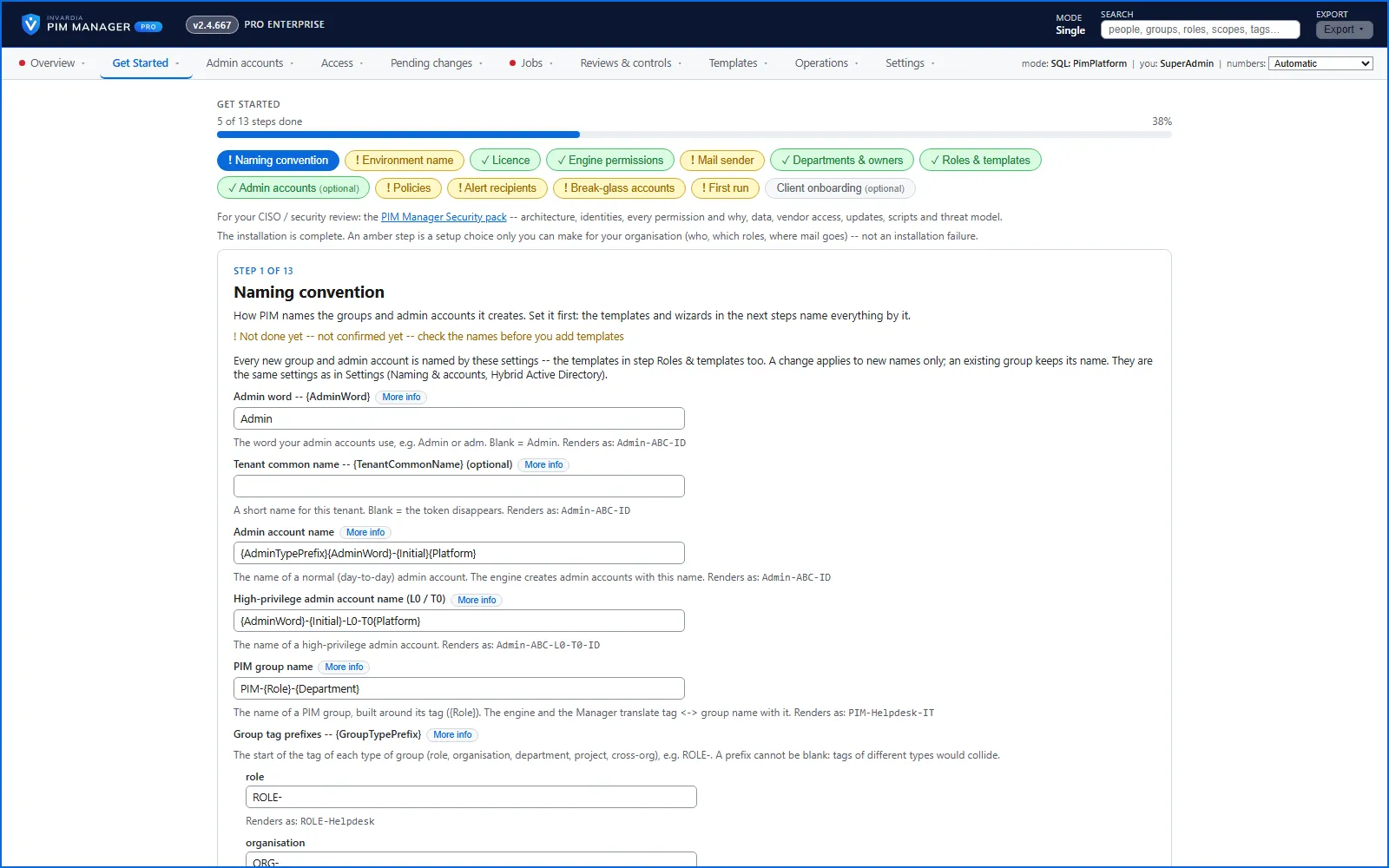
Get Started
A fresh installation opens on Get Started: a short list of steps such as license, engine permissions, mail sender, departments and owners, admin accounts, policies, alert recipients and break-glass accounts. Each step says what is still open and links to the page or the command that closes it.
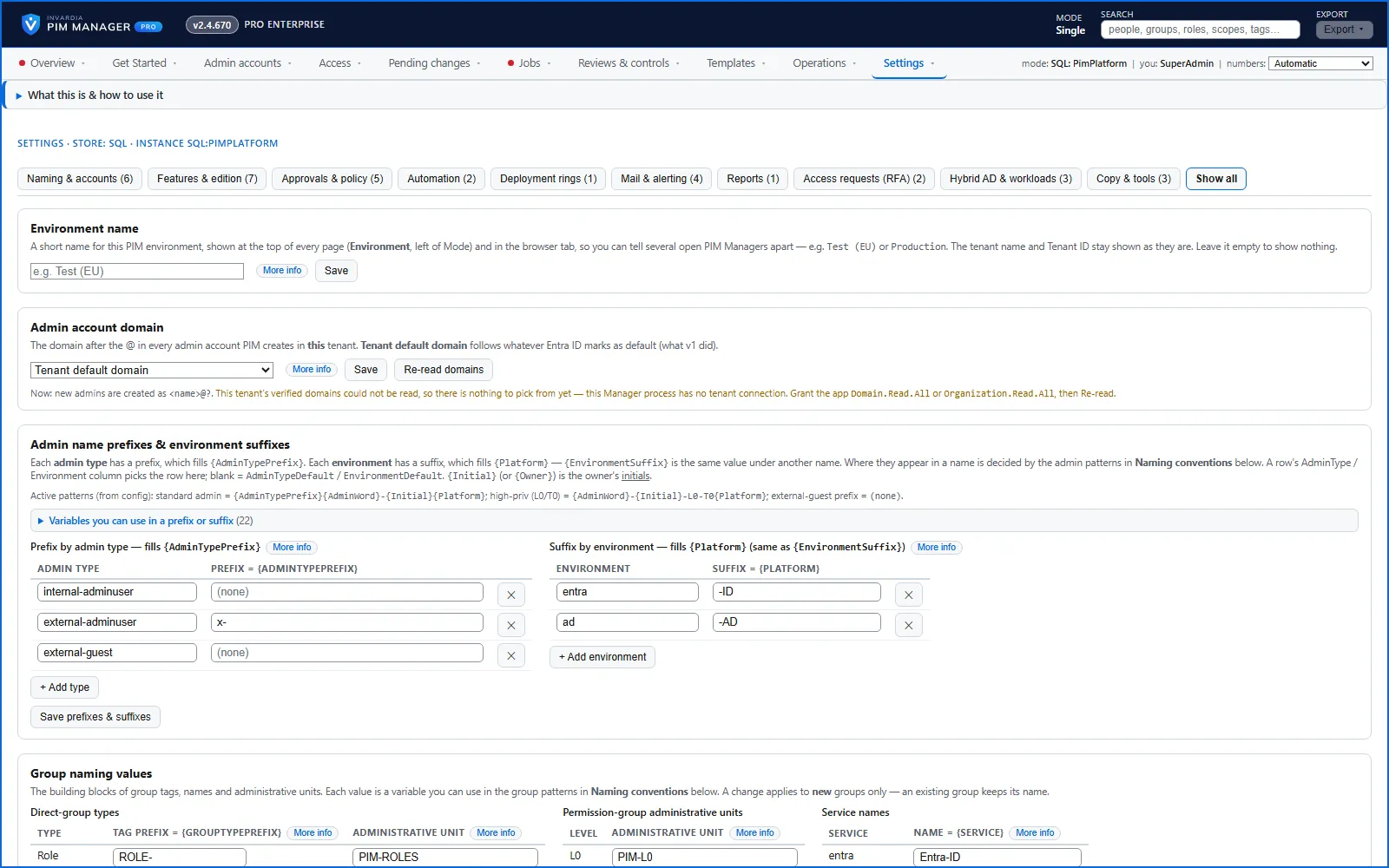
Settings and feature switches
Settings are grouped by area and stored in the database the engine reads, so what you see is what the system uses.
- Feature switches: every optional capability has an on/off switch. Advanced features start off. Off means off everywhere: the engine and the scheduled jobs skip it.
- Naming and policy defaults: naming patterns with a preview, activation and assignment durations, and MFA on activation.
- Mail controls: one switch turns all outbound mail off; you can also redirect every mail to one address or restrict sending to an allowlist.
- Mail templates: edit any notification mail in the Manager, and reset it to the original at any time.
Every setting has a More info panel. Read more in settings.
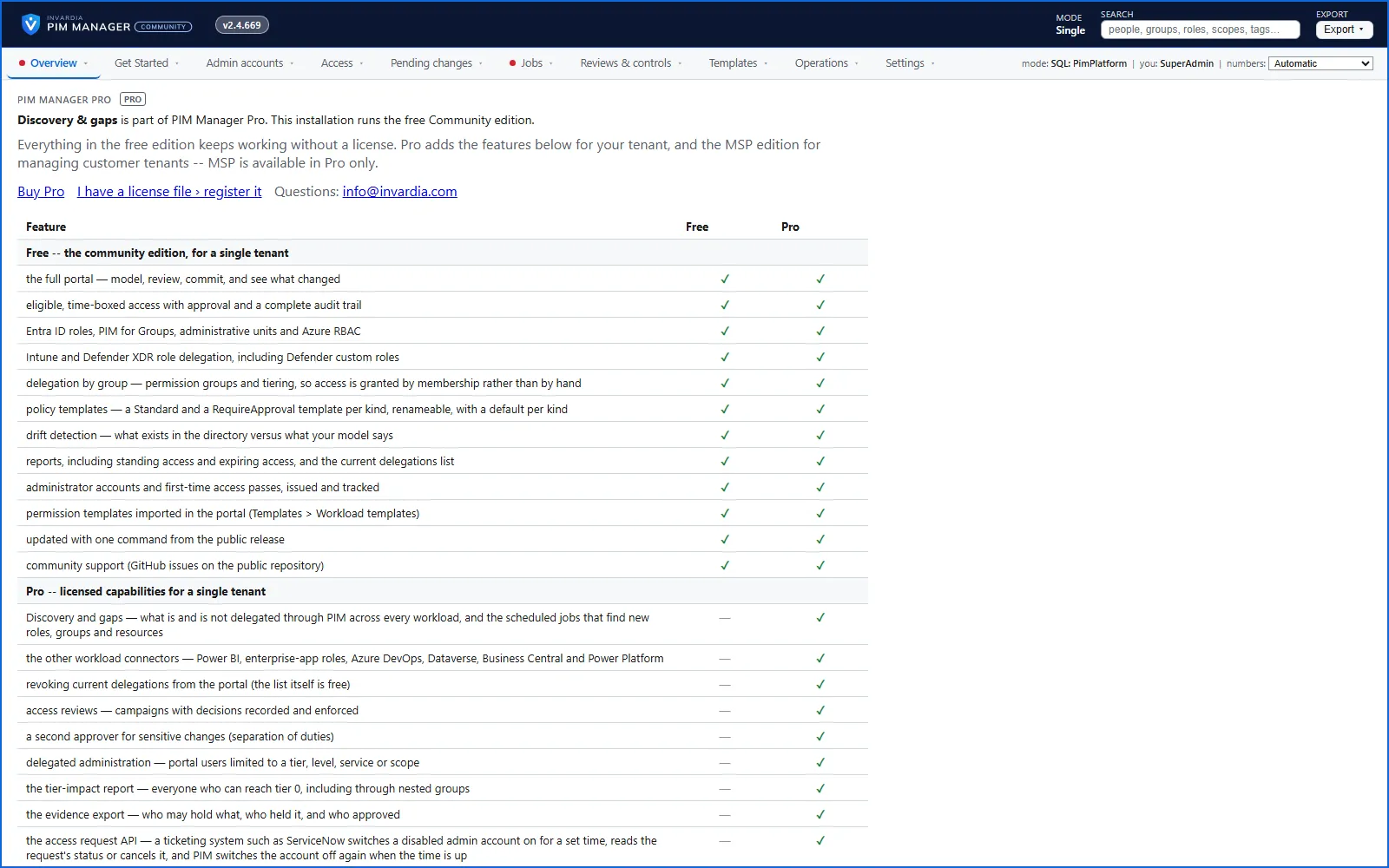
Editions compared
| Capability | Community | Pro Business | Pro Enterprise | Pro MSP |
|---|---|---|---|---|
| Entra ID roles, administrative units, PIM for Groups, Azure roles | Yes | Yes | Yes | Yes |
| Intune and Defender XDR roles | Yes | Yes | Yes | Yes |
| Access map, role lookup, wizards, staged changes, backups and undo | Yes | Yes | Yes | Yes |
| Admin lifecycle: Temporary Access Pass, auto-disable, offboarding | Yes | Yes | Yes | Yes |
| Policy templates and policy approval, guards, break-glass protection | Yes | Yes | Yes | Yes |
| Drift, Delegation overview, reports, audit trail, alerts | Yes | Yes | Yes | Yes |
| Second approver, revoke from the portal, delegated administration | Yes | Yes | Yes | |
| Access reviews, company reviews of consultants, access requests | Yes | Yes | Yes | |
| Discovery and gaps, Tier impact, evidence export | Yes | Yes | Yes | |
| REST API, MCP server, hybrid Active Directory | Yes | Yes | Yes | |
| Power BI and further workload connectors | Yes | Yes | Yes | |
| Managing and managed tenants | Yes | |||
| Support | GitHub issues | Invardia | Invardia | Invardia |
Pro Business and Pro Enterprise have the same features for one tenant. Pro Business covers a set number of managed admin accounts, named on the pricing page: from 90 percent of that number PIM Manager shows a banner, and at it only a new admin account is refused; nothing that exists is disabled. Disabled, removed, deleted and revoked admin accounts do not count. Pro Enterprise has no limit on managed admin accounts. Prices and trials are on invardia.com/pricing.
License
- The license is a signed document that you register once; it is stored in your database. PIM Manager checks it offline, with no network call, and refuses a file that was edited or signed with the wrong key.
- A license works only in the tenant it names.
- You register a license under Settings > Licence, and the page says for every Pro feature why it is or is not available.
- After a license ends, Pro keeps working through a grace period of 30 days, unless the license names another period, and the product then continues as Community.
- An ended license does not lock you out: a SuperAdmin keeps full access, and your privileged-access data stays readable.
- A Community installation becomes Pro by registering the license, without reinstalling.
Updates
- Automatic, the default: an updater job in your subscription reads the signed release for your installation every night, checks its signature against a key built into the product, builds the release in your own container registry, brings the database up to date, updates each component, verifies them and rolls back if they are not healthy. It never moves your installation to an older version, and never to a new major version on its own.
- Manual, when you choose: deploy without the updater job and run one command, which reads the same signed release, checks it the same way and deploys it.
- Where the release comes from: Pro reads it from the licence feed; Community reads it from Invardia’s public release channel.
Read more in security-design-updates.
Get support from inside the product
A Get support button opens a ticket at Invardia, pre-filled with what you were looking at and a piece of the log, with secrets redacted by pattern. You see everything and can change it before it is sent. It needs the install key that comes with a Pro or trial license; without one, the page shows where to get help. Read more in support.
Verified against PIM Manager 3.0.23.3 on Nov 3, 2026Download PDF