

PIM Manager documentation · Verified against PIM Manager 3.0.23.3 on Nov 3, 2026
How to undo a commit
People make mistakes: a delegation goes to the wrong group, a lifetime is set to 30 days instead of 365, a row is removed that should have stayed. Commit history & undo shows what each commit changed and stages the reverse of the rows you pick, which you then commit like any other change.
What you need
- The Admin role to see and undo your own commits.
- The SuperAdmin role to see and undo every commit.
- A Reader or a delegated operator cannot use this page.
What undo restores
PIM Manager journals every commit: each changed record, as it was before and after, who committed it and who approved it. Undo stages the reverse of the records you pick:
| The commit | The undo stages |
|---|---|
| Added a record | Its removal |
| Removed a record | The record, added back |
| Changed a record | The values it had before |
Undo is itself a commit. It goes through the same checks and approvals as any change, it is recorded as the undo of the commit it reverses, and it can be undone in turn.
After you commit the undo, the engine brings the tenant in line on its runs:
- Access that the undo adds back, or values it puts back, are applied on the next engine run.
- Access that the undone commit granted, and that PIM Manager put in place, is removed by the daily reconcile under its rules and removal limits, unless a SuperAdmin set the reconcile to report only. Read more in Guards.
What undo cannot restore
Undo changes PIM Manager’s configuration. It does not reverse what already happened in your tenant outside that configuration:
- Directory actions: a revoke, a Temporary Access Pass that was mailed, revoked sign-in sessions.
- A deleted group. Deleting a group cannot be undone.
- A deleted admin account. Microsoft Entra ID keeps a deleted user restorable for 30 days (Entra admin center, Deleted users). PIM Manager does not create a deleted account again.
- An admin account itself. Undoing the commit that created an admin removes the admin from PIM Manager’s records, but the account stays in Entra ID: the daily reconcile does not remove or disable admin accounts. Use Remove from PIM or Delete account; see How to offboard an admin.
- Power BI workspace roles. PIM Manager only adds them; remove a role in Power BI’s Manage access. See How to delegate a Power BI workspace.
- Commits older than the list. The page lists the commits of the last 90 days.
Steps
-
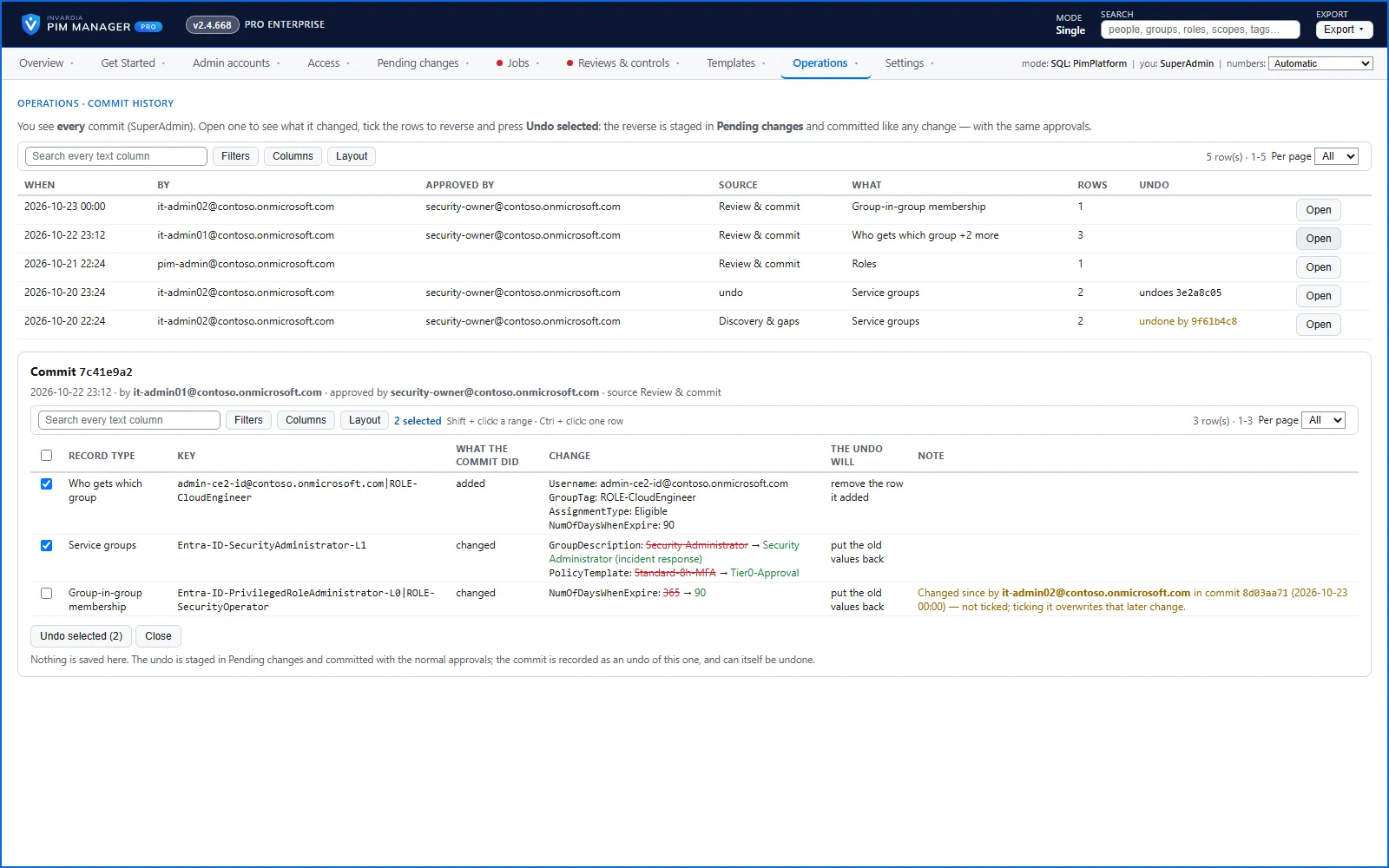
Open Operations > Commit history & undo. The list shows each commit with When, By, Approved by, Source, What, Rows and Undo. The Undo column says when a commit undoes another one, or was undone itself.
-
Press Open on the commit. A table shows each record it changed: Record type, Key, What the commit did, Change (each field before and after), The undo will and Note.
-
Tick the records to reverse. The records you may undo start ticked. Two kinds are not:
- A record changed again by a later commit. Note says Changed since by who, in which commit. Tick it only on purpose: reversing it overwrites that later change.
- As an Admin, a record somebody else committed. Its checkbox is disabled; a SuperAdmin can undo it.
-
Press Undo selected (N). PIM Manager stages the reverse in Pending changes and opens that page. If some records could not be staged, for example a record that is already gone, a message lists them.
-
On Pending changes > Review & commit queue, check the rows and press Commit all.
Nothing is saved on the Commit history & undo page itself. Close closes the commit without staging anything.
Restore from a backup instead
When a mistake spans many commits, a SuperAdmin can restore from a configuration backup. Open Operations > Backups & restore and pick what to restore from a backup; it is staged as pending changes and committed as a restore. Read more in Change control.
Check the result
- On Operations > Commit history & undo, the two commits point at each other. The new commit shows undoes and the first characters of the commit it reverses; the undone commit shows undone by and the first characters of the new commit. For example, if commit
a1b2c3d4is undone by commite5f6a7b8, the list shows undoes a1b2c3d4 one5f6a7b8and undone by e5f6a7b8 ona1b2c3d4. - After the next engine run, open Reviews & controls > Drift: live vs desired. Anything not yet in line shows as missing, changed or extra. See How to handle drift.
- For a removal that waits for the daily reconcile, Jobs lists what the last daily run would remove.
Undo the undo
An undo is an ordinary commit. Open it under Operations > Commit history & undo and undo it like any other.
Verified against PIM Manager 3.0.23.3 on Nov 3, 2026Download PDF