

PIM Manager documentation · Verified against PIM Manager 3.0.23.3 on Nov 3, 2026
How to delegate Intune roles
Intune administrator roles are often given to people directly and kept for years. This guide gives an Intune role to a PIM group, so people reach it only through a membership they activate. It also says plainly how far PIM Manager limits such an assignment.
How Intune limits an assignment
In Intune, a role assignment has three parts:
- Members: the groups of admins who get the role.
- Scope (groups): the users and devices those admins may manage, either chosen groups or all users and all devices.
- Scope tags (optional): which Intune objects, such as policies, apps and devices, the admins see.
What PIM Manager sets
- Members: the PIM group, for a built-in or a custom Intune role.
- Scope: all devices and all licensed users. PIM Manager does not set scope groups.
- Scope tags: from the wizards and templates in this guide, none, so Intune applies its Default scope tag. The PIM Manager screens do not set, read or check scope tags.
A delegation limited to chosen users or devices, for example a helpdesk for one region’s devices, is not something PIM Manager builds. Keep such an assignment in Intune, outside PIM Manager.
What you need
- The Admin role in PIM Manager.
- The engine’s identity, which applies the change, holds the Microsoft Graph application permission DeviceManagementRBAC.ReadWrite.All. The prerequisite line on the template card and on the wizard says whether it does. A Privileged Role Administrator can grant it with the script:
iwr https://invardia.com/support/pim/Initialize-PimWorkloadPrereqs.ps1 -OutFile .\Initialize-PimWorkloadPrereqs.ps1
.\Initialize-PimWorkloadPrereqs.ps1 -Workload Intune -TenantId <your tenant id>
Rights, changes and undo: Initialize-PimWorkloadPrereqs. Intune role-based access control needs no activation.
Levels
Intune roles follow the level rule: managers and administrators L3, operators L4, readers L5. For example, Help Desk Operator is L4 and Read Only Operator is L5. Every Intune group is tier T1 on the workload data plane. Read more in Tiers and levels.
Option A: from the Intune template
The template holds a ready group for each built-in Intune role, each with its role, named by your naming convention.
- Open Templates > Workload templates.
- Find the card Microsoft Intune delegation. It says how many permissions are new to you. Press Show.
- The list shows each row with Goes into, Group, Grants, Where and Type. Every row starts ticked. Untick all with the checkbox in the header, then tick the groups you want, for example the Help Desk Operator group. A group and its Intune role are one unit: ticking one ticks the other.
- Press Import N into pending.
- Open Pending changes > Review & commit queue and press Commit all.
Option B: with Delegate a permission
-
Open Access > Create access and choose Delegate a permission.
-
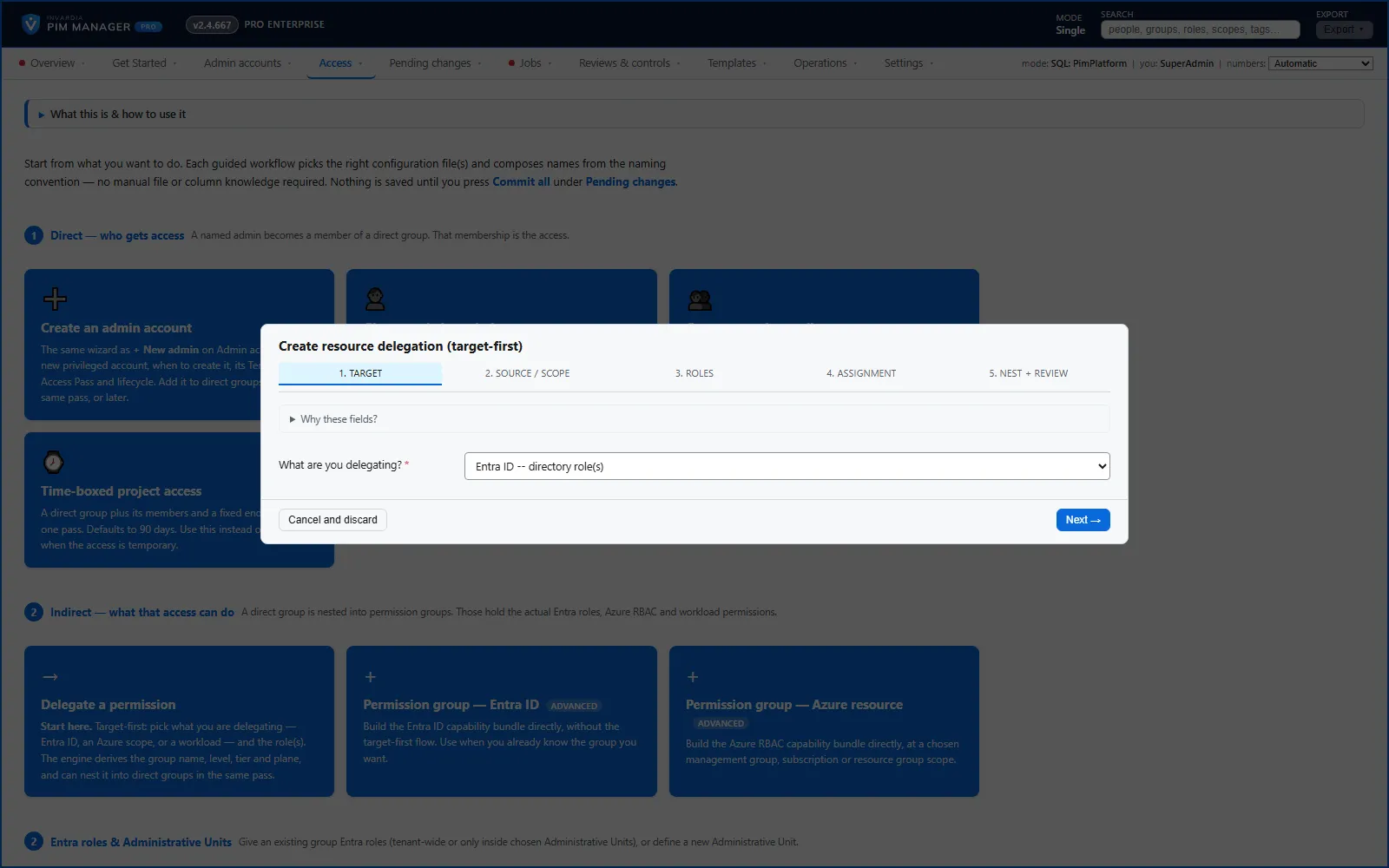
Target: set What are you delegating? to Workload – Defender XDR / Power BI / Intune / ….
-
Source / scope: in Workload, choose Microsoft Intune (RBAC roles). Leave Scope within the workload (optional) empty: an Intune assignment made by PIM Manager covers all devices and all licensed users.
-
Roles: pick one role. The list is read live from your Intune tenant, so custom roles are listed too.
-
Nest + review: tick the role groups whose members get this role, then press Add to pending changes.
-
Commit on Pending changes with Commit all.
This wizard sets level L3 for every workload role. Use the template when the level must follow the role.
Option C: from Discovery and gaps
In a Pro edition (not in Community), Access > Discovery & gaps lists each Intune role that no PIM group holds as a gap, with a ready proposal at the right level. See How to use Discovery and gaps.
Give the group to people
A group imported from the template has nobody in it yet.
- Open Access > Access map and select the Intune group in the What that includes column.
- Press Give to a group and pick the role groups that get it.
- Commit on Pending changes.
Check the result
- After the next engine run, open Jobs > Engine logs & errors. A failed item names the role and the reason, for example a role name that does not exist in Intune.
- In the Microsoft Intune admin center, open Tenant administration > Roles, then the role, then its assignments: the PIM group is a member of an assignment.
- On Reviews & controls > Drift: live vs desired, the Intune role is not listed as missing.
Undo
- Before you commit: cancel the import on Pending changes with Cancel all pending.
- After you commit: on Access > Delegations — all rows, remove the Intune row; the engine takes the assignment away on its next run. An Intune assignment that PIM Manager did not create is not deleted: the engine log says so, and you remove the PIM group from it in Intune. You can also undo the commit; see How to undo a commit.
Verified against PIM Manager 3.0.23.3 on Nov 3, 2026Download PDF
← How to delegate an Azure landing zone or subscriptionHow to delegate Defender XDR to a helpdesk →