

PIM Manager documentation · Verified against PIM Manager 3.0.23.3 on Nov 3, 2026
Change control
A direct edit in a privileged-access tool is dangerous: one slip can remove access for a whole team or grant far too much. In PIM Manager every change you make to the model is staged, shown as a precise before-and-after, and applied by the engine only after someone commits it.
Pending changes
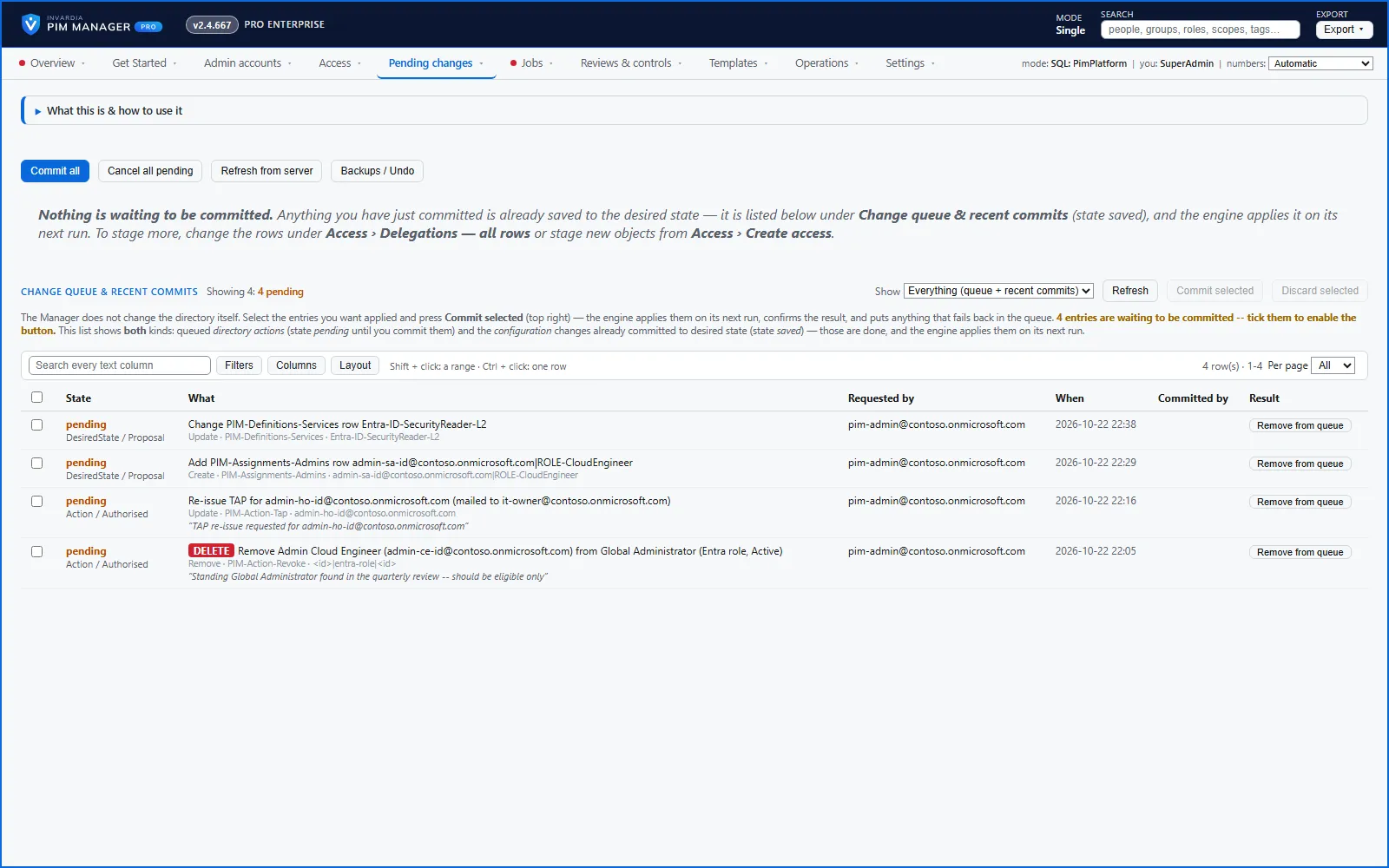
Every change you stage waits in one queue on the Pending changes page until it is committed:
- configuration edits, such as a new delegation or a changed admin record;
- directory actions: an access revoke, a Temporary Access Pass re-issue and a sign-in session revoke.
You select and commit them in one place. PIM Manager does not commit a change you staged on your behalf. Staged edits are kept in PIM Manager’s database, not in your browser, so they survive a reload. Every administrator sees every staged change and who staged it, and a row one administrator has staged is locked to them until they commit or discard it. A commit first re-checks your changes; if a blocking error remains, the page lists each error with the rows it concerns and a link to its fix.
Automatic changes
Some changes reach your tenant without a commit for each one, such as an auto-disable date that passes or auto-extend. Each follows a rule you set, runs as the engine’s managed identity (or, for Active Directory, the hybrid worker), stays inside the guards and is written to the audit trail.
The one list of every path that writes to your tenant, and who authorizes each one, is in Approval and audit.
No automatic path deletes an admin account: an account is deleted only when a person chooses Delete account.
Backed up and reversible
- Before anything is written, PIM Manager takes a snapshot of the affected data.
- The commit writes your model in one database transaction. If any part fails, the whole change to the model is rolled back. This covers the stored model only; the engine then applies the committed model to the tenant item by item.
- The commit journal records the before and after, who committed and who approved, in the same transaction.
- If you change your mind, the Backups / Undo view lists the recent snapshots per data set and plans the inverse change, which you commit through the same checks. The engine then applies it to the tenant.
A second approver
You can require a second administrator to approve the most sensitive changes before they commit: attaching a privileged role or scope, placing a guest account into a privileged group, and disabling or offboarding an account. Available in Pro editions; not in Community.
The administrator who raises a request cannot approve it. The one exception is Allow an administrator to approve their own requests under Settings > Approvals & policy: it is off by default, only a SuperAdmin can switch it on, the change is audited, and it is meant for a tenant with a single PIM Manager administrator. A PIM policy change set is not such a request: any SuperAdmin approves it, including the one who saved the choices (see PIM policies you decide).
With the second approver, offboarding is a request: one administrator raises it, a different administrator approves it, and only then can it be carried out, once. Without it, one administrator offboards a day-to-day admin; a sensitive admin still needs a second administrator (see How to offboard an admin). Delete account is decided by one person, also for a sensitive admin: a SuperAdmin, or an Admin whose delegated scope and level cover the account.
A change to the list of break-glass accounts is a request that a second SuperAdmin approves, unless self-approval is switched on.
PIM policies you decide
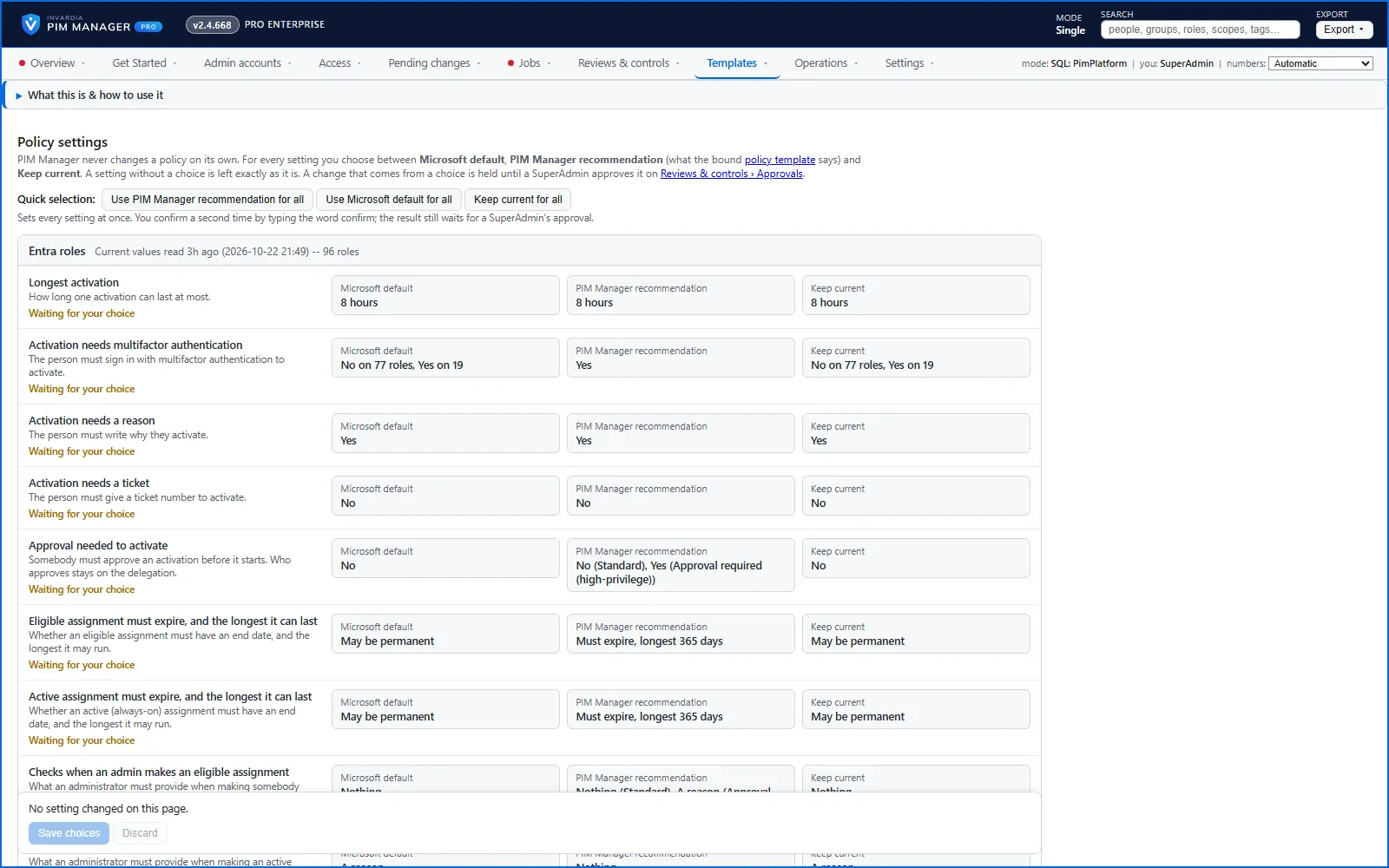
PIM policies set how long an activation lasts, whether it needs multifactor authentication, a reason, a ticket or approval, how long an assignment may last, and who is notified. PIM Manager changes a policy setting only when you chose a value for it and a SuperAdmin approved the change set.
- On the Policy settings page, every setting has three buttons: Microsoft default, PIM Manager recommendation and Keep current. Each button shows the value it stands for.
- Microsoft default is a table PIM Manager ships, read from policies nobody had changed in a new tenant, because Microsoft’s documentation does not list the defaults. Microsoft’s default can differ per role: for Entra roles, activation asks for multifactor authentication on some high-privilege roles, such as Global Administrator and Privileged Role Administrator, and not on the others, so the button shows each value with its number of roles. For Entra roles, Microsoft’s default allows permanent eligible and permanent active assignments (May be permanent). Microsoft’s default for Azure roles is not confirmed yet, so it cannot be chosen there.
- A setting without a choice is left exactly as it is in your tenant.
- A choice is not yet a change. The next policy run plans the change and holds it until a SuperAdmin of your tenant approves that change set under Approvals. That SuperAdmin may be the one who saved the choices; no setting requires a second person for a policy change set.
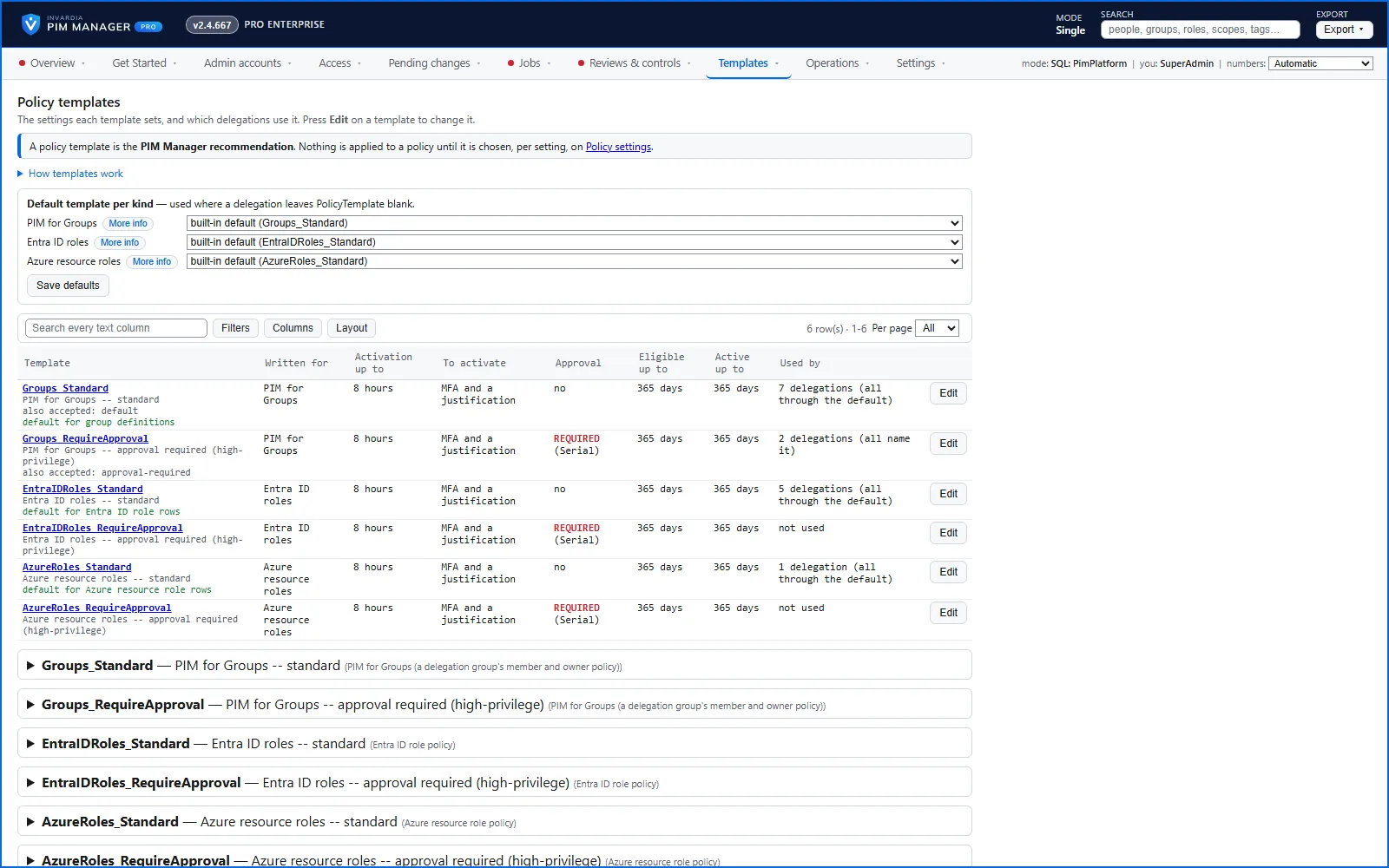
- Policy templates come as a Standard and a RequireApproval template for PIM for Groups, Entra ID roles and Azure roles, each renameable, with one default per kind.
Safety guards
Automation that removes access is only safe if it cannot remove too much because of a bad read or a bulk edit. The guards stop a change only where the damage would not fix itself:
- a commit that takes many rows out of one list waits for a SuperAdmin to approve exactly those rows;
- a run that would remove more than its limit in one scope, or disable more accounts than its limit, changes nothing there and holds the list;
- a change that would remove the tenant’s last Global Administrator is held, and removing the last PIM Manager SuperAdmin is refused;
- the guards are stricter right after an update that changed the engine.
Every guard trip is mailed to your administrators, listed on the Guards page and written to the audit trail. A hold that is no longer needed clears itself on the next run. Read more in guards.
Verified against PIM Manager 3.0.23.3 on Nov 3, 2026Download PDF