

PIM Manager documentation · Verified against PIM Manager 3.0.23.3 on Nov 3, 2026
How to read the access map and see who can activate a role
With nested groups, nobody is assigned a role directly, so the Entra ID role list does not tell you who can reach it. The access map draws each path in your delegation model, from the person to the role, and Role Lookup lists everyone in that model who can activate one role with the path that grants it.
What you need
- Any role in PIM Manager. Reading the map and Role Lookup changes nothing.
- The Admin role only if you also want to give or remove access from the map.
What the map shows
The map shows the delegation model that PIM Manager manages: the admin accounts, the groups they are assigned to, the groups nested in those, and the roles and scopes at the end. It includes staged changes that are not committed yet. It does not list assignments made outside PIM Manager; for those, see Check against the tenant.
The four columns read as one sentence, left to right:
- People: the admin accounts.
- What they’re assigned to: job roles, departments and organization groups. People are assigned only to this column.
- What that includes: the permission groups nested in them. Everything from here on is inherited, not assigned.
- What it lets them do: the Entra roles, roles scoped to an administrative unit, Azure roles at their scope, and workload roles.
Step 1: see who can reach a role
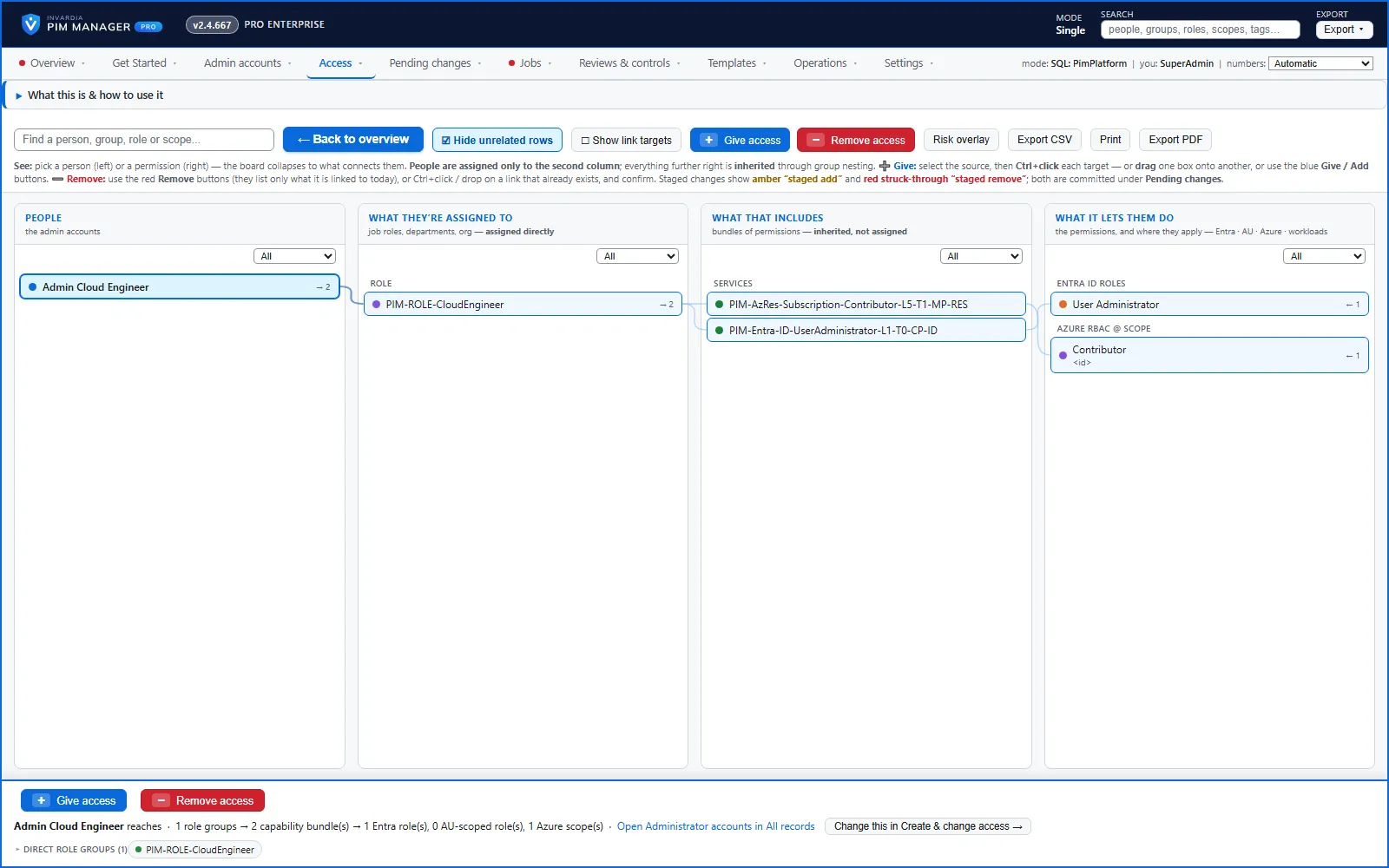
- Open Access > Access map.
- In Find a person, group, role or scope…, type part of the role’s name and pick it. Or click the role in the What it lets them do column.
- The board collapses to the path: every group that leads to the role and every person who reaches it through those groups.
- Read the bar under the board. It names the role and says reachable by and the number of admins.
- Follow the lines from right to left: the role, the permission group that grants it, the group that includes that permission group, and the people assigned to that group.
Step 2: see everything one person reaches
- Click the person in the People column, or find them in the search box.
- The bar under the board says what the person reaches: how many groups, how many permission groups, and how many Entra roles, roles scoped to an administrative unit and Azure scopes.
Step 3: widen or reset the view
- Hide unrelated rows is on while something is selected: only the path is shown. Turn it off to see the whole board, with the rows off the path grayed out.
- Back to overview clears the selection.
- Risk overlay marks groups that no admin reaches, delegations past their review horizon, and items that reach T0 or T1 or unusually many targets.
- Export CSV exports every admin-to-target path; Print opens a printable view.
Step 4: list who can activate one role
When you need the answer as a list, for a ticket or an auditor, use Role Lookup.
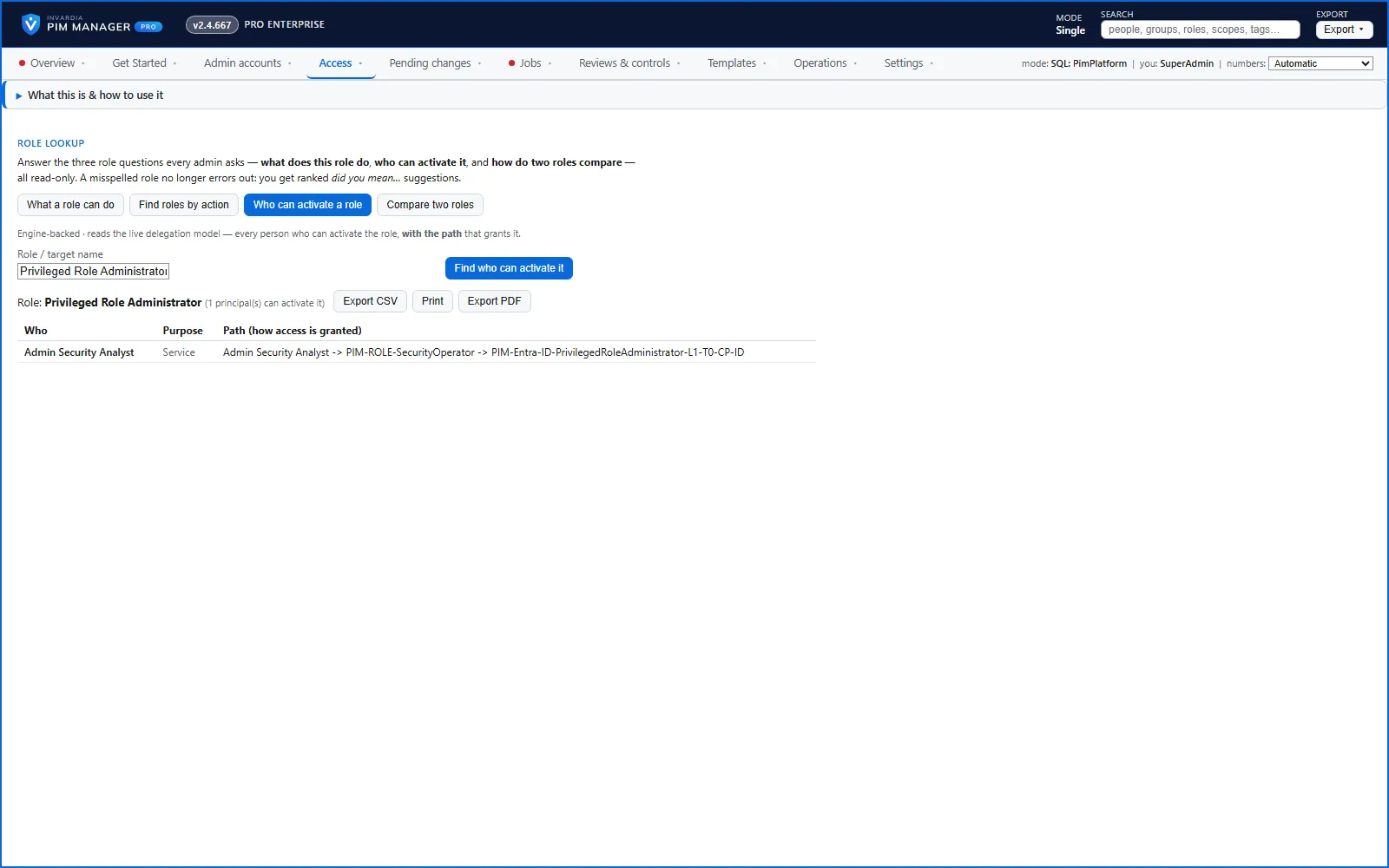
- Open Access > Look up a role.
- Press Who can activate a role.
- In Role / target name, type the role, for example Global Administrator. A misspelled name gives Did you mean… suggestions to click.
- Press Find who can activate it.
- The table lists Who, Purpose and Path (how access is granted), for example person → job role group → permission group.
- Press Export CSV or Print to keep the list.
To see who can activate both of two roles, or only one of them, press Compare two roles, fill in Role A and Role B and press Compare.
Check against the tenant
The map and Role Lookup read the model PIM Manager holds. Two pages compare it with what is live in the tenant:
- Reviews & controls > Drift: live vs desired: where the tenant differs from the model, per area.
- Reviews & controls > Delegation overview (All privileged permissions): the active privileged assignments in the tenant, including assignments made outside PIM Manager. Revoking from the page is available in Pro editions, not in Community.
Change access from the map
With the Admin role you can also give or remove access on the map: Give access and Remove access in the toolbar, Ctrl+click, or drag one box onto another. Each link or removal is a staged change, shown as staged add or staged remove. Nothing reaches the tenant until you commit it under Pending changes, and a staged link can be taken back before that.
Related pages
Verified against PIM Manager 3.0.23.3 on Nov 3, 2026Download PDF
← How to set up PIM for Active DirectoryHow to find the least-privileged role for a task →