

Skip to content
InvardiaInvardia
Why InvardiaProductsFeaturesPricingCommunity
Docs
All documentation
Product documentationPIM ManagerSecurityInsight
SettingsPIM Manager settingsSecurityInsight settingsEntra Policy Suite settings
ScriptsPIM Manager scriptsSecurityInsight scriptsEntra Policy Suite scriptsInvardia scripts
Error codesPIM Manager error codesSecurityInsight error codes
API and MCPPIM Manager APIPIM Manager MCP toolsSecurityInsight APISecurityInsight MCP tools
SecurityPIM Manager security packSecurityInsight security packEntra Policy Suite security pack
Network and designPIM Manager network guidesPIM Manager command wizardNetwork egressDesign your installationCalculate your cost
SupportSetup scriptsRemote support access
Search the docs
SupportAboutContactBook a demoCustomer portalDesign your installationFree Pro trial

PIM Manager docs

1 Why

  • Why PIM Manager

2 Features

  • Features
  • Delegation model
  • Change control
  • Admin accounts
  • Visibility and evidence
  • Integrations
  • Platform and editions

3 How to design

  • How to design
  • Nested groups
  • Role-assignable groups
  • Tiers and levels
  • Naming
  • Migration
  • Workload roles

4 Security design

  • Security design
  • Identities
  • Engine permissions
  • Database
  • Sign-in
  • Approval and audit
  • Support access
  • Updates and license
  • Data
  • Database access (least privilege)

5 Architecture, setup and sizing

  • Architecture
  • Setup
  • Sizing

6 Operate

  • Operate
  • Guards
  • Access reviews
  • PIM Activator
  • Settings

7 Integrate

  • Integrate
  • REST API and ServiceNow
  • MCP server for AI assistants
  • Hybrid Active Directory
  • MSP: managing and managed tenants

8 Knowledge base

  • Knowledge base
  • How to onboard a consultant
  • How to onboard an admin
  • How to delegate a Power BI workspace
  • How to delegate an Azure landing zone or subscription
  • How to delegate Intune roles
  • How to delegate Defender XDR to a helpdesk
  • How to use Discovery and gaps
  • How to handle drift
  • How to undo a commit
  • How to enable access reviews
  • How to approve a held policy change
  • How to add a break-glass account
  • How to install the PIM Activator without Intune
  • How to set up PIM for Active Directory
  • How to read the access map and see who can activate a role
  • How to find the least-privileged role for a task
  • MSP: how to roll a change to one wave
  • How to activate with the PIM Activator
  • How to offboard an admin
  • FAQ
  • Lessons learned

9 Reference

  • Reference
  • Glossary

10 Support

  • Support

On this page

  • The daily loop
  • Pages in this chapter
  • Where to look when something is wrong

PIM Manager documentation · Verified against PIM Manager 3.0.23.3 on Nov 3, 2026

Operate

Privileged access drifts, people join and leave, and a single wrong change can lock out a whole tenant. This chapter shows how you run PIM Manager day to day so that each of those events is handled safely and on the record.

The daily loop
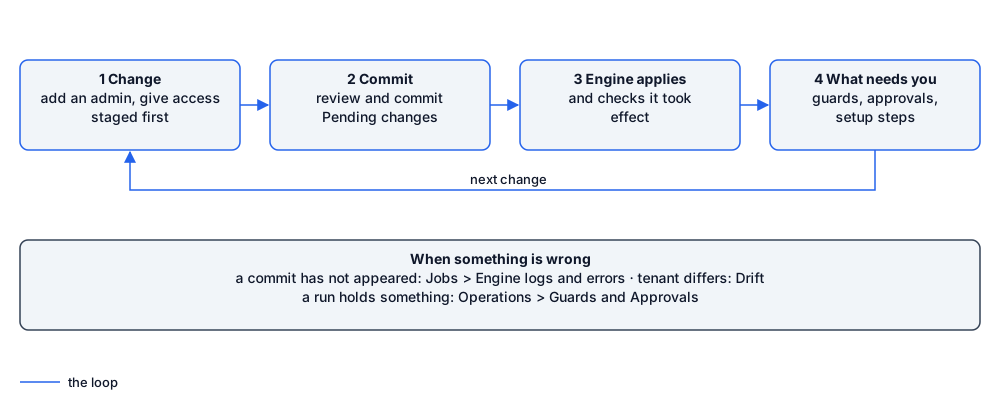
Change, commit, the engine applies and checks, then see what needs you; and where to look when something is wrong

PIM Manager works from a desired state that you keep in its database. The engine compares that state with your tenant and makes the tenant match it. Your daily work is mostly three things:

  1. Change the desired state. Add an admin, give access, change a department. Every edit is staged first and lands under Pending changes (the Review & commit queue).
  2. Commit. You review the staged changes and commit them. The engine starts and applies them, and checks that they took effect.
  3. Check what needs you. The Overview and Get Started pages show what waits for a person: held guards, held policy changes, approvals and open setup steps. Your SuperAdmins also get one reminder mail that lists everything waiting on them, with a link to each entry, and it stops by itself when nothing waits.

The Manager’s identity reads your tenant; it does not write roles, groups or accounts there. Those writes are done by the engine’s managed identity, after a commit or on a scheduled run, and are written to the audit trail (Operations > Audit trail). The changes a scheduled run makes without a commit for each one are listed in Change control.

Pages in this chapter

Page What it covers
Guards The safety brakes: policy changes held for a SuperAdmin, the empty-store gate, removal and delete limits, and stricter limits right after an update.
Access reviews Recurring reviews per department: who reviews, Keep or Remove, reminders and escalation.
PIM Activator The browser extension your admins activate access with, and how to deploy it with or without Intune.
Settings How settings work, who may change them and where every setting is explained.

Where to look when something is wrong

You see Go to
A change you committed has not appeared in the tenant Jobs > Engine logs & errors. Each failed item names the group, role or scope and the reason.
The tenant differs from what PIM Manager defines Reviews & controls > Drift: live vs desired. Missing, changed and extra items, per area.
A run says it holds something Operations > Guards and Reviews & controls > Approvals. See Guards.
An access review nobody answers Reviews & controls > Access reviews. A SuperAdmin can decide any open person.
An admin cannot activate The admin’s eligibility on Access, then the policy limits on Templates > Policy settings. See also the FAQ.

For step-by-step tasks, see the Knowledge base.

Verified against PIM Manager 3.0.23.3 on Nov 3, 2026Download PDF

← SizingGuards →

InvardiaInvardia

See the risk. Control the access.

Products

PIM ManagerSecurityInsightEntra Policy SuiteAll featuresPricingFree 60-day Pro trialBook a demoWhy Invardia

Docs

DocumentationSearch the docsPIM Manager settingsSecurityInsight settingsPIM network guidesCommand wizardNetwork egressPIM Manager design configuratorSecurityInsight design configuratorDesign your installationCalculate your cost

Company

AboutContactCustomer portalSupportHow support worksHow updates reach youSupport in numbersSetup scriptsRemote support accessContact: info@invardia.com

Legal

Terms of saleLicence termsData processingPrivacyCookiesCompany information
© 2026 Invardia – a brand of 2LINKIT, founded and owned by Morten Knudsen · Strandvejen 21A, 6000 Kolding, Denmark · VAT DK39208032 · Contact: info@invardia.com