

PIM Manager documentation · Verified against PIM Manager 3.0.23.3 on Nov 3, 2026
Updates and license
An update to the tool that controls privileged access is a supply-chain risk: a tampered or broken release would reach your most powerful access. PIM Manager accepts only signed releases, builds them inside your own subscription, rolls back when they are not healthy, and follows the update controls you set.
How an update reaches you
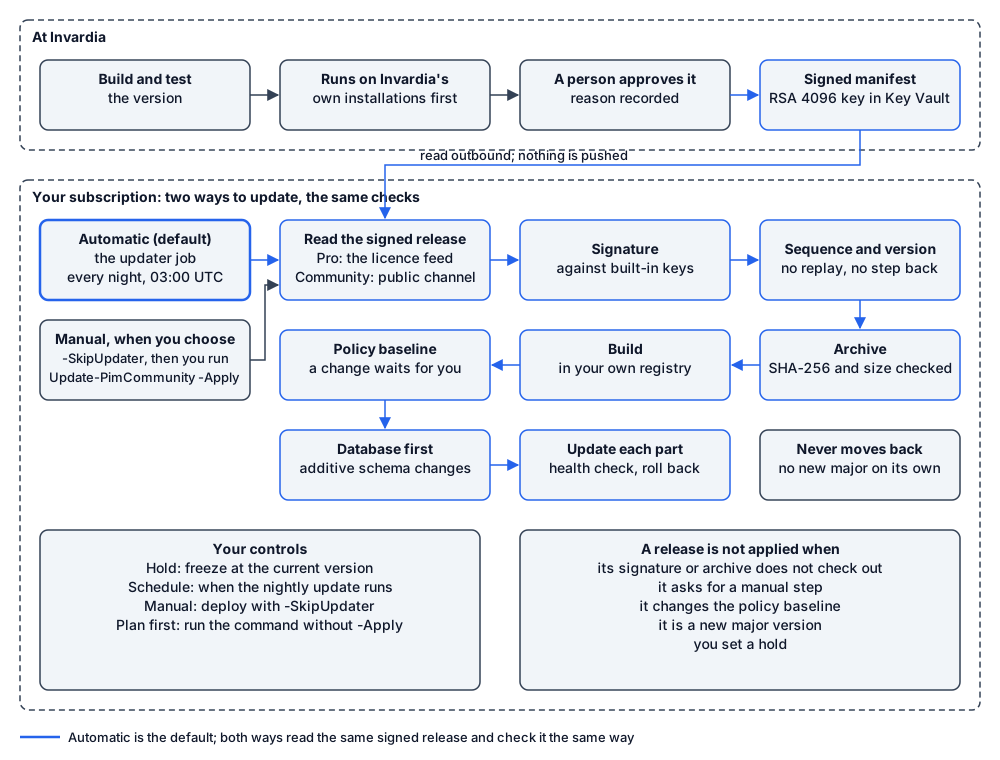
Two ways to update, with the same checks: automatic (the default) and manual.
There are two ways to update, and both check the same things before anything changes:
- Automatic, the default. The updater job in your subscription runs every night at 03:00 UTC.
- Manual, when you choose. Deploy with
-SkipUpdater, so there is no updater job, and runUpdate-PimCommunity.ps1 -Applywhen you want to update. Without-Applyit shows the version it would move to and the deploy plan, and changes nothing.
Either way, your installation asks Invardia, outbound, which version is released for its ring. Nothing is pushed. Where the signed release comes from depends on the edition:
- Pro: the licence feed, with your installation’s install key. The archive is downloaded from Invardia.
- Community: Invardia’s public release channel, on ring 3 unless you choose another. No install key or licence is sent. The archive is the public release on GitHub that the signed manifest names.
Then:
- Signed manifest. The release manifest is signed with RSA and SHA-256 and checked against public keys built into PIM Manager, never against a key fetched at run time.
- No replay, no step back. The manifest names the version, a sequence number, the archive’s SHA-256 and its size. An older sequence is refused.
- Checked archive. The source archive is downloaded over HTTPS, and its SHA-256 and size are checked before it is unpacked. The version inside must match the manifest.
- Built in your registry. The update builds the image from source in your own container registry. No pre-built vendor image is pulled. The registry’s admin user is off.
- Policy baseline. A release that would change the default PIM policies your installation applies waits until you accept that change for the one update.
- Database first. Additive schema changes are applied before any component is updated; if the schema cannot be verified, the update stops.
- Update, verify, roll back. Each component is updated, a health check runs, and a failed check rolls back automatically.
A release that asks for a manual step is held. An update never moves your installation to an older version, and never moves it to a new major version on its own.
The signing key
- The update-signing key is an RSA 4096 key that Invardia holds in an Azure Key Vault. Only its public half is built into PIM Manager.
- To replace the key, a release ships the new public key next to the old one; the old one is removed in a later release. A manifest signed by any other key is refused.
- The build inside your registry starts from Microsoft base images pinned by digest and adds two packages from NuGet, pinned by version, with their dependencies.
Released after approval
Invardia releases a version to customer installations only after a person at Invardia has marked it approved, with a reason that is recorded and cannot be edited afterwards.
Right after an update that changed engine code, the safety guards are stricter for a day. Read more in guards.
Your controls
- Hold: freeze the installation at its version, for example during a change window.
- Downgrades: refused.
- Schedule: change when the nightly update runs.
- Manual only: deploy with
-SkipUpdaterand update withUpdate-PimCommunity.ps1 -Applywhen you choose. - The updater’s rights: the updater is a full database administrator and Contributor on the PIM resource group. The updater explains why and how to take those rights away.
Updating by command
Update-PimCommunity.ps1 is the manual way, for both editions. Community is the default; for Pro, give -Edition Pro with your install key and licence file. It reads the same signed release the updater job reads and checks it the same way: the signature, the product, the ring, the sequence and a held release. With -Apply it downloads the archive, checks its size and SHA-256 against the signed manifest, unpacks it into a new folder next to your copy and checks its version. Then it runs that release’s deploy with the parameters your last successful deploy saved. The deploy upgrades the database first, runs a health check and rolls PIM Manager back when the check fails.
Setup scripts
Scripts are run by highly privileged people, so each published script is:
- listed in a SHA256SUMS.txt published next to it;
- one self-contained file, with no PowerShell modules and no second-stage downloads;
- run with a browser sign-in, so you do not hand a script a client secret to sign in;
- able to show its plan with
-WhatIfor-PlanOnly, and writes a transcript.
Some scripts do handle a secret, and each says so on its page:
- a script that stores a secret you supply, such as the SMTP relay password or the emergency passphrase, takes it as a secure string or prompts for it, and writes it only to your Key Vault (the passphrase as a hash);
- the deploy creates a client secret, valid for 2 years, for the built-in Azure Container Apps sign-in, and keeps it on the sign-in app registration and as a secret of the container app until you remove it; the sign-in front does not use it (see Remove the old sign-in secret);
- the Invardia Support app script, which you run only for a support case, creates the app’s client secret and shows it to you once, so you can upload it.
The command PIM Manager shows is two lines: one downloads the script from Invardia, one runs it. To verify before you run it, compare Get-FileHash with the line in SHA256SUMS.txt.
The license
- Signed. The license is a document signed with RSA and SHA-256, checked offline against certificates built into PIM Manager, before it is stored and again after it is read back. A changed or wrongly signed document is refused before anything is stored.
- Bound to your tenant. A license names the tenants it covers; one that names no tenant is not valid. The tenant is taken from the managed identity’s own sign-in token, not from a setting, so a copied license does not unlock Pro elsewhere.
- Renewal proves the license. When PIM Manager asks Invardia for a renewal, it sends a fingerprint of the license it holds and, with an install key, the key itself, so only that installation can ask.
- No lock-out. Community features do not depend on the license, a SuperAdmin keeps full access, and your data is not behind a license. After a license ends, Pro keeps working through a grace period, 30 days unless the license says otherwise.
Verified against PIM Manager 3.0.23.3 on Nov 3, 2026Download PDF