

PIM Manager documentation · Verified against PIM Manager 3.0.23.3 on Nov 3, 2026
How to handle drift
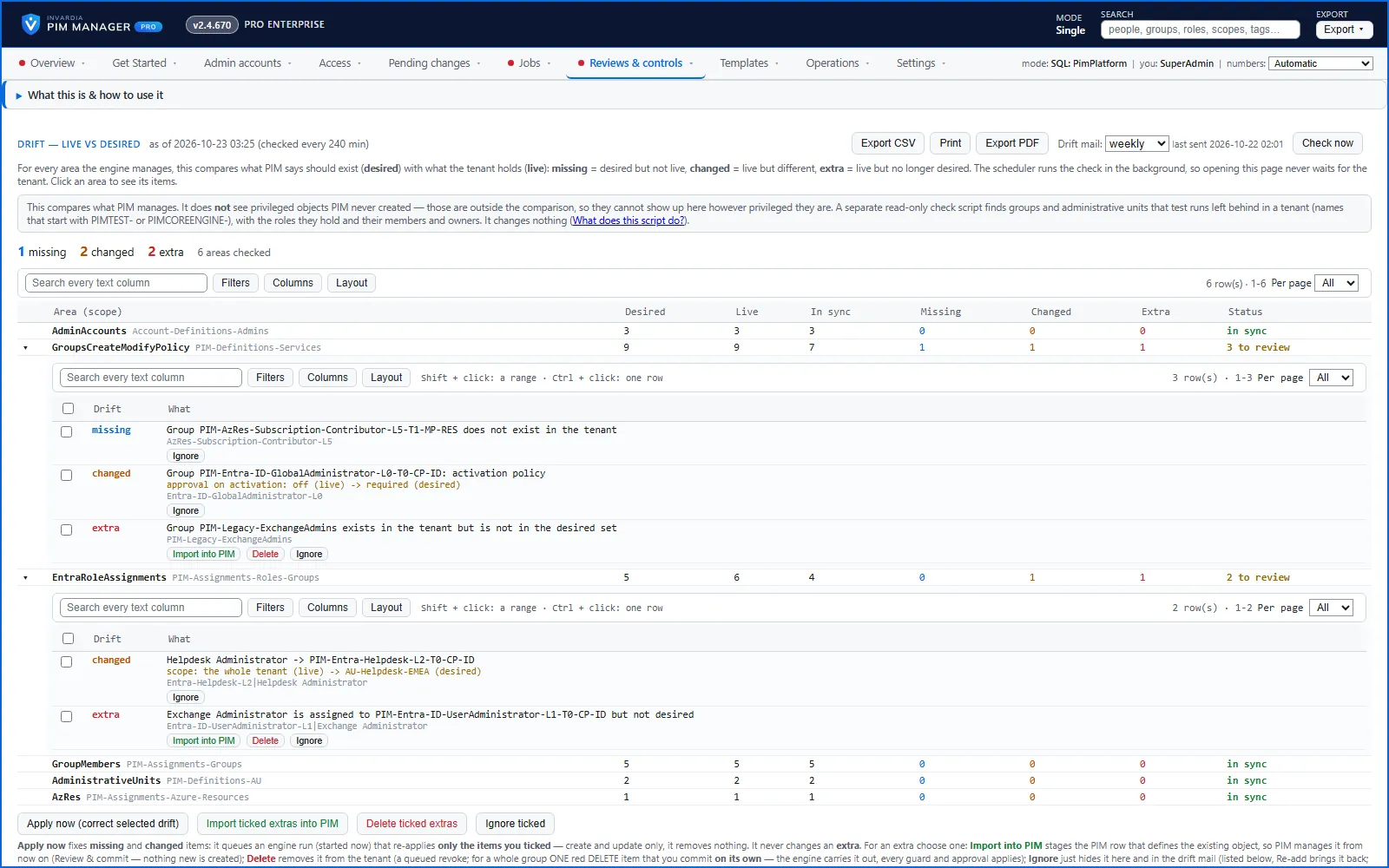
Someone changes an assignment in the Entra admin center or the Azure portal, and your tenant no longer matches what PIM Manager says it should hold. The Drift: live vs desired page shows each difference, and offers one explicit action per kind: put it right, take it under management, delete it, or ignore it.
What you need
- The Admin role in PIM Manager to apply, import, ignore or re-add, and to start a new check. A Reader can view the page.
- The SuperAdmin role to delete an extra. For everybody else the Delete buttons are shown disabled, with the reason.
- To delete an extra assignment, a Pro edition: that delete is a revoke, and revoking is available in Pro editions; in Community, remove it in the Microsoft Entra admin center or the Azure portal.
The three kinds of drift
For every area the engine manages, the page compares what PIM Manager says should exist (desired) with what the tenant holds (live):
| Drift | Meaning | Your choices |
|---|---|---|
| missing | Desired, but not in the tenant | Apply now, or Ignore |
| changed | In the tenant, but different; the row says what differs | Apply now, or Ignore |
| extra | In the tenant, but not desired | Import into PIM, Delete (SuperAdmin) or Ignore |
An ignored finding has one action: Re-add. Apply now does not change an extra. An area can also show warnings, such as a group with no workload role or a role bound to a group PIM Manager does not define. A warning cannot be applied; fix it at its source.
What the comparison covers
The page compares what PIM Manager manages: the areas the engine manages, such as Entra role assignments, PIM for Groups memberships and the groups that carry your naming prefix. The note at the top of the page says so: This compares what PIM manages. It does not see privileged objects PIM never created.
What that means in practice:
- Listed as extra: what the engine reads in its areas but no definition names. That can include an object someone else created inside what PIM Manager reads, for example a group with your naming prefix that no definition names. An area with no definitions at all lists everything live there as extra.
- Not listed, however privileged: what the engine does not read, for example a group without your naming prefix that holds no role PIM Manager manages.
So no drift means no drift in the areas PIM Manager manages, not that nothing else is privileged. For the rest, use Reviews & controls > Delegation overview, which lists the active privileged assignments in the tenant, and Discovery and gaps (Pro; not in Community). The note also links a separate read-only check script; it finds only groups and administrative units that test runs left behind (names that start with PIMTEST- or PIMCOREENGINE-), and you do not need it here.
PIM Manager does not remove an extra automatically; a SuperAdmin can delete it from this page. The one automatic removal is access that PIM Manager itself put in place and you later removed from its configuration (see Delete an extra).
Open the page
- Open Reviews & controls > Drift: live vs desired. The page shows the latest stored check, with its time. A scheduled job runs the check in the background (Jobs > Job schedule), so opening the page does not wait for the tenant.
- To check again, press Check now. The result appears on the page in a few minutes.
- The counts at the top add up missing, changed and extra. An area that could not be checked says so and is not counted as in sync.
- Click an area to expand it and see its items.
Put missing and changed items right
- Tick the missing and changed items to correct. The checkbox in an area’s header ticks all of its items.
- Press Apply now (correct selected drift).
This starts an engine run that re-applies only the items you ticked. It creates and updates; it removes nothing.
Take an extra under management
Use this when the extra is right and PIM Manager should manage it.
- Press Import into PIM on the item, or tick several extras and press Import ticked extras into PIM.
- For a whole group, PIM Manager asks which kind of group definition to file it under: type one of Roles, Tasks, Services, Processes, Organization, Projects or CrossOrg. These are the lists PIM Manager keeps group definitions in, not the tag prefixes on Naming. The existing group is matched by its exact name; no second group is created. PIM Manager checks only that no definition already uses that name; it does not check the group’s owners or members. Check them in the Microsoft Entra admin center first (see Naming).
- Open Pending changes > Review & commit queue. The rows are shown as an import. Press Commit all.
The drift clears after the next check. When an extra cannot be imported from here, the button is disabled and its tooltip says why.
Delete an extra
Use this when the extra must go. Only a SuperAdmin can do it.
- Press Delete on the item, or tick several extras and press Delete ticked extras.
- What happens depends on the item:
- An assignment becomes a queued revoke (Pro editions; not in Community). On Pending changes, tick it in the change queue and press Commit selected; the engine removes it on its next run.
- A whole group asks you to type
DELETE, with a warning when the group looks like a Tier-0 group. It becomes one red DELETE item on Pending changes, committed on its own with Commit this DELETE; Commit all skips it. The engine then empties and deletes the group on its next run, within the guards.
If your own infrastructure code created a group, delete it there, or the code creates it again.
Some extras need no action from you. An item that PIM Manager put in place and you then removed from its configuration is removed by the daily reconcile, under its rules and removal limits, unless a SuperAdmin set the reconcile to report only. Read more in Guards.
Ignore a finding
Use this for a difference you accept.
- Press Ignore on the item, or tick several and press Ignore ticked.
- The finding leaves the counts, this page and the drift mail. Nothing changes in your tenant.
Ignored findings are listed under ignored finding(s) at the bottom of the page, with who ignored them and when.
Special cases
- An area with no definitions lists everything live there as extra, so you can see it. PIM Manager removes nothing from such an area by itself; use Import into PIM or Delete per item.
- More extras than one run removes are all listed, and an automatic run holds them instead of removing them. Decide per item.
The drift mail
Drift mail at the top of the page sets how often the drift alert mail goes out: daily, weekly, biweekly, monthly or quarterly. The check itself keeps running on its own schedule, and this page shows the latest result.
Check the result
- After the engine has run, press Check now.
- The corrected, imported or deleted items are gone from the counts.
- If an item is still there, open Jobs > Engine logs & errors for the reason.
Undo
- An ignored finding: open ignored finding(s) and press Re-add. It is back in the counts, the page and the drift mail.
- An import: before you commit, Cancel all pending on Pending changes; after, undo the commit (see How to undo a commit).
- A delete: before you commit, tick the item in the change queue on Pending changes and press Discard selected. A group deleted by the engine cannot be brought back by PIM Manager.
- Apply now: the items it created or changed are the desired state, so they stay unless you change the configuration.
Verified against PIM Manager 3.0.23.3 on Nov 3, 2026Download PDF