

PIM Manager documentation · Verified against PIM Manager 3.0.23.3 on Nov 3, 2026
How to delegate an Azure landing zone or subscription
An Azure role given directly at a management group reaches every subscription below it, and standing Owner or Contributor rights pile up unseen. This guide puts the Azure role on a PIM group at the scope you choose, with a level that says how high in your management-group tree that scope sits, so people reach it only through a membership they activate.
What you need
- The Admin role in PIM Manager.
- The engine’s identity, which applies the change, may assign roles at that scope: it holds User Access Administrator or Owner there. The prerequisite line on the wizard says whether it does. The script
Initialize-PimWorkloadPrereqs.ps1 -Workload AzureRbacchecks it and, only with-GrantAzureUserAccessAdministrator, assigns User Access Administrator where it is missing. That is standing privilege, so it is your choice. See Initialize-PimWorkloadPrereqs. - Your management groups and subscriptions in PIM Manager’s tenant cache. The engine’s identity reads them; if the scope list in the wizard looks short, the identity most likely cannot read every management group.
The level comes from the management-group layer
This wizard follows the Cloud Adoption Framework layers of your management-group tree, the one Azure level scheme of Tiers and levels:
| Scope | Level |
|---|---|
| Tenant Root Group | L3 |
| Intermediate root (your organization’s top management group) | L4 |
| Platform, Landing zones | L5 |
| Corp, Online, Management and the other groups below them | L6 |
| A subscription | one below its management group |
| A resource group | one below its subscription |
| A resource | one below its resource group |
Levels stop at L9. A subscription under Corp is L7, and a resource group in it is L8. The level follows the scope, not the role.
The tier is your choice. A role such as Owner, User Access Administrator or Role Based Access Control Administrator at the Tenant Root Group or the intermediate root controls every subscription below it: treat it as Tier 0. Read more in Tiers and levels.
Steps
-
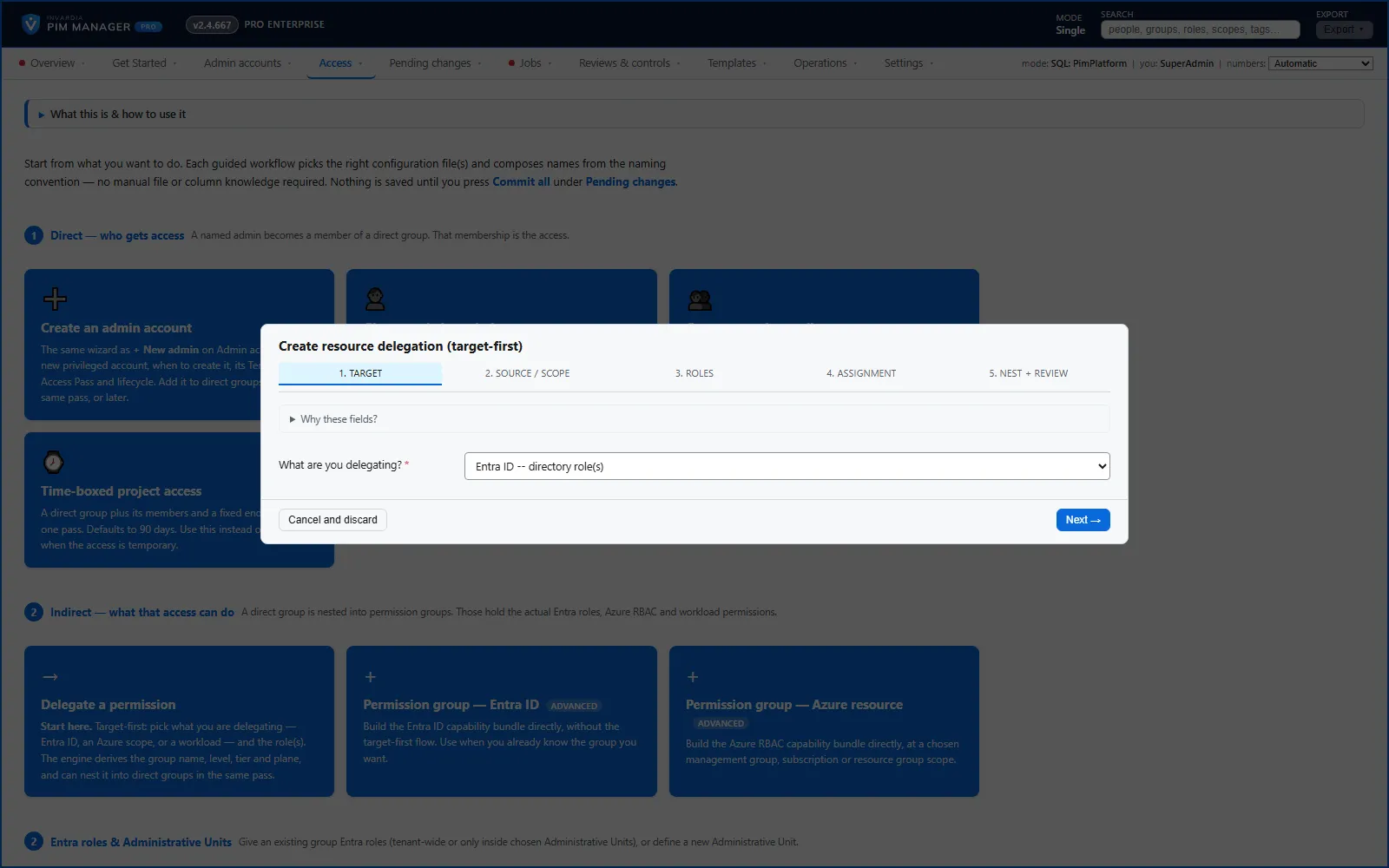
Open Access > Create access and choose Permission group — Azure resource. The wizard New permission group (Azure resource) opens. Its steps are Where & what, Tier, Nest into role groups and Review.
-
On Where & what:
- Azure scope (full ARM path): click the field to browse your management groups and subscriptions, and pick the landing zone or the subscription. You can also paste a path.
- Scope alias (short code): pick the suggestion or type a short name, for example
LandingZones. It becomes part of the group name. - Azure RBAC role name: pick the role, for example Contributor. The list is read live from your tenant.
- Role alias (short code): filled in from the role; change it if you like.
- Owner email(s) (optional): the owners of the group. They approve its activation when its policy needs approval.
- PIM policy — activating membership of this group: keep Use default, or pick a template that needs approval.
- Check the preview. You’ll get – Level shows the level and where it came from, for example L5 – from the management-group layer.
-
On Tier: the wizard starts on T0 – control plane for every scope, a resource group or a Reader role included. Its help text says Default T0 for management-group / subscription owner-style scopes. Change it unless the role controls a root-level scope:
- T0 – control plane: Owner, User Access Administrator or Role Based Access Control Administrator at the Tenant Root Group or the intermediate root.
- T1 – server/app admin: every other Azure role, which is the usual case. On Tiers and levels, an Azure role is Tier 1 unless it controls a root-level scope.
The labels are short names from the Active Directory tier model. Check the tier on Review: it is part of the group name and the group’s place in the tier model.
-
On Nest into role groups: tick the role groups whose members get this Azure role.
-
On Review: check the rows it adds, then press Add to pending changes.
-
Open Pending changes > Review & commit queue and press Commit all.
The group holds the Azure role at that scope as an active assignment. People reach it by activating their eligible membership of the role group.
When the scope is not in the cached management-group tree, the preview says the level comes from the role instead: readers L5, contributors and operators L4, owners and administrators L3. Refresh the tenant cache, or check that the engine’s identity can read the tree.
Other ways to delegate Azure
Two other paths create Azure delegations, and both set levels differently from the scheme above. Use Permission group — Azure resource, this guide’s wizard, when the level must follow your management-group tree.
- Delegate a permission (Access > Create access, target Azure – RBAC role at a resource scope) also asks whether the role is held Eligible or Active (standing) and for how long. It sets the level from the scope type: tenant root L0, a management group or a subscription L1, a resource group L2, a resource L3, and tier T1 except at the tenant root (T0). That wizard’s L0 for the tenant root is its own scope-type level: it is not the L0 of Tiers and levels, where L0 is the Entra control plane such as Global Administrator, and it does not follow the CAF layers above. Check the level in its preview before you commit, and use this guide’s wizard when the level must follow your management-group tree.
- Discovery & gaps (Pro; not in Community) proposes, for each subscription and management group no PIM group delegates, a Reader group (active, L4) and a Contributor group (eligible, L3), whatever the scope’s layer. See How to use Discovery and gaps.
Check the result
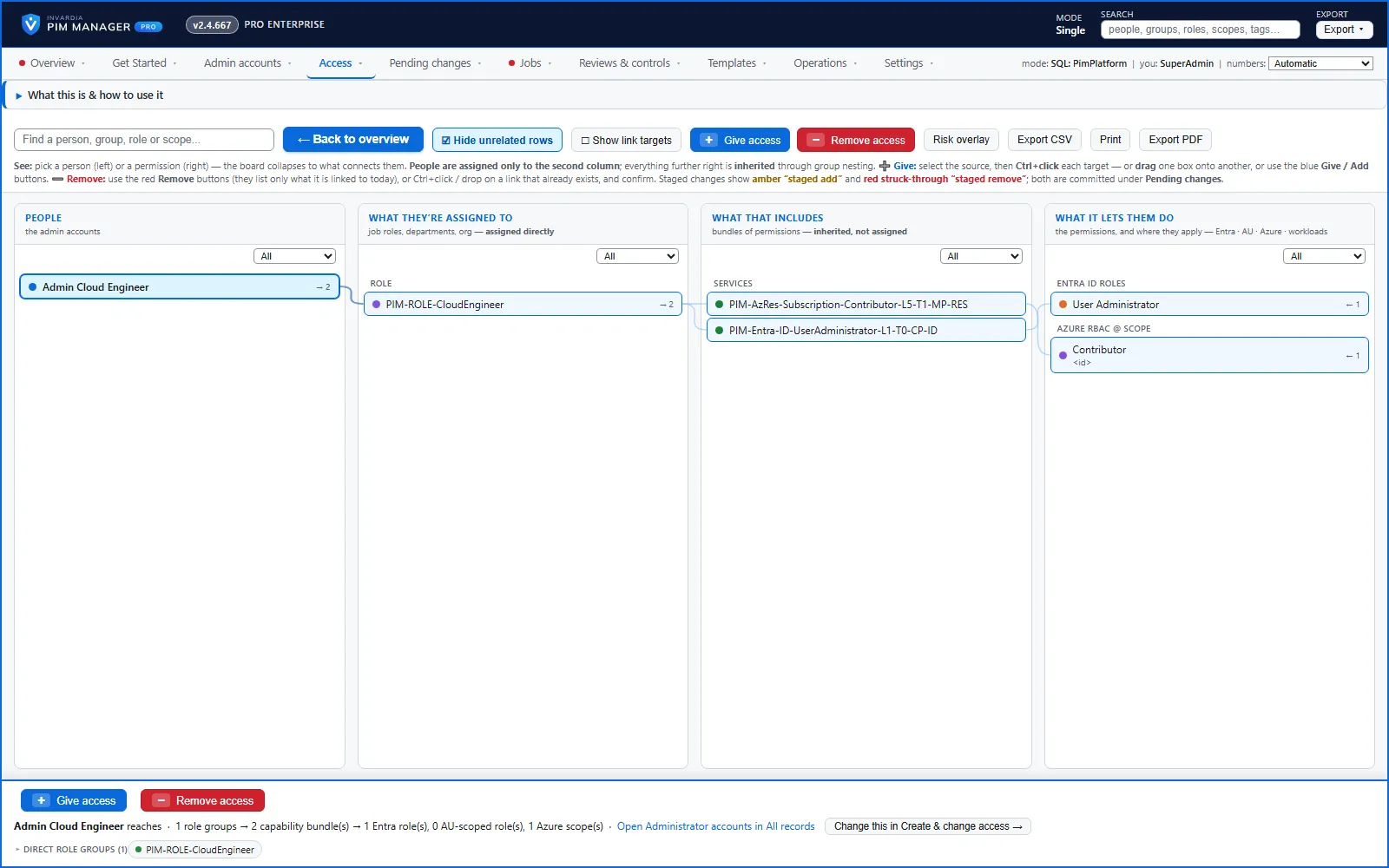
- Open Access > Access map and select a member of the role group. The path runs from the person to the role group, to the Azure permission group, to the role at its scope.
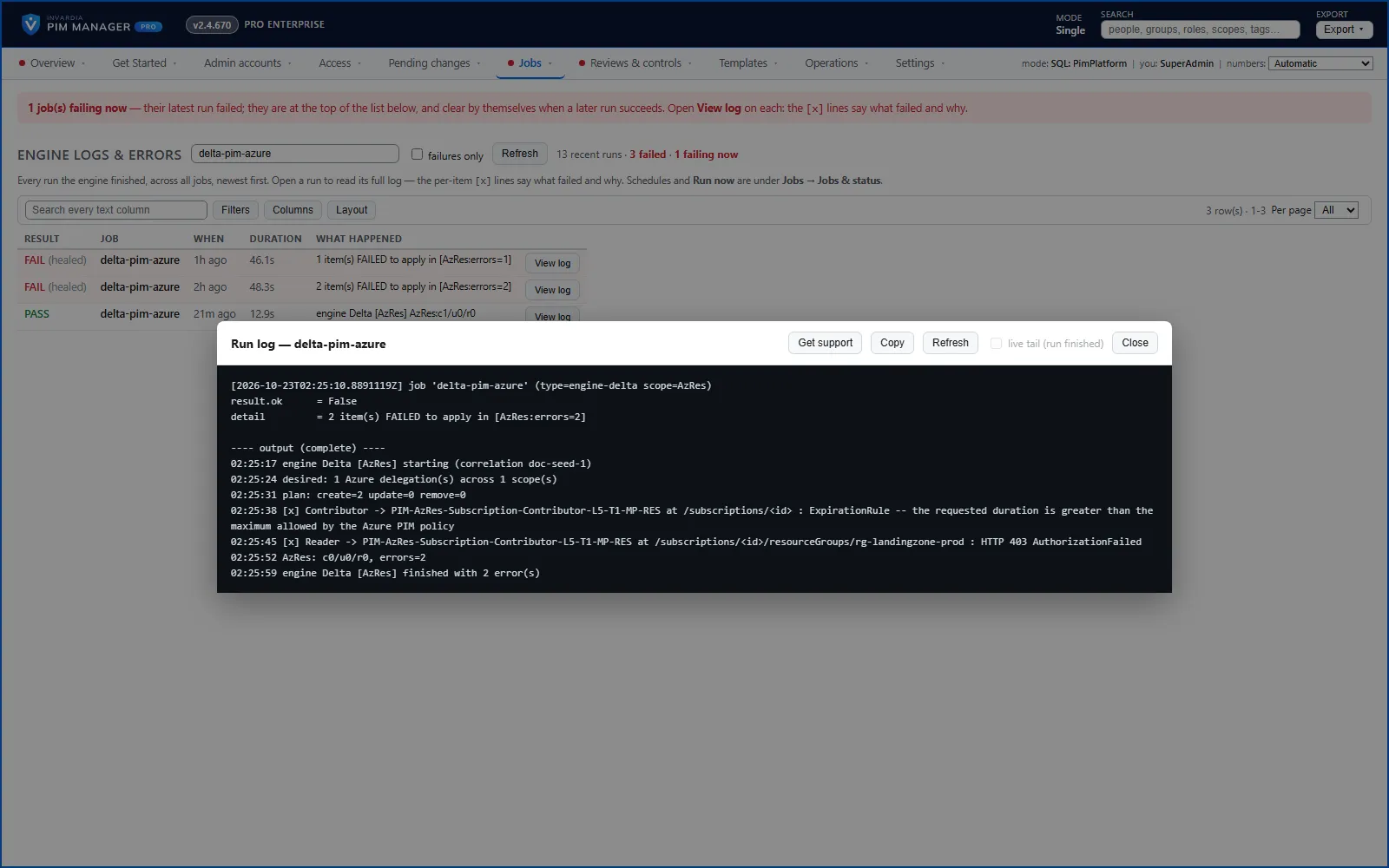
- After the next engine run, open Jobs > Engine logs & errors. A failed item names the scope and the reason, for example a missing right at that scope.
- In the Azure portal, open Access control (IAM) at the scope: the group holds the role.
Undo
- Before you commit: press Cancel and discard in the wizard, or Cancel all pending on Pending changes.
- After you commit: on Access > Delegations — all rows, remove the Azure row; the engine takes that assignment away on its next run. Or undo the whole commit; see How to undo a commit.
- To take one person’s access away, remove them from the role group on the Access map with Remove access.
Verified against PIM Manager 3.0.23.3 on Nov 3, 2026Download PDF
← How to delegate a Power BI workspaceHow to delegate Intune roles →