

PIM Manager documentation · Verified against PIM Manager 3.0.23.3 on Nov 3, 2026
Nested groups
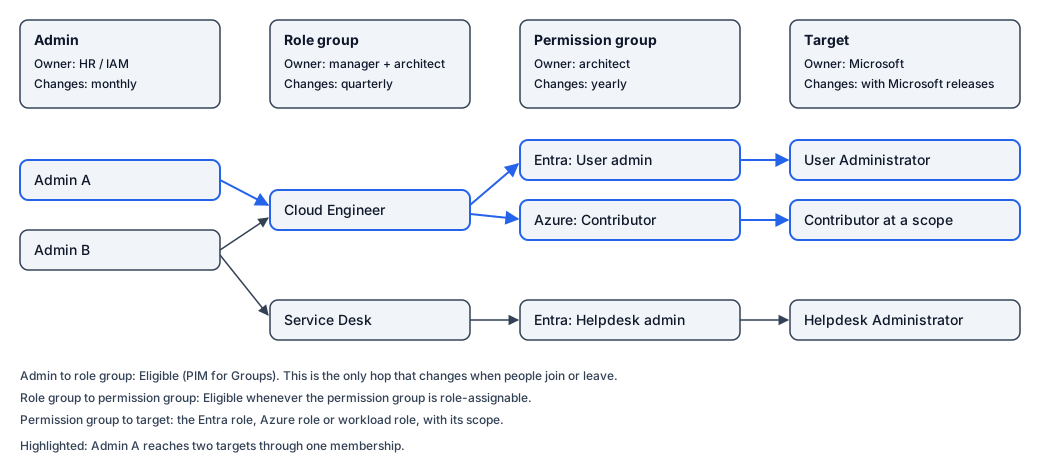
In the PIM Manager model, people do not hold a role directly; only your break-glass accounts do. Access flows through two layers of groups: a person joins a role group, the role group contains permission groups, and each permission group holds the actual role.
The problem with direct assignments
When roles are assigned to people, every person carries a private copy of their job function. Ten engineers who do the same job hold ten copies of the same assignments, and the copies drift apart: one engineer gets an extra role for a project and keeps it, another misses a role that was added later. Every change to the job function is a change to every person.
The chain
| Layer | What it is | Who owns it | How fast it changes |
|---|---|---|---|
| Admin | The person’s admin account. | HR / IAM team. | Fast: people join and leave every month. |
| Role group | A job function, such as Cloud Engineer or Service Desk. Also called a direct group, because people are assigned to it directly. | The manager, with the architect. | Medium: a new job function every quarter or so. |
| Permission group | One capability: one Entra role (tenant-wide or in one administrative unit), one Azure role at the scopes the capability needs, or one workload role. | The architect. | Slow: a new service about once a year. |
| Target | The Entra role, Azure role or workload role itself. | Microsoft. | With Microsoft’s releases. |
Each layer is owned by a different person and changes at a different pace. That is the point of the shape: onboarding, which happens every month, touches only the first hop, and never the groups the architect designed.
Role groups
A role group describes what a person does, not what they can reach. A person is usually Eligible for the role group and activates it when the work needs it. Besides job roles, PIM Manager supports the same kind of direct group for a department, an organization, a project and a cross-organization team.
Permission groups
A permission group holds exactly one capability, scoped as tightly as the work allows. Because it is small, it can be reused: the same “User Administrator” permission group sits inside Cloud Engineer, Identity Operations and Service Desk Lead.
The worked example
Ten cloud engineers each need 20 Entra roles and 5 Azure roles. Each Azure role applies at 3 management groups.
Direct assignments: every engineer holds 20 Entra assignments and 5 x 3 = 15 Azure assignments.
10 x (20 + 15) = 350 assignments
Nested groups:
| Hop | Assignments |
|---|---|
| Admin to role group | 10 (one per engineer) |
| Role group to permission groups | 25 (20 Entra + 5 Azure permission groups) |
| Permission group to target | 35 (20 Entra roles + 5 Azure roles x 3 management groups: each Azure permission group holds its role at the 3 management groups) |
| Total | 70 |
Adding or removing one engineer is 1 change instead of 35. Adding a permission to the job function is one nesting, and every engineer in the role group has it at once. The gap grows with every person you add.
What you get from the shape
- Auditable. The chain answers “who can do what”. Follow a role back through its permission group and role group to the people.
- Refactorable. Change a permission group once, and every role group that contains it changes with it.
- One change for a leaver. Removing a person from their role group removes one membership, and the whole access path of that job goes with it.
- Fewer role-assignable groups. Reusing permission groups across many role groups keeps you far below the tenant limit of 500 role-assignable groups. See Role-assignable groups.
Activation
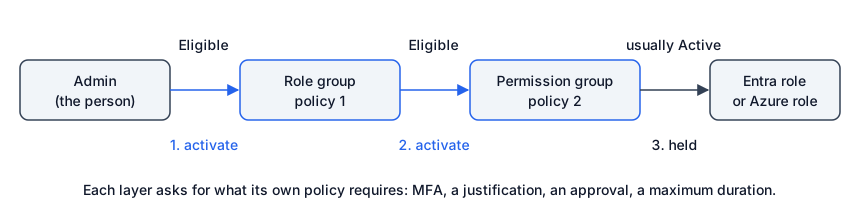
Because a nesting into a role-assignable group is Eligible, a person activates access in layers:
- The role group. The person activates their Eligible membership of the role group. This makes them an Eligible member of the permission groups it nests into.
- The permission group. The person activates the permission group they need for the task. The PIM Activator lists it as soon as the role group is active, and activates it automatically when the person marked it auto.
- The role. When the role is assigned Active to the permission group, the person holds it while both layers are active. When it is assigned Eligible, it is one more activation.
Each layer has its own PIM policy, so each layer can ask for multifactor authentication, a justification or an approval, and each has its own maximum duration. An approval on a layer holds every layer below it until the approver decides. The access ends when the first layer ends, so give the role group at least the duration of the permission groups nested in it.
A typical activation in the PIM Activator is three clicks: open the popup, tick the rows, and press Activate selected. See How to activate.
The chain in the Manager
Access > Access map draws the chain. Pick a person, and the board collapses to their path: the role groups they are assigned to, the permission groups those contain, and the Entra and Azure roles those grant.
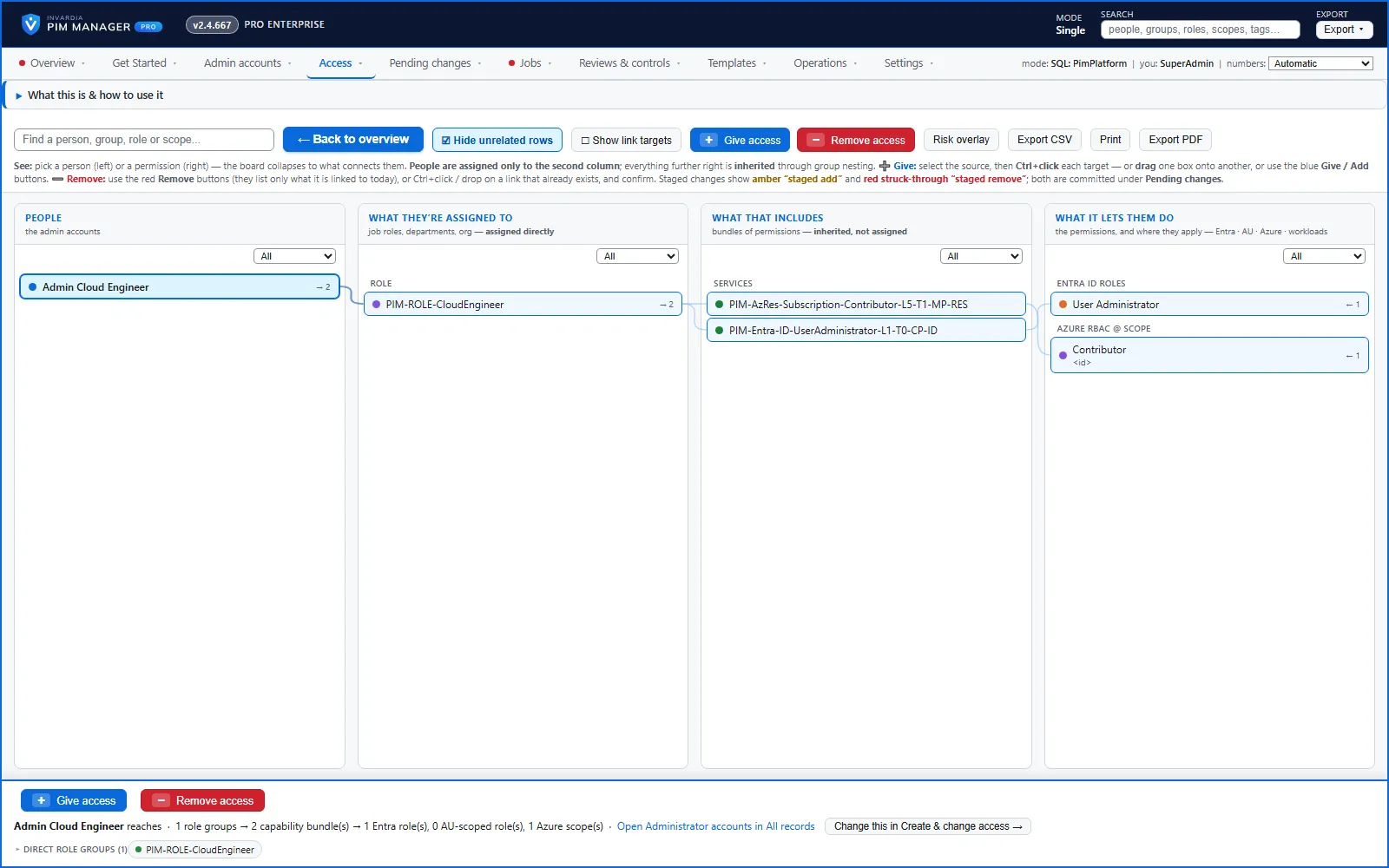
To build the chain, use Access > Create access: one wizard builds a direct group and nests permission groups into it, another delegates a permission (a permission group with its role and scope). The wizards write a nesting into a role-assignable group as Eligible. Nothing reaches your tenant until you commit it under Pending changes.
Break-glass is the exception
Your one or two emergency accounts hold their roles directly, outside the chain, so they work even when PIM does not. List them under Settings > Emergency access (break-glass); PIM Manager does not disable, revoke or offboard an account on that list.
Verified against PIM Manager 3.0.23.3 on Nov 3, 2026Download PDF