

PIM Manager documentation · Verified against PIM Manager 3.0.23.3 on Nov 3, 2026
Hybrid Active Directory
PIM Manager extends privileged access to on-premises Active Directory through a hybrid worker: admin accounts in AD, PIM groups mirrored to AD groups, time-limited AD membership for people who activate a PIM group, and the local administrators of your Windows servers.
Available in Pro editions; not in Community.
The problem
Entra ID PIM makes cloud access just-in-time, but the domain controllers still hold standing members of server administrator groups. The usual workaround is a script on a management server with a stored service account password and line of sight to every domain controller. That server becomes a T0 asset with a secret on disk.
How it works
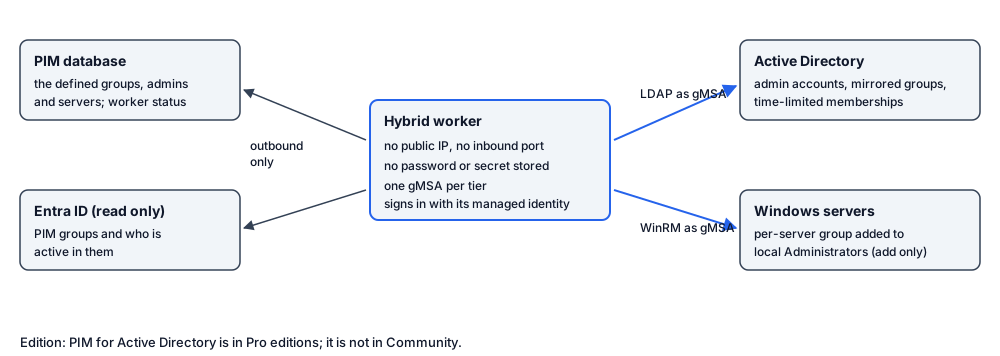
The PIM Manager engine runs in the cloud and does not connect to a domain controller. A hybrid worker does the AD part:
- The machine. A small domain-joined Windows server: either an Azure VM that the setup builds in its own network, peered to the network of your domain controllers, or your own domain-joined Windows server that is Azure Arc-enabled.
- No inbound path. The Azure VM has no public IP address and a firewall that denies all inbound traffic; outbound traffic leaves through a NAT gateway. The setup installs the worker through Azure run-command, so no inbound port is opened for it either.
- Its cloud identity reads only. The worker signs in with the machine’s managed identity. In Microsoft Graph it holds
Group.Read.All,User.Read.AllandPrivilegedAssignmentSchedule.Read.AzureADGroup: it reads the PIM groups and who is active in them, and does not write to Entra ID. In the PIM database it reads its work and writes its status and audit. It updates its own code with read access to the PIM source store. - AD is written by gMSAs. Active Directory is changed only by group managed service accounts (gMSAs), one per privilege tier. Each right is granted to the gMSA’s own permission group, never to a person, and only on the OUs you name. Changing the members of groups that Active Directory protects (T0) needs a right you grant explicitly. The scheduled tasks run as the gMSAs, so no password, secret or certificate is stored on the worker.
Treat the worker as Tier 0
The worker’s gMSAs can change Tier-0 groups in Active Directory, and the worker’s scheduled tasks run its code as those accounts. Anyone who can run code on the worker can therefore act with those rights. Treat these as Tier-0 assets:
- the worker VM, or your Arc-enabled server, and its resource group;
- every identity with a role that can run commands on it, such as Owner, Contributor or Virtual Machine Contributor on the VM or its resource group;
- the store the worker reads its code from.
Give those rights only to your Tier-0 administrators, and through PIM.
What the worker does
Admin accounts in AD
Admin accounts whose platform is Active Directory are created and kept up to date in AD, in the organizational unit (OU) and with the names your naming settings produce. Their first password is mailed to the owner’s office address and is not stored or logged. PIM Manager does not touch these accounts in Entra ID.
The worker mails that password itself, with its own managed identity. It needs a right to send mail. PIM Manager’s scripts offer one: the Microsoft Graph application permission Mail.Send (the -GrantMailSend switch of Grant-PimHybridWorkerAccess, off by default). When the password cannot be mailed, the new AD admin account is held and reported, not created; there is no other hand-over of the first password. That grant is tenant-wide: unlike the engine’s and the Manager’s mail, which is limited to one sender mailbox, the worker could then send as any mailbox. PIM Manager offers no narrower grant for the worker.
The narrower choice is the one the mail sender uses: leave -GrantMailSend off, and in Exchange Online give the worker’s identity Application Mail.Send through RBAC for Applications, on a management scope that holds only the mailbox the worker sends from. You set that up yourself; Initialize-PimMailSender shows the same model for the mail sender. Exchange application access policies are the older way to limit a mailbox; Microsoft recommends RBAC for Applications instead.
PIM groups mirrored to AD groups
PIM groups whose name carries your AD group marker are mirrored to AD security groups of the same name. When a group is missing in AD, the worker creates it in the OU you name for new AD groups. When that OU is blank, the worker creates nothing and only keeps existing groups in sync.
Time-limited AD membership
When someone activates a mirrored PIM group, the worker adds the matching AD admin account to the AD group for the time left on the activation, and takes it out when the activation ends. Where your forest has the AD Privileged Access Management feature, the membership carries that end time itself. The worker detects the feature and does not enable it, because enabling it cannot be undone for a forest.
Removal is cautious by design:
- The worker only removes accounts that carry your AD admin suffix, the accounts PIM Manager put there. Other members are reported and kept.
- Accounts on your Never remove list are not removed.
- When the worker cannot read who is active in a group, it removes nobody in that pass.
Server local administrators
For each server, a per-server group (named by your Per-server group format) is added to that server’s local Administrators group, together with an optional shared server-admins group. The worker only adds; it does not remove. A server the worker cannot reach is reported as unreachable and does not fail the job.
You decide which servers are discovered: the OUs to search or leave out, name patterns, and how recently the computer object changed. New servers in the OUs you name are offered as one list; nothing is created until a SuperAdmin approves that exact list, and the worker then creates the groups in batches.
Clean-up of old AD groups
The worker lists AD groups that match your naming pattern, lie in your configured OUs and have no definition in PIM Manager. It deletes a group only after a SuperAdmin approves the exact list, checks each group again, and records every deletion in the audit trail. Deleting groups needs a right you grant on purpose when you prepare AD.
Configure the naming
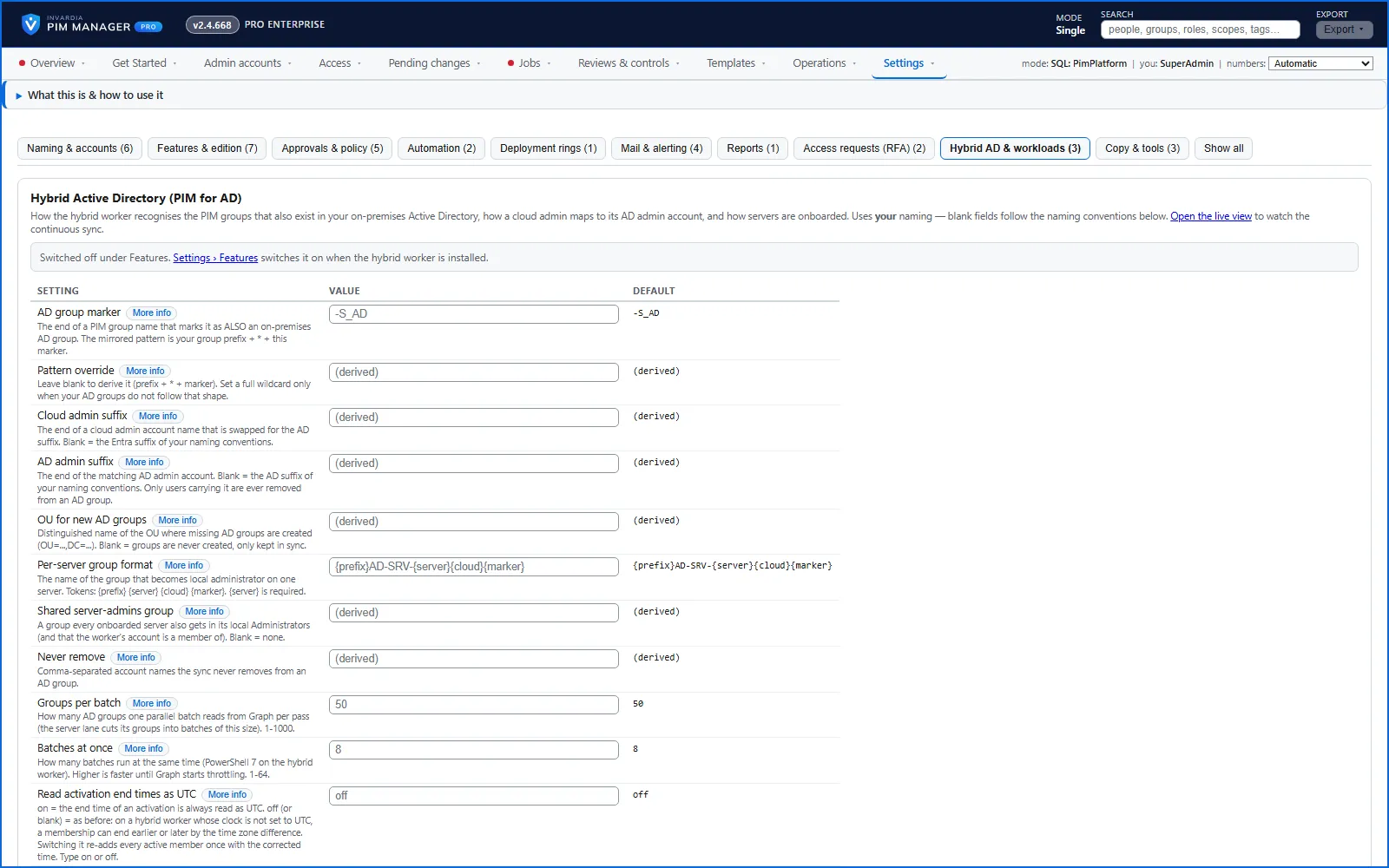
All names are yours. Under Settings > Hybrid Active Directory you set the AD group marker, the cloud and AD admin suffixes, the OU for new AD groups, the per-server group format, the shared server-admins group and the never-remove list. Blank fields follow your naming conventions, and the card shows what the names render as.
Set it up
The hybrid worker is a feature switch, On-premises Active Directory (hybrid worker) under Settings > Features. It is off by default; switch it on when the worker is installed.
- Run Deploy-PimHybridWorker without
-Applyto see the plan, then with-Apply. With-Target Azureit builds the VM, its network, the NAT gateway and the peering (New-PimHybridWorkerInfra); with-Target Arcit checks your Arc-enabled server and builds nothing. - When the deploy stops for Active Directory, your AD administrator runs Initialize-PimHybridWorkerAd on a domain controller. It creates the gMSAs, their permission groups and least-privilege rights per OU, and the server GPO. When it has to create a KDS root key, gMSAs can use it after about 10 hours.
- Run the deploy again with
-Resume -Apply. It grants the worker’s identity its read access (Grant-PimHybridWorkerAccess) and installs the worker through run-command (Install-PimHybridWorker, Invoke-PimHybridWorkerRunCommand). - Switch on the feature and fill in Settings > Hybrid Active Directory.
To stop the Azure VM worker acting at once, cut its network reach with Set-PimHybridWorkerPeering -State Disconnected; its AD jobs then fail visibly, and -State Connected restores it. To retire it, use Remove-PimHybridWorker, which removes only what the worker scripts created.
Related pages
Verified against PIM Manager 3.0.23.3 on Nov 3, 2026Download PDF
← MCP server for AI assistantsMSP: managing and managed tenants →