

SecurityInsight documentation · Verified against SecurityInsight 3.0.79 on Nov 9, 2026
Settings
All of SecurityInsight’s settings are on one page: Configuration > Settings. Admins change them there. You do not edit configuration files.
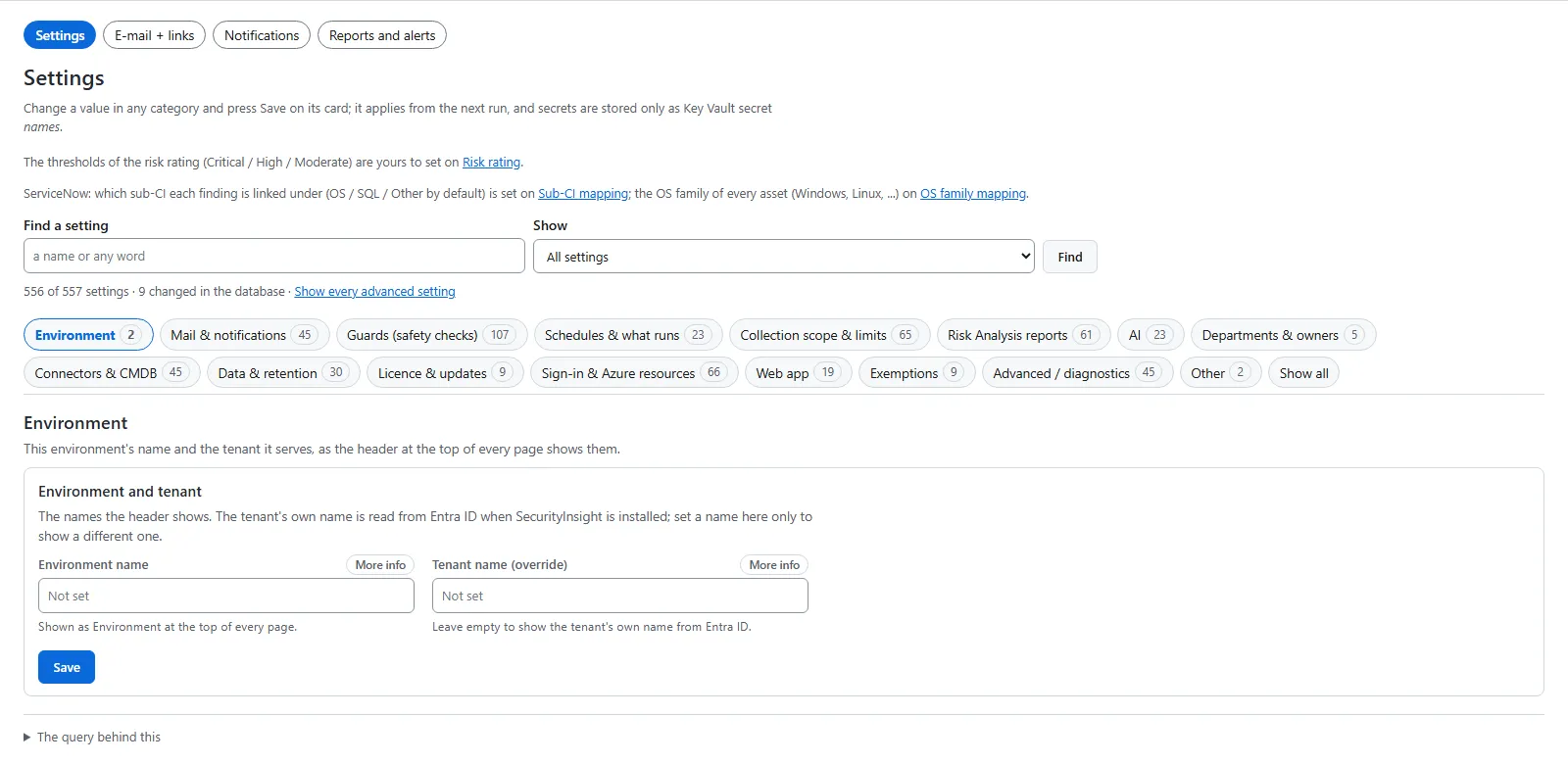
How the page works
- Categories. The bar at the top shows one category at a time. The page remembers the last one you opened in your browser. Show all lists every category.
- Cards. Each category has one card per topic. A card has a title, one sentence about what it controls, its fields, and one Save button.
- Find a setting. Type a name or any word to filter the cards as you type.
- Advanced settings are folded away. Open them per category, or use Show every advanced setting.
- (i) next to a field opens the details: what it does, when to change it, the default, and its internal name.
- A field you changed carries a dot, and Reset to default puts the shipped value back.
- Times on the page are shown in your browser’s time zone.
Saving
- Change one or more fields on a card.
- Press Save on that card.
- The answer appears in place: green when saved, red with the reason for each field that was refused.
Only the fields you changed are written. All of them are checked first. If one is refused, nothing on the card is written. If someone else changed the same setting since you opened the page, your save is refused and you are asked to reload.
A change applies from the next run. Every change is recorded with your name and the value before and after (Operations > Audit trail).
Mail addresses are entered as chips: type an address and press Enter, comma or semicolon. Something that is not an address is refused. Press x on a chip to remove it.
Secrets are never stored on this page. Where a setting needs a password or key, you enter the name of the secret in the install’s Key Vault. The jobs read the secret at run time with their own identity.
Categories
| Category | What you set |
|---|---|
| Mail & notifications | The mail server. Who receives the Risk Analysis Summary and Detailed mails. The daily vulnerability mail. Monthly reports and new-findings digests to departments. Task reminders. Safety-check mails. Links in e-mails. |
| Schedules & what runs | The daily pipeline’s start time and time zone. See The daily pipeline. |
| Collection scope & limits | Which devices, identities and subscriptions are included. Optional extra data, such as Defender for Cloud recommendations. Shodan checks of public IP addresses. |
| Risk Analysis reports | Vulnerability (CVE) filters. Which report runs by default and where results are written. Whether the Summary and Detailed reports show the same headline figures. |
| AI | The Azure OpenAI connection, which features use AI, and spending limits. |
| Departments & owners | How SecurityInsight finds the department that owns an asset. When open findings count as overdue. See Departments. |
| Connectors & CMDB | CMDB enrichment, the SQL CMDB connector, and asset tagging. See CMDB and ServiceNow. |
| Data & retention | Where each collection’s data goes (Log Analytics, JSON, Excel). How long run logs and SecurityInsight data are kept. How exempted findings are counted. |
| Licence & updates | The licence and updates from Invardia (see below). |
| Sign-in & Azure resources | The identity the jobs sign in as, the Key Vault, the Log Analytics workspace, storage and container hosting. These are set at install. |
| Web app | The header, the chat, the wall board and number formats. |
| Exemptions | How exemptions are requested, reviewed and shown. See Exemptions. |
| Advanced / diagnostics | Diagnostic switches and older names. Leave them alone unless support asks. |
Licence & updates
The Licence card shows the licence that is installed: customer, edition, valid until, and its state.
| State | Meaning |
|---|---|
| Valid | The licence verifies for this tenant and is in date. |
| Ends soon | It ends within 30 days. A renewal is requested automatically (unless you turned that off). |
| Not valid yet | Its start date is in the future. |
| In grace | It has ended, but Pro keeps running for the grace period. Renew it. |
| Expired | Pro features stop. The Community edition keeps running. |
| Wrong tenant | The licence was issued for another tenant. |
| Does not verify | The licence file is damaged or not genuine. |
| Missing | No licence is installed. |
The updater job checks the licence every night and records what it found. The card shows that record. A second line shows the state of a renewal request.
The settings on this card:
| Setting | Default | What it does |
|---|---|---|
| Automatic licence request | On | Every night the updater job checks the licence. When there is none, it ends within 30 days, or it is in grace, the job asks Invardia for one, checks it and installs it. The result is written to the audit trail and mailed to you. |
| Licence contact e-mail | Not set | The address Invardia may use about a licence request. |
| Pro updates from Invardia | On | Every night the updater job asks Invardia for the release approved for this installation’s ring, checks its signature and contents, and applies it. If anything fails, the previous version is restored. A release that needs a manual step first is held and shown here. Off = the installation stays on its current version. |
| Update ring | Not set | Only corrects the ring the header shows. Which ring an installation receives releases on is decided by the update service. |
| Status reports to Invardia | On | One status report a day and one short report per engine run: which engine, whether it ended ok, with warnings or failed, how long it took, and the kind of error. Pro reports are identified by the install’s key; secrets are removed before anything is sent. A report that cannot be sent never fails or slows a run. |
Only a SuperAdmin can change the licence settings.
Verified against SecurityInsight 3.0.79 on Nov 9, 2026Download PDF