

SecurityInsight documentation · Verified against SecurityInsight 3.0.79 on Nov 9, 2026
The daily pipeline
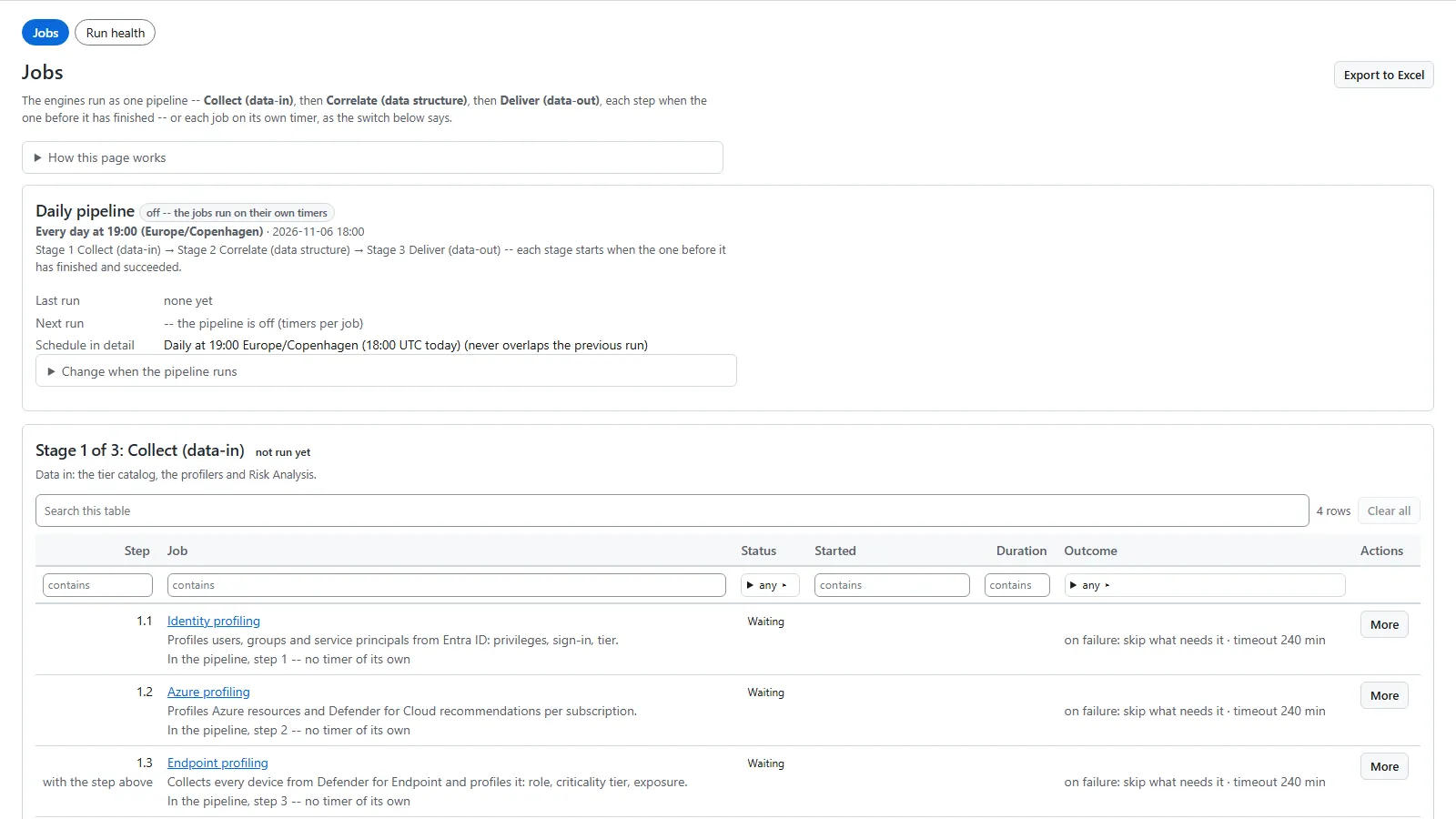
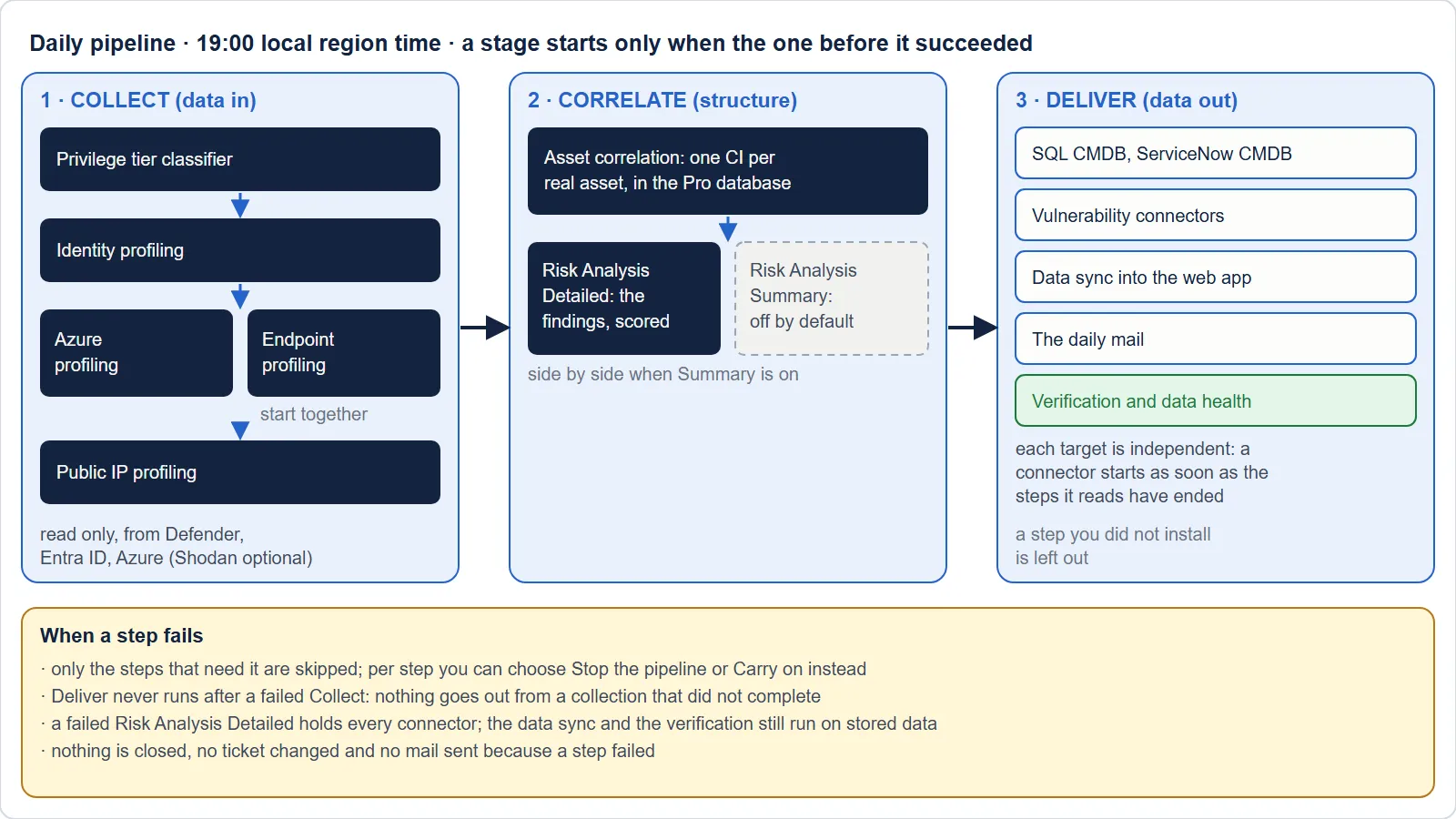
SecurityInsight runs its jobs as one Daily pipeline of three stages: Collect → Correlate → Deliver. You see and control it on Operations > Jobs.
The three stages
| Stage | What it does | Steps (in order) |
|---|---|---|
| 1. Collect (data in) | Takes data in: the role catalogue and the profilers, read only. | Privilege tier classifier, identity profiling, Azure profiling and endpoint profiling (together), public IP profiling |
| 2. Correlate (data structure) | Links the same asset seen by several sources into one asset (CI), then finds and scores the risks on those assets. | Asset correlation, Risk Analysis Detailed. Risk Analysis Summary is a step as well, switched off by default; switched on, it runs together with Detailed. |
| 3. Deliver (data out) | Hands the results on. | SQL CMDB, ServiceNow CMDB, vulnerability connector (SQL), vulnerability connector (ServiceNow), data sync into the web app, the daily mail, verification and data health |
A job you did not install (for example the ServiceNow steps without ServiceNow) is left out.
When it runs
The pipeline starts every day at 19:00 in the local time of the install’s Azure region (for example Europe/Amsterdam for West Europe; Danish time when the region is not known), after the nightly update at 18:30 in the same time zone, so the night’s run is complete by 08:00. The Jobs page shows the time zone your install uses. The local time stays the same all year; summer time is handled for you. A start time you choose yourself is read in your installation’s own time zone, which the guided install asks for.
To change it, open Change when the pipeline runs on the Jobs page. You can set another start time or time zone, or run it every N hours after it finishes. The settings Daily pipeline start time and Daily pipeline time zone (Configuration > Settings > Schedules & what runs) hold the same values. Every change is recorded in the change history.
Times on the page are shown in your browser’s local time zone.
How one stage follows another
- A stage starts only when the stage before it has finished and succeeded. Nothing is delivered from a collection that did not complete.
- Deliver never runs after a failed Collect, whatever a stage is set to.
- Inside a stage, a step starts when the step above it has finished. Start together with the step above makes a group of steps that start at the same time.
- Inside Deliver, every target is independent. A failed vulnerability connector does not stop the data sync or the mails.
- When a step fails, by default only the steps that need it are skipped. Per step you can choose instead to Stop the pipeline or Carry on.
Run now
Run now works at every level:
| Button | What runs |
|---|---|
| Run pipeline now | The whole pipeline, stage after stage. |
| Run now on a stage | That stage only. |
| Run step on a step | That one job only. |
| Re-run from here | A step and everything after it, for example after you fixed a failed step. |
Nothing runs over anything else
The installation runs one thing at a time. If you press Run now while something is running, your request waits in the queue. The queue is shown on the Jobs page, with who asked, and you can Cancel a request there. The same request is kept once. The pipeline’s runner wakes every 5 minutes and starts what is due as soon as the installation is free.
If a scheduled start comes while a manual run is going, it also waits in the queue and runs once.
The updater is never a pipeline step
The updater job runs on its own daily schedule, at 18:30 in the local time of the install’s Azure region (Danish time when the region is not known), in every mode. It is listed on the Jobs page under the jobs that are not a step of the pipeline, and it cannot be added to the pipeline.
- An update waits while a SecurityInsight job runs.
- The pipeline waits while an update runs. Its requests stay queued and start after the update.
So the two never run at the same time.
Changing the pipeline
On the Jobs page an Admin can:
- move a step up or down, or to another stage (Move to stage);
- set what happens when a step fails, and its timeout;
- take a job out of the pipeline (it gets back the schedule it had, or stays manual) or add one in.
Pipeline or timers
How the jobs run on the Jobs page shows the mode:
- As one pipeline — the jobs above. A job in the pipeline has no timer of its own. A new installation runs this way.
- Each job on its own timer — the jobs do not wait for each other, and a job can read yesterday’s data when the one before it runs long. An installation from before the pipeline existed keeps its timers until you switch.
Switch now changes the mode. It asks first and is recorded.
The risk trend
The trend is not a separate step. When the data sync loads the findings of Risk Analysis Detailed, it keeps the day’s counts in the SecurityInsight database, and the web app’s trend pages (Changes & trends > Trends) read it there. The trend counts findings: one per issue per asset.
Checking a run
- Operations > Jobs shows each step’s status, start, duration and outcome, and the last executions with their log lines. Log lines reach the workspace a few minutes after the run.
- Operations > Jobs > Run health lists every engine run, newest first. A run that did not publish everything ends partial with the reason.
- Operations > Guards (safety checks) lists every step a safety check held or stopped. See Guards.
Verified against SecurityInsight 3.0.79 on Nov 9, 2026Download PDF