

SecurityInsight documentation · Verified against SecurityInsight 3.0.79 on Nov 9, 2026
Install SecurityInsight
SecurityInsight runs in your own Azure subscription. The engines run as Azure Container Apps jobs, each on a managed identity, with an Azure SQL database and a web app. You install it with one guided flow: a short wizard on invardia.com, then one command in Azure Cloud Shell. Nothing is hosted by Invardia: your data, the database and every job stay in your subscription.
Both editions use the same install. Without a licence it installs the Community edition. With a SecurityInsight Pro licence it installs Pro, which adds the paid engines and the CMDB.
Before you start
You need these rights. If you do not have all of them, the install still completes. Each step you cannot do yourself ends as a warning with the exact command for the person who can.
| Right | Why |
|---|---|
| Contributor and Role Based Access Control Administrator on the resource group (or Owner on the subscription, to create the group) | To create SecurityInsight’s resources and give its identities access to them |
| Owner or User Access Administrator on what SecurityInsight reads (a subscription, a management group or the tenant root group), and on your Microsoft Sentinel / Defender workspace | Only to give the engine identity read access |
| Privileged Role Administrator or Global Administrator | Only to give the engine identity its read-only Microsoft Graph and Defender permissions, and to create the role-assignable SQL admin group |
| Contributor on the subscription | To register the Azure resource providers SecurityInsight uses (Microsoft.App, Microsoft.OperationalInsights, Microsoft.Insights, Microsoft.ContainerRegistry, Microsoft.ManagedIdentity, Microsoft.KeyVault, Microsoft.Storage and Microsoft.Sql) |
| Edition | Licence |
|---|---|
| Community | None. The install says it installs the Community edition. |
| Pro | None at install. The install deploys the whole environment and runs nothing until its licence is approved; the updater requests it from Invardia, bound to your tenant, and SecurityInsight starts by itself. |
Cost (estimate, list prices). The two databases run on the Standard tier (S3 for the SecurityInsight database, S1 for the identity ledger) whatever the tenant’s size, plus the web app (it scales to zero), the Container Apps jobs and Log Analytics ingestion, which grows with the number of assets.
1. Answer the wizard
The wizard asks seven short pages of questions. It never asks for a password or key.
| Page | What you decide |
|---|---|
| Where to install | Tenant, subscription, region, resource group, an optional owner tag. SecurityInsight runs as Azure Container Apps jobs. |
| Data and scope | A new or an existing Log Analytics workspace. Your Microsoft Sentinel / Defender workspace (optional; Risk Analysis reads sign-in and security logs from it). What SecurityInsight reads in Azure: this subscription (the default), a management group, or the whole tenant. |
| Features | AI classification and summaries with your own Azure OpenAI deployment (off by default). Shodan enrichment of your own public IP addresses (off by default). The start time of the daily pipeline (default 19:00 in the local time of the install’s Azure region, after the nightly update at 18:30; Danish time when the region is not known) and your time zone. |
| Reports by e-mail | Whether to mail the Risk Analysis reports, the recipients, and how mail is sent: a shared mailbox (recommended) or your own SMTP relay. |
| Database and web app | The region for the database. Whether to install the web app, and whether it is reachable from the internet behind Entra sign-in or from your network only. The web app administrators. The install’s update ring. Whether asset tagging may write tags (it runs as its own identity and only reports what it would tag until you also switch writing on in the web app). |
| SecurityInsight Pro | Pro only: your ServiceNow instance URL (optional). |
| Invardia support | Whether Invardia Support may help you, and at which level: Troubleshoot (read only) or Setup (can also repair). Empty = no support access. See Support access. |
Tip. If you choose From the internet, add a Conditional Access policy for the SecurityInsight enterprise application.
2. Run the command in Cloud Shell
Every setting is a parameter of one command. Only -TenantId and -SubscriptionId are needed; every other setting has a
default (Get-Help ./Install-SecurityInsight.ps1 -Full lists them all).
Community (from the public SecurityInsight release on GitHub):
Invoke-WebRequest https://github.com/KnudsenMorten/SecurityInsight/releases/latest/download/Install-SecurityInsight.ps1 -OutFile Install-SecurityInsight.ps1
./Install-SecurityInsight.ps1 -TenantId '<tenant id>' -SubscriptionId '<subscription id>'
Pro and the 60-day trial (from invardia.com: the same command, no licence or key on the line; take the trial first at invardia.com/trial):
Invoke-WebRequest https://invardia.com/support/si/Install-SecurityInsight.ps1 -OutFile Install-SecurityInsight.ps1
./Install-SecurityInsight.ps1 -TenantId '<tenant id>' -SubscriptionId '<subscription id>'
A Pro install in your own network only adds its network:
./Install-SecurityInsight.ps1 -TenantId '<tenant id>' -SubscriptionId '<subscription id>' `
    -PrivateNetwork -VnetId '<resource id of your virtual network>' -HubVnetId '<resource id of your hub virtual network>' -WebAppAccess internal
The Pro install deploys the whole environment and runs nothing yet. Its updater asks Invardia for the licence at once; once it is approved, the installation takes its licence and install key, installs the Pro release of its update ring and starts, by itself.
The wizard gives you one command. Open Azure Cloud Shell (PowerShell), signed in as the person who installs, and paste it. The install signs in with your browser session, needs no PowerShell module, and reports each step to the installation page on invardia.com as it starts and ends.
When a feature you switched on needs a key (Azure OpenAI, Shodan, an SMTP password), Cloud Shell asks for it. The key goes straight into the install’s Key Vault. It is never written to a configuration file and never reported.
What the install does
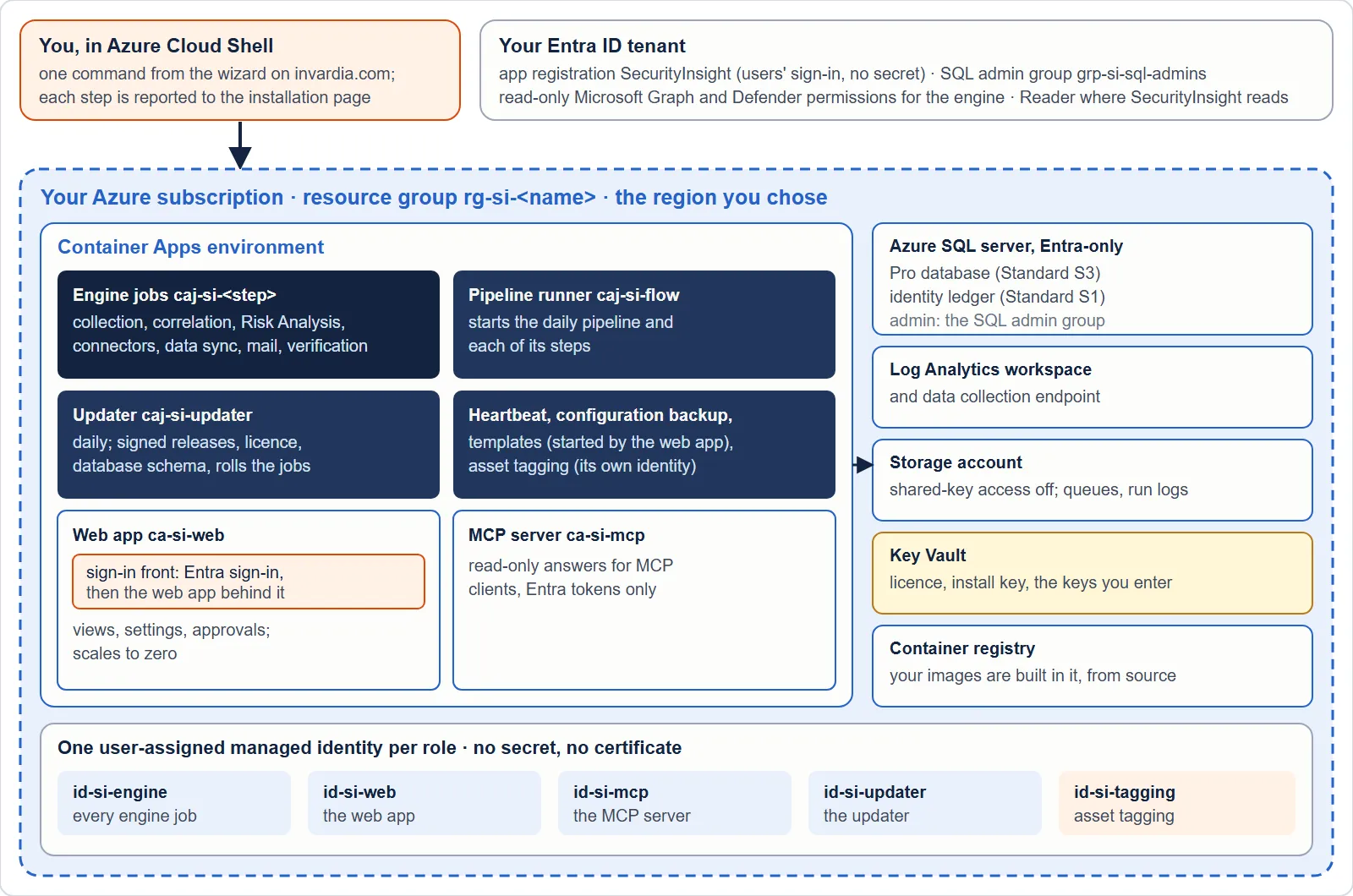
First it checks, and changes nothing:
- Your Azure sign-in
- The tenant and subscription
- Your permissions
- The Azure resource providers
- That the names are free
- That the region accepts the database
Then it installs, one step at a time:
| Step | What is created |
|---|---|
| Resource group | Created if it does not exist, and tagged. A resource group your Azure administrator created in advance also works. |
| Log Analytics workspace, data collection endpoint | Where the engines send their data. A workspace the install creates keeps data 90 days. |
| Storage account | Created with shared-key access off. Everything uses managed identities. |
| Key Vault | Holds the licence, the install key and the keys you entered. Purge protection is on. |
| Licence | Pro: verified offline (signature, dates, product and your tenant) before anything is written. Community: skipped. |
| Container registry and image, Container Apps environment | The image is built from the signed source inside your own registry. The registry’s admin user stays off; every job pulls with its own identity. |
| The identities | One managed identity per role: the engine, the web app, the MCP server, the updater and, if you opted in, asset tagging. See Identities and permissions. |
| Access inside the resource group | Grants for each identity on its own resources only. |
| Read access outside the resource group | Reader where SecurityInsight reads, and read access to your security workspace. |
| Read-only Microsoft Graph and Defender permissions | The application permissions the engine reads with. All read only. |
| Scheduled engine jobs | One job per engine and the daily pipeline, each sized for your tenant. |
| Database server and tables | An Entra-only Azure SQL server, its databases, one least-privilege role per component and the certificate-signed grant procedure that later updates use. SQL auditing to your workspace, kept 90 days. See SQL access. |
| Configuration templates | The default templates (reports, rules, risk index). |
| Settings | Your answers as settings in the database. Records the install’s update ring, its tenant and its resource names. |
| SecurityInsight web app | The web app, its MCP server and their Entra sign-in. The sign-in uses no secret and no certificate. |
| The updater | The nightly job that keeps the install on its update ring. See Releases, rings and waves. |
| Invardia Support access | Only when you chose a support level. |
| First run | Starts the first pipeline run. |
| Health check | Lists anything still waiting. |
The SQL admin group after the install
The database server’s Entra administrator is a role-assignable group. The person installing is a member only for the length of the install. After it, the group holds only the Invardia Support app when you chose support, and is otherwise empty. Nothing routine needs it: every update applies its schema and grants through the updater’s own database user and the signed grant procedure. Your own administrators reach the database just in time, for example through Privileged Identity Management for Groups. See SQL access.
When a step cannot be done
- A grant you are not allowed to make (read access outside the resource group, the API permissions, support access): the step ends as a warning. It shows the exact command for the person who can run it. The install goes on and completes. The first run waits until those grants are made; the daily schedule runs it afterwards.
- A problem nothing can work around: the install stops. Fix the cause, then run the same command again with
-Resume. It continues from the step that stopped. - Checks only: add
-PreflightOnlyto run the checks without creating anything.
The command ends with exit code 0 when SecurityInsight is installed (warnings included), 1 when a step failed, 2 when a check failed, and 3 when the wizard’s answers are not valid.
3. After the install
- Read the last step. Health check says Everything is in place, or lists what is still waiting, with the commands for the right people. Pass those commands on.
- Open the web app. Sign in as one of the web app administrators you named. The header shows the environment, the tenant, the version and the install’s update ring.
- Expect the first run to take its time. Nothing is shown before the first asset build has finished whole. The merged assets appear first, the findings follow when Risk Analysis has finished. A brand-new table in Log Analytics can read back empty for a while after it is created, so the first run can end incomplete; the next run completes it by itself.
- Check the next morning. Open Operations > Jobs and Operations > Jobs > Run health. See Operations and The daily pipeline.
- Add your CMDB if you have one. See CMDB and ServiceNow.
- Set up departments if more teams own assets. See Departments.
Coming from SecurityInsight 2.2
There is no upgrade from 2.2. You install SecurityInsight 3 beside 2.2, in its own resource group, and switch 2.2 off when you are ready. See SecurityInsight 3 beside 2.2.
Verified against SecurityInsight 3.0.79 on Nov 9, 2026Download PDF