

Entra Policy Suite documentation · Verified against Entra Policy Suite 2.1.4 on Nov 11, 2026
Rules
A rule gives a tag value to the users (or devices) that meet its conditions. Rules are the core of Entra Policy Suite: everything your dynamic groups and Conditional Access policies rely on starts here.
How rules decide
- A rule belongs to a persona (a name for who it describes, for example
Internal_Admin), sets one tag type (for example Classification) to one value, and has one or more conditions. - All conditions of one rule must be true (AND).
- The rules for one tag type are tried in run order (OR). How the winner is chosen depends on the tag type’s value mode:
- First (the default): the first rule that matches wins.
- Last: the last rule that matches wins.
- Multiple: every matching value is written, comma-separated, into the one attribute. Only for a tag type that allows several values: dynamic groups and Conditional Access compare the whole value, so a tag they read keeps one value.
- A user rule has two values: one for AD-synced users and one for cloud-only users (for example
Internal_Admin_AD_SyncedandInternal_Admin_Cloud). - A tag type with a list of values is picked from that list, never typed; a tag type without a list takes any text. Picking the AD-synced value proposes the cloud value: its cloud counterpart when the list has one (
Internal_User_AD_Synced_MFAgivesInternal_User_Cloud_MFA), else the same value. Same as AD-synced and Use the cloud peer set it in one click; a cloud value you pick yourself is kept. - When no rule matches, the object gets the tag type’s fallback value (for example
NonManaged_User_Cloud). - A condition whose data the tenant cannot provide (for example AD group membership without a hybrid worker) is reported as unavailable in the run, never as a silent “no match”.
The Tagging Rules page
The page has two views of the same rules: Groups and Grid. Switch between User rules and Device rules at the top.
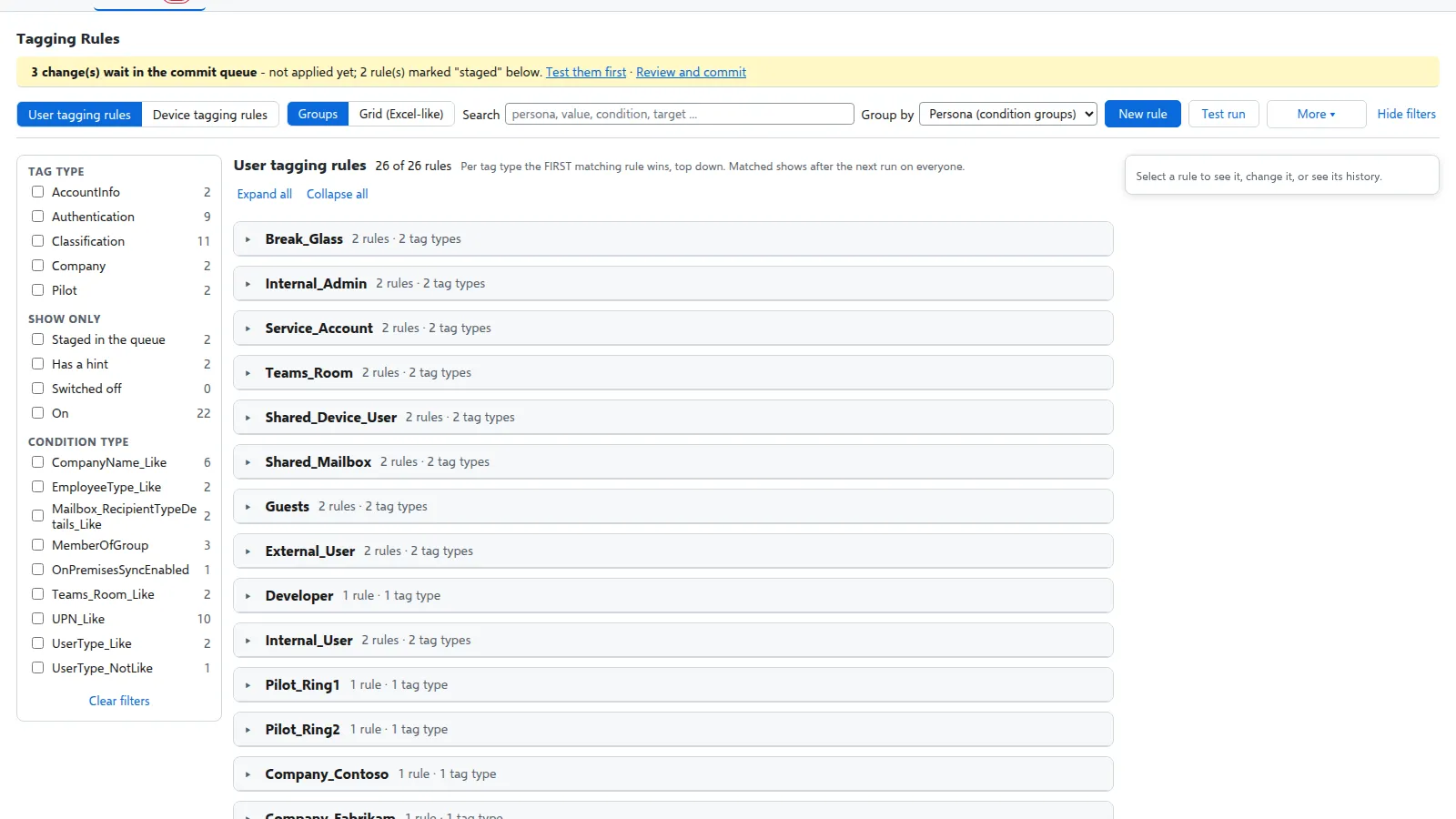
Groups
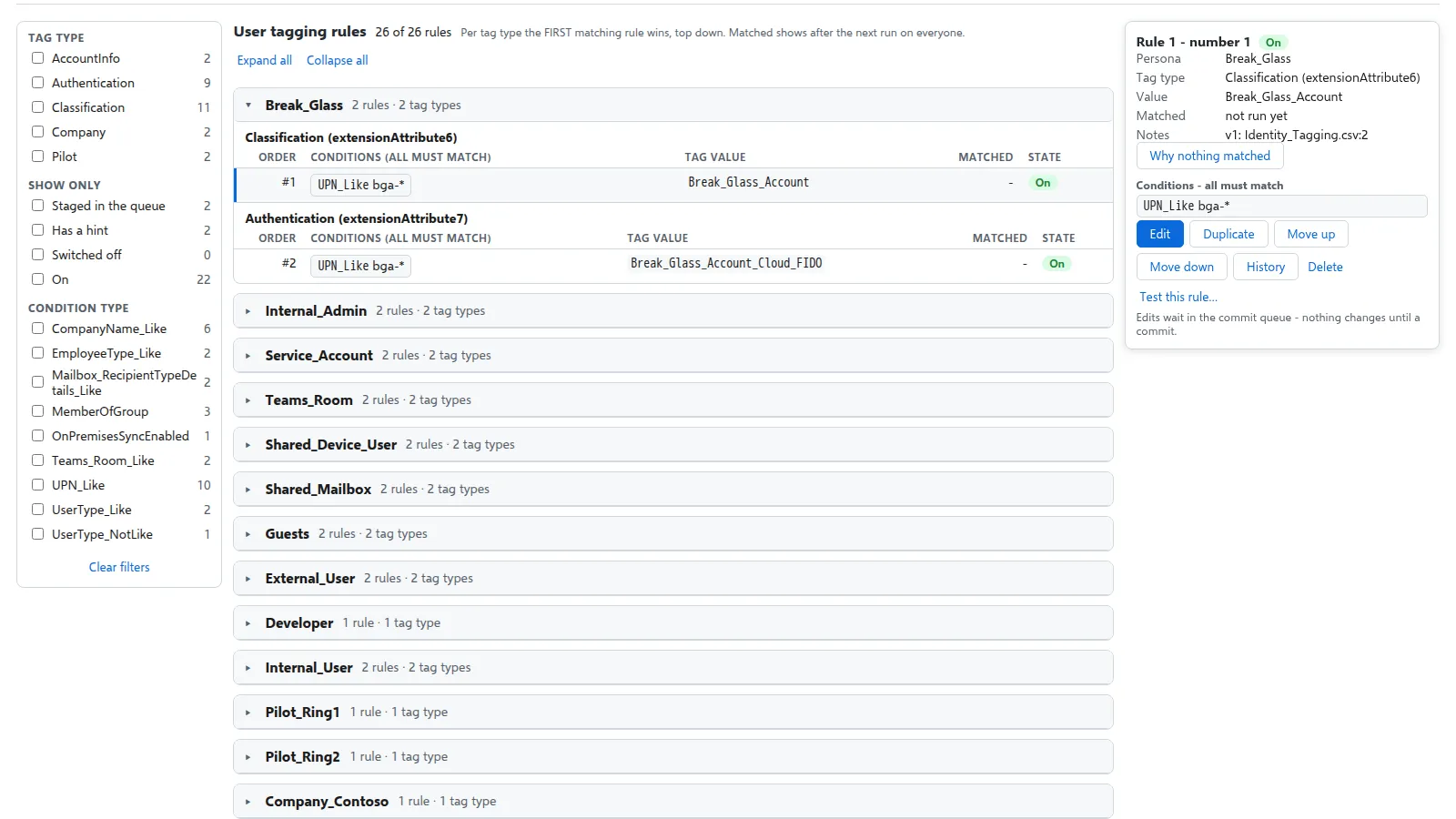
The rules grouped by persona (or by tag type, condition type or run order), each with its conditions as chips, its state and Matched: how many objects the rule decided in the last run on everyone. Filter by tag type, state (on, off, staged, hint) and condition type - each filter shows its count - or search.
Click a rule to open its side panel: the details, Edit, Duplicate (a new rule right after this one), Move up / Move down, the history of every saved version (an earlier version can be put back) and Delete (a deleted rule can be put back from Deleted rules).
Test runs
Test run (on the Rules page) tries the rules on the people you pick: a list of users or devices, the members of a group, the users in an OU, a filter or a saved scope - for all tag types or the ones you choose. Test writes nothing; Apply to these only writes the tags of exactly those people. The engine runs it within about 5 minutes.
Tagging > Test runs shows each run: how many tags would change per tag value and per rule, and per person every tag as it is now and as the rules want it, with the rule that decided it. Open a person to see the whole decision: every rule that was evaluated, top down, and each condition’s real value against the rule’s target.
When a test of all tag types looks right, a SuperAdmin can Go live: the same rules run once on everyone. Go live is refused when the rules changed after the test (test again first), and the mass-change guard still holds a run that changes too much. The scheduled tagging runs go on as before.
Grid
The grid works like a spreadsheet. One row per rule (a rule with several conditions has its conditions in the row).
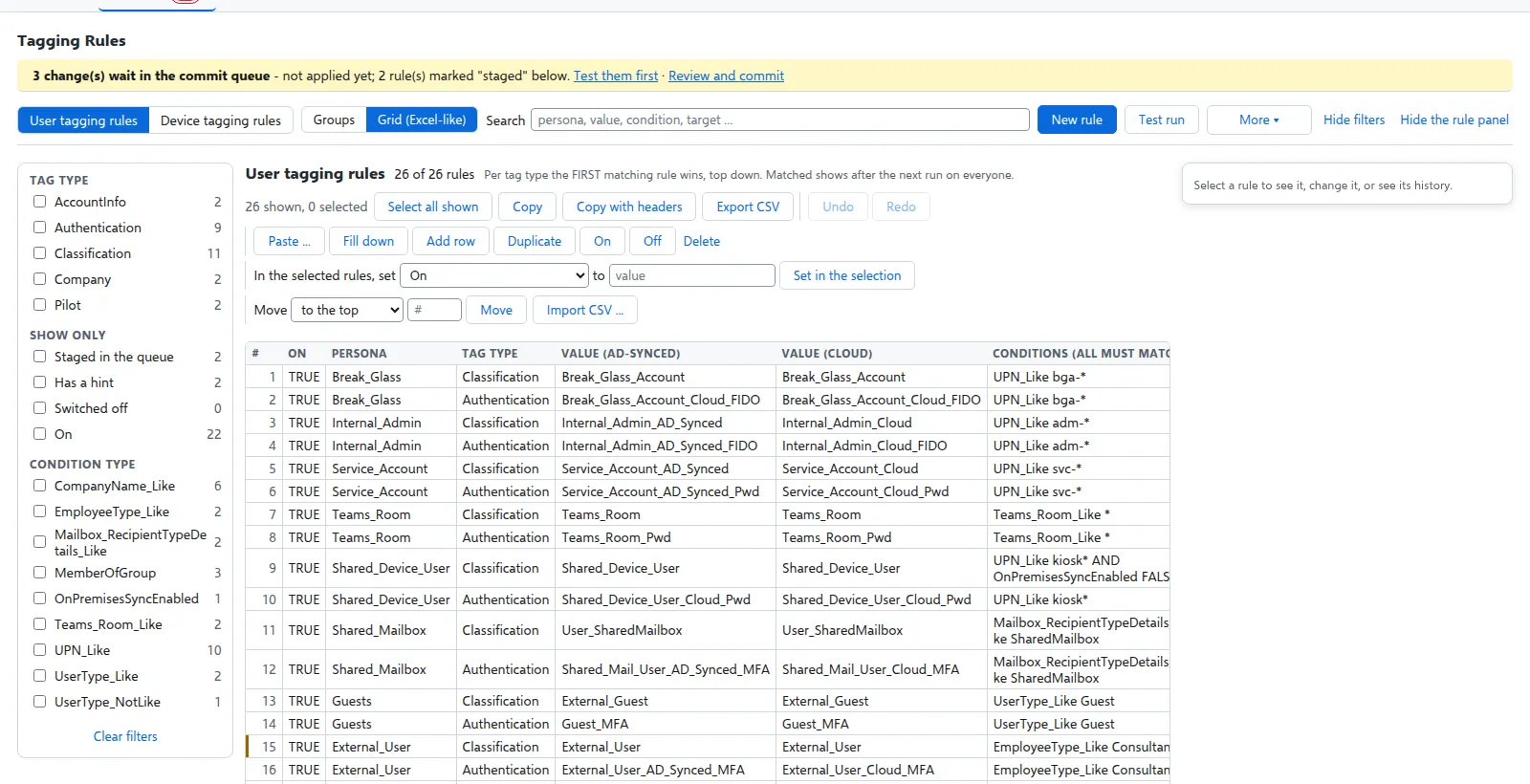
| You want to | Do this |
|---|---|
| Select | Click a cell; Shift+click for a range; Ctrl+click to add a row; Select all shown for everything the filter shows |
| Edit a cell | Double-click it, or press Enter or F2, or just start typing |
| Copy to Excel | Ctrl+C, or Copy (the selected cells) / Copy with headers (every column of the selected rules) |
| Paste from Excel | Ctrl+V in the grid, or Paste … |
| Fill down | Ctrl+D, or Fill down |
| Add or duplicate | Add row, Duplicate (copies right after the selection) |
| Switch on or off | On / Off for every selected rule |
| Set one value on many rules | Set column to value |
| Move rules | Move to the top, to the bottom, before or after a rule number - or select the rules and drag their # between two other rules (with no search or filter set) |
| Delete | Delete (or the Delete key) marks the selected rules; press it again to unmark |
| Take an edit back | Undo (Ctrl+Z) and Redo (Ctrl+Y), step by step, for every edit on the page that is not staged yet |
| Export or import | Export CSV, Import CSV … (the Entra Policy Suite 2 format, or v1’s files - see Move from v1) |
Edits in the grid are drafts on your screen until you press Review and stage. The review lists every change field by field, with before and after, and the hints of the result (for example “never wins: rule 12” on a duplicate you did not change yet). One reason covers the whole batch. Once a change is staged, it is taken back by discarding it in the commit queue.
Every change is checked, then staged
When you save, the change is checked first:
- the tag type exists and is on, and the value is on its list of allowed values;
- every condition type exists and accepts its target;
- nobody saved the same rule since you opened it.
A change that fails a check is refused with the reason, and nothing is staged. A change that passes waits in the Commit queue until an admin commits it.
Hints
Hints are markers on a rule. They never block a save:
- never wins - an earlier rule of a First tag type (or a later one of a Last tag type) always matches first;
- can never match - two conditions contradict each other (for example
UPN_Like adm-*andUPN_NotLike adm-*); - the same condition twice;
- an unknown tag type or condition type, or a target the condition type does not accept;
- cloned v1 rows - imported rows that share a ConditionGroup and so are joined by AND, which is rarely what was meant.
Before a new rule set goes live
- Run a Preview on everyone (Jobs page). Check the counts per tag value and per rule on the Tag changes page.
- Run an Apply on a test scope (one user or a few) and check them.
- Then let the schedule run in Apply mode.
A run whose plan would change far more objects than usual is held for an admin’s approval (the mass-change guard).
Verified against Entra Policy Suite 2.1.4 on 2026-11-11
Verified against Entra Policy Suite 2.1.4 on Nov 11, 2026