

Entra Policy Suite documentation · Verified against Entra Policy Suite 2.1.4 on Nov 11, 2026
Jobs and runs
Every feature that reads or writes your directory is a job with a schedule. The scheduler checks every 5 minutes which job is due and asks for it; the job starts, does its work and records a run.
The jobs
| Job | Default schedule | What it does |
|---|---|---|
| User tagging | daily 01:00 | Reads every user, plans every tag change from the user rules, and in Apply mode writes them |
| Device tagging | daily 01:30 | The same for devices |
| Identity report | daily 02:00 | Takes the read-only snapshot for the Identity report |
| Tamper monitor | every 15m | Looks for changes to the watched tags that the engine did not make. See Tamper monitor. |
| CA Policy Analyzer | manual | Reads the Conditional Access policies for the Conditional Access page; its monitors run on their own schedules |
| Per-user sign-in methods | every 15m | Reads each user’s sign-in methods in the background, a user again only when something changed. Off by default. |
| Named locations | daily 06:00 | Keeps the Azure service tags you listed as named locations. Off by default. |
| Backup | daily 00:30 | Stores every Conditional Access policy, named location and authentication strength, and the tagging configuration; the newest 30 are kept. Only reads the tenant. On by default. |
| Conditional Access options | monthly 1 04:00 | Reads from Microsoft Graph the values each policy field allows and your tenant’s authentication strengths, named locations, terms of use and roles, for the policy Edit form. Only reads. On by default. |
| Update | daily 03:00 | Asks Invardia which release is approved for this install’s ring and installs a newer one between runs. On by default. |
| Invardia support link | every 4h | Sends Entra Policy Suite’s health and run results to Invardia support, so support can see problems and updates can roll out: a heartbeat and one record per finished run - numbers and states only. On by default, but sends nothing until Invardia has issued the install’s key. |
| Configuration | on request | Applies the changes people make in the web app. Always on. |
| Wake-up | on request | Started by the web app right after a request, so the work starts within seconds instead of at the next 5-minute check. Always on. |
Schedules are read in the install’s time zone (Settings > General), summer time included.
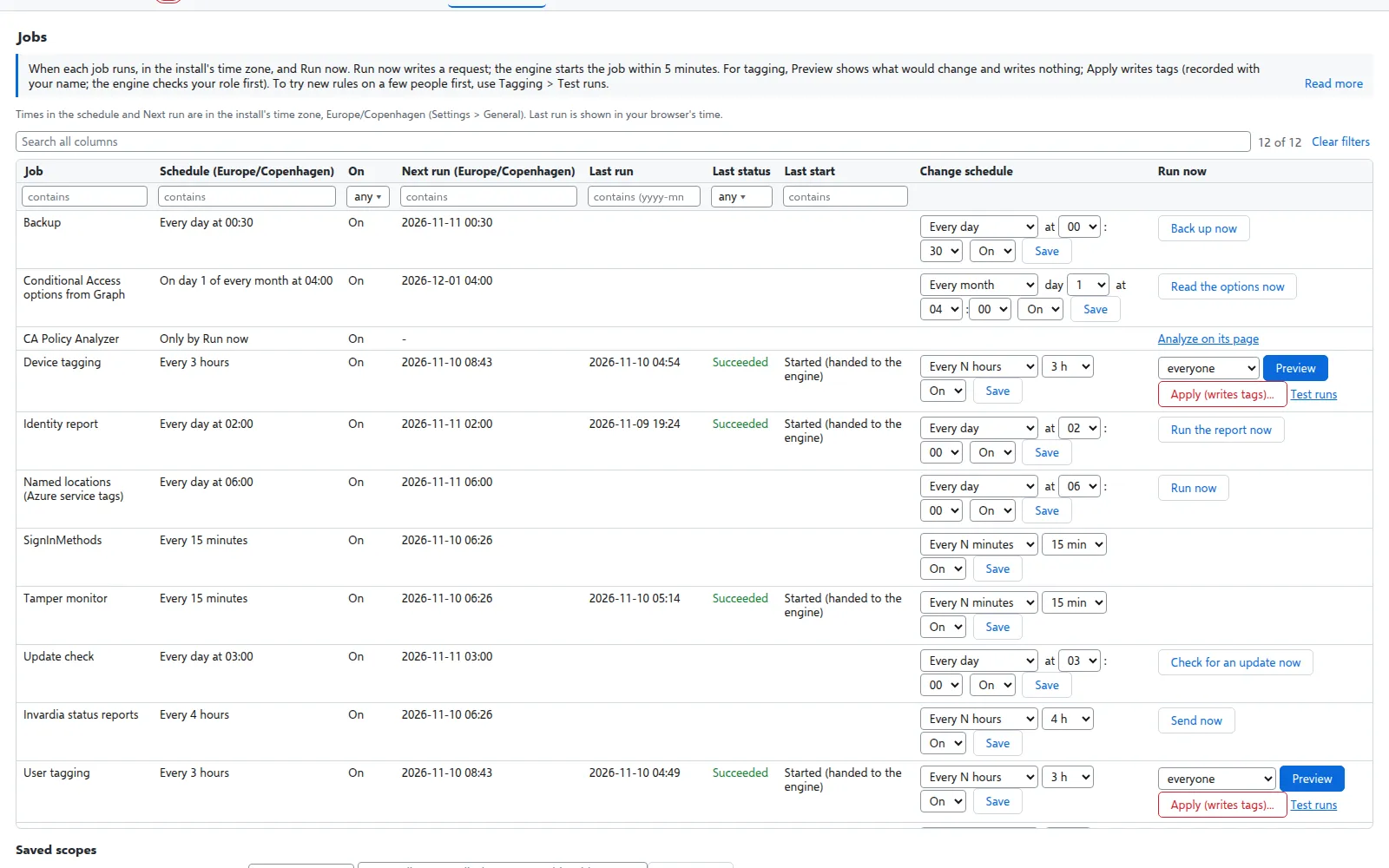
Change a schedule
On the Jobs page, an admin edits a job’s schedule and switches it on or off, with a reason. A schedule is one of:
| Schedule | Means |
|---|---|
daily 01:00 |
Every day at 01:00 |
weekly sun 19:00 |
Every Sunday at 19:00 |
monthly 1 04:00 |
On the 1st of every month at 04:00 (a day from 1 to 28) |
every 3h |
Every 3 hours |
every 15m |
Every 15 minutes (5 minutes at least) |
manual |
Only when someone asks for a run |
Every tagging run reads everyone, so a new user is tagged by the next scheduled run. If new users must be tagged within minutes, switch on Also tag a user at once when it changes (Settings > User tagging): the engine then tags only the users whose rule properties changed, in between the scheduled runs.
Run now: Preview or Apply
Next to each tagging job, an admin can ask for a run now:
- Preview computes every change and writes none. Use it on everyone after a rule change.
- Apply writes the changes. Choose everyone, a saved scope, or name the objects there and then.
A request is started within 5 minutes and is listed under Requests, with who asked, the reason, the status and a link to its run.
A saved scope is a list of objects or a property filter (for example userPrincipalName like *@pilot.contoso.test) that you pick for a Preview or an Apply. Save scopes under Saved scopes on the Jobs page.
The mode of a scheduled run is a setting per feature (User tagging mode, Device tagging mode). Leave it on Preview until a rule set is proven.
Runs
The Runs page lists every run with its job, mode, status and counts: objects read, changes planned, overwrites (a tag that had another value), applied and failed. Open a run for its step-by-step log.
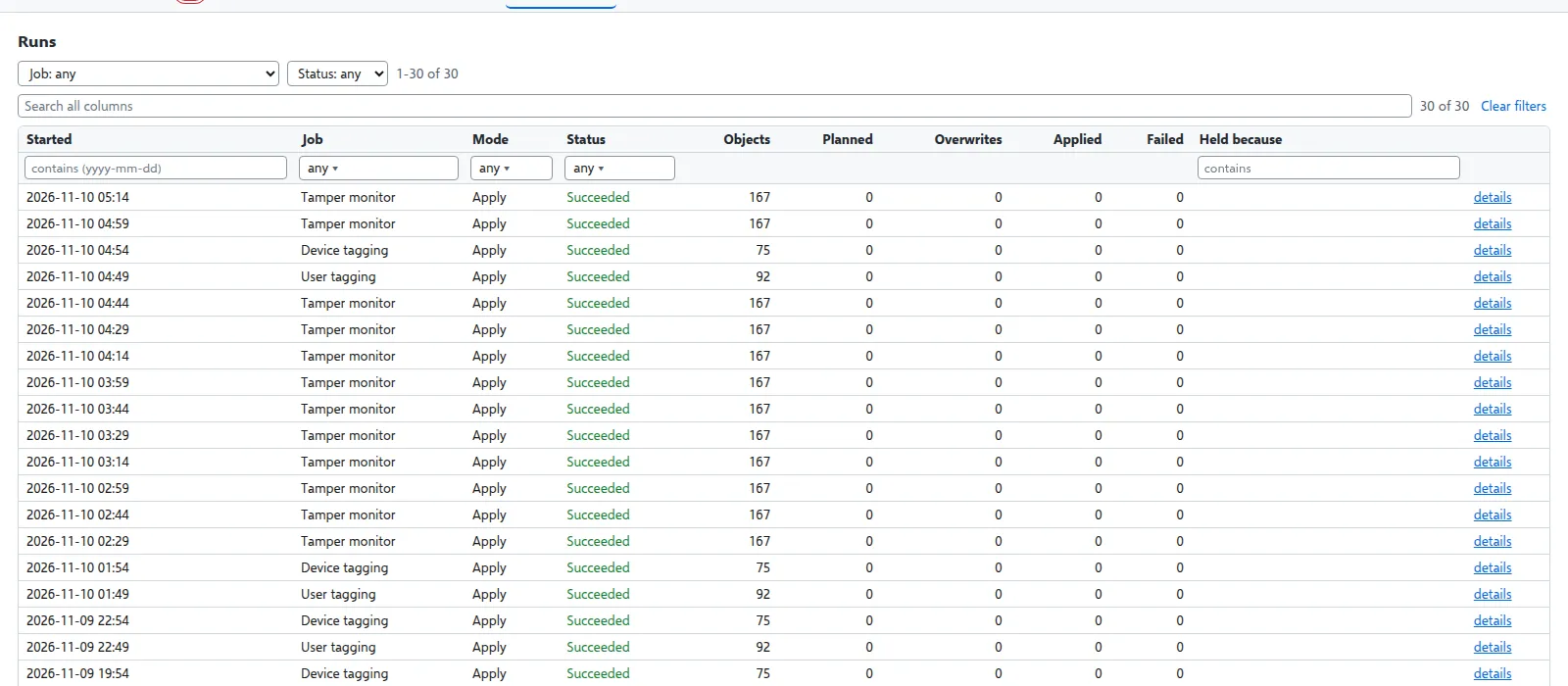
| Status | Means |
|---|---|
| Succeeded | The run did everything it planned |
| PartlyFailed | Some changes failed; each one is listed with its error |
| Failed | The run stopped; the log says why |
| Held | The mass-change guard held the run because its plan was far larger than usual. An admin reviews the counts and approves or leaves it. |
A run never leaves the tenant half-tagged without saying so: a run that did not finish says in its status and log what it did and did not do.
Tag changes
The Tag changes page lists every tag a run planned or wrote: the object, AD or cloud, the tag type and attribute, the old and the new value, why (a rule or the fallback), the persona, and the status. Search it, filter it by status or run, and export it as CSV.
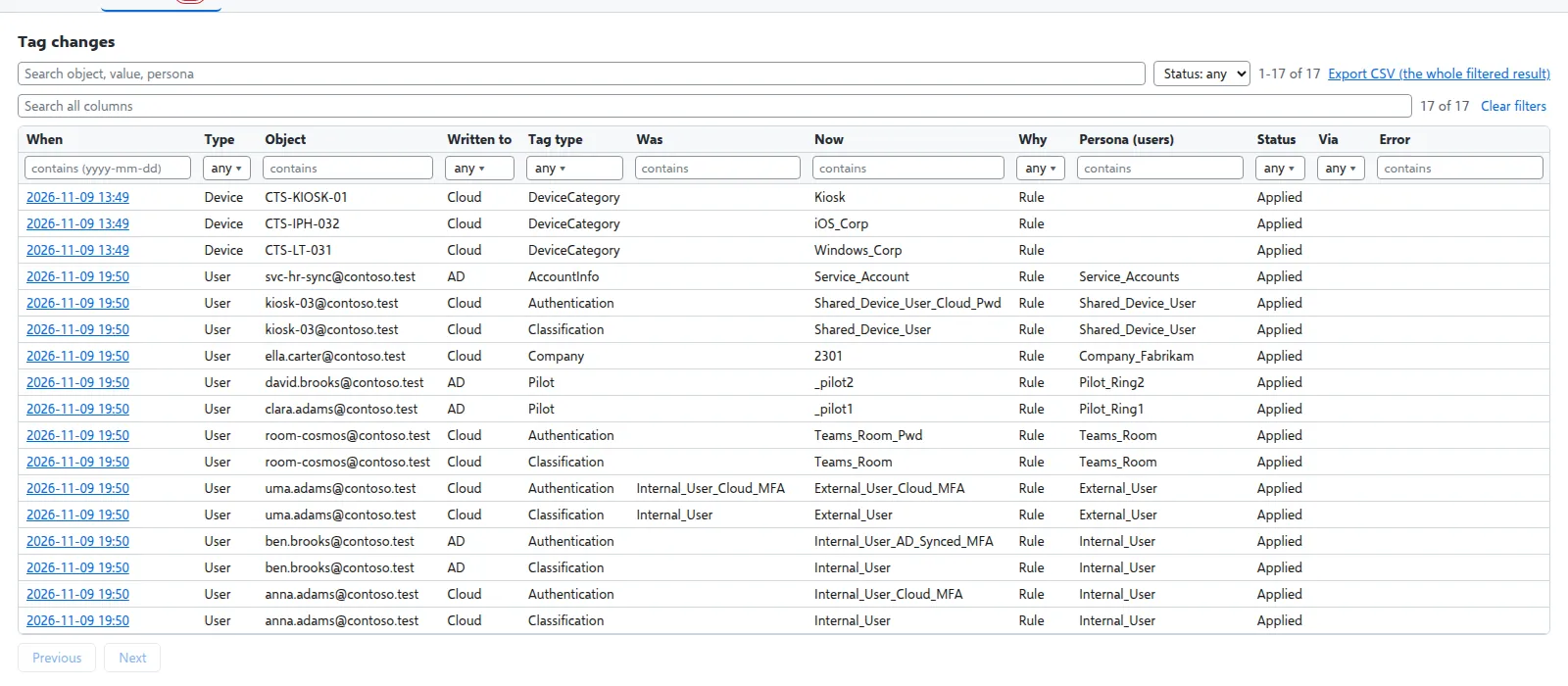
For AD-synced users the change is written by the hybrid worker, and the status follows it: queued, then applied or failed with the worker’s error.
Verified against Entra Policy Suite 2.1.4 on 2026-11-11
Verified against Entra Policy Suite 2.1.4 on Nov 11, 2026