

Entra Policy Suite documentation · Verified against Entra Policy Suite 2.1.4 on Nov 11, 2026
Hybrid worker
For a user that is synced from Active Directory, Active Directory is the source of truth: a tag written only in Entra ID is overwritten by the next sync. So Entra Policy Suite writes the tags of AD-synced users in Active Directory, and Microsoft Entra Connect carries them to Entra ID. The hybrid worker does that work. It also reads Active Directory for the rules (OU, group membership) and for the identity report (last logon, enabled, locked out, expiry).
How it works
- The worker is a scheduled task on a domain-joined Windows Server: an Azure VM or an Azure Arc-enabled server, with no public IP address needed.
- Every 5 minutes it connects out to the Entra Policy Suite database with the server’s managed identity. Nothing connects in to it.
- It takes the work the tagging job recorded for it (one AD change per user), writes it in AD, and records the result. It writes only what the engine recorded.
- It writes AD as a group managed service account (gMSA). There is no password to store or rotate.
- It uses .NET directory services: no gallery module, no RSAT. Its installer uses only the scheduled-task commands built into Windows.
- A second scheduled task (every hour, as SYSTEM) keeps the worker on the version your install runs: it takes only Invardia’s signed release, and switches back by itself when the new version fails its self-test.
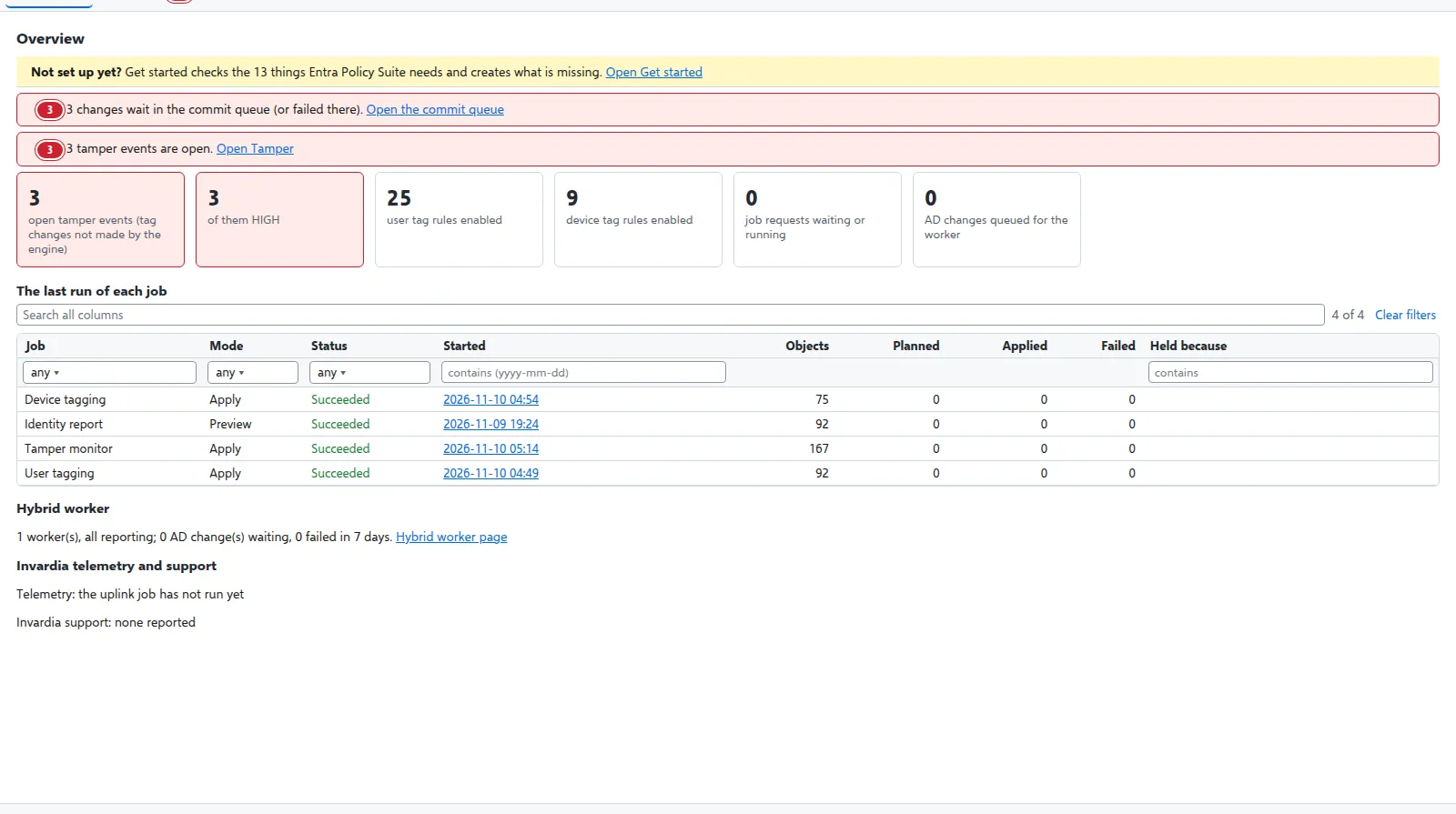
- It reports a heartbeat. The Overview page shows each worker, its version, when it was last seen and its last result.
One worker per product, or a shared server
You choose:
- A worker of its own (the default): one server runs the Entra Policy Suite worker only.
- A shared server: if you run PIM Manager, the Entra Policy Suite worker can run on the same server as PIM Manager’s hybrid worker (
-AsGuestOf pim, an Azure VM only). The server is shared; the identities are not. Entra Policy Suite brings its own gMSA, its own scheduled task, its own user-assigned managed identity and its own AD delegation.
Install it - three scripts, each with a plan first
Every script shows what it would do with -WhatIf (or, for the AD script, without -Apply) and changes nothing.
1. Delegate the gMSA in Active Directory
Create a gMSA for the worker (your normal process). Then give the worker the right to write exactly the tag attributes you use, on user objects anywhere in the domain - your users are spread over many OUs. (Device tags are written in Entra ID by the engine, not in AD.)
./Initialize-EpsHybridWorkerAd.ps1 -Gmsa gMSA-EPS-Worker -Attributes extensionAttribute6, extensionAttribute7
./Initialize-EpsHybridWorkerAd.ps1 -Gmsa gMSA-EPS-Worker -Attributes extensionAttribute6, extensionAttribute7 -Apply
Every permission goes to a group named after the gMSA with -PermissionGroup at the end, with the gMSA as its only member; the script makes the group if it is missing. It adds one inheritable permission per attribute on user objects at the domain root and nothing else (-ObjectClasses computer exists, but no feature writes computer objects today); you list your attributes, there is no default. -IncludeProtectedAccounts also covers protected admin accounts, which makes the worker a Tier 0 account. Run it as a domain admin; with -Apply it reads every change back. -Remove -Apply takes the same permissions away.
When a tag type uses another attribute, run it again with -Attributes. The worker refuses a change to an attribute the AD schema does not have, and a change AD does not allow fails; both are shown with the reason on the Tag changes page.
2. Give the worker access to the database
The server needs a managed identity (system-assigned on an Azure VM, or the Arc agent’s identity). If the server also runs PIM Manager’s worker, the system identity belongs to PIM Manager: create a user-assigned managed identity for Entra Policy Suite’s worker (its standard name is in the naming table of the install guide), attach it to the VM, and use its client id here and in Install-EpsHybridWorker.ps1 -AsGuestOf pim -ManagedIdentityClientId <client id>. A shared server must be an Azure VM: on an Azure Arc server only the system identity exists, so the guest install is refused there. Add it to the database in the worker role only:
./Grant-EpsHybridWorkerAccess.ps1 -TenantId <tenant id> -SubscriptionId <subscription id> -WorkerClientId <the managed identity's client id> -WhatIf
Run it without -WhatIf as someone who may start jobs in the install’s resource group: it starts the install’s database setup job, which creates the worker’s database user and reads it back - no database right is needed. The worker role reads its work and writes its results and heartbeat; it cannot read or change rules or settings.
3. Install the worker on the server
As a local administrator on the server:
./Install-EpsHybridWorker.ps1 -GmsaName 'CORP\gMSA-EPS-Worker$' -SqlServer <server>.database.windows.net -WhatIf
Without -WhatIf it copies the worker into its own folder (only administrators can change the code the gMSA runs), lets the gMSA log on as a batch job, and creates the scheduled task (every 5 minutes, as the gMSA) and the daily update task. The heartbeat appears on the Overview page within minutes.
| Parameter | Default | What it is |
|---|---|---|
-GmsaName |
(required) | The gMSA, as DOMAIN\name$ |
-SqlServer |
(required) | The Entra Policy Suite SQL server, <name>.database.windows.net |
-ManagedIdentityClientId |
the server’s own identity | A user-assigned identity’s client id (required with -AsGuestOf pim) |
-AsGuestOf |
none | pim: install beside PIM Manager’s worker on the same server, with Entra Policy Suite’s own gMSA, task folder, program folder and identity |
-Environment |
none (the only AD) | With several AD environments: the one this worker serves; it then takes only the changes of users in it (setting AD environments, by UPN suffix) |
-AdServer |
the domain’s own | A domain controller to talk to |
-HostType |
Auto | AzureVm or Arc, when the automatic check should not decide |
-WorkerName |
the computer name | The name shown on the Overview page |
-Root |
the product’s own folder on the system drive (a guest: a folder beside PIM Manager’s) | The worker’s folder |
-Remove |
- | Removes both tasks and the code; the logs, the gMSA and its delegation stay |
What the worker can and cannot do
| It can | It cannot |
|---|---|
| Write the tag attributes you listed, on user objects in the domain | Write any other attribute, or any other kind of object |
| Read users and group membership in AD | Change a group, a password or an account state |
| Read its own work and write its results in the database | Read or change rules, settings or the access list |
Remove it
Run Install-EpsHybridWorker.ps1 -Remove, then Initialize-EpsHybridWorkerAd.ps1 -Remove -Apply and Grant-EpsHybridWorkerAccess.ps1 -Remove.
Verified against Entra Policy Suite 2.1.4 on 2026-11-11
Verified against Entra Policy Suite 2.1.4 on Nov 11, 2026