

Entra Policy Suite documentation · Verified against Entra Policy Suite 2.1.4 on Nov 11, 2026
Conditional Access
The Conditional Access page shows your policies next to the Entra Policy Suite template library: which template each policy comes from, which stage it is in, whether it still matches its template, and whether it excludes your break-glass accounts. Only a SuperAdmin changes a policy here, and every change is shown first and needs a reason: deploy a template, edit or copy a policy, move an adopted policy to another stage - Pilot1, Pilot2, Pilot3 or Prod, or Disable - promote or roll back a new version, and delete policies that are off. Everything else on the page only reads.
The template library
The release ships 111 Conditional Access templates - the policies of Entra Policy Suite 1, CA000 to CA800, by persona (global, admins, internal users, external users, guests, service accounts, shared devices, shared mailboxes, Teams Rooms, break-glass accounts and more). A template names groups and accounts by their role (the break-glass group, the pilot group of the policy, the internal users group); the actual names come from your settings and your v1 import, never from the template.
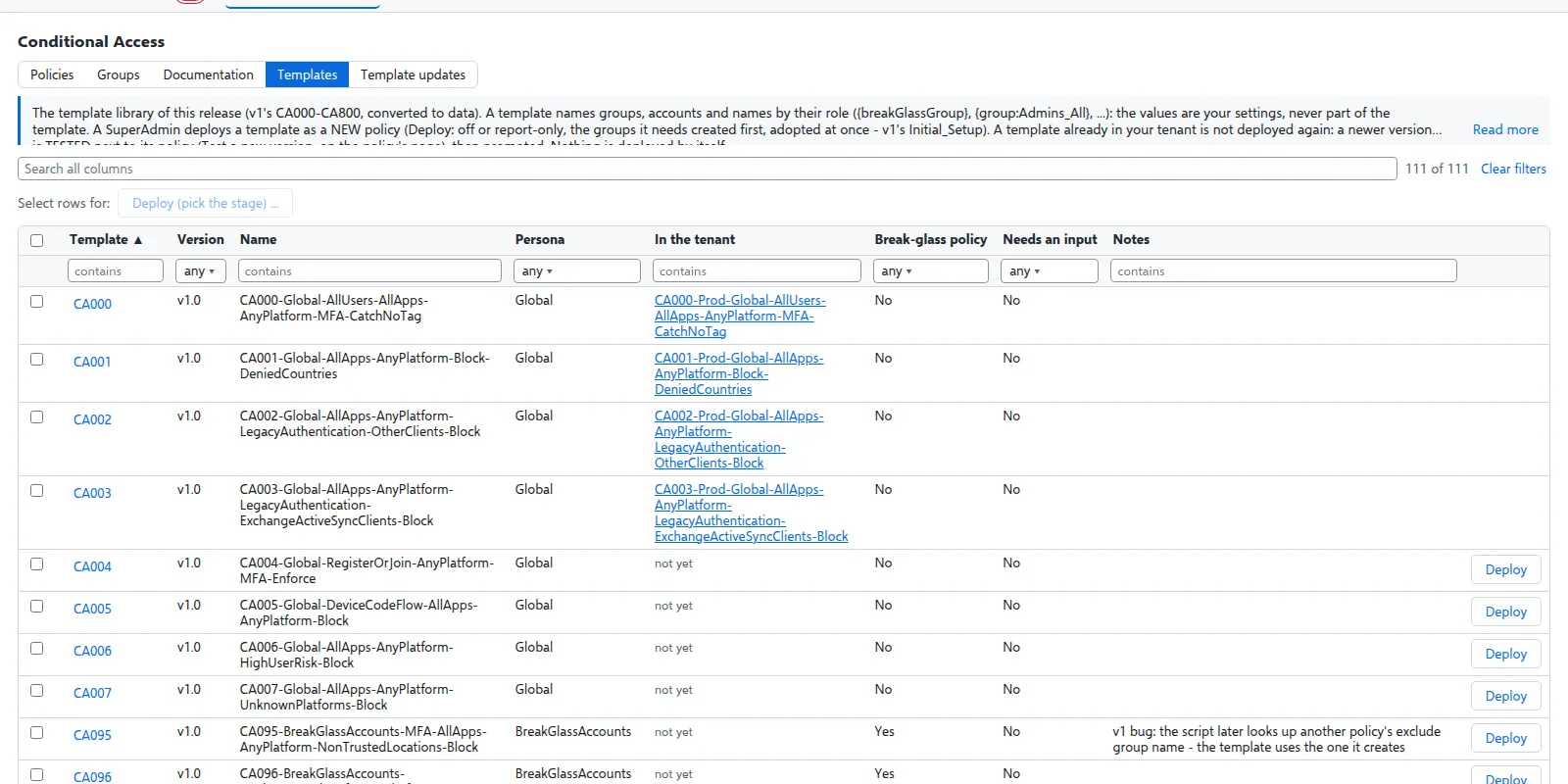
Deploy a template
The Templates view shows which templates are in your tenant already. A SuperAdmin deploys a template as a new policy with Deploy (one template) or Deploy (off) (the selected ones). Before anything is sent you see the policy it creates, every group it uses and whether each group is in your tenant. The new policy starts off (Initial) or report-only for the pilot group (Pilot1). Groups it needs that are missing are created first, as Entra Policy Suite 1’s setup did. The policy is adopted at once; move it through the stages from its page. A template that is in your tenant already is not deployed again.
Test a new version next to your policy
When a release brings a newer version of a template, the policy’s page shows Test a new version. It creates a second policy, named with the new version (for example CA200-v1.1-...), report-only for the pilot group; your policy is not touched. When the new version is ready:
| Action | What happens |
|---|---|
| Promote | The new version is turned on with the template’s Prod targets first; then your old policy is turned off and renamed with its version. It is kept. |
| Roll back | The old policy is turned back on as it was before the promote first; then the new version is turned off. |
| Remove the old version | After a promote, the old policy (off) is deleted from your tenant. You type its name to confirm. |
Each is a SuperAdmin’s action with a reason. Both policies are read again first; the change is refused when one of them changed since you looked, or when the result would no longer exclude the break-glass accounts.
Your policies
The engine reads every Conditional Access policy (read only) when the CA Policy Analyzer job runs, or when an admin chooses Read the policy list. For each policy the page shows:
| Column | What it says |
|---|---|
| Template | The template the policy comes from, by the CA number in its name. A policy made by hand has none. |
| Stage | Read from the policy’s real state: Initial (off), Pilot1 (report-only), Pilot2 / Pilot3 (on for a pilot group), Prod (on for everyone), or Custom |
| Analysis | What the CA Policy Analyzer is doing with the policy: requested or running for an analysis you asked for, else the last one (when, how many users were impacted of those in scope, with a link to it), or that it has had no analysis yet |
| Monitored by | The monitors whose runs covered the policy in the last 14 days |
| Findings | The open monitor findings for the policy |
| Compared | As the template, or differs with the number of differences. Groups, users, roles and locations are compared by name. |
| Break-glass | excluded, or MISSING when the policy does not exclude the break-glass group and accounts |
| Adoption | Whether you recorded that this policy is managed with Entra Policy Suite |
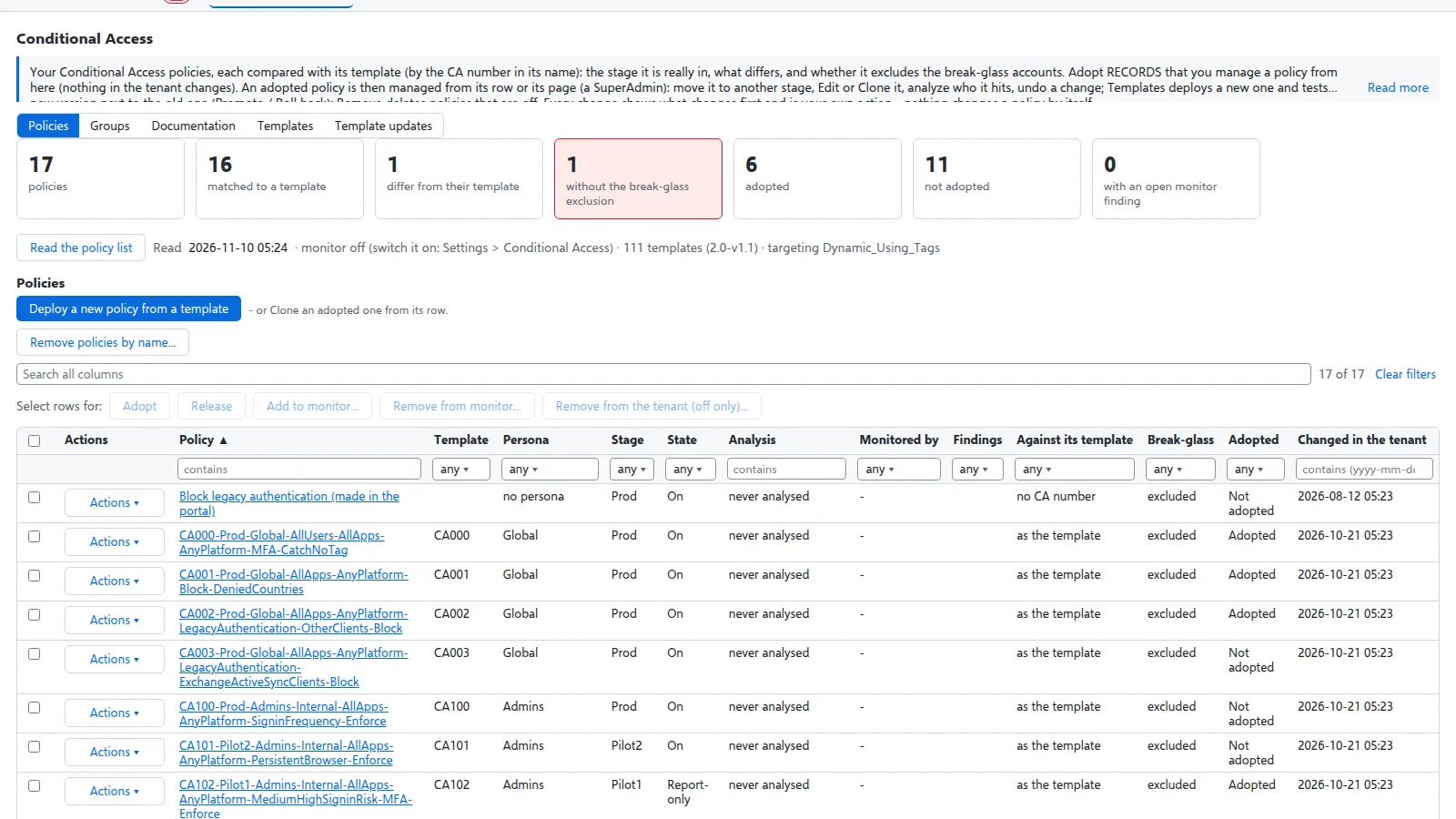
Open a policy for its body with every id resolved to a name, the differences from its template field by field, and its documentation row.
A row’s Actions menu starts a read-only analysis of who the policy hits (its sign-ins); the row shows requested at once and the result when the engine is done. A monitor runs such an analysis on a schedule; its name may hold letters, digits, spaces, -, _ and ..
Adopt
Adopt records that a policy is managed with Entra Policy Suite; Release removes the record. Both are records only - nothing in the tenant changes - and only a SuperAdmin makes them, with a reason. A policy you do not adopt is listed and compared, nothing more.
With Conditional Access monitor (adopted policies) switched on (Settings > Conditional Access, SuperAdmin), an alert mail goes out when an adopted policy changes from what was recorded, or no longer excludes the break-glass accounts. Entra Policy Suite never acts on such a change: what happens next is your decision.
Documentation and export
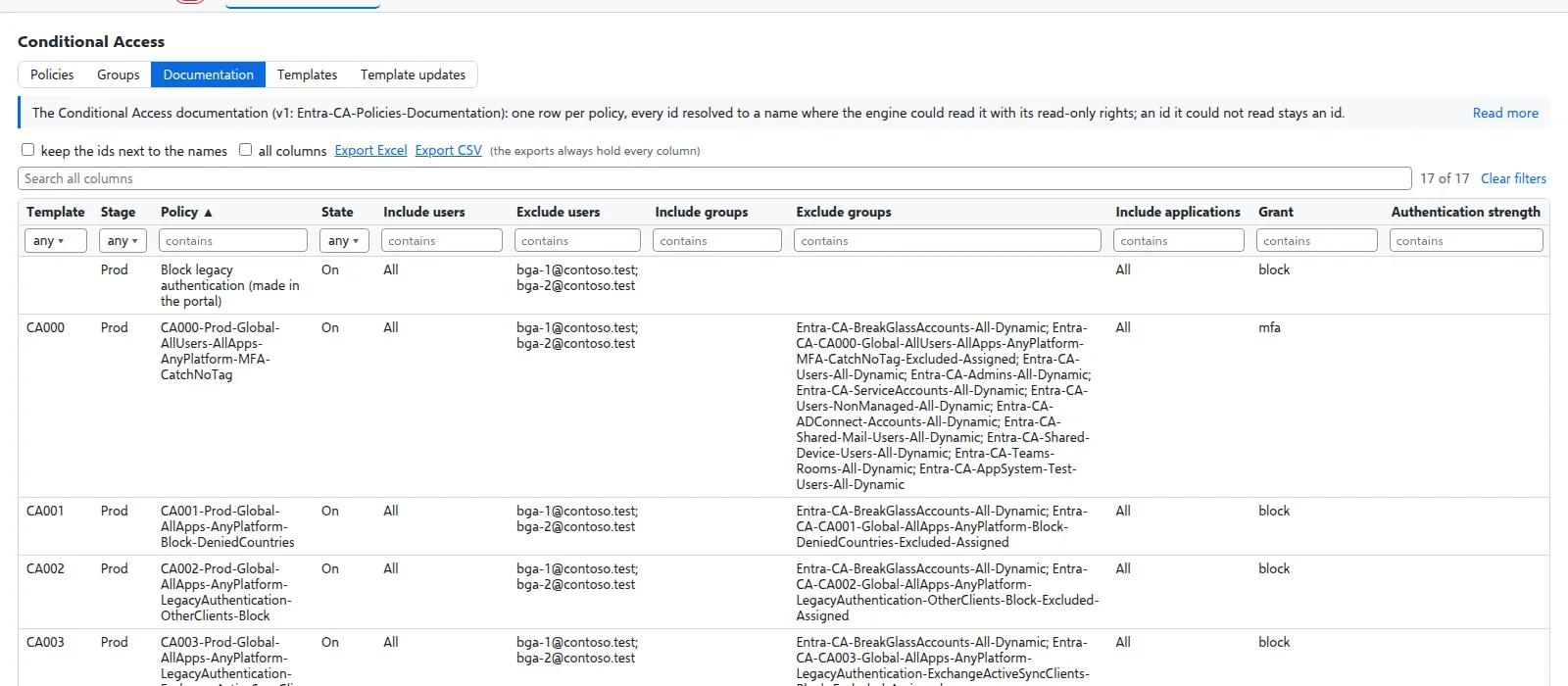
The Documentation view is the Conditional Access documentation as a table: one row per policy, with users, groups, roles, applications, platforms, locations, grant and session controls, every id resolved to a name where the engine could read it. Export it as Excel or CSV.
Rights
The engine reads with Policy.Read.All, RoleManagement.Read.Directory, GroupMember.Read.All and Application.Read.All (application names). It holds Policy.ReadWrite.ConditionalAccess for the actions a SuperAdmin approves - the stage move, edit and copy, deploy, and testing / promoting / rolling back / removing a template version: the engine reads the policy again, changes it only if it is unchanged since you looked and the break-glass accounts stay excluded, and reads it back. With Group.ReadWrite.All and AdministrativeUnit.ReadWrite.All it creates and keeps the groups the policies use (Conditional Access > Groups) - each change only when a SuperAdmin approves it - and a stage move sets the policy’s dynamic pilot group for the stage first.
Verified against Entra Policy Suite 2.1.4 on 2026-11-11
Verified against Entra Policy Suite 2.1.4 on Nov 11, 2026