

Home: what needs your attention, at a glance
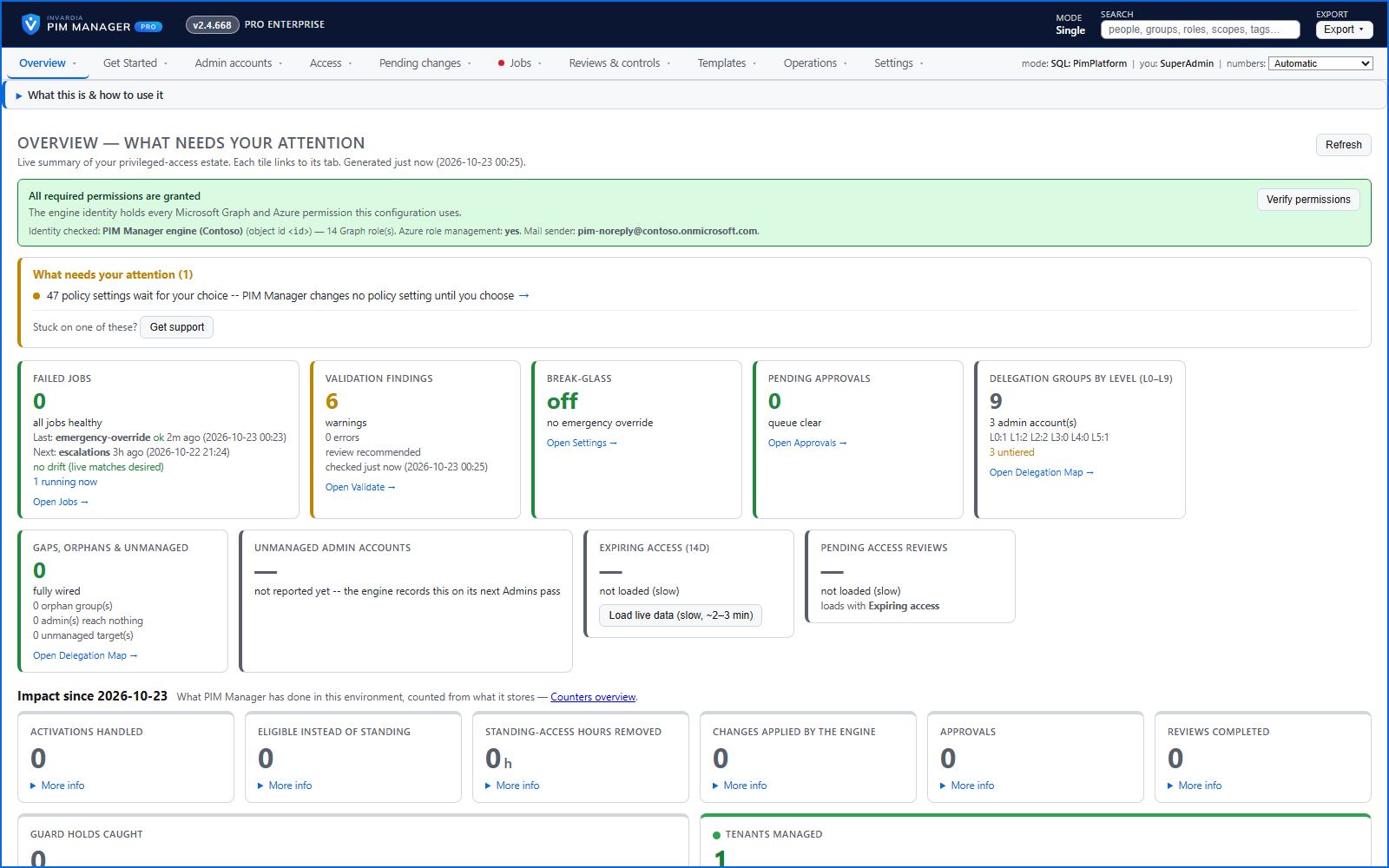
Red, amber and green tiles for engine health, validation findings, break-glass use, delegation by level, gaps and expiring access - each opens the page that owns it.
Purpose
A privileged-access estate has many moving parts. An overnight failure, an active emergency override or an admin who reaches nothing should be visible the moment you sign in, not buried three screens deep.
Design
Home opens with a permission banner that checks the engine's own identity and turns red, naming what was refused, when a permission is missing. Below it, tiles summarize failed jobs and the next run, validation errors and warnings, whether an emergency override is active and until when, delegation groups by level (L0-L9), gaps and orphans, expiring access and pending reviews. Each tile is backed by the engine, job, validation and audit data, and says so plainly when there is nothing to show.
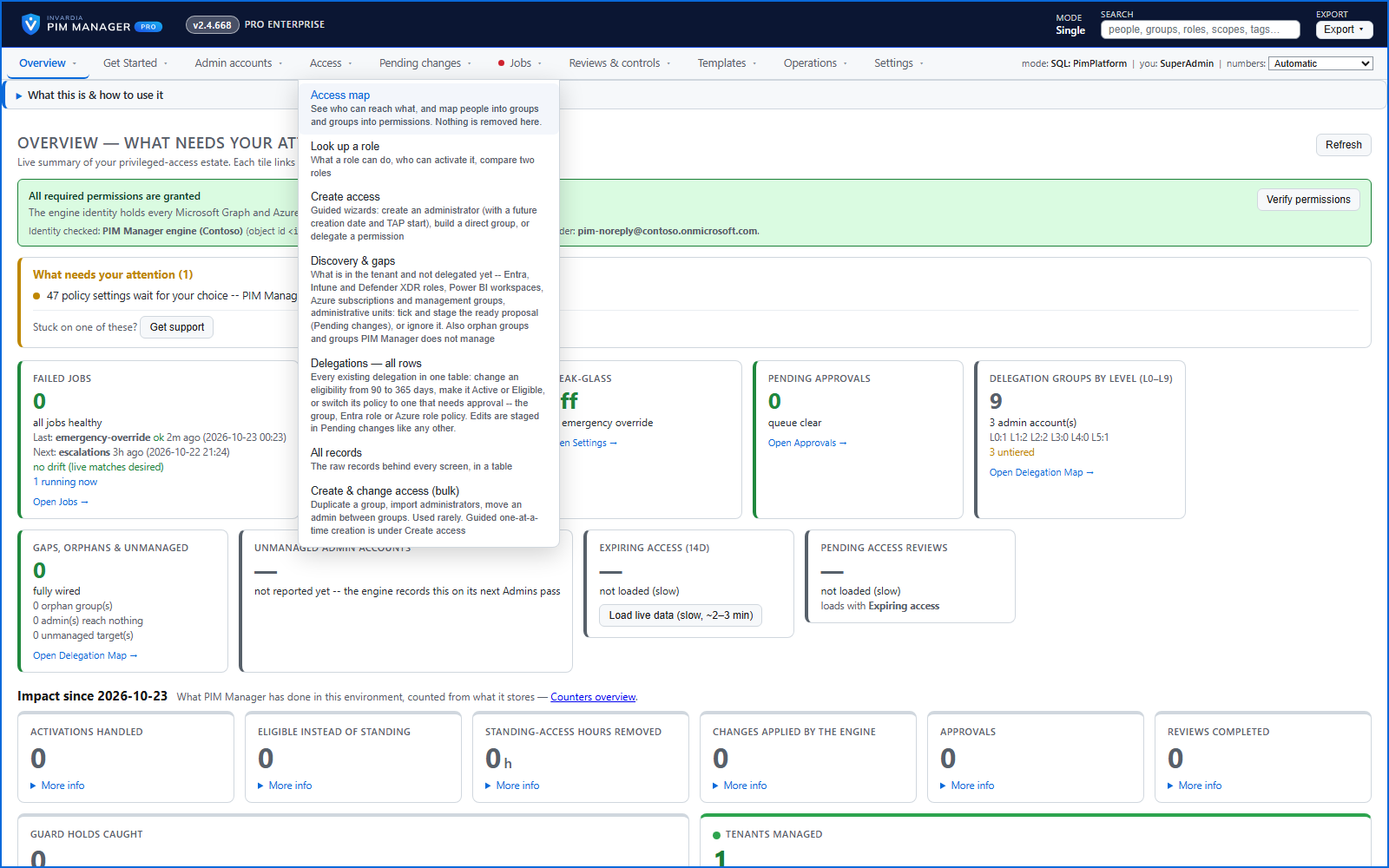
The menus are named after what you came to do, and each entry says in one line what it does.
Business opportunities
Operations teams and security leads start the day from one page that says what needs doing, instead of checking a dozen places.
Related features
Access map: your delegation model on one board
Pick a person or a permission and see every path in your delegation model - people, their groups, what those groups include and the roles and scopes they grant.
Who can do what - and who can activate this role
Pick a person to see the targets they can reach, or pick a role to see who can activate it - each with the exact path that grants it.
Look up a role: find the least-privileged role for the job
See what an Entra ID role can do in plain words, find the roles that grant an action ranked least-privileged first, see who can activate a role, or compare two roles.
Drift: live versus desired, with a decision for each difference
See what is missing, what was changed and what is extra in the tenant - and decide what happens to each item: Apply now, Import into PIM, Delete, Ignore or Re-add.