

Edit, clone and version a Conditional Access policy
Change any part of a policy in a form, copy it into a new policy, deploy a new template version next to the old one and promote it when it is proven.
Purpose
Editing Conditional Access in the portal is fast but leaves no review, no reason and no way back. Testing a new version of a policy without touching the one in production usually means copying it by hand.
Design
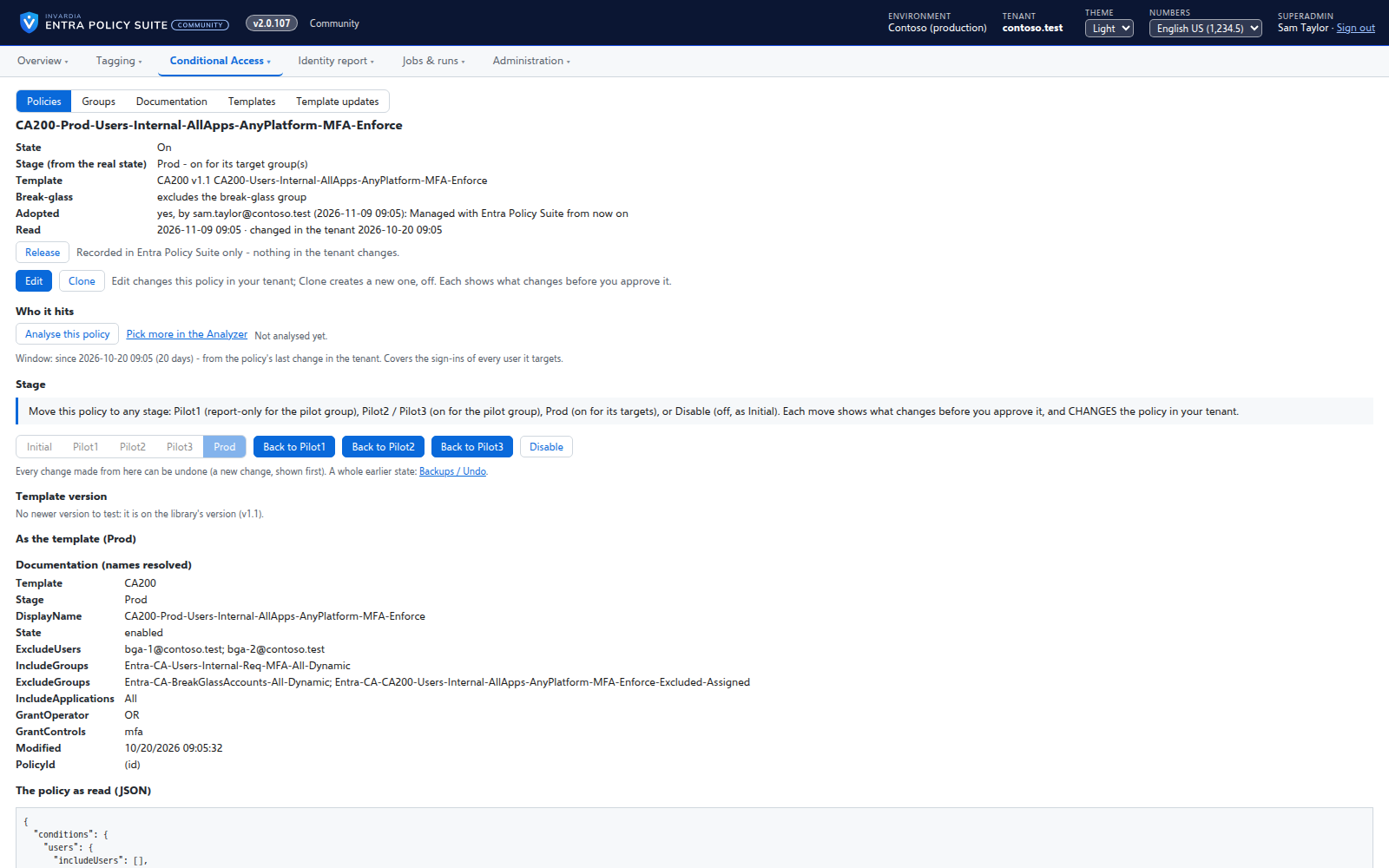
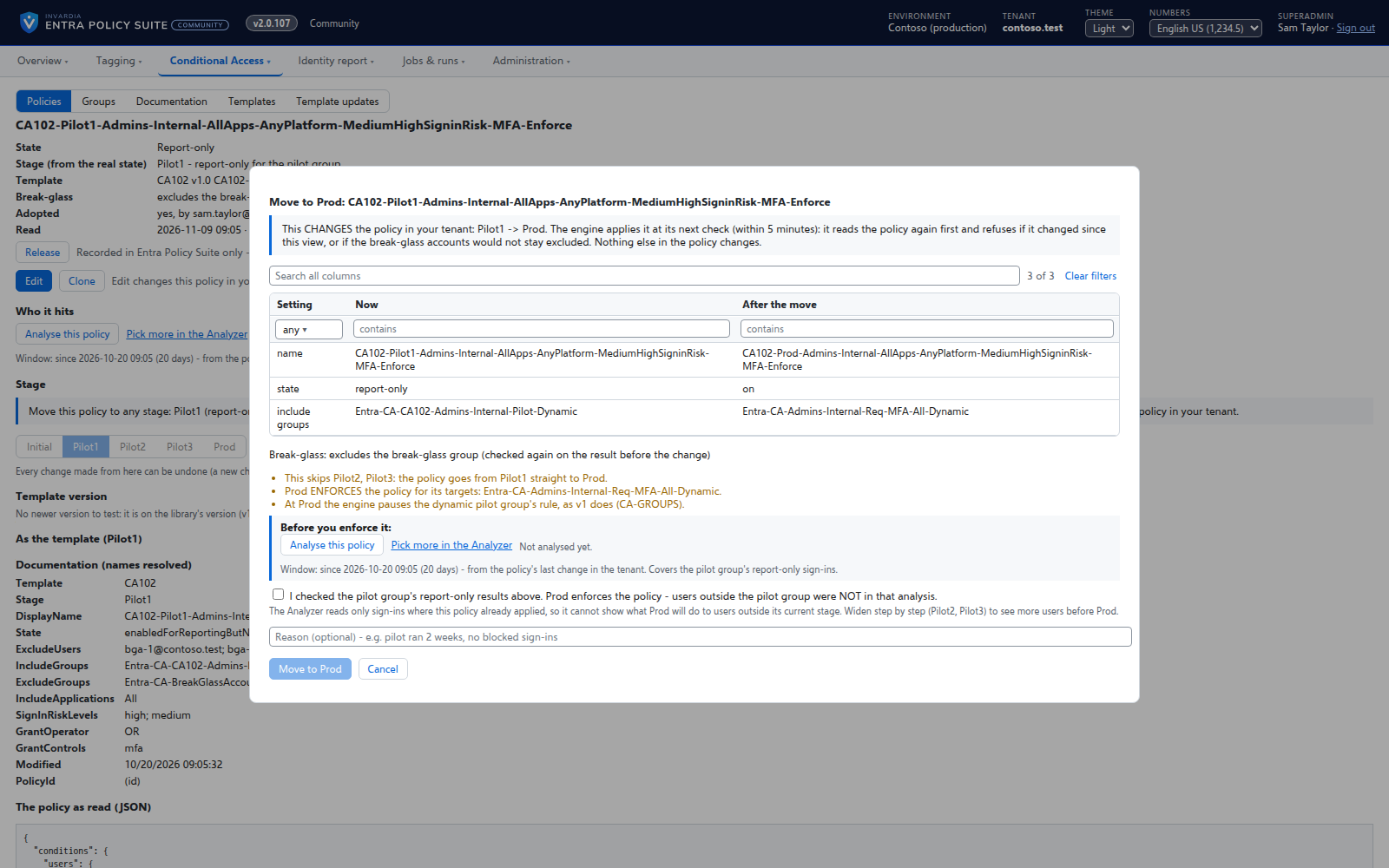
The policy page shows the policy in plain words, its stage, who it hits and its history. Edit opens a form where users, groups, roles, applications and locations are picked by name and every setting with fixed choices is a check box or a list, with the choices read from Microsoft Graph. Clone makes a new policy, always created off. A new template version is deployed as a second policy next to the old one; Promote moves it to Prod and turns the old one off, Roll back does the reverse. Before a policy moves to Prod, the analysis of the policy shows whose sign-ins it covered and when. Every change shows the policy before and after, needs a reason, is refused when the break-glass accounts would no longer be excluded, and is read back.
Business opportunities
Every Conditional Access change is reviewed, explained and reversible, and a new version is tested beside the one your users depend on.
Related features
Rules you edit like a spreadsheet
Every tagging rule on one page, edited like Excel: select, copy and paste, fill down, duplicate, move and switch on or off - many rules at once.
A commit queue for every rule change
A saved change waits until an admin commits it - nothing reaches the directory the moment someone types.
Changes applied by the engine, every one audited
A change made in the web app is carried out by the engine for the person who made it, and recorded in an append-only audit trail.
Bring your Entra Policy Suite 1 rules
The v1 rule files import as they are, so the tags your groups and policies read stay the same.