



Architecture and security
How PIM Manager is built and secured. It runs entirely in your own Microsoft environment.
PIM Manager - Technical architecture and security
For: Architects, security officers and CISOs evaluating PIM Manager: the full security design, with every identity, permission, control and process.
Download the presentation (PDF)PowerPoint
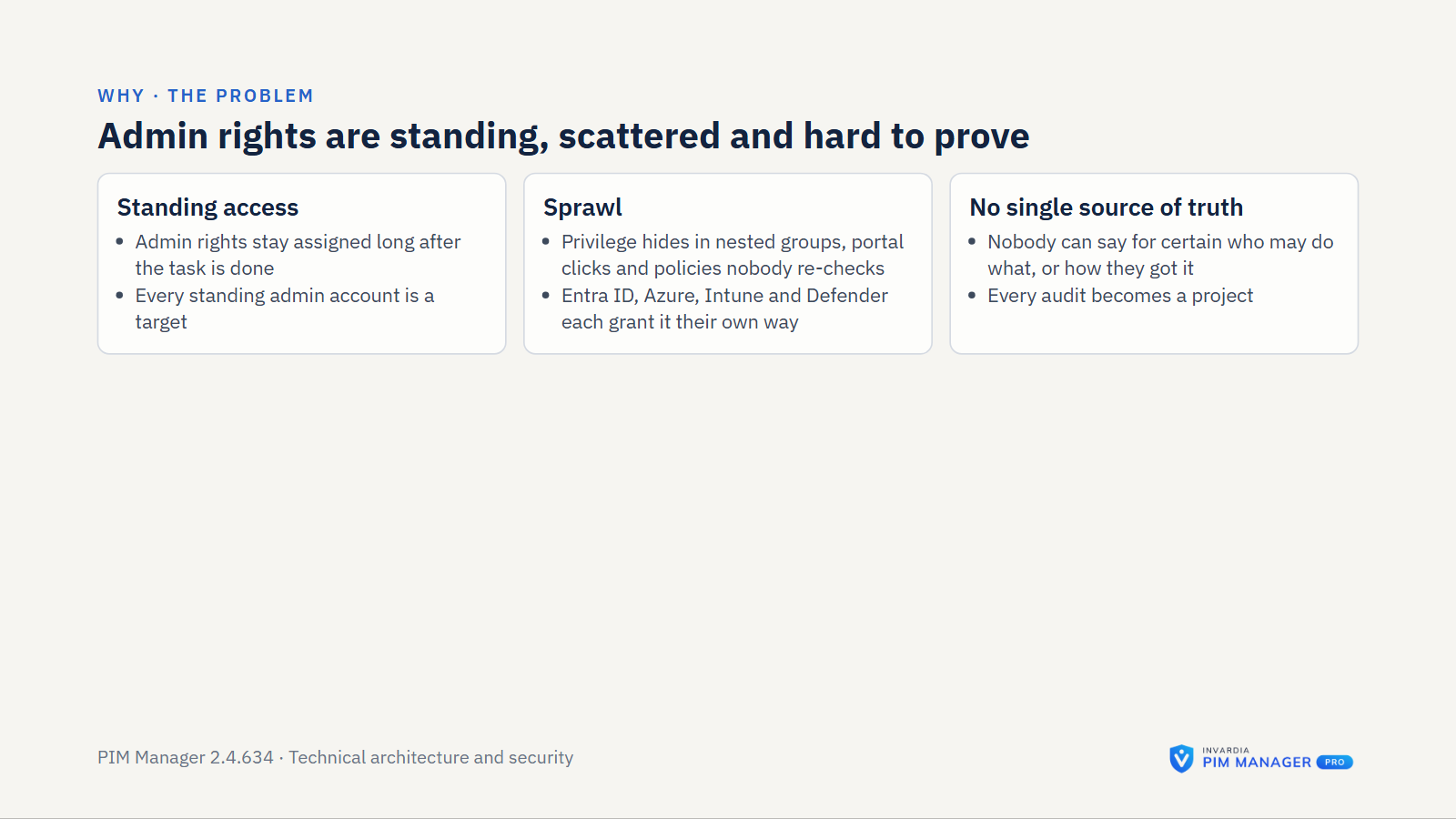
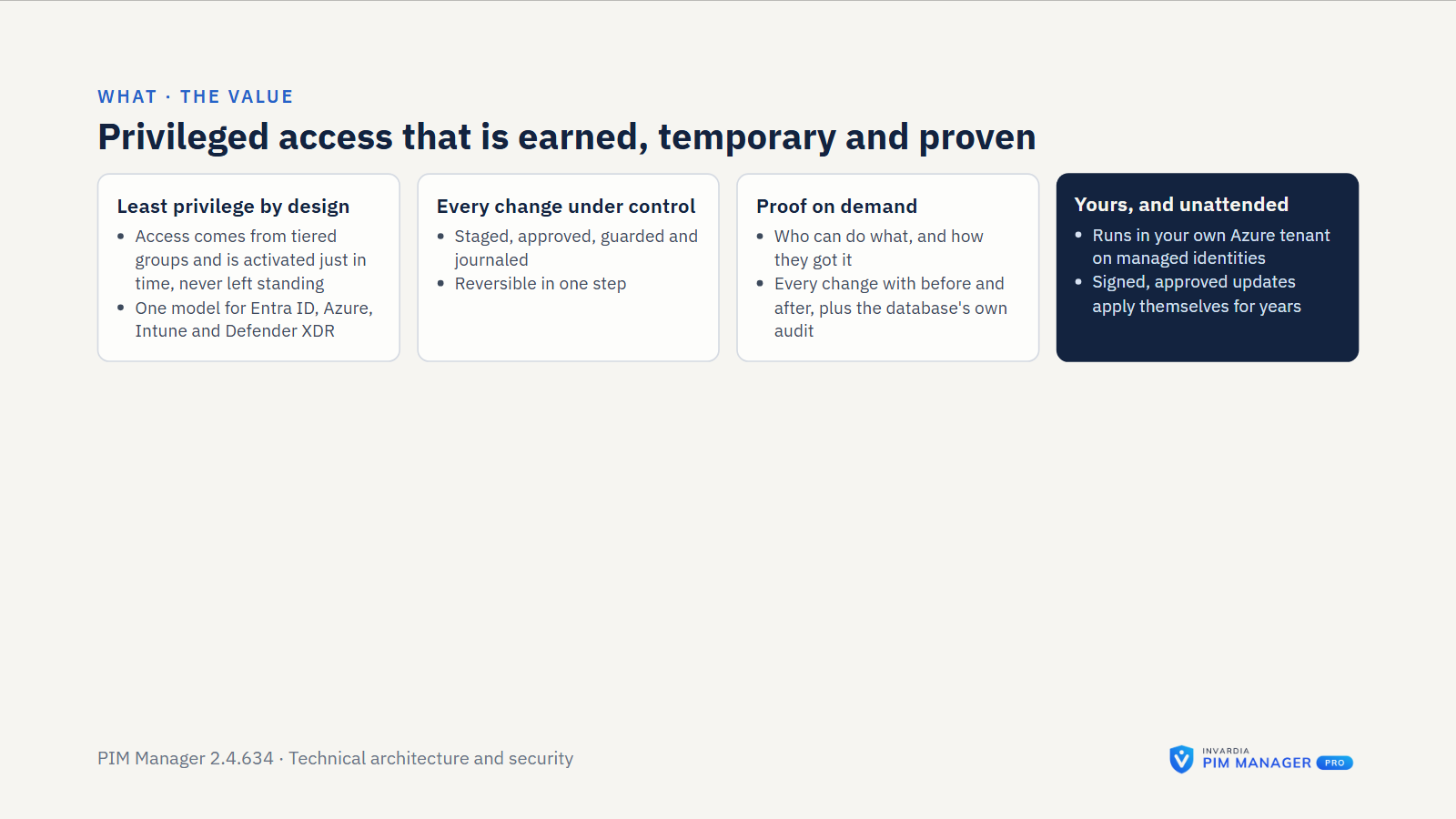
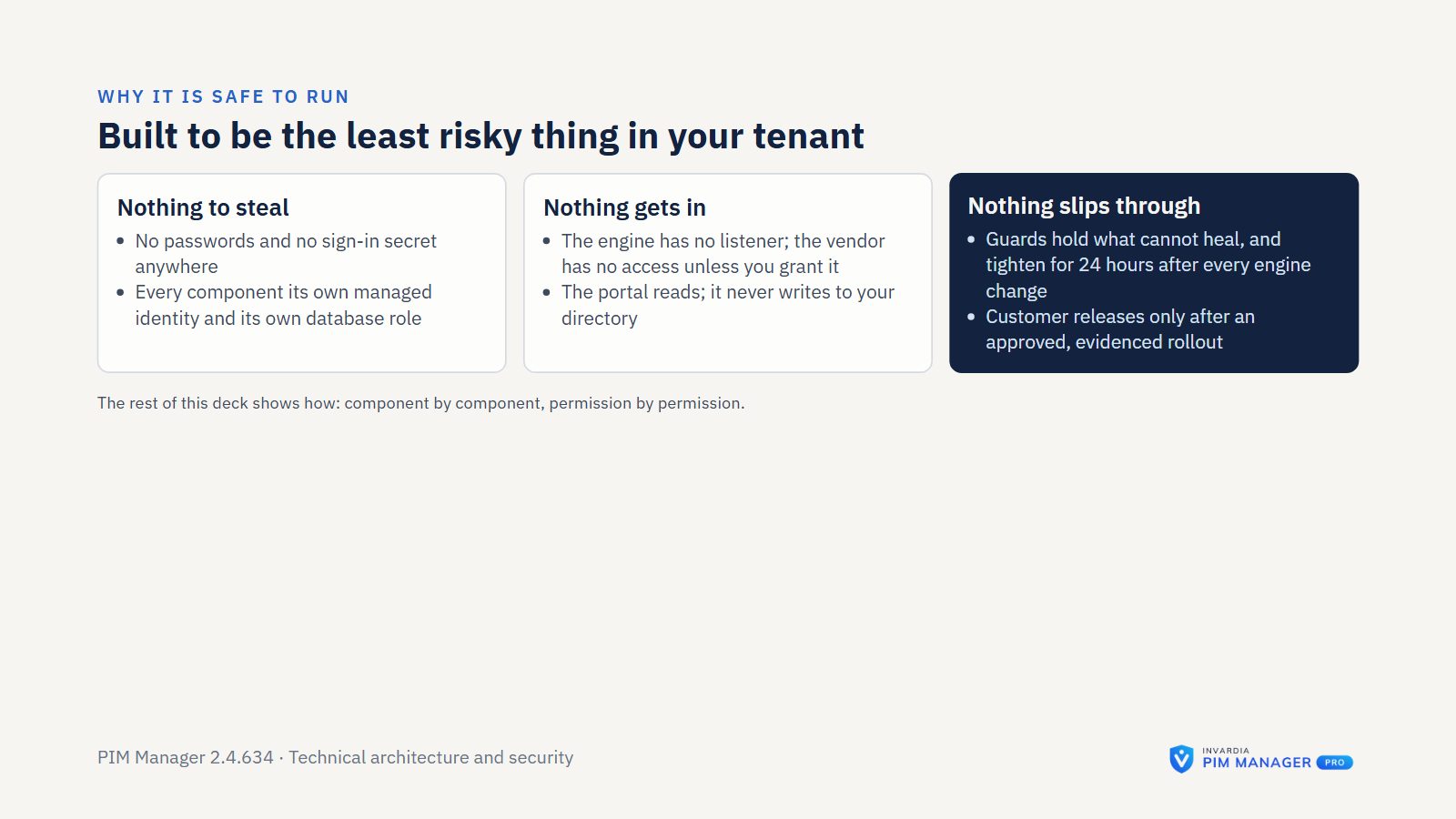
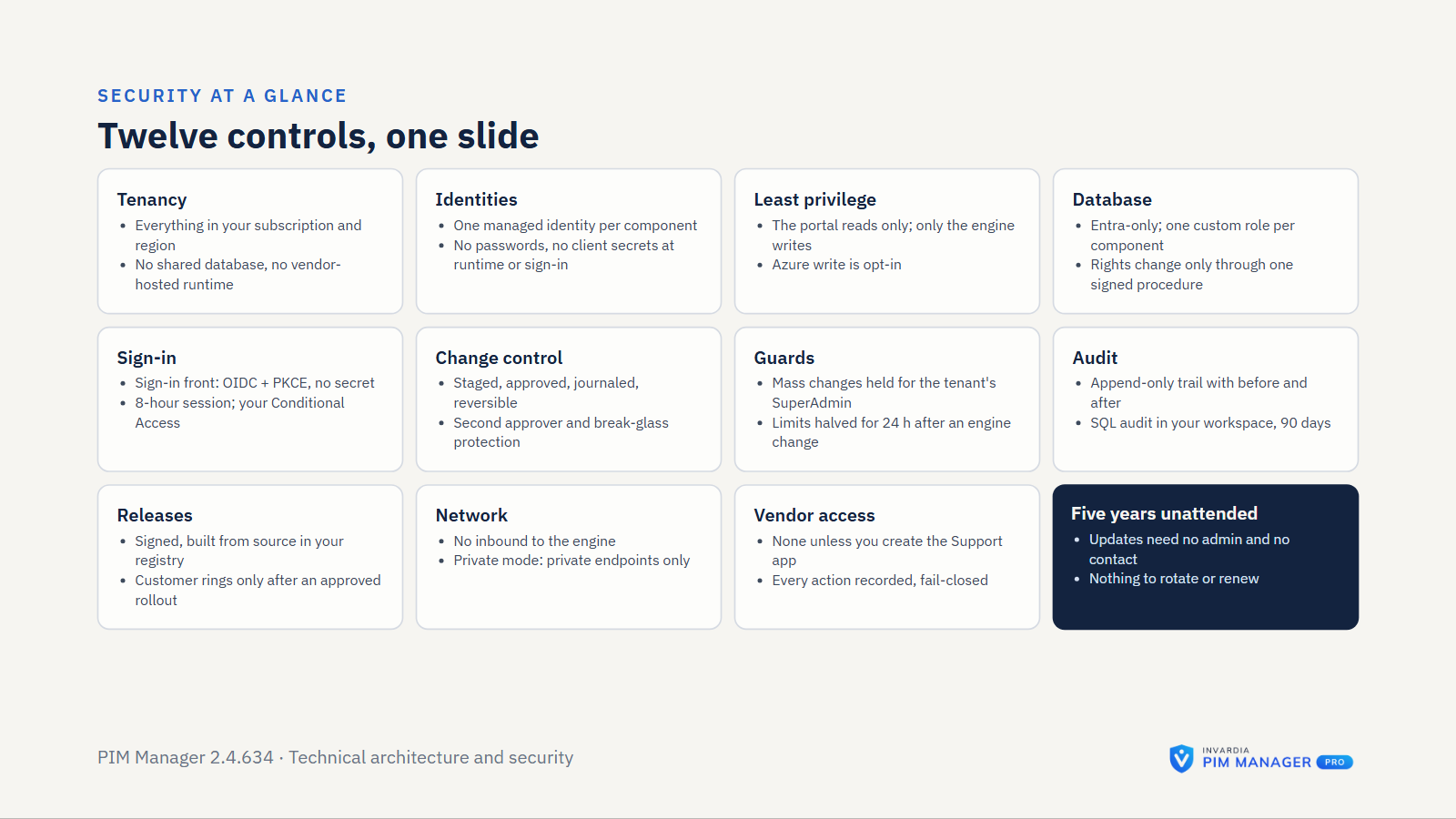
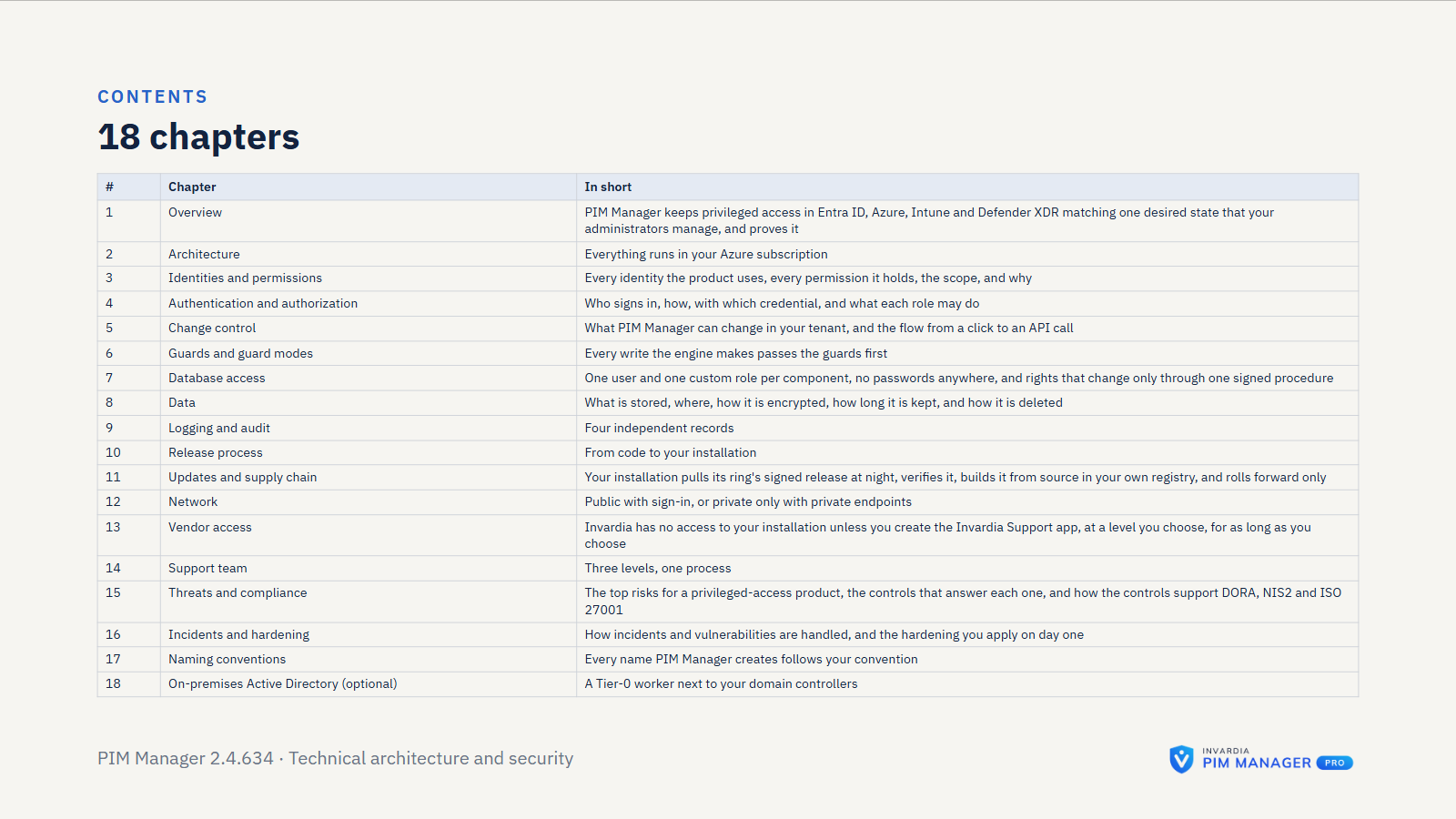
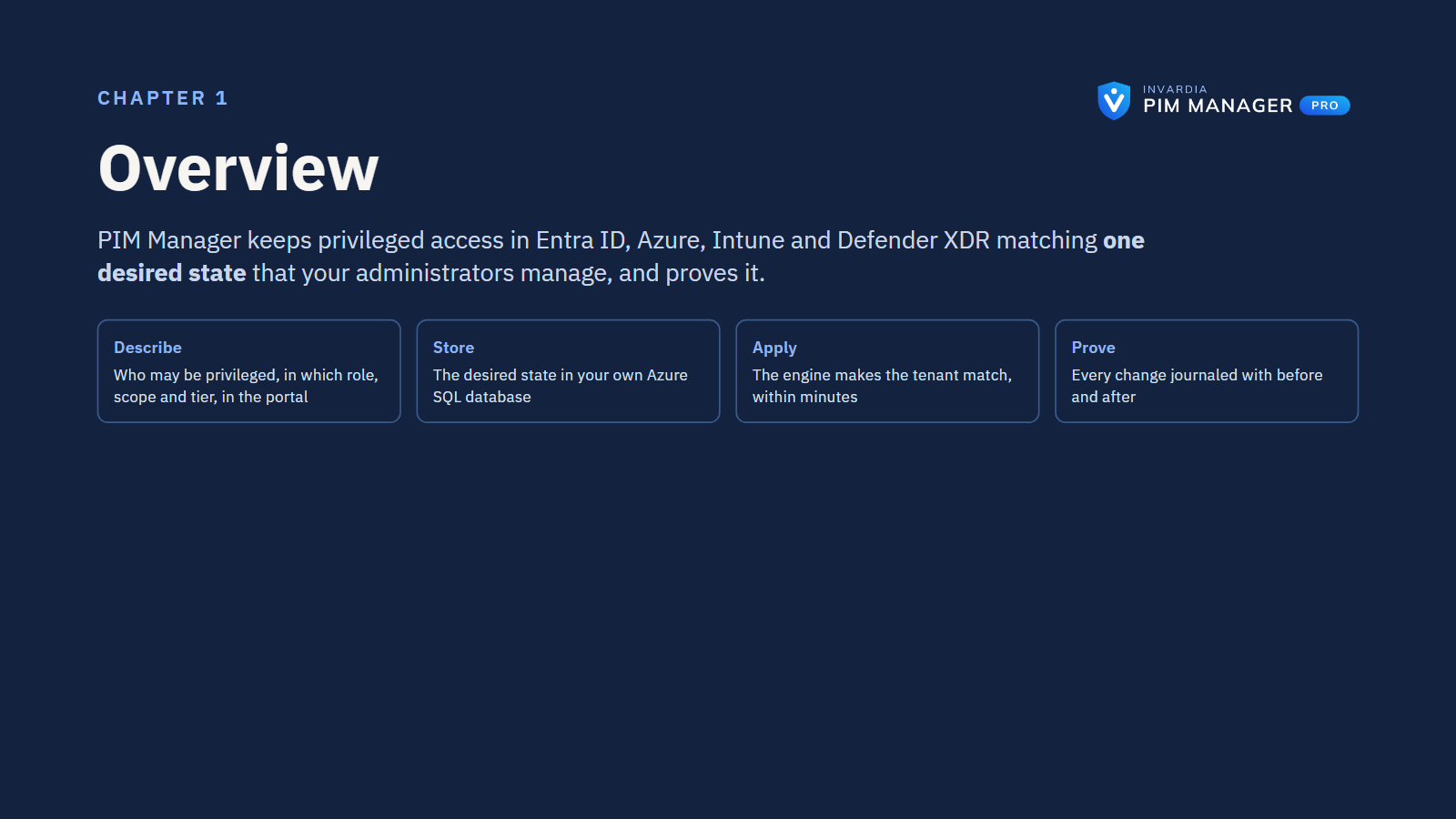
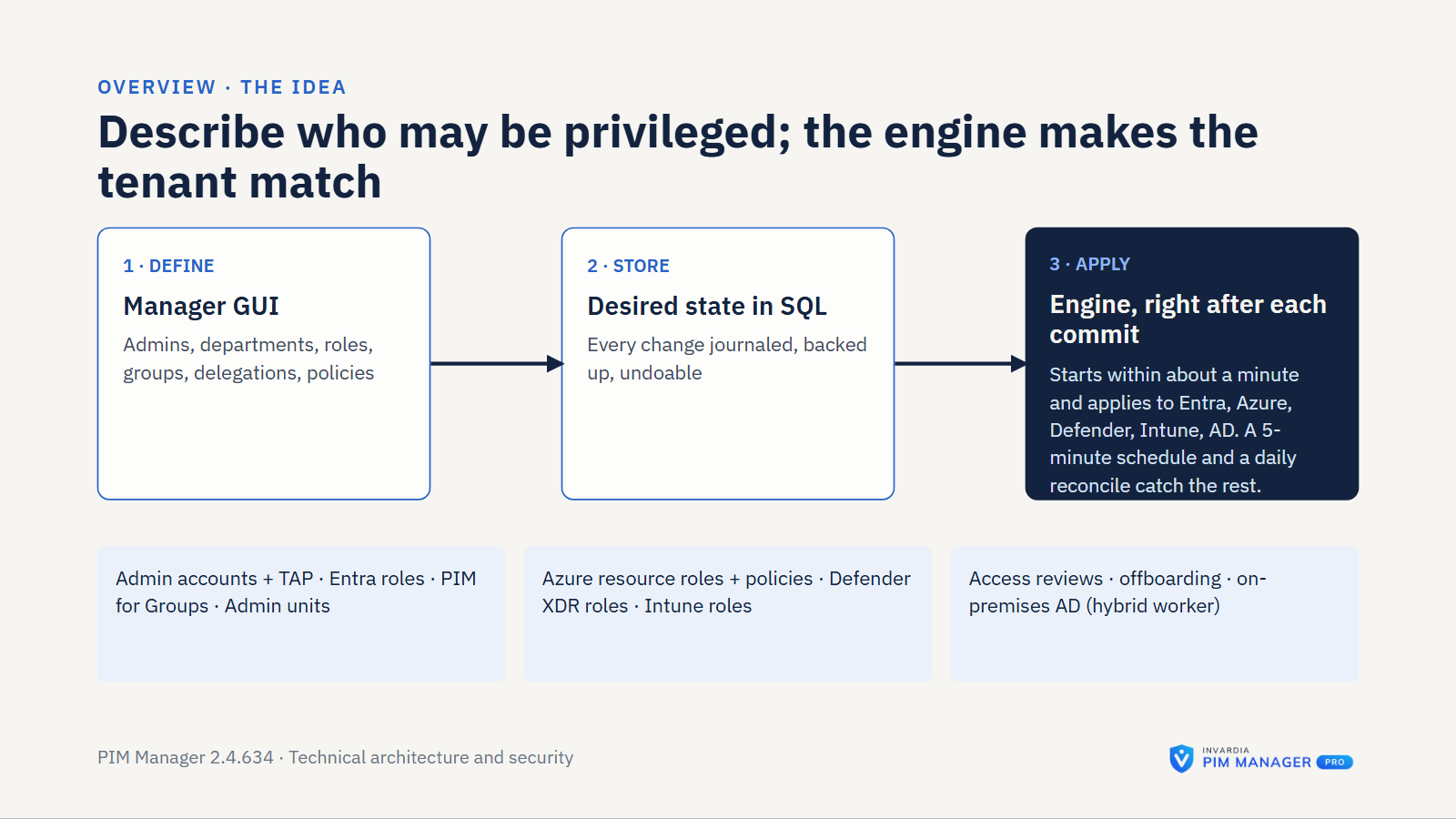
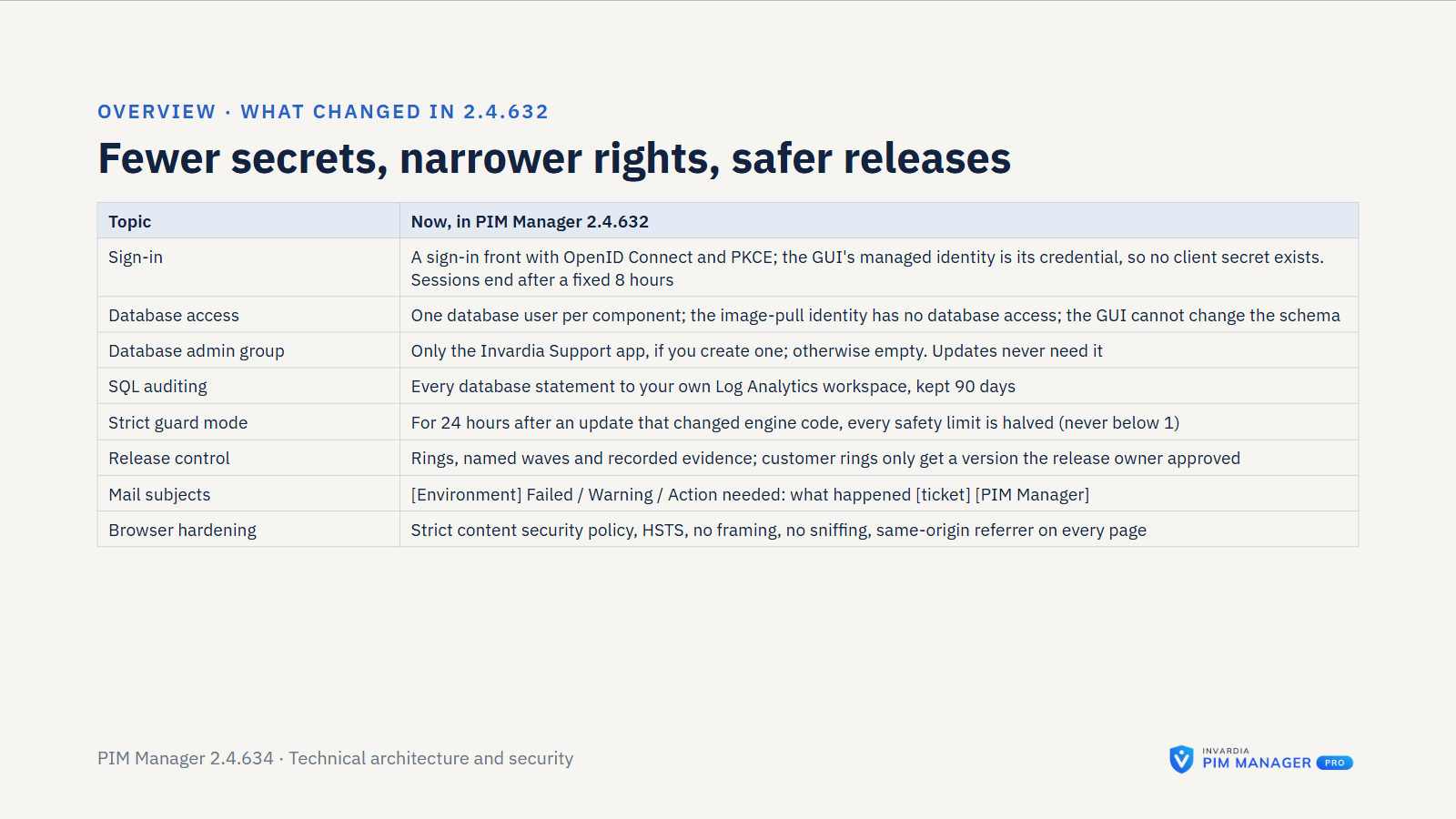
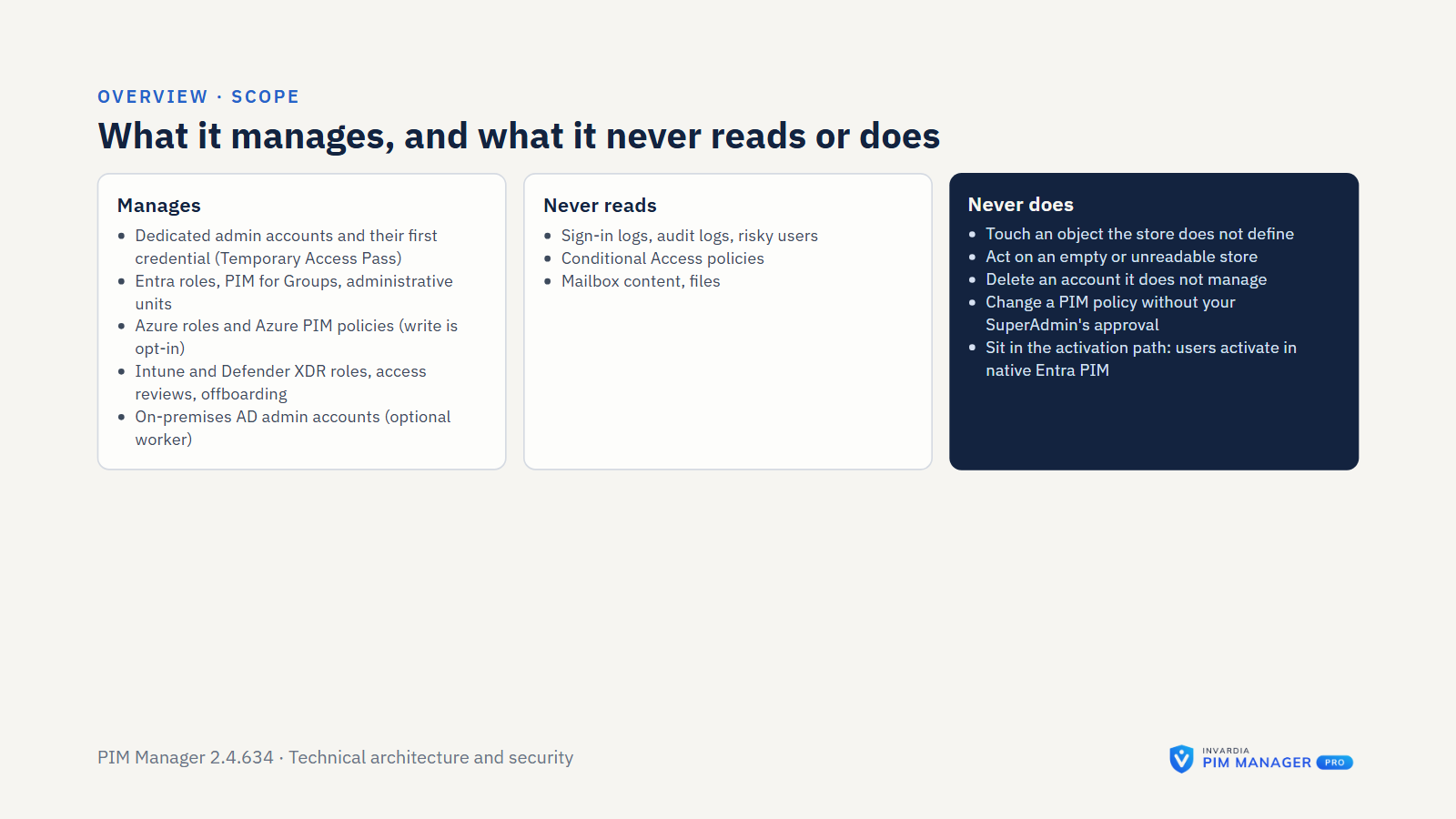
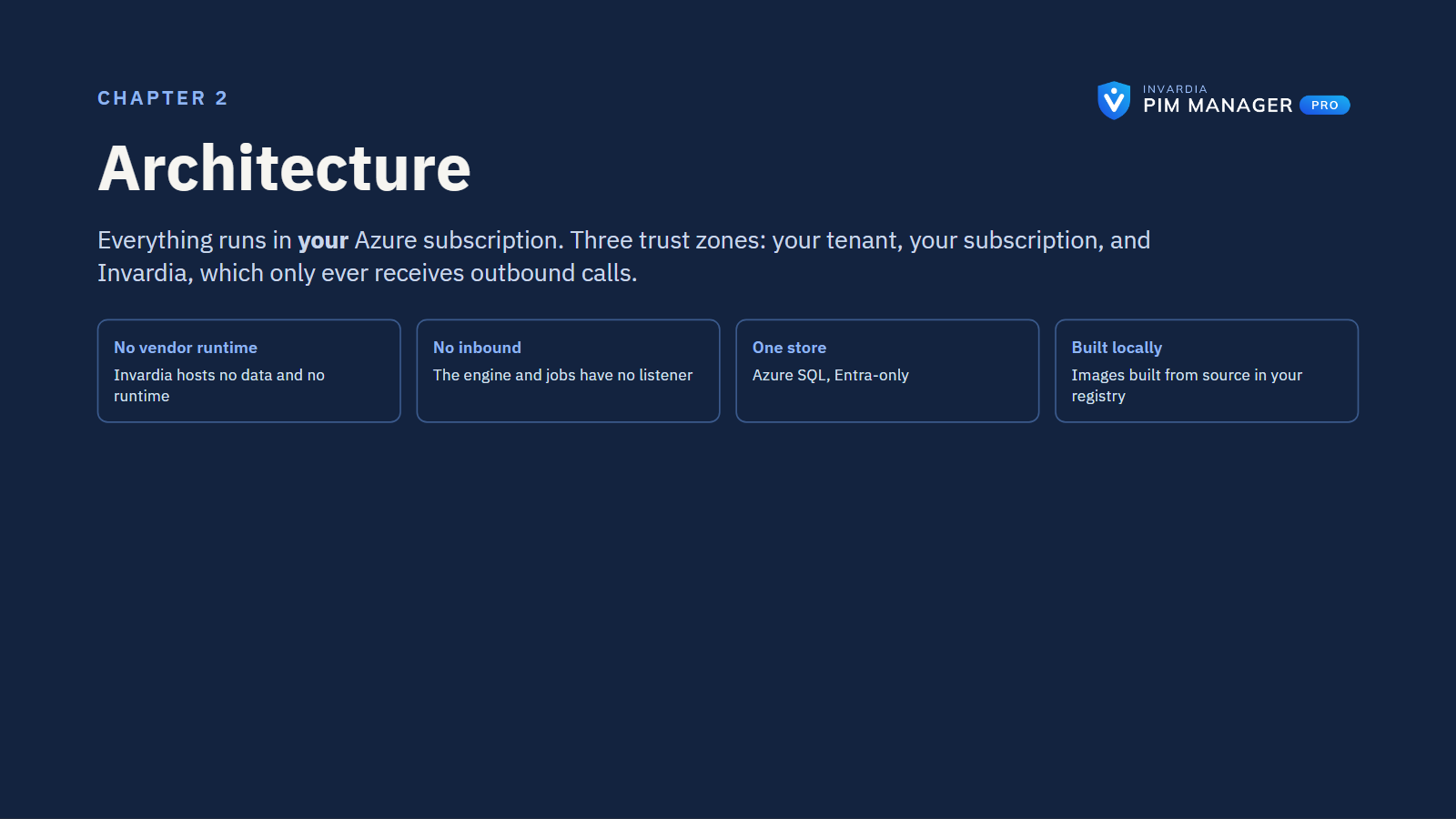
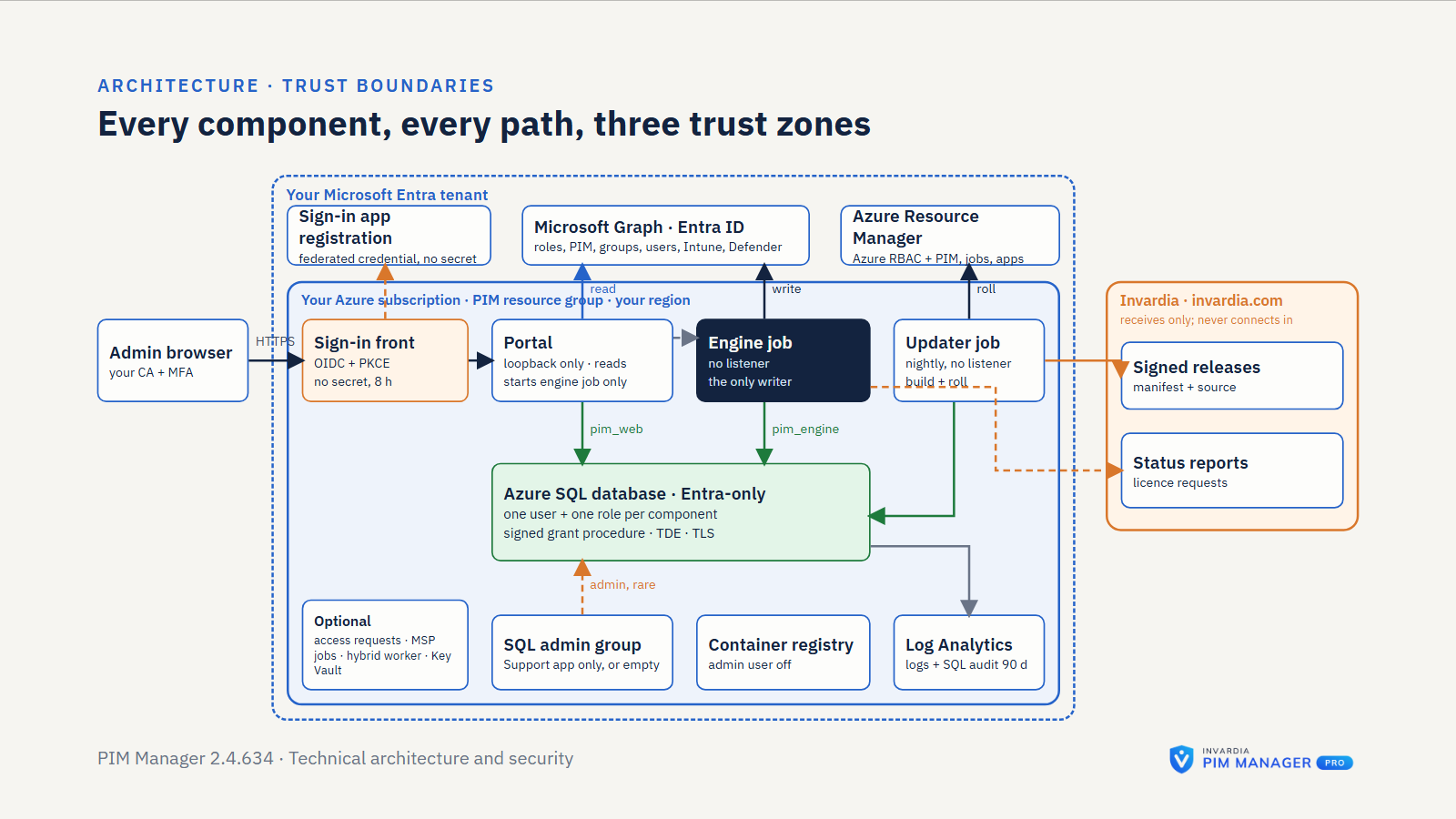
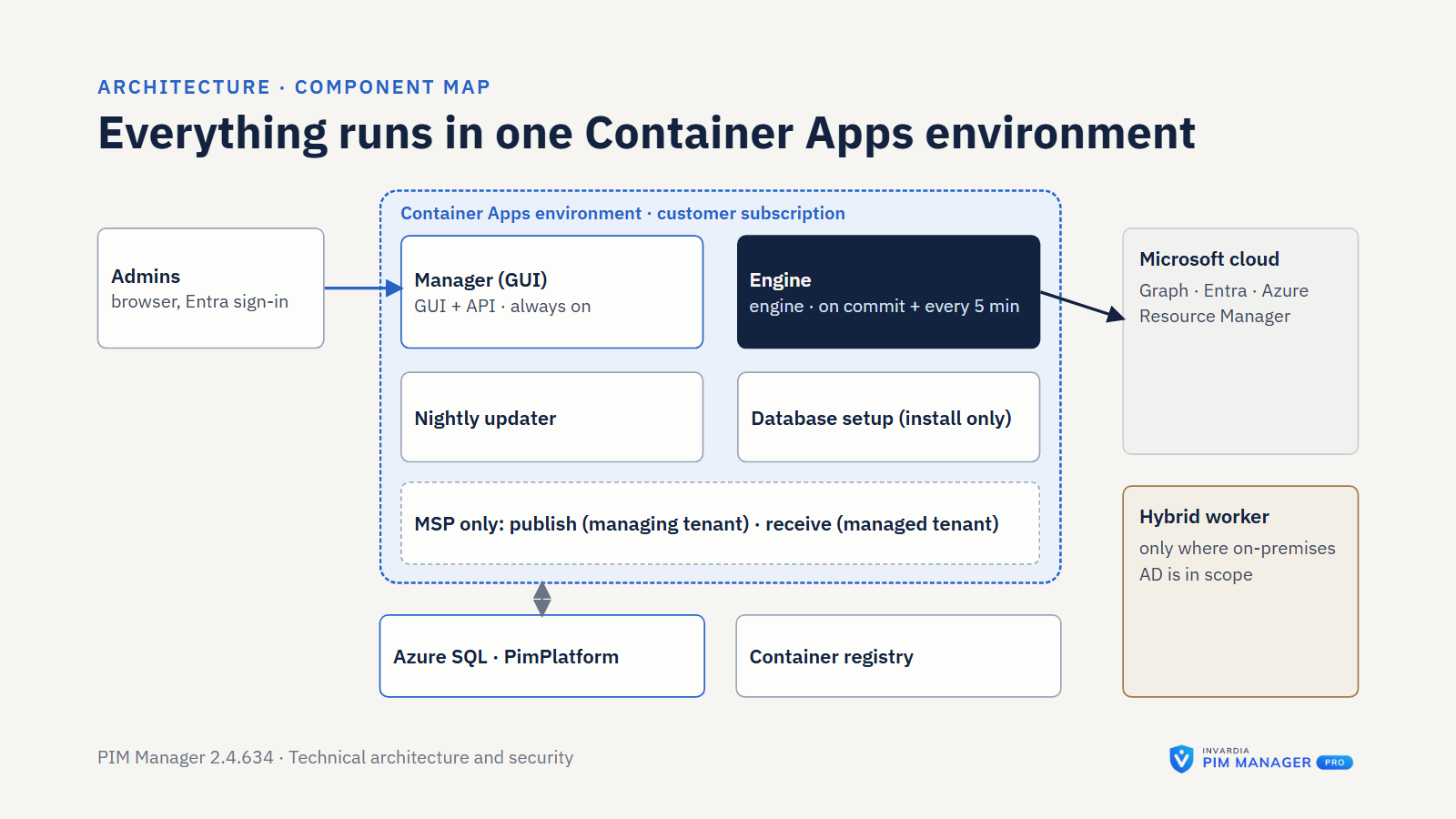
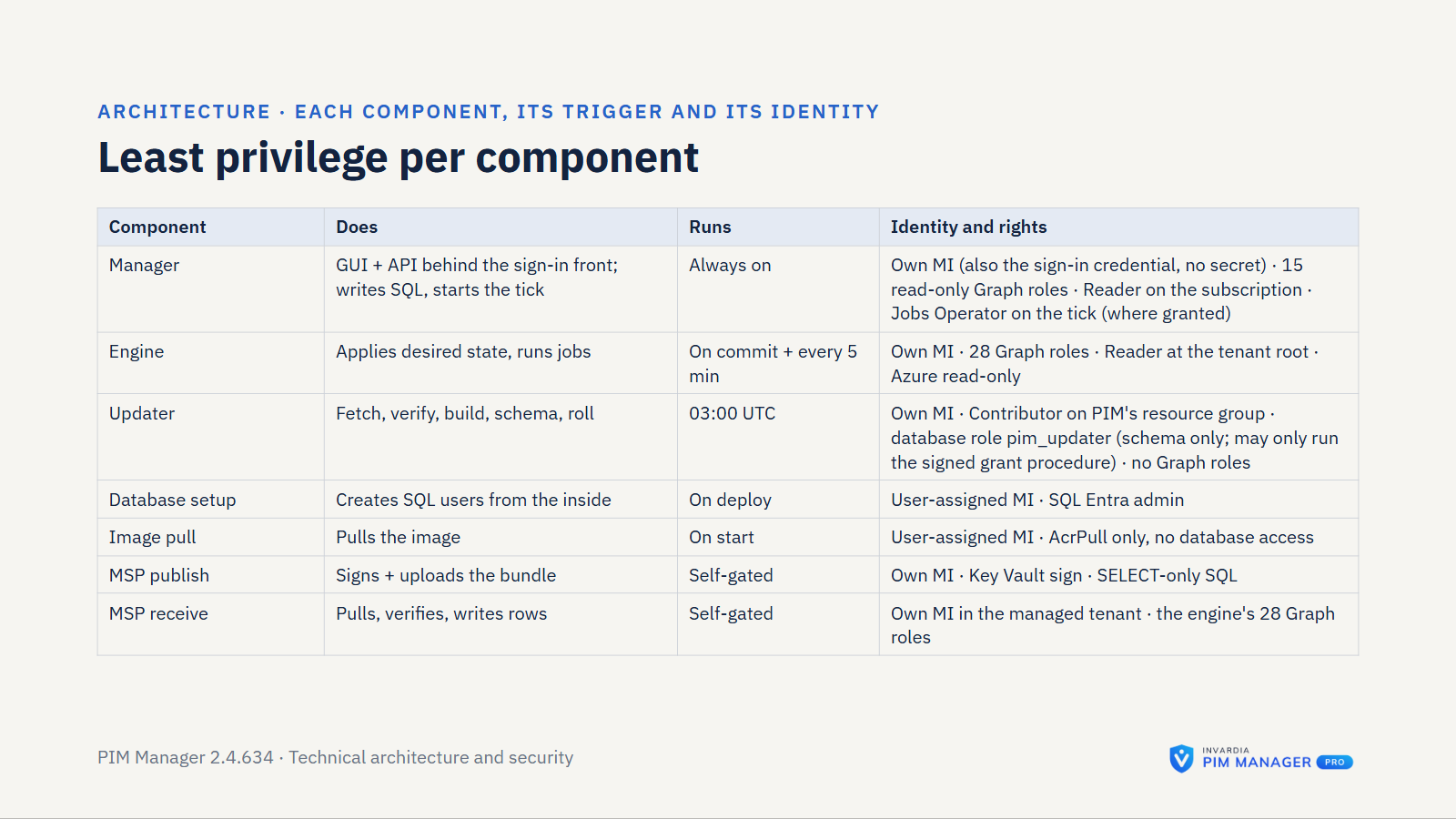
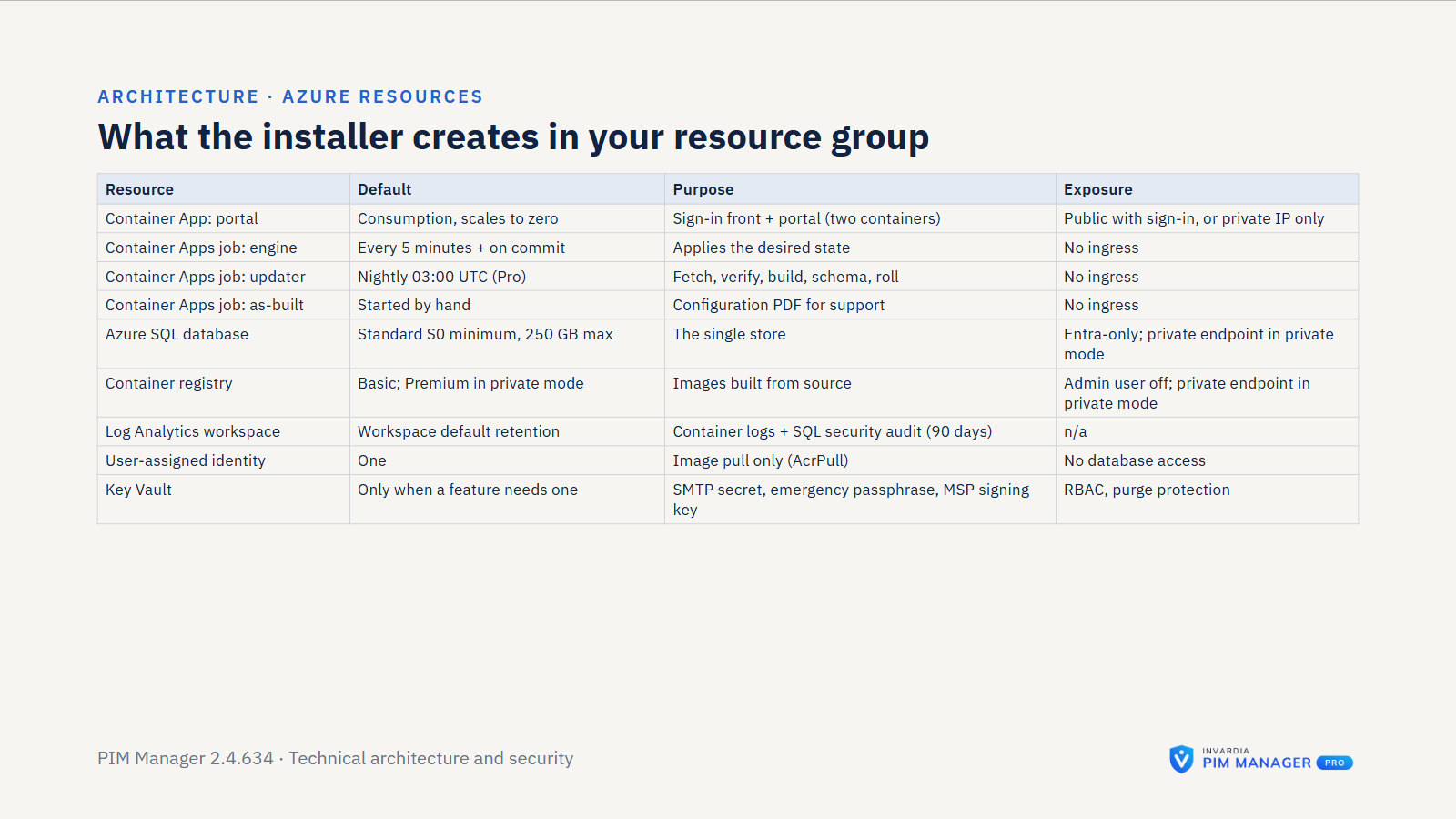
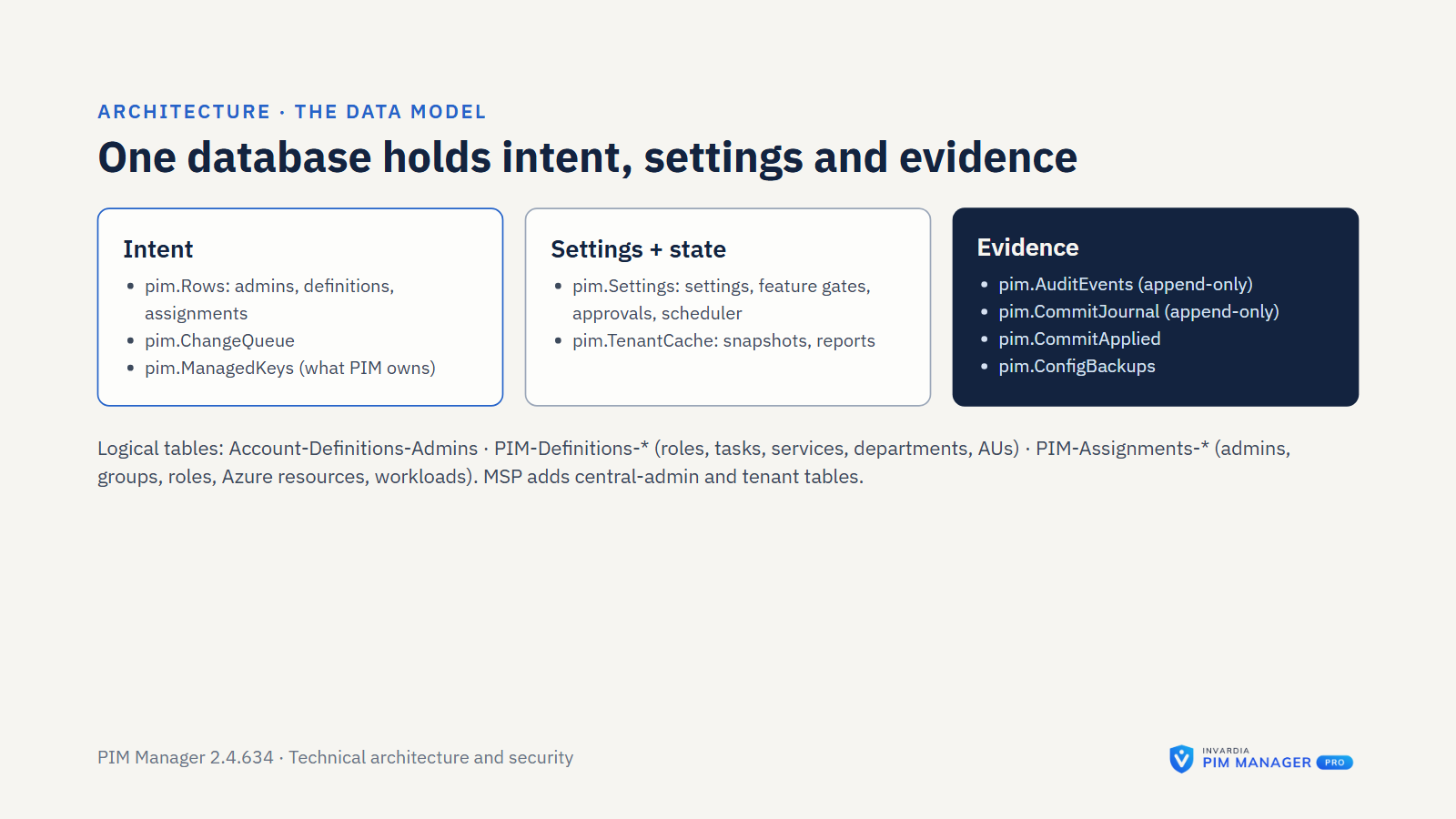
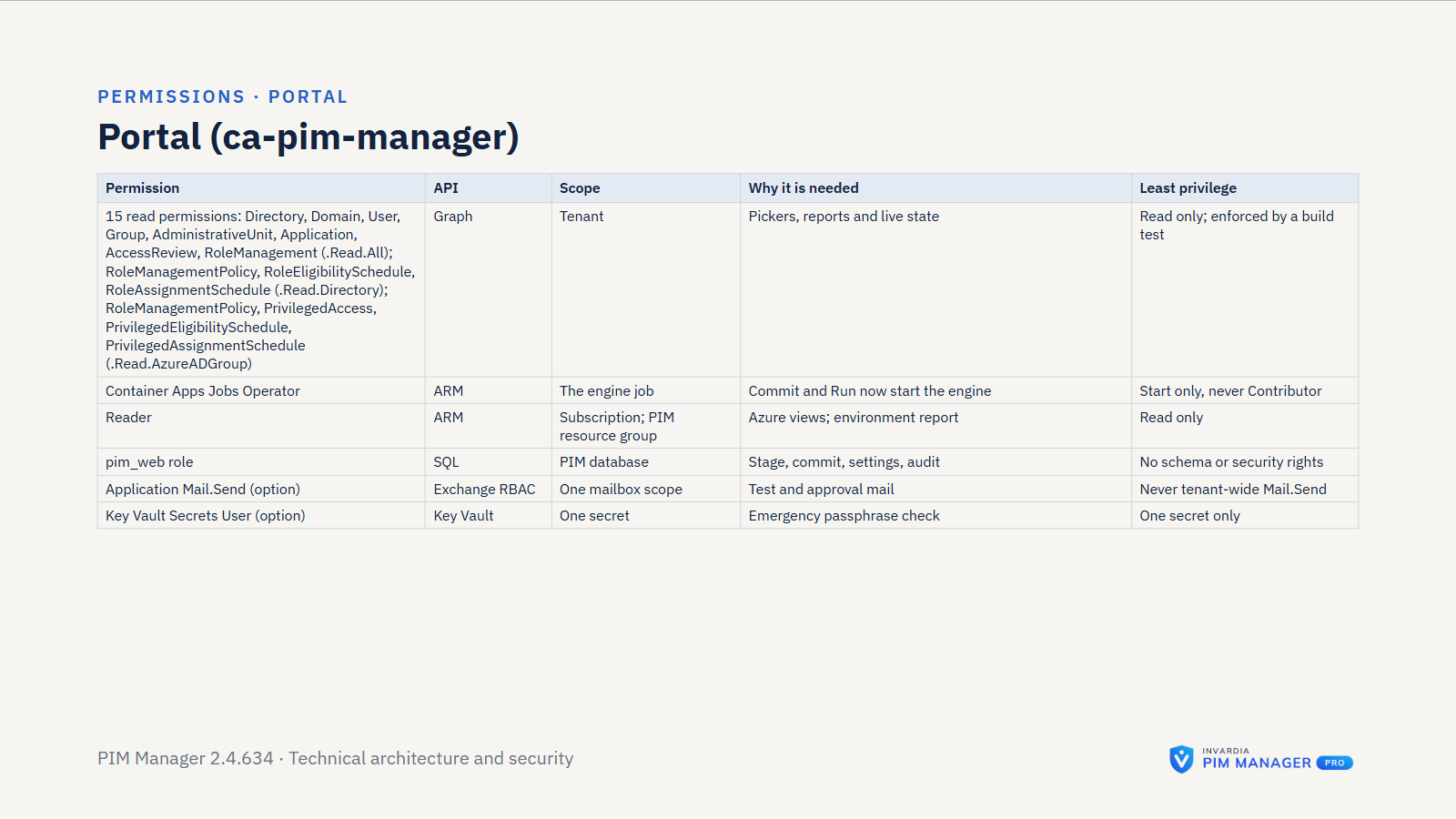
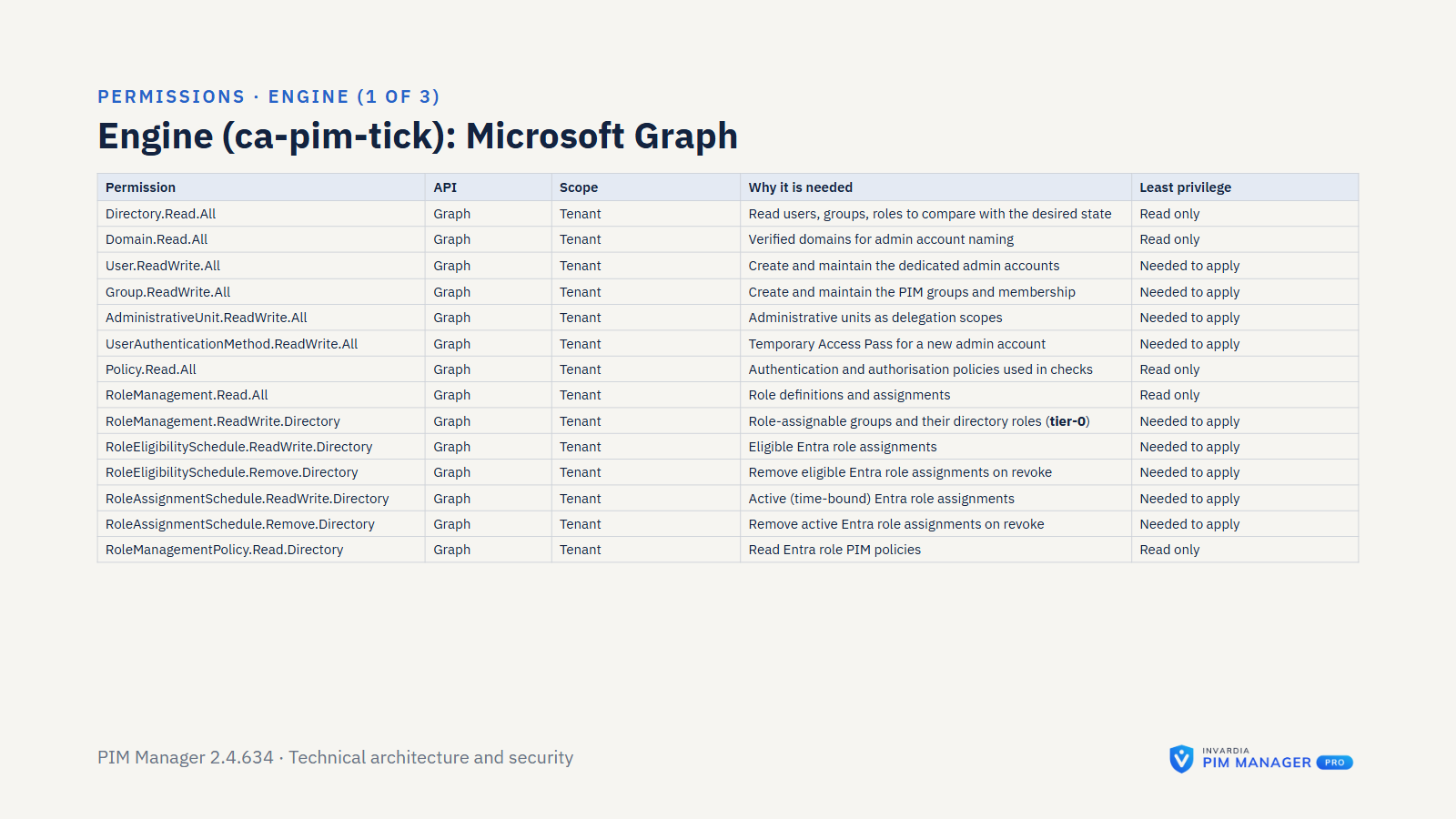
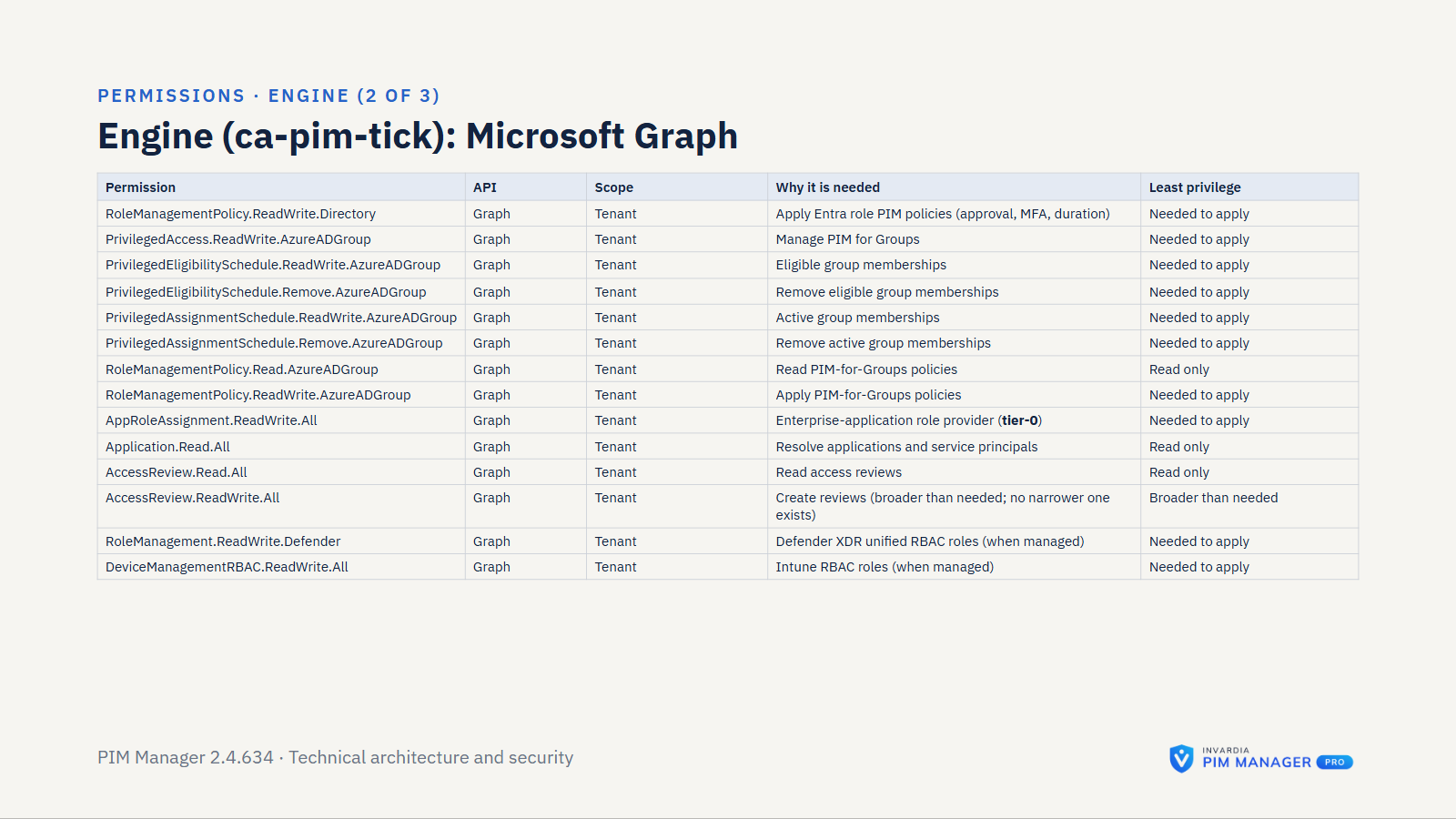
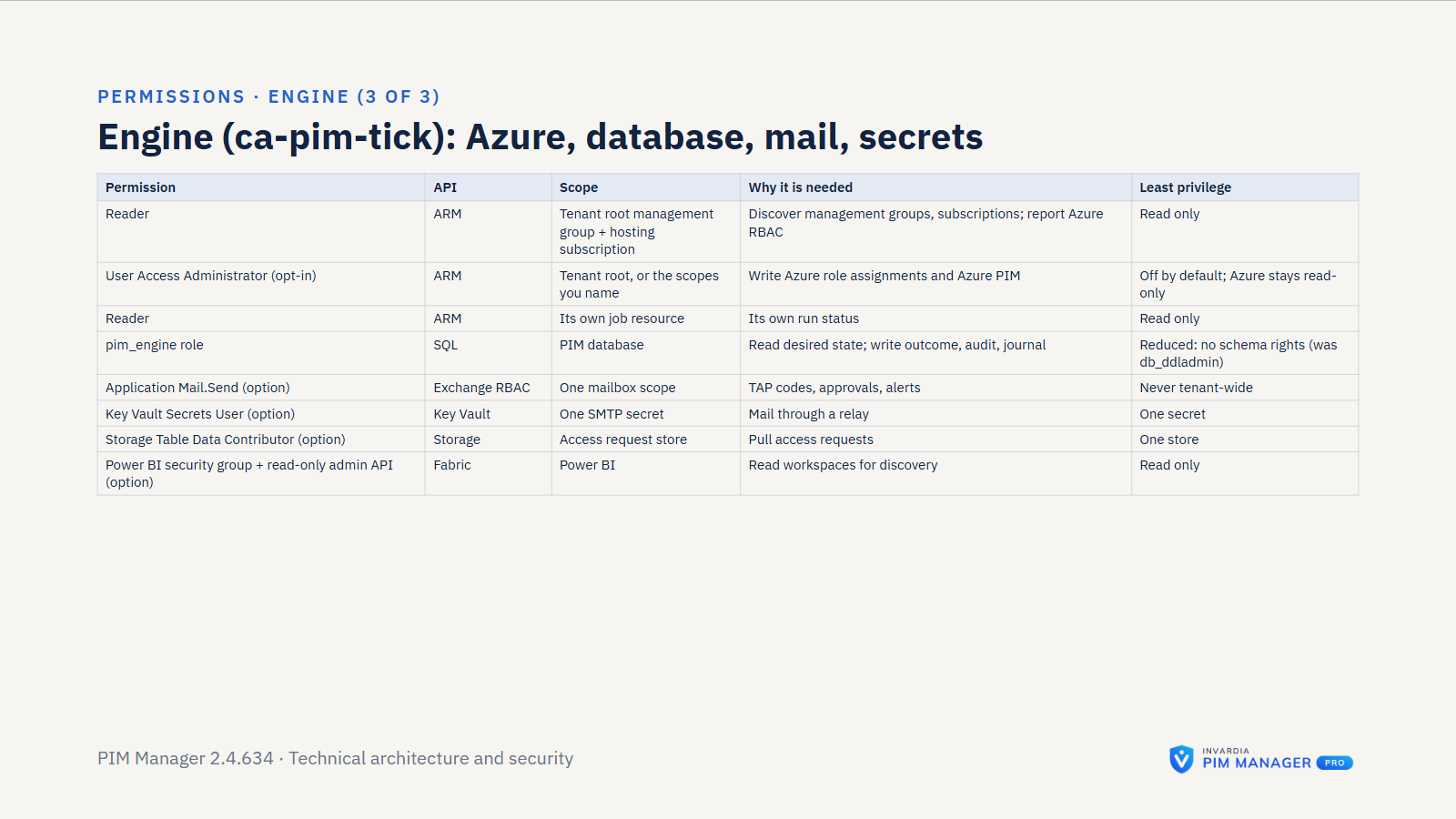
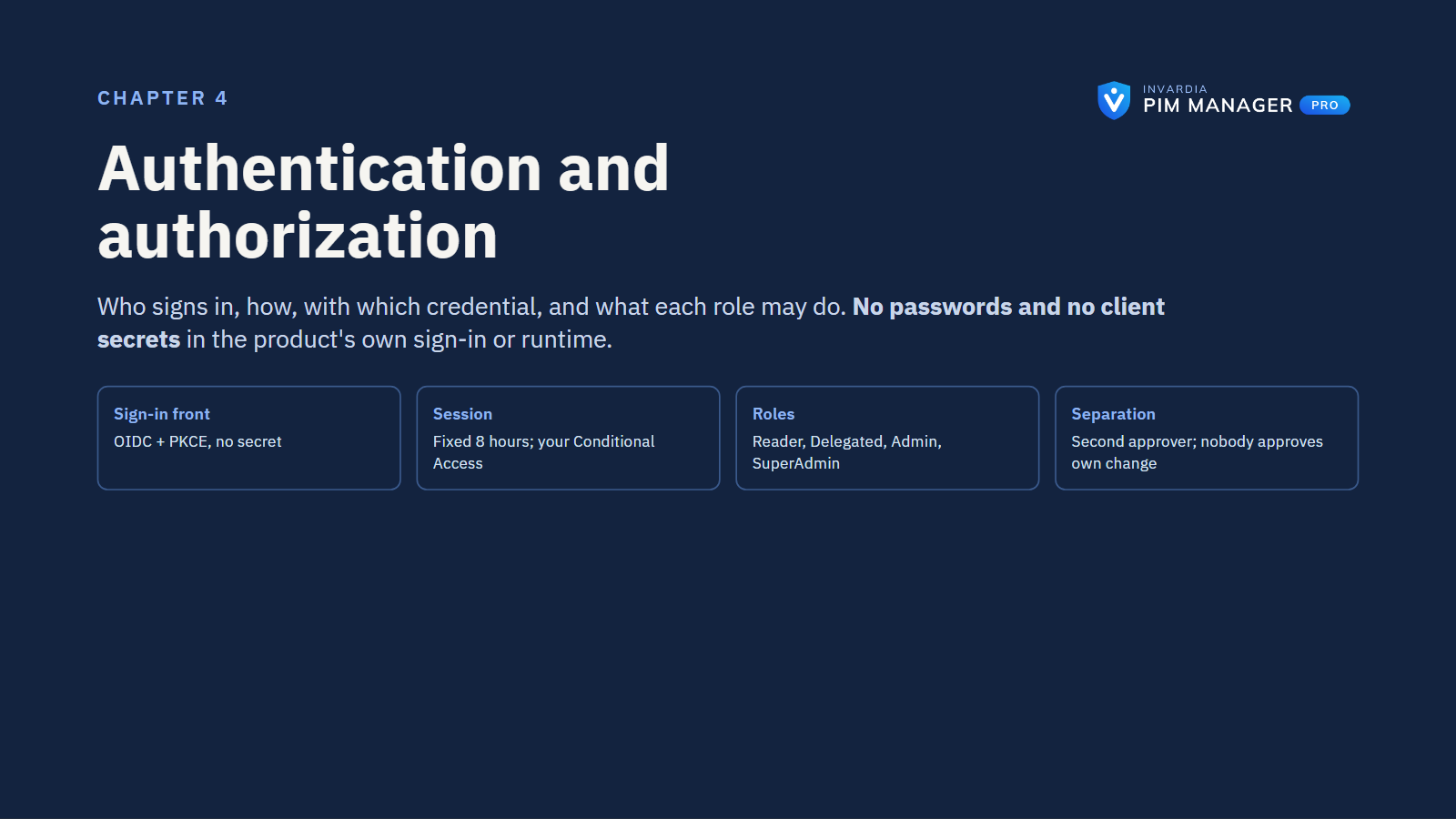
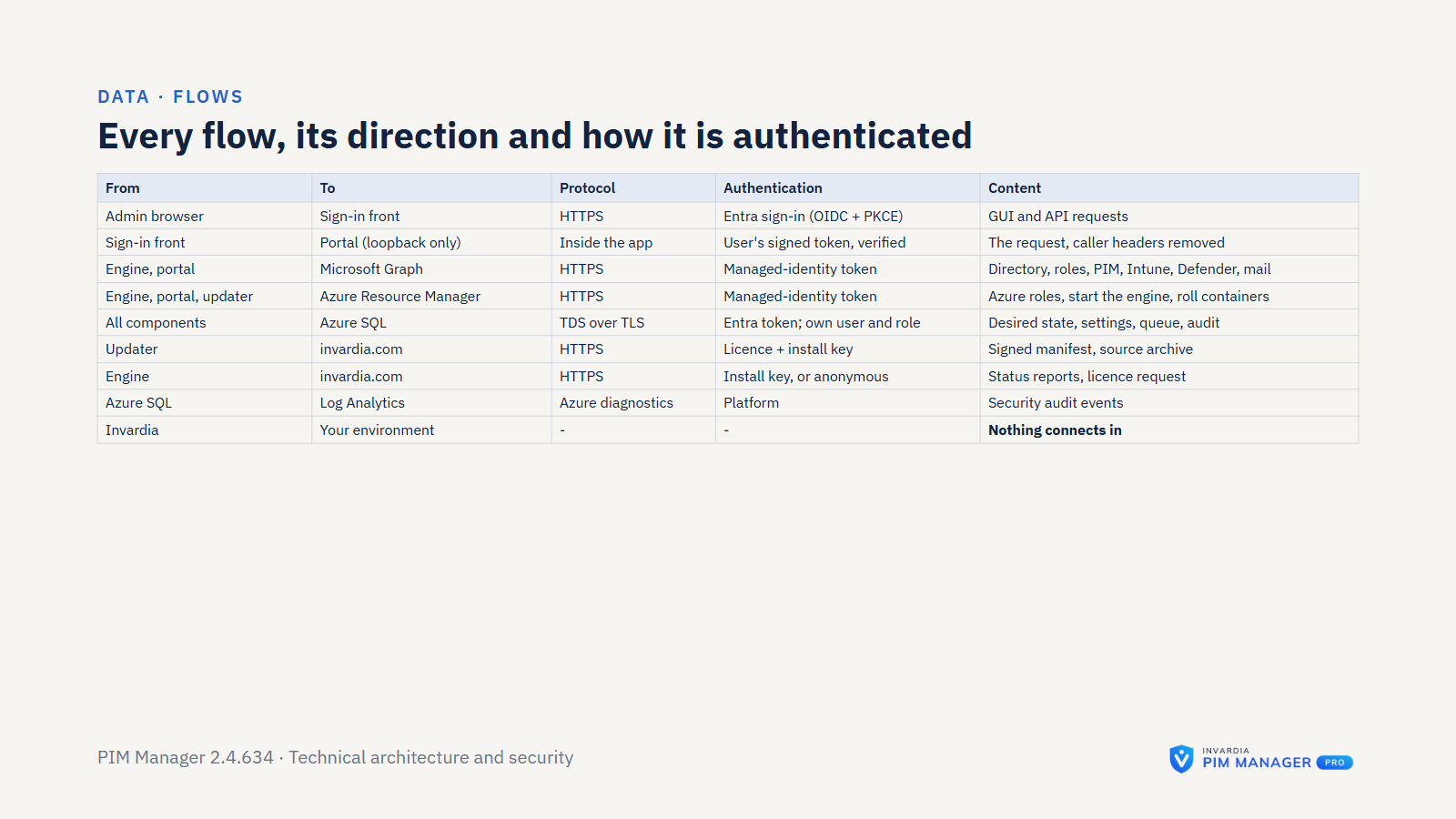
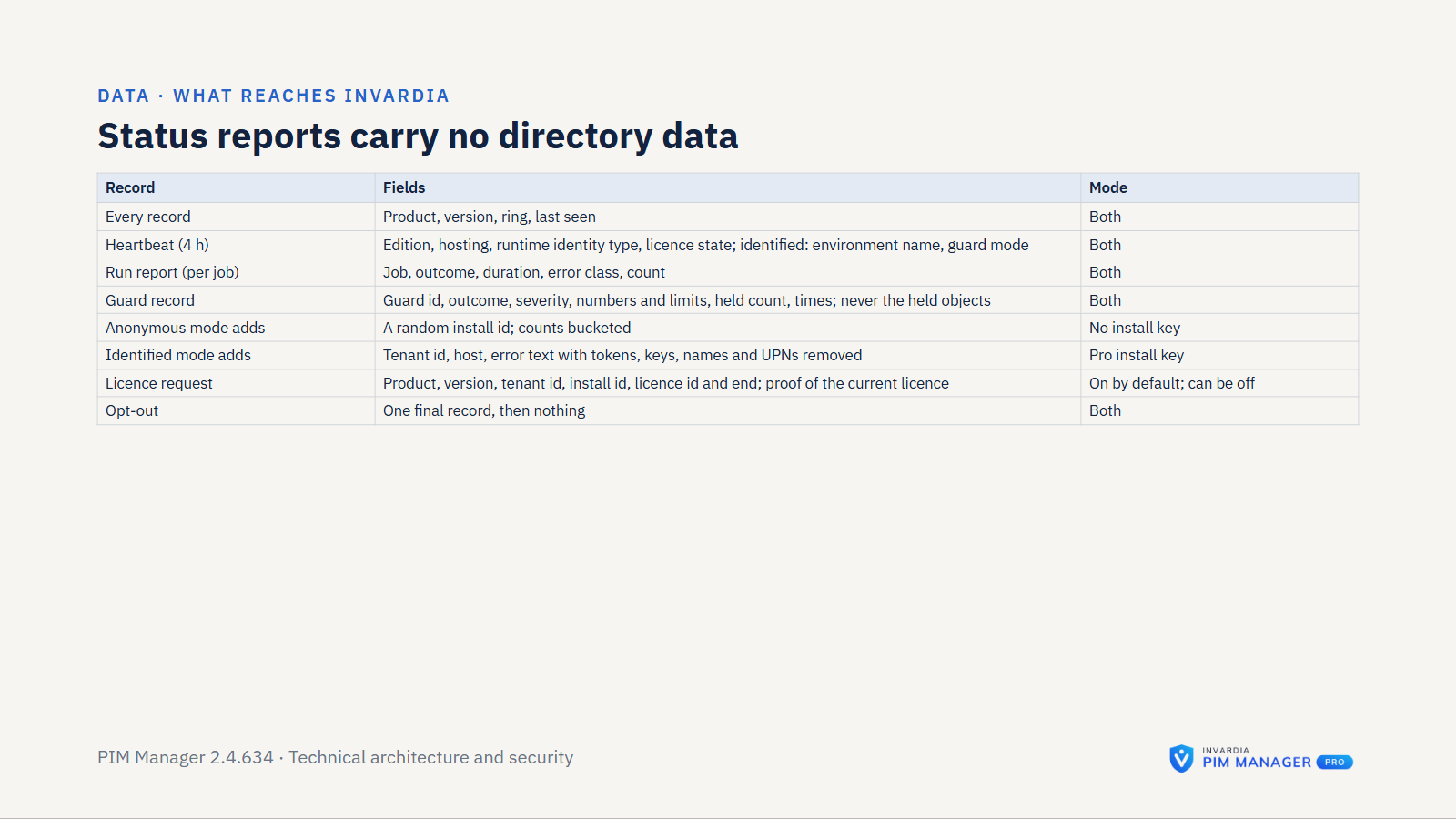
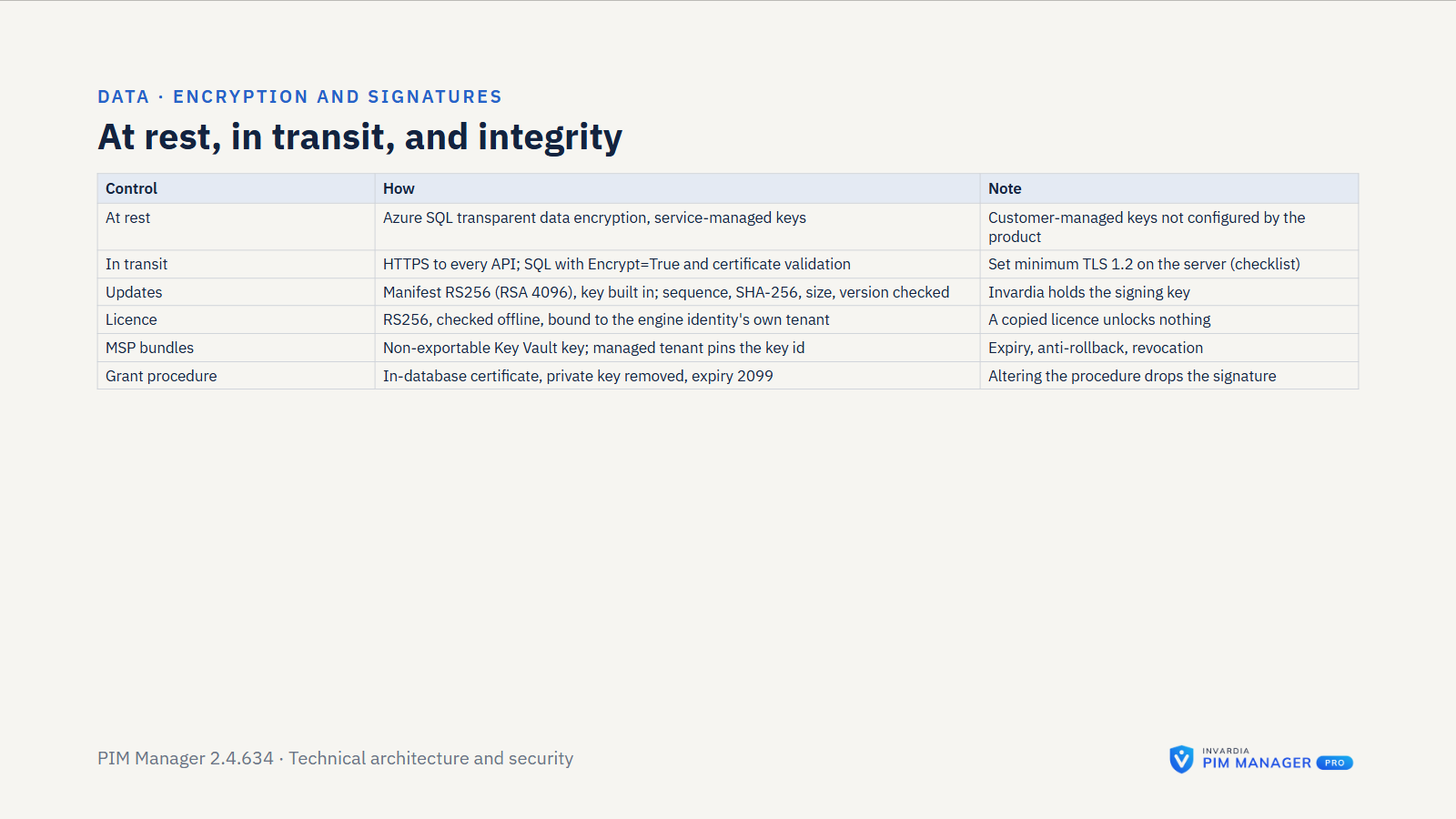
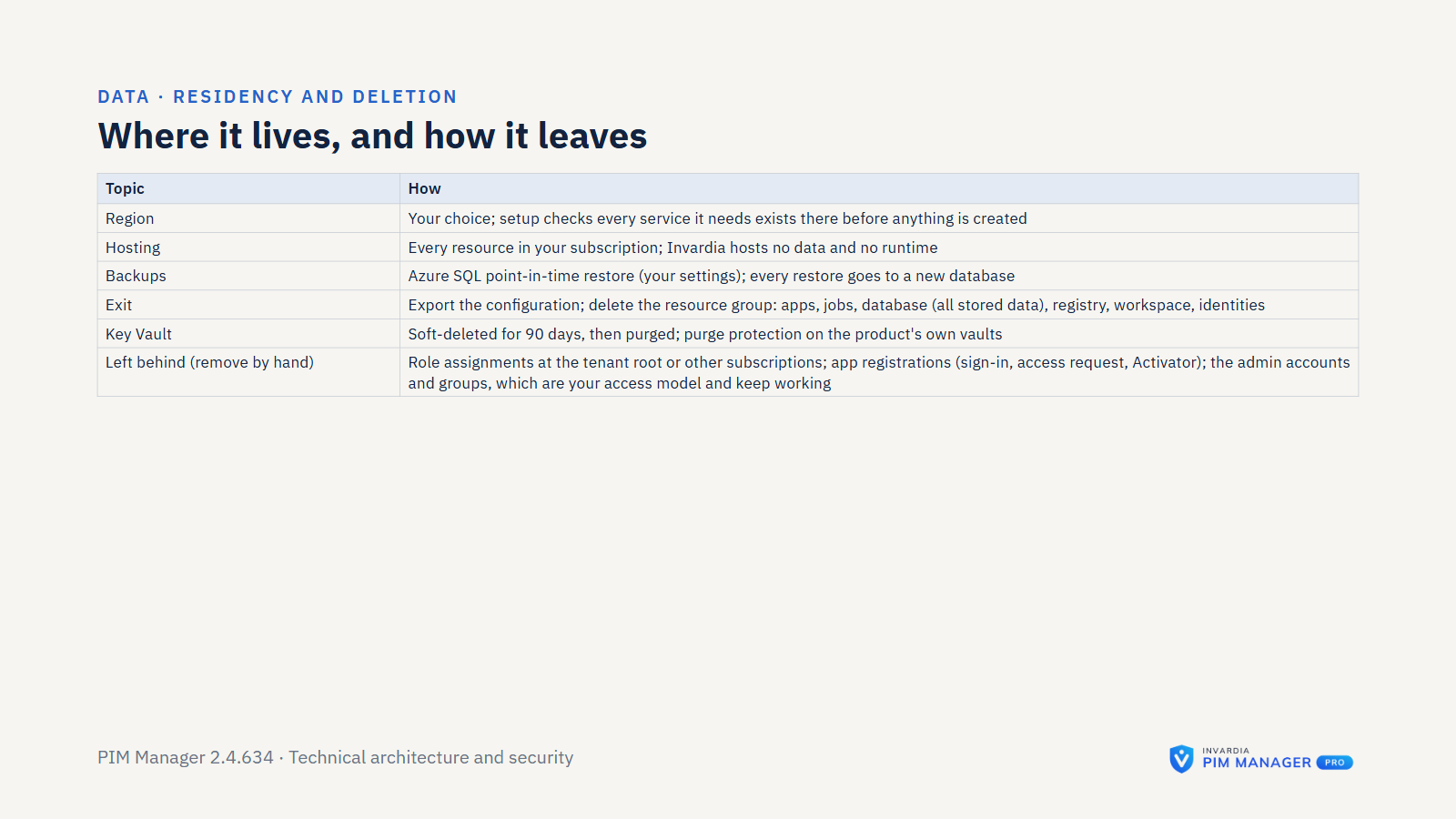
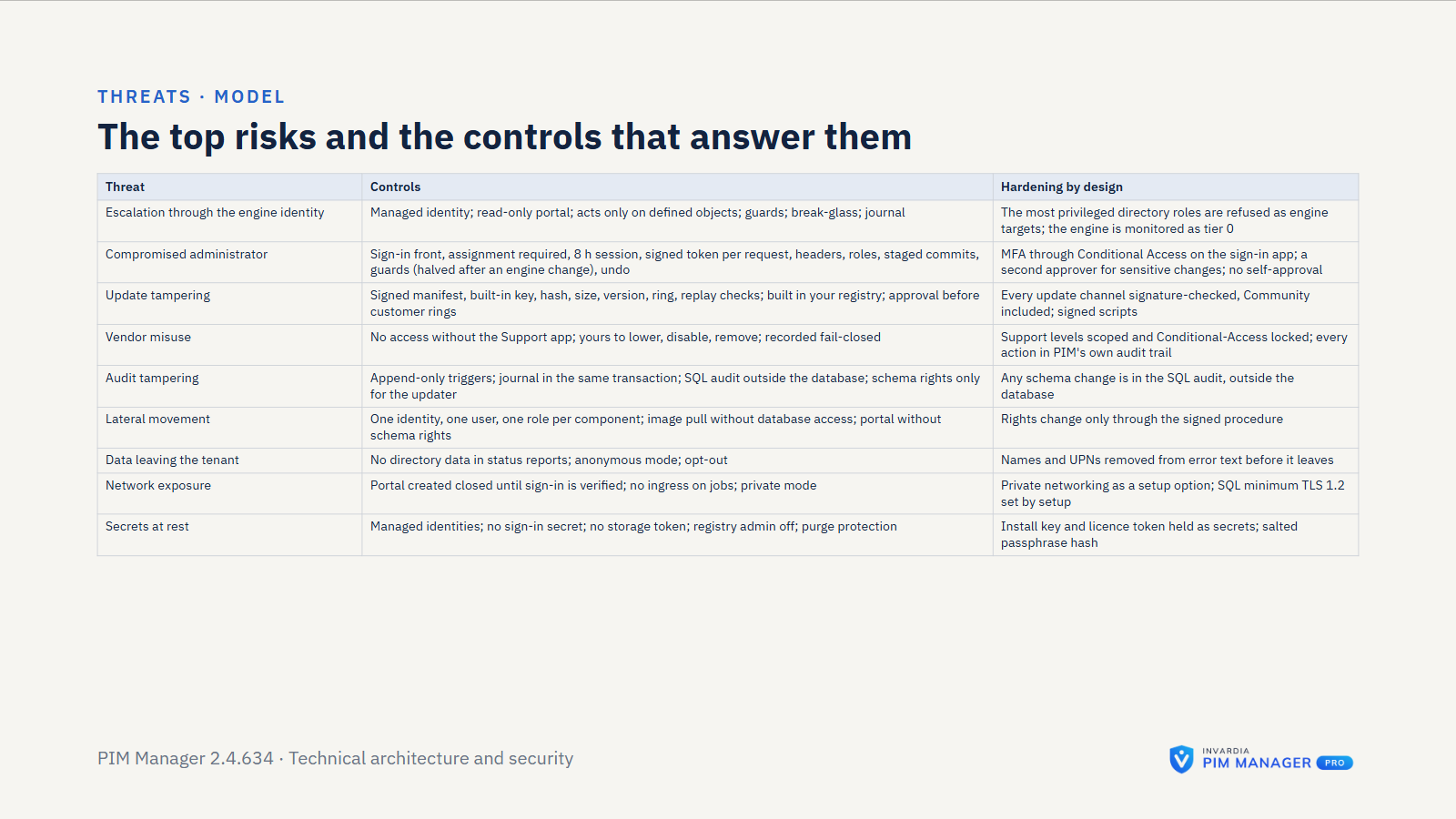
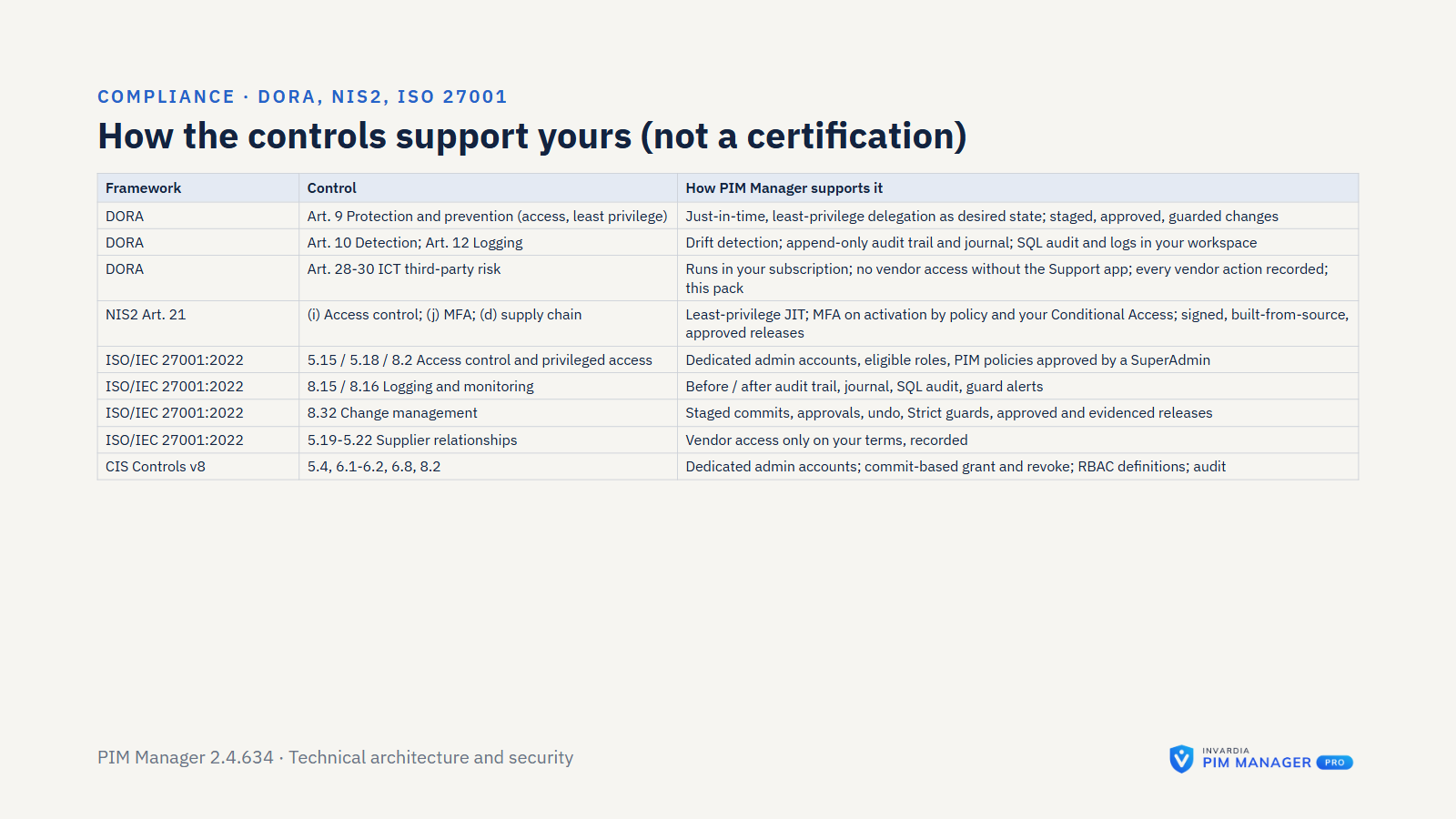
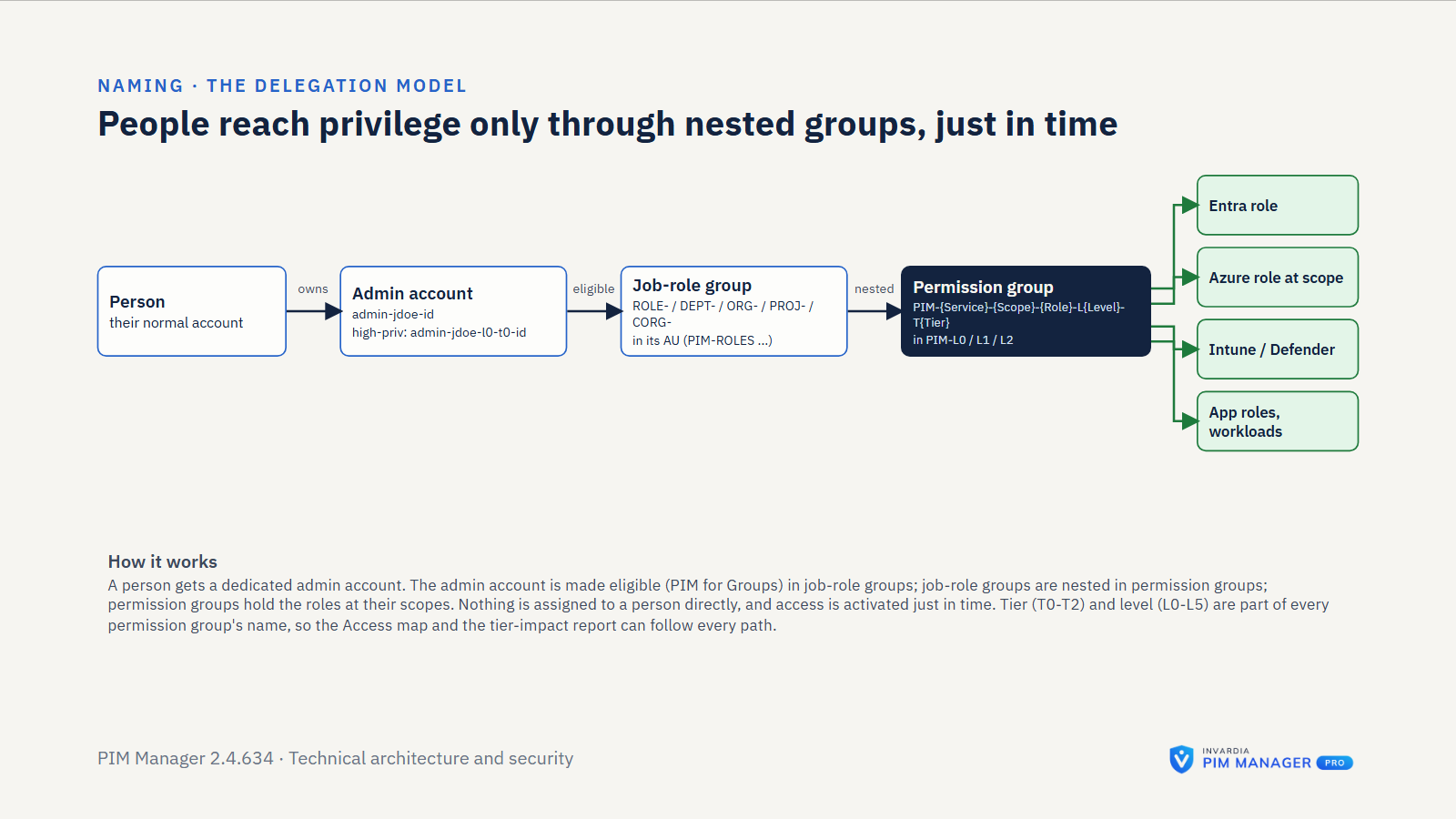
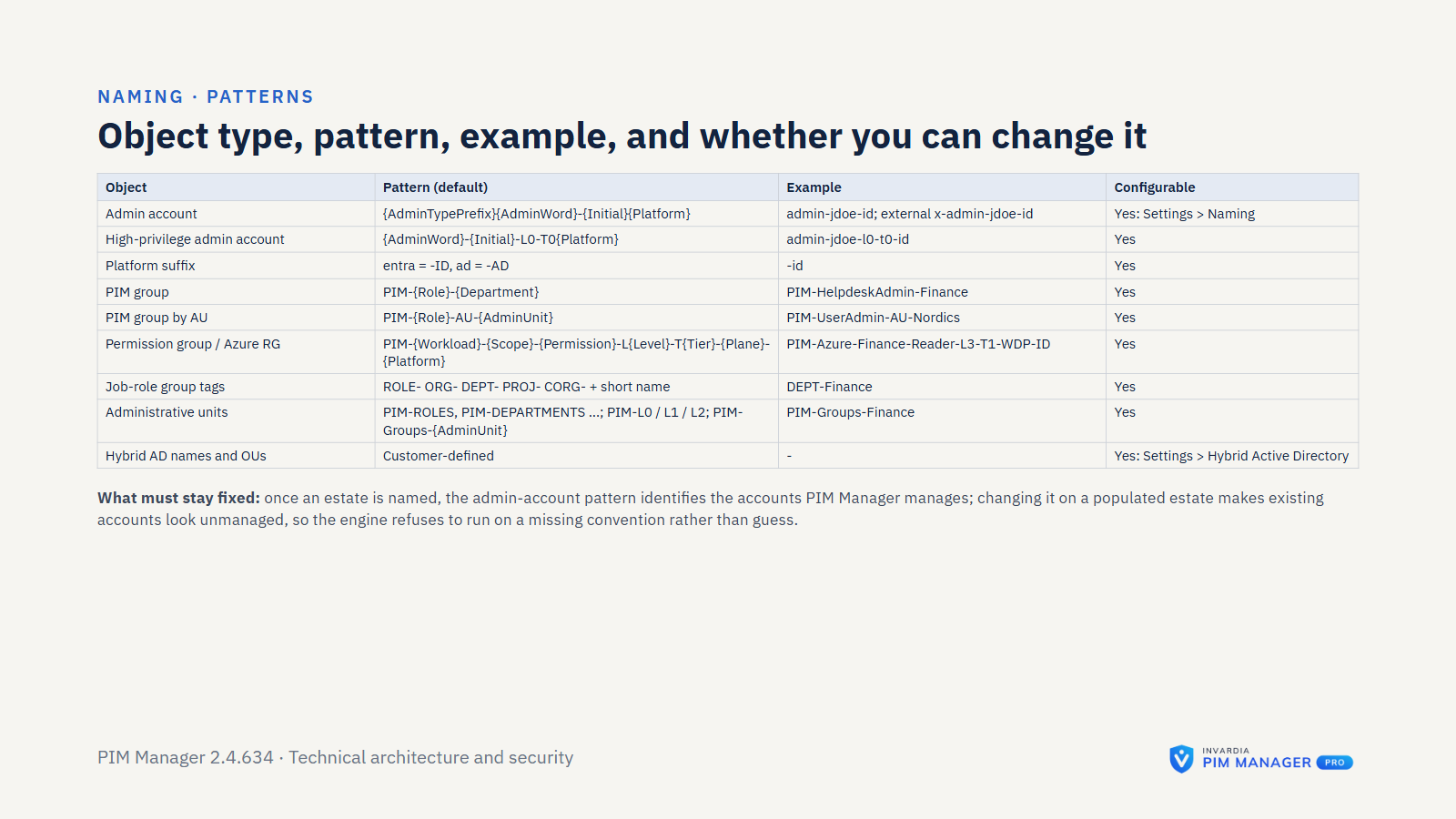
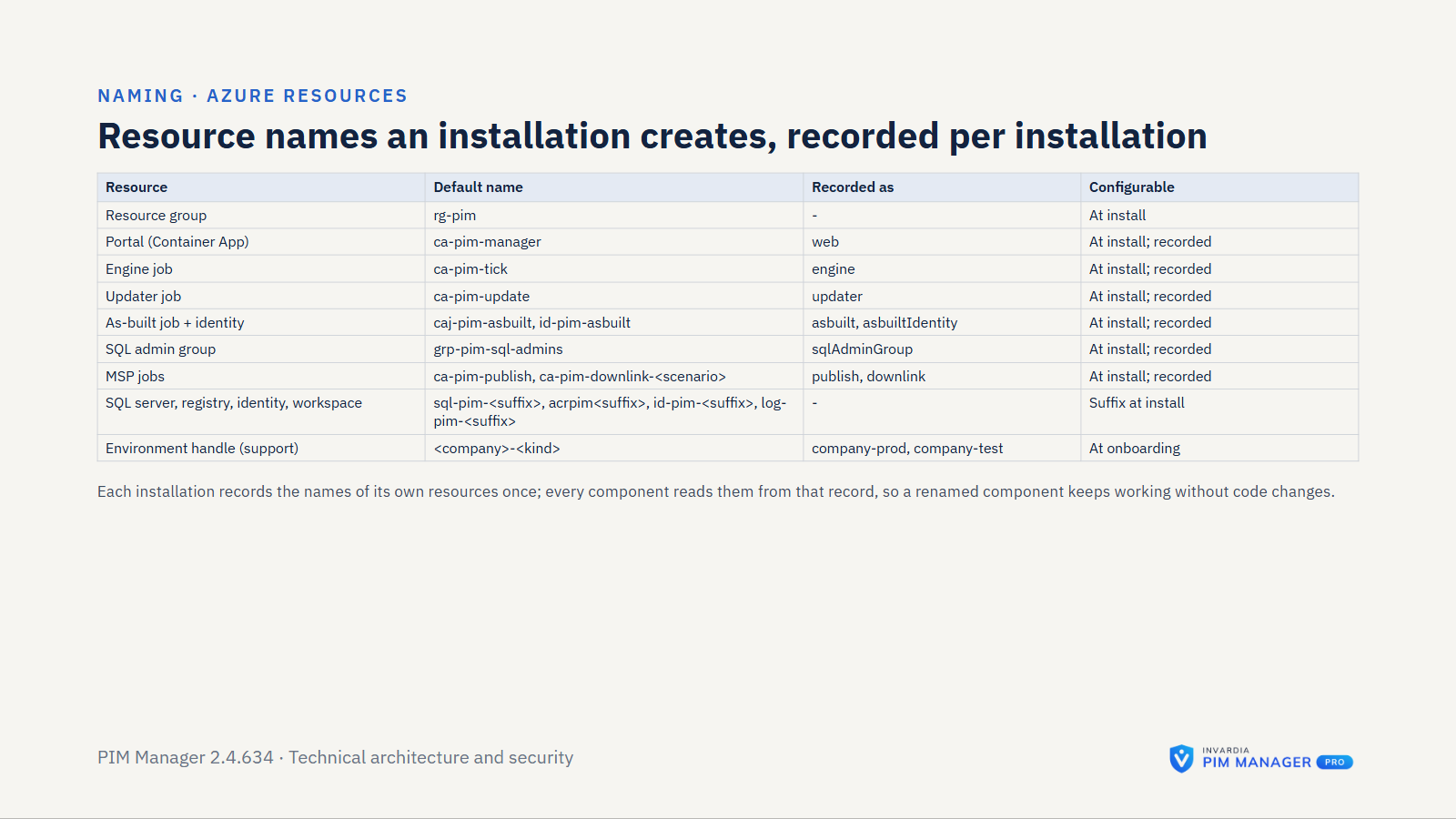
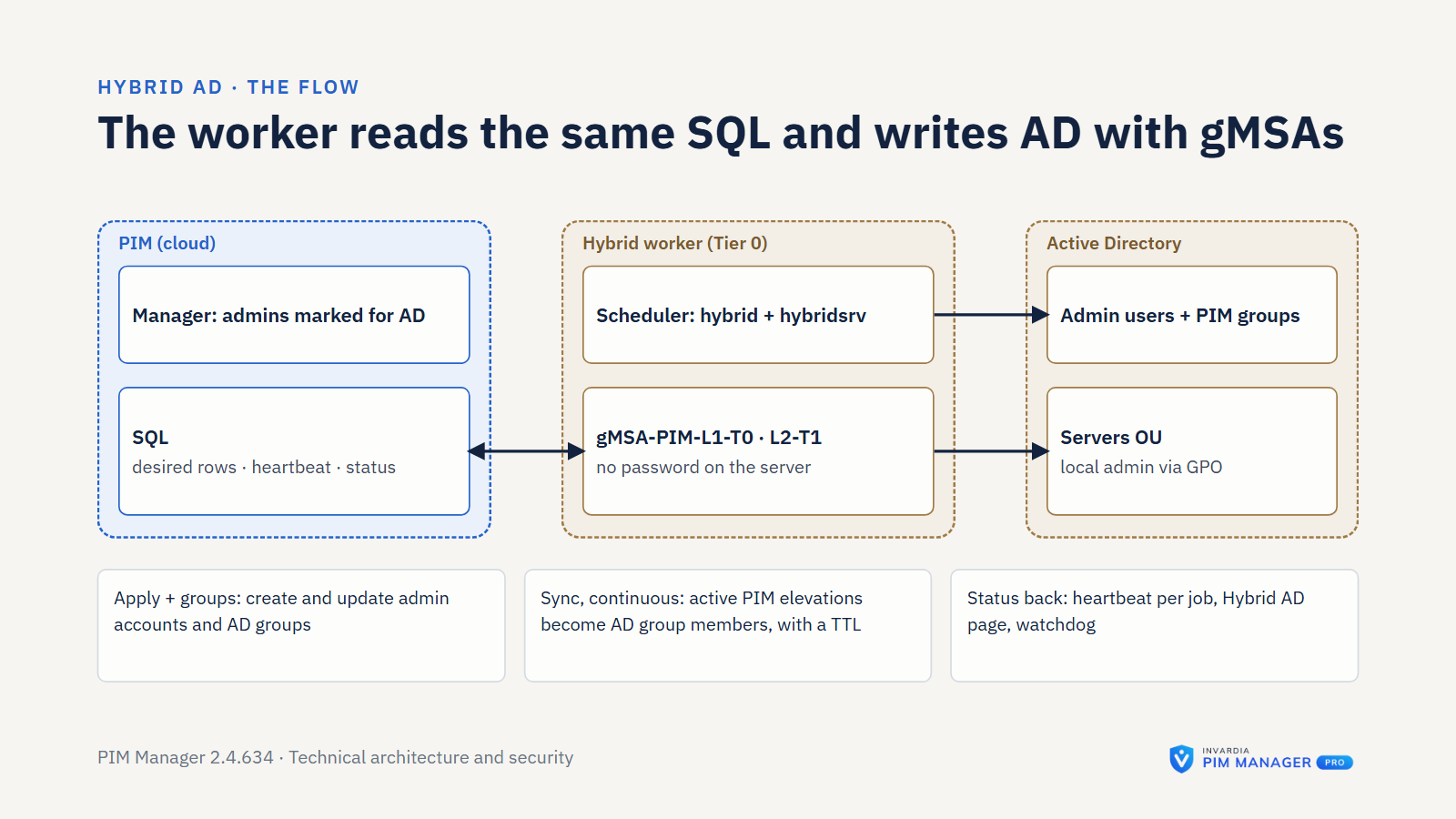
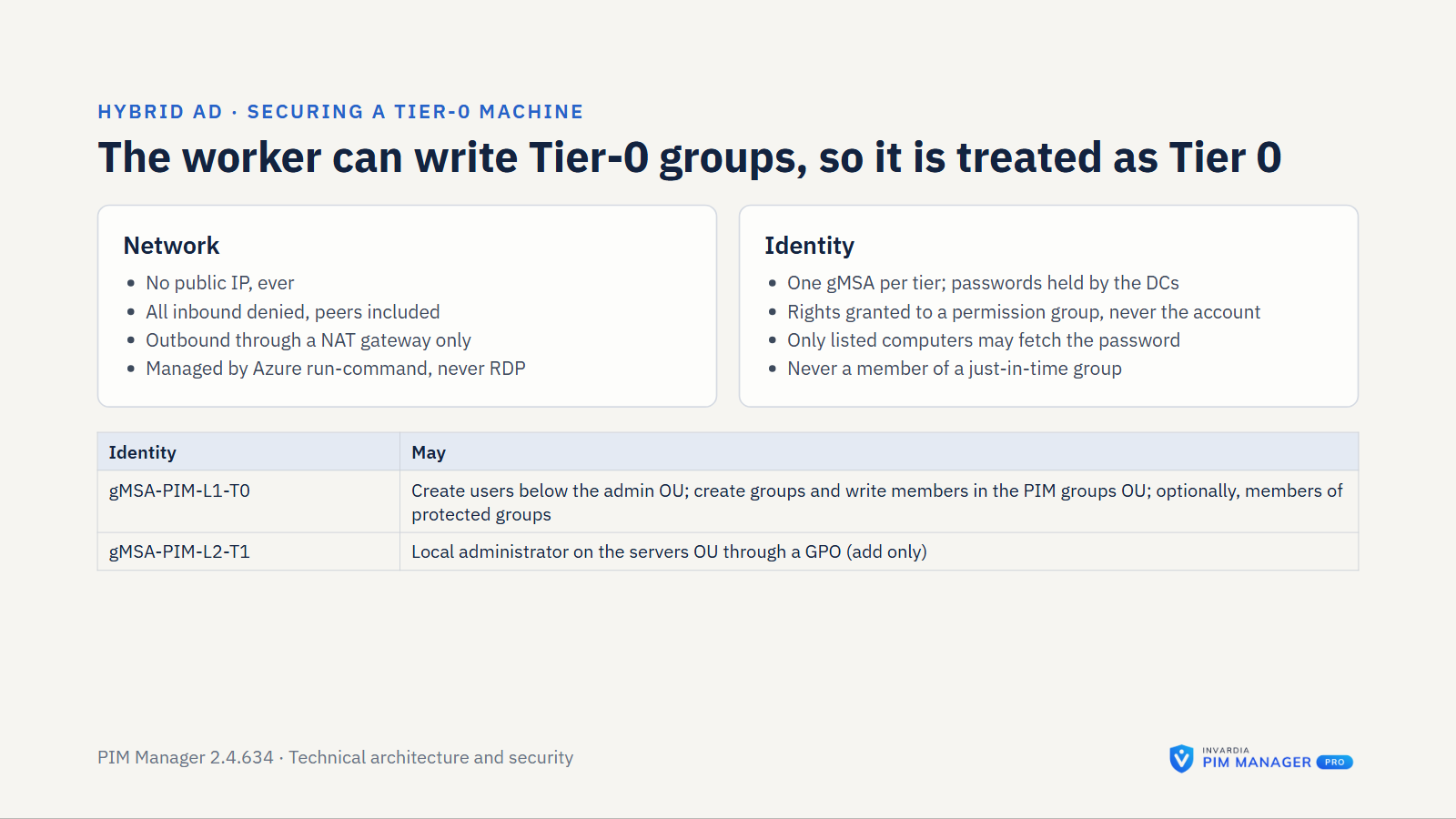
PIM Manager governs privileged access in Microsoft Entra ID. It keeps your delegation model as nested groups, applies PIM policies from one source of truth, and keeps Entra ID, Azure, Intune and Defender XDR matching it. It runs in your own Azure subscription, on your own identities. This page covers how the parts fit together, how they sign in, who can do what, how long data is kept, and each connection between your installation and Invardia.
At a glance
- Runs in your own tenant and subscription. PIM Manager, the engine and the database are installed into your Azure subscription. Invardia does not host your directory data or your database.
- Managed identities for the runtime. PIM Manager, the engine and the updater sign in with their own managed identities. The sign-in front needs no client secret; the built-in sign-in’s 2-year client secret, which the install creates as a fallback, stays until you remove it. The database accepts Entra ID sign-in only.
- Sign-in is required. Requests to PIM Manager go through the sign-in front and carry the user’s verified token. A new installation is created closed and opened only after sign-in is configured and verified.
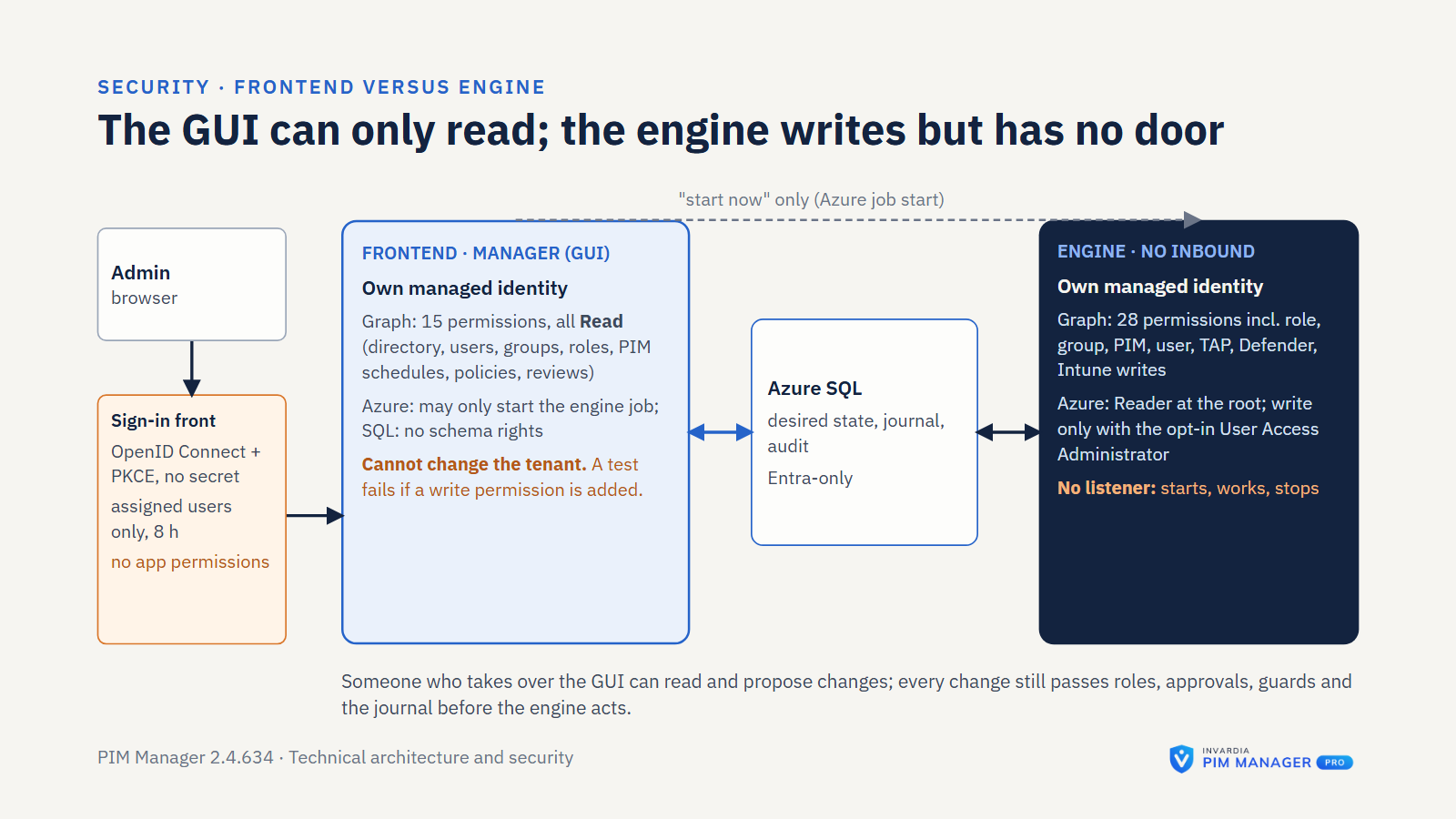
- PIM Manager plans, the engine applies. PIM Manager’s own identity has read-only Microsoft Graph permissions and no schema rights in the database. The engine’s identity holds the write rights in your tenant. A few optional components write in their own area; they are listed under Change control.
- Changes are guarded. A change you stage waits for a commit, the stored model is backed up first, and a commit can be undone. Every PIM policy change set waits for a SuperAdmin’s approval, and the guard limits are halved for a day after an update that changed engine code.
- Signed, tenant-bound license and signed updates. The license is a signed file that only works in the tenants it names. Pro updates are signed releases, checked against a key built into the product.
- No Invardia access by default. The connections to Invardia are made by your installation, outbound, and are listed below. Status reports, license requests and Pro updates are on by default, and each can be switched off. The license check itself works offline.
Components
| Component | What it does |
|---|---|
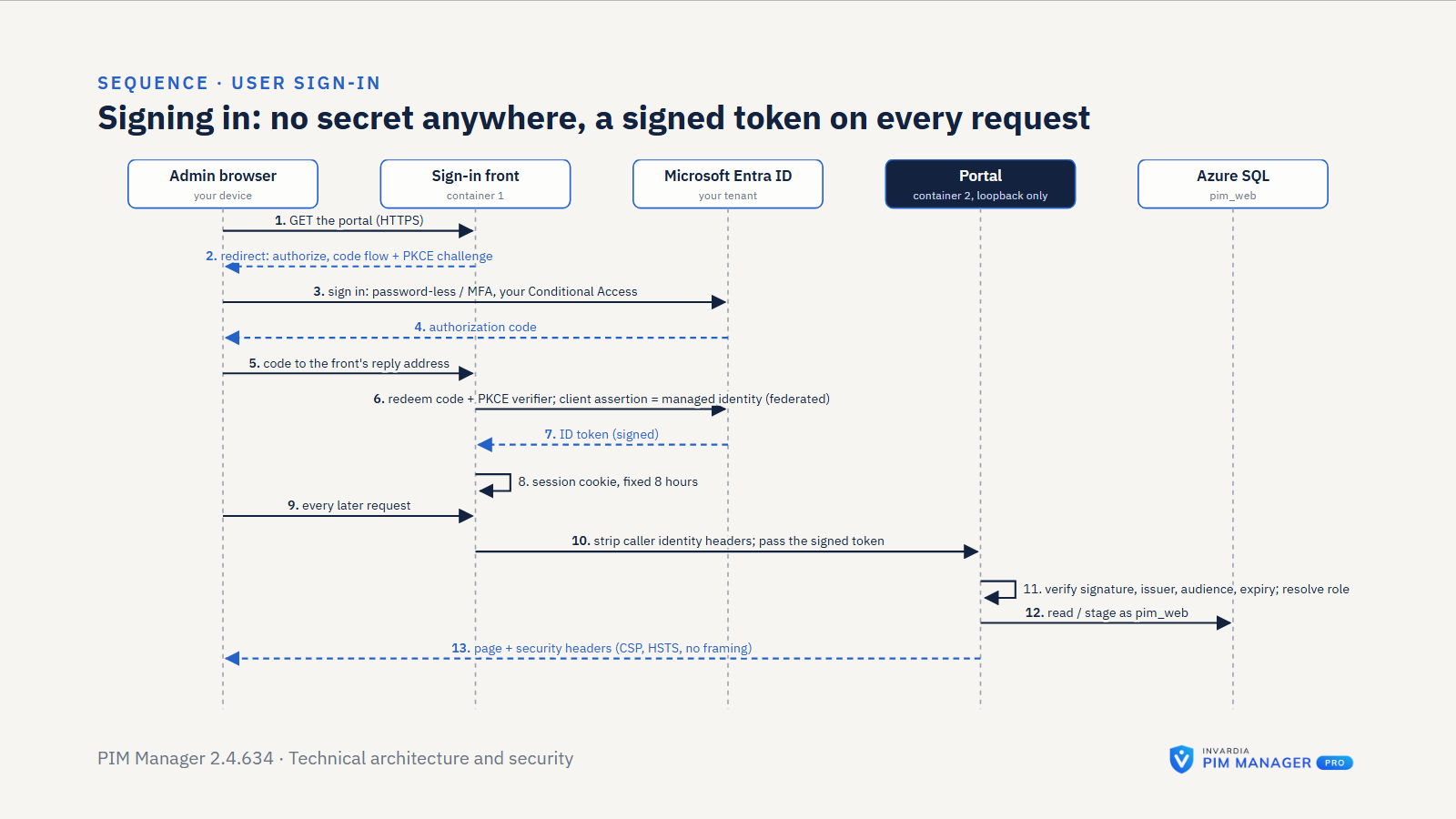
| Sign-in front | The only part of PIM Manager the network reaches. It signs people in with Microsoft Entra ID and passes PIM Manager an access token for its own API. |
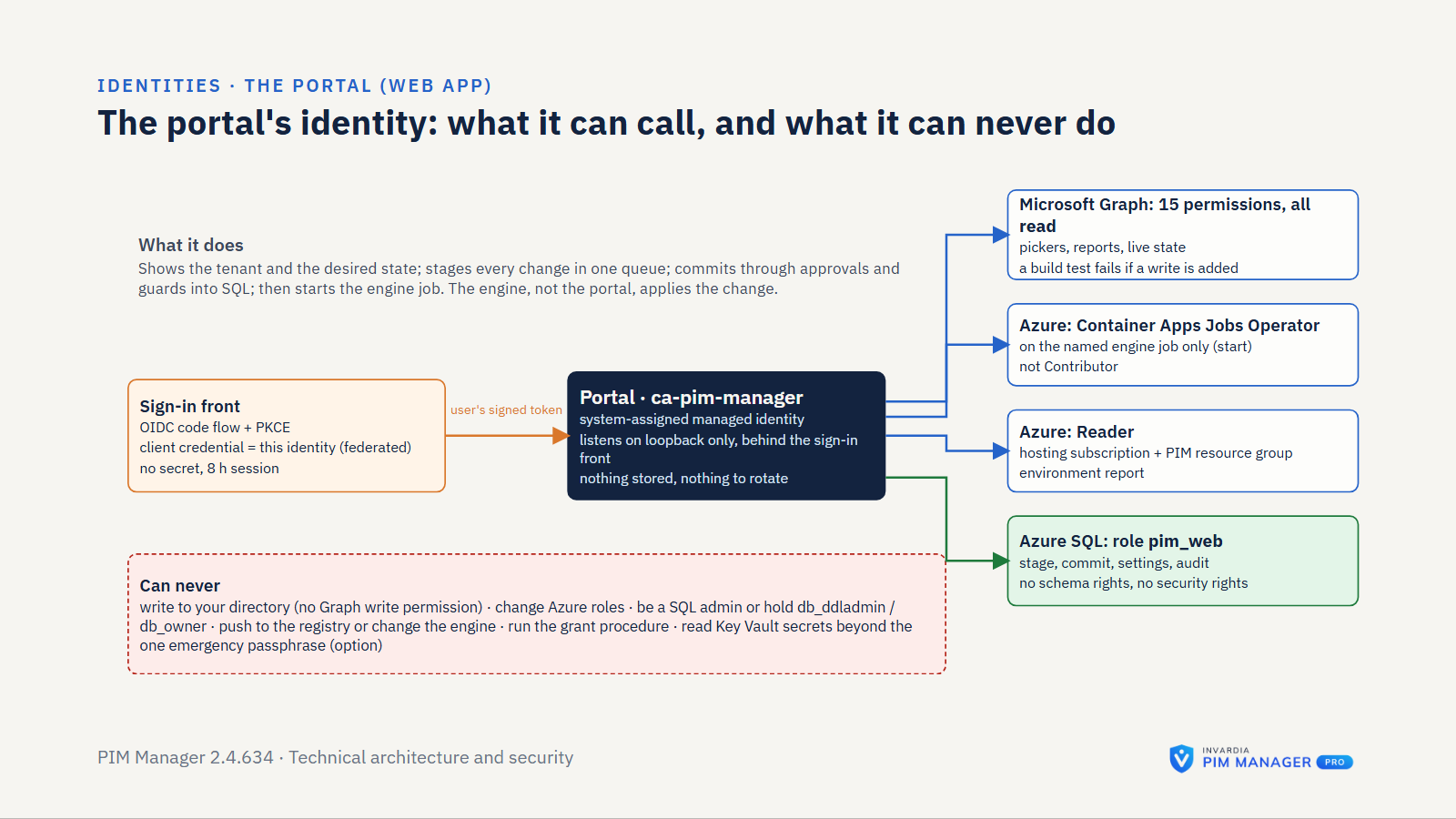
| PIM Manager | The web app where you model delegations, review and commit changes, and see drift, audit and reports. It listens only inside its own container app, and it can scale to zero when nobody is using it. Its Microsoft Graph rights are read-only. |
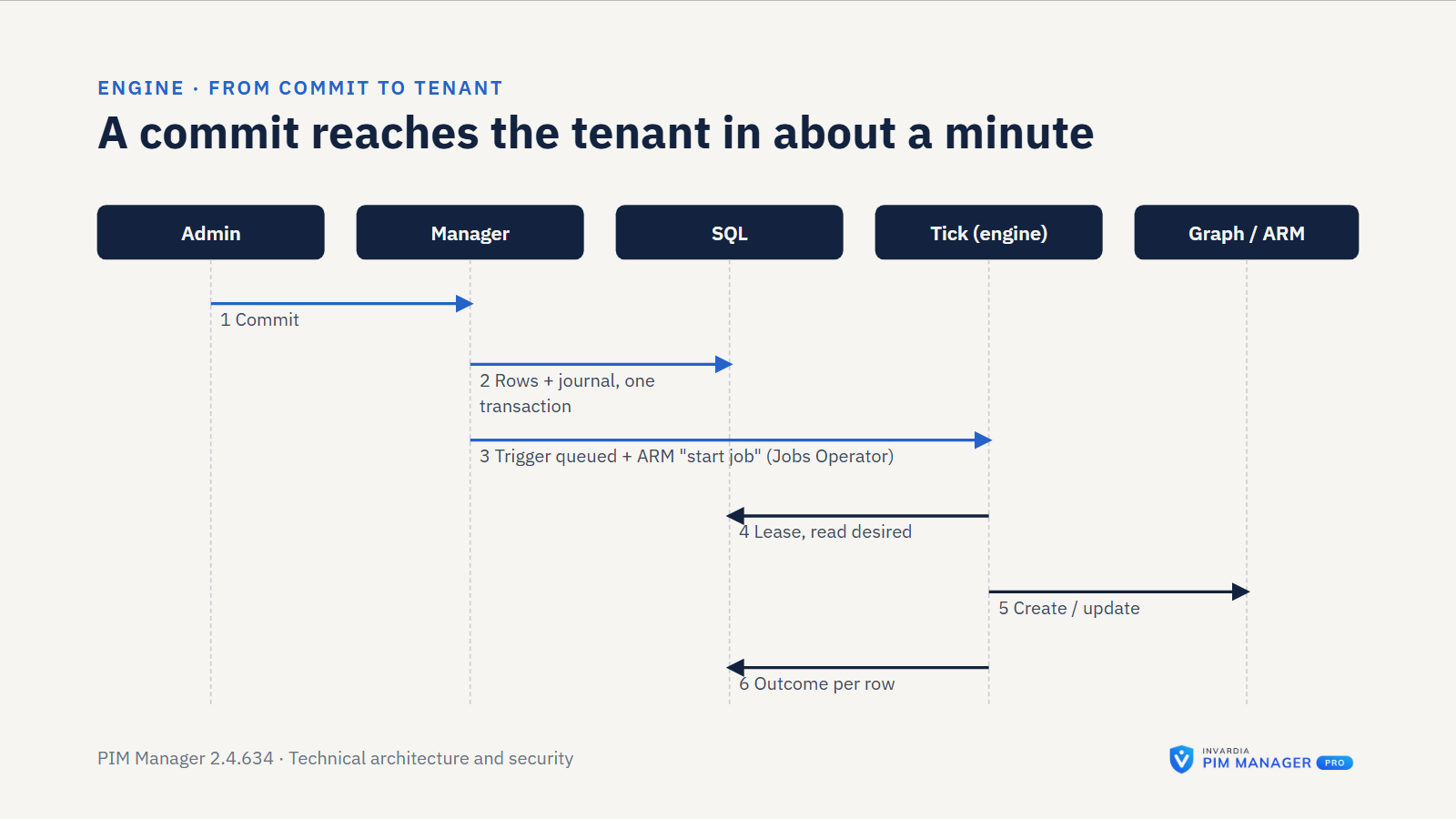
| Engine job | A scheduled Azure Container Apps job. It reads the desired state, applies it to Entra ID, Azure and the workloads, and exits. A commit is picked up within about five minutes, or at once if you give PIM Manager the right to start the engine job. |
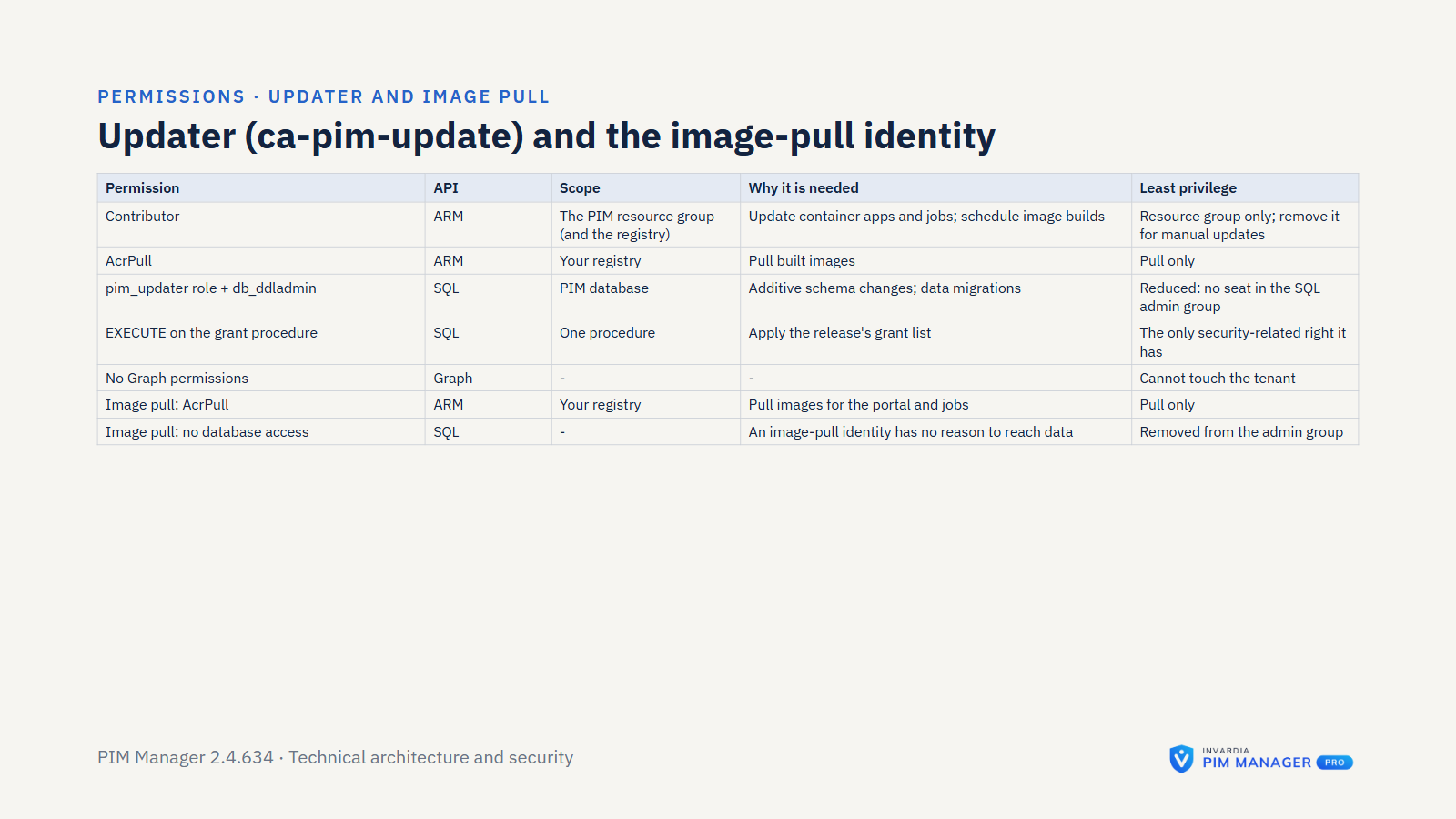
| Updater job (Pro) | Takes each signed, approved release, builds it in your registry, updates the database, updates each component, verifies them and rolls back on failure. It is a full database administrator and Contributor on the PIM resource group. Community installs update with one command you run, from the public GitHub release. |
| Azure SQL database | The single store: desired state, settings, the change queue, commit backups and the audit trail. Entra ID authentication only, one database user per component. The default tier is Standard S3; any Standard tier is accepted, a tier below S3 is kept only when you pin it, Basic is refused, and the maximum size is 250 GB. |
| Container registry | Holds the image, which is built in your own registry from the released source. The apps pull it with an image-pull identity that has no other rights. The registry’s admin user is off. Basic in public mode, Premium in private mode. |
| Log Analytics workspace | Receives the container logs, and the database’s SQL audit if you switch it on. The audit trail can optionally be copied here too. |
| Key Vault | Holds the key that wraps the sign-in front’s session keys, and the secrets or keys a feature needs: an SMTP relay password, the emergency passphrase hash, the managing tenant’s signing key. Purge protection is on. |
| Access request broker (Pro, optional) | Its own Container App with its own storage. Its rights are Storage Table Data Contributor on its own storage account and the send right on the sender mailbox. Its API keys are stored only as hashes. |
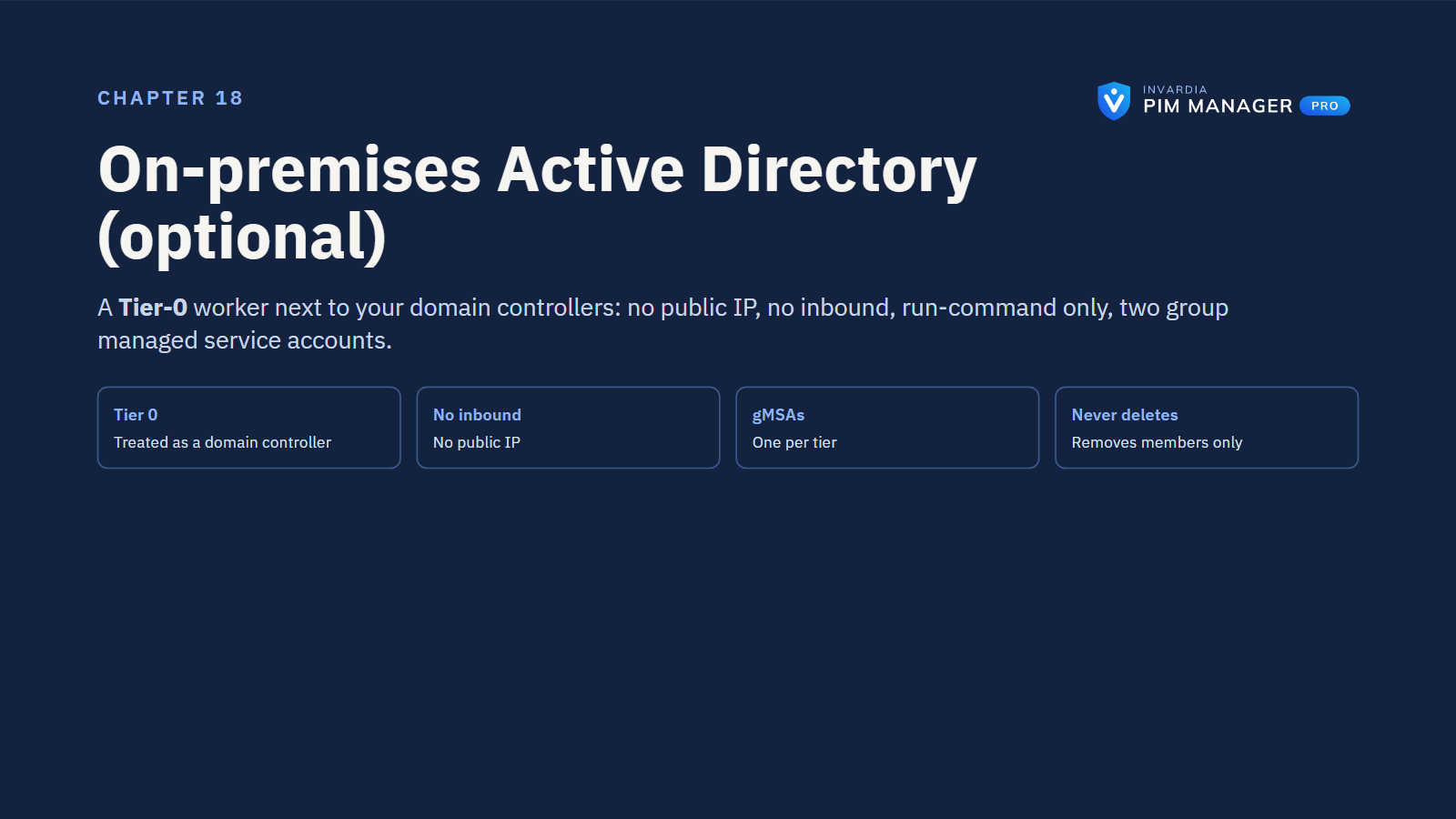
| Hybrid AD worker (Pro, optional) | For on-premises Active Directory: a small domain-joined Windows server, either an Azure VM that setup builds in its own network, peered to your domain controllers, with no public IP, or your own domain-joined server that is Azure Arc-enabled. It writes AD as group managed service accounts, one per privilege tier. |
            Your Microsoft Entra tenant
   (the roles, groups and AUs PIM Manager governs)
        ▲ user sign-in              ▲ Graph / Azure REST
        │ (OIDC + PKCE)             │ (managed identity)
 ┌──────┴───────────────────────────┴──────────────────┐
 │ Your Azure subscription                             │
 │                                                     │
 │  Sign-in front ─► PIM Manager (Graph read-only) ──┐ │
 │        │ stages and commits      start the engine │ │
 │        ▼                         (if you grant it)▼ │
 │  Azure SQL (Entra-only) ◄──── Engine job            │
 │  one user per component       holds write rights    │
 │                                                     │
 │  Container registry · Log Analytics · Key Vault     │
 │  Updater (Pro) ── outbound signed pull ─► Invardia  │
 └─────────────────────────────────────────────────────┘
The engine calls Microsoft Graph and Azure Resource Manager over REST. The image carries no PowerShell modules, no secrets and no customer data; identity, database and configuration are supplied at run time. The install scripts need no Azure CLI and no PowerShell modules: they talk to Azure and Microsoft Graph directly and sign you in through your browser.
Identities and secrets
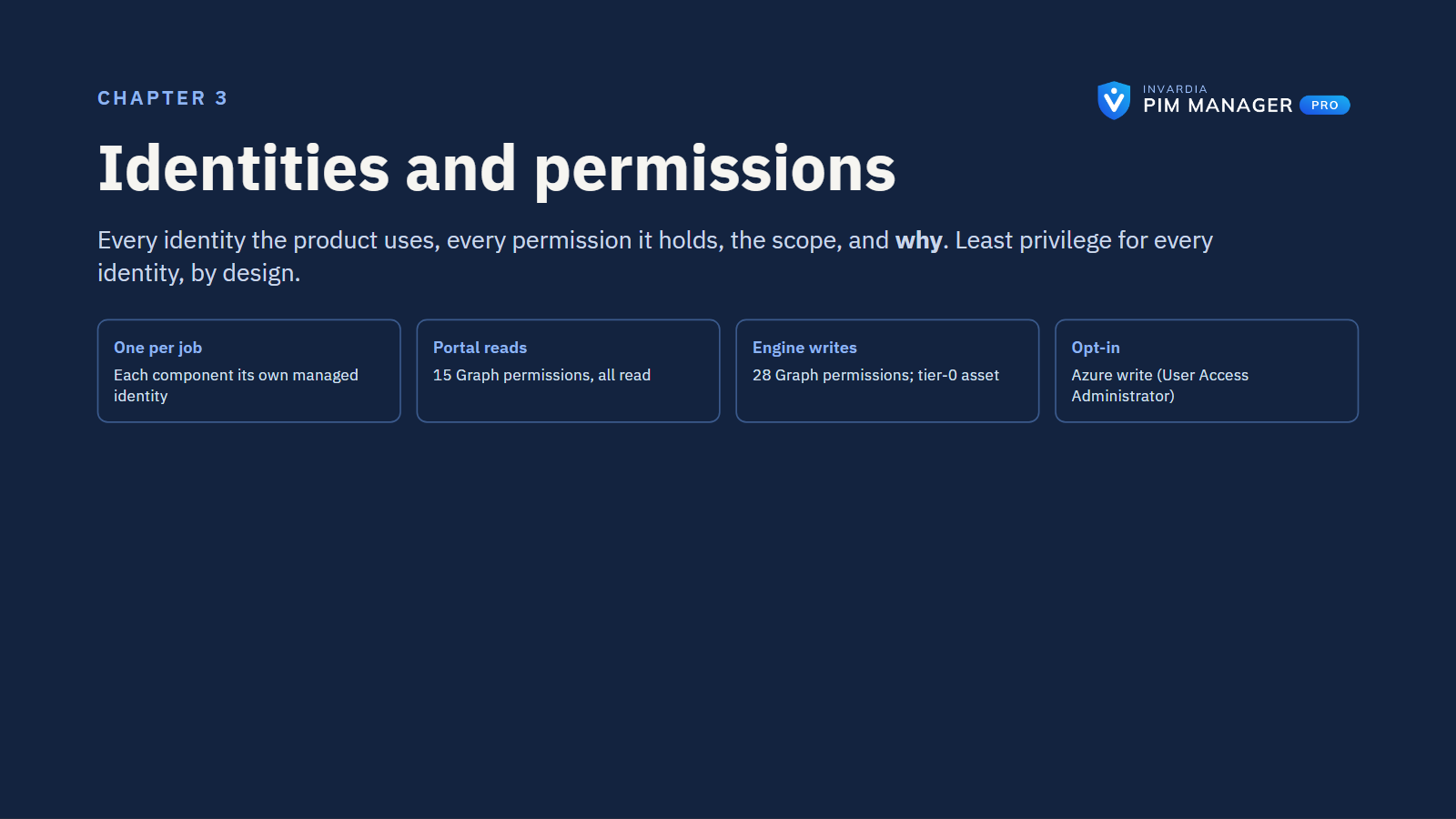
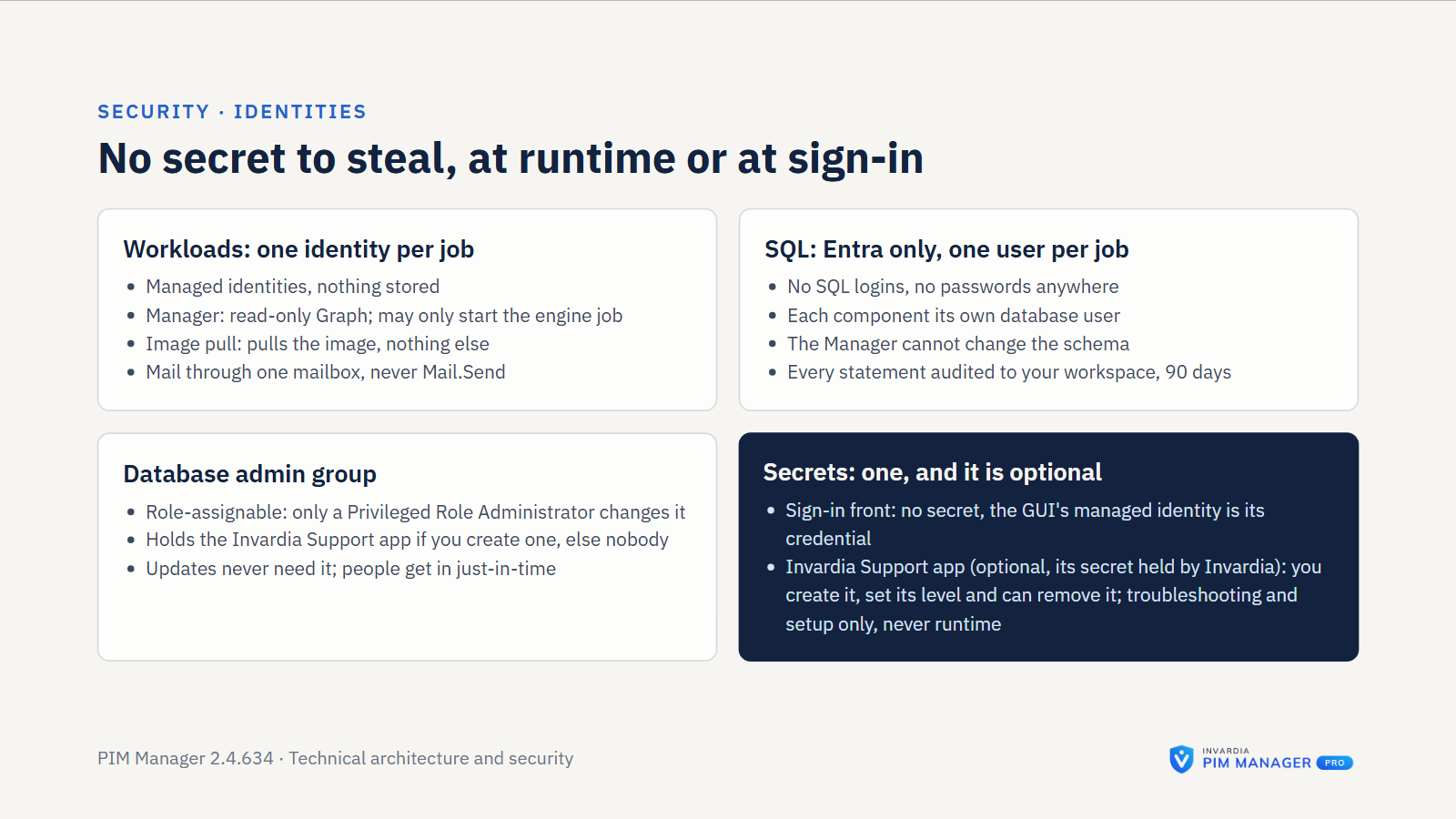
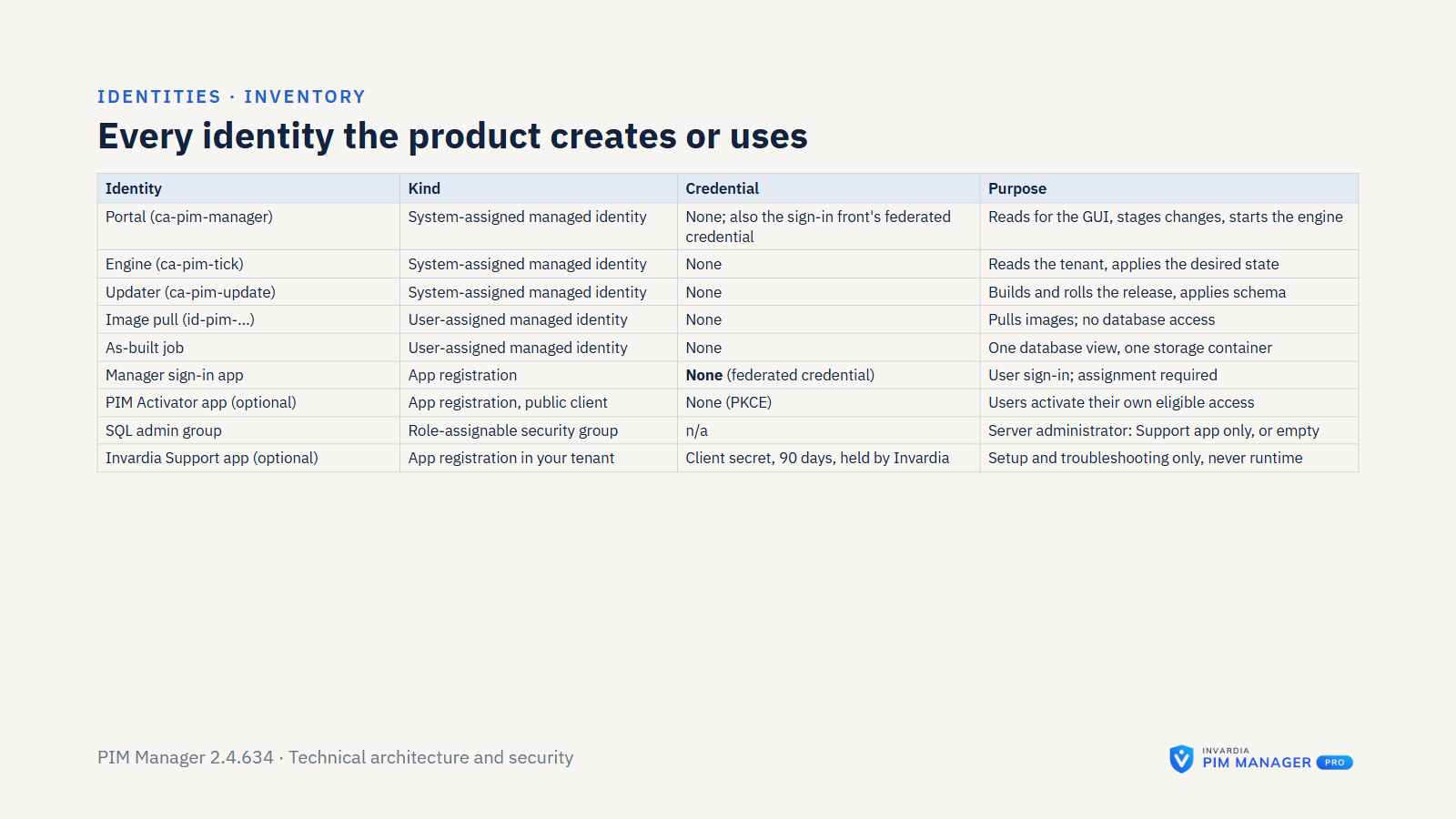
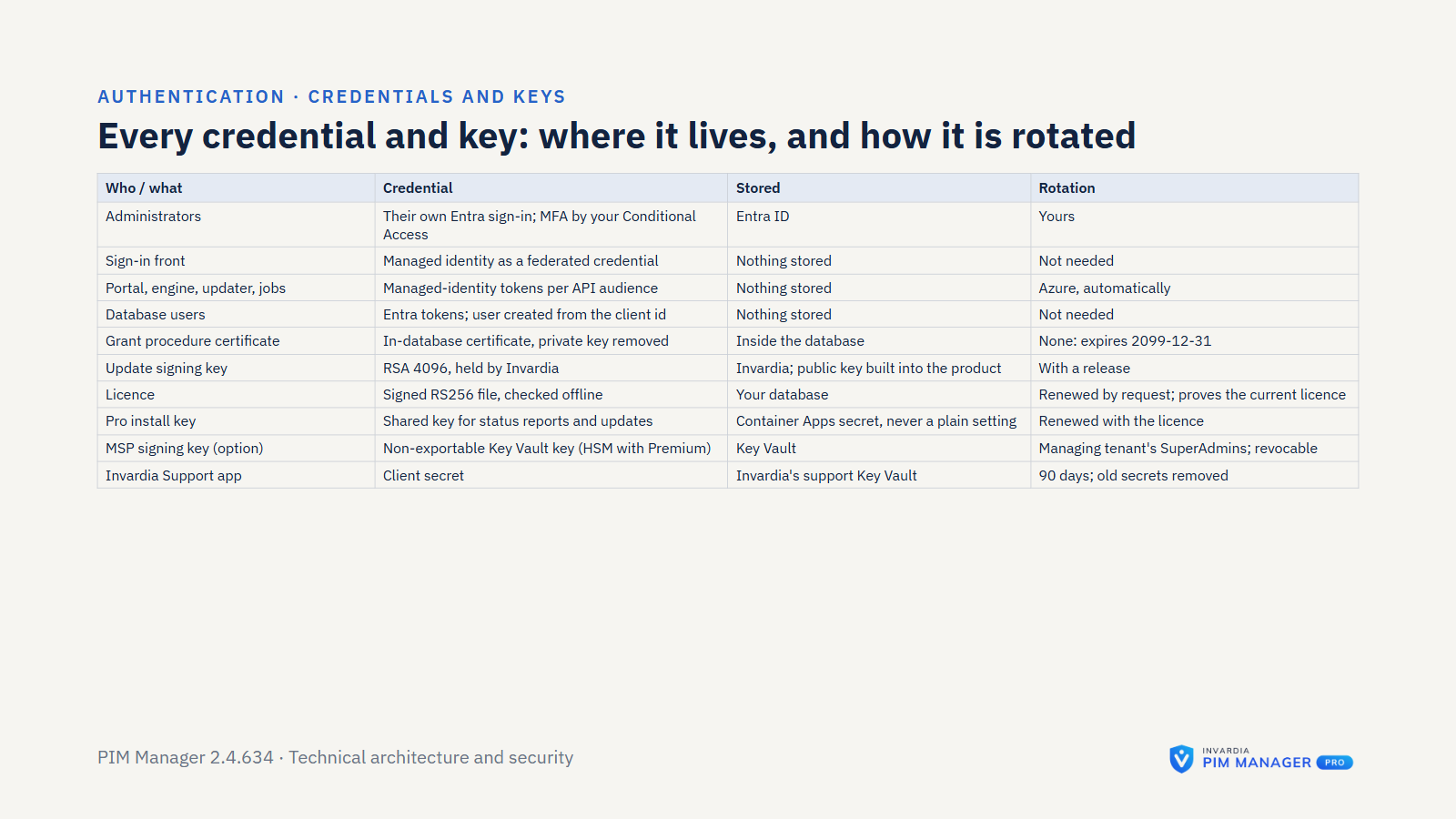
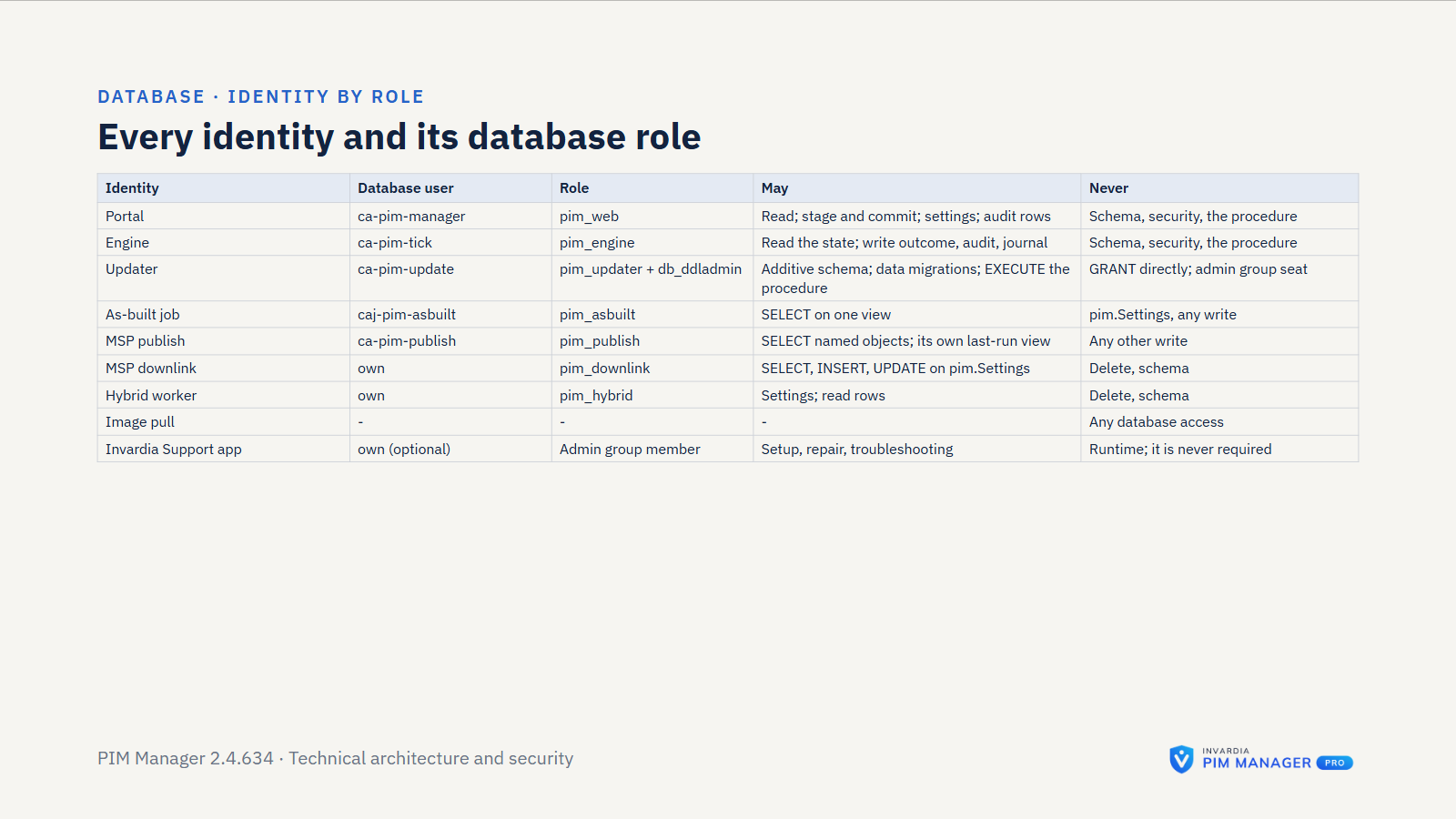
- One identity per component. PIM Manager, the engine, the updater and, on Pro MSP, the pull and publish jobs each sign in as their own managed identity. A separate user-assigned managed identity only pulls the image from the registry and has no database access. These runtime identities store no credential.
- Two permission sets. The engine gets the write permissions it needs. PIM Manager gets read-only Microsoft Graph permissions and Azure Reader. The standard install does not give PIM Manager the right to start the engine job; you can grant it Container Apps Jobs Operator on that one job.
- Permissions are granted by a person. Setup grants the sets at install. PIM Manager does not grant a permission itself. If one is missing later, Get Started shows the command for someone with the right role, naming exactly the missing permissions.
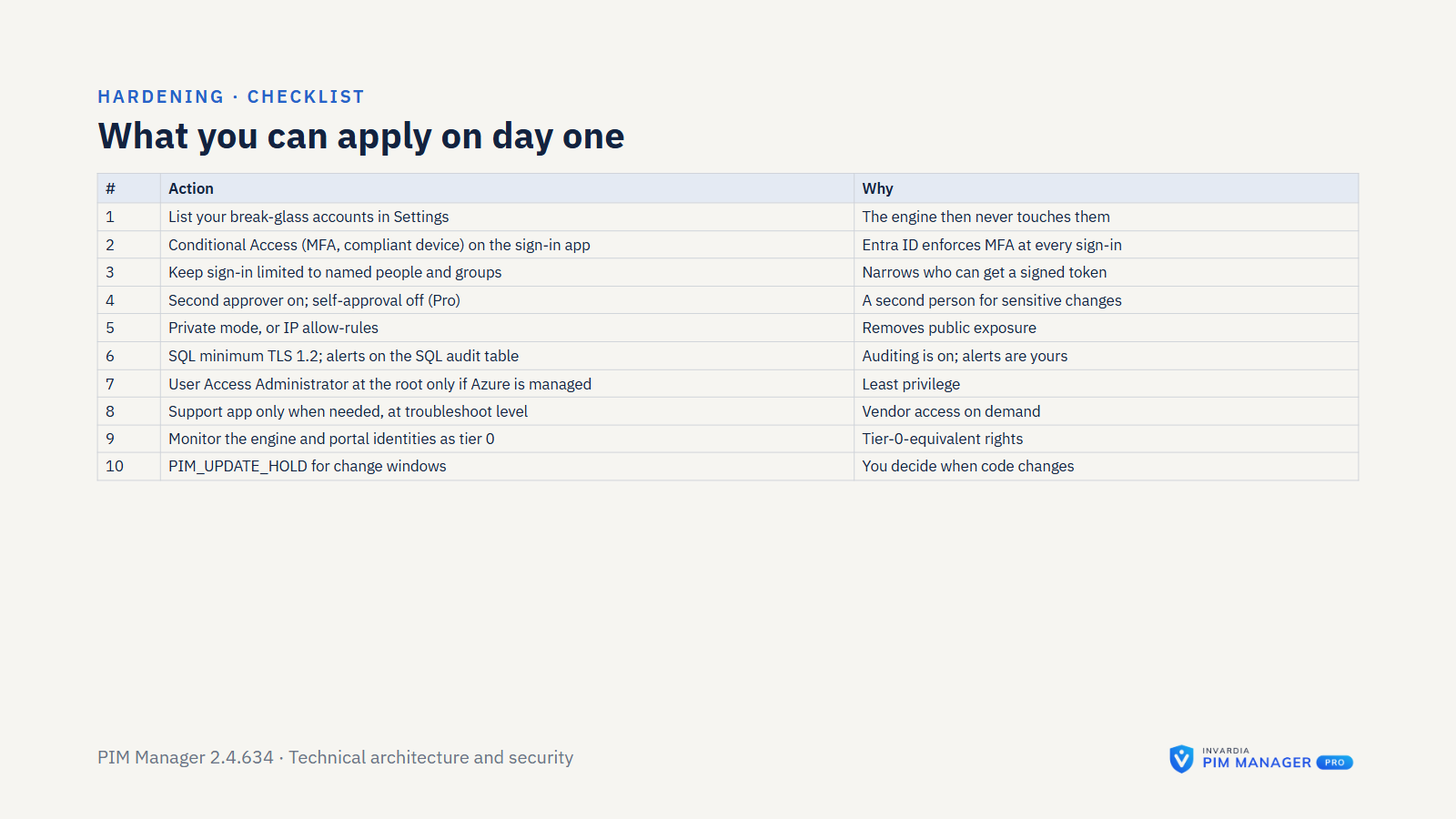
- Azure rights: Reader by default. The engine gets Reader at the tenant root management group, so it can see management groups and subscriptions. User Access Administrator, which it needs only to assign the Azure roles you delegate, is off by default: you grant it at the tenant root or on scopes you name. Without it, Azure stays read-only.
- Mail from one mailbox. The mail sender’s right to send is limited to one sender mailbox through scoped Exchange permissions; the engine and PIM Manager do not get tenant-wide Mail.Send. The one exception is optional: the hybrid worker can mail a new AD admin account’s first password only if you deploy it with tenant-wide Mail.Send, which is off by default.
- Server installs. An engine that runs on your own server signs in as an application with a certificate from the machine certificate store.
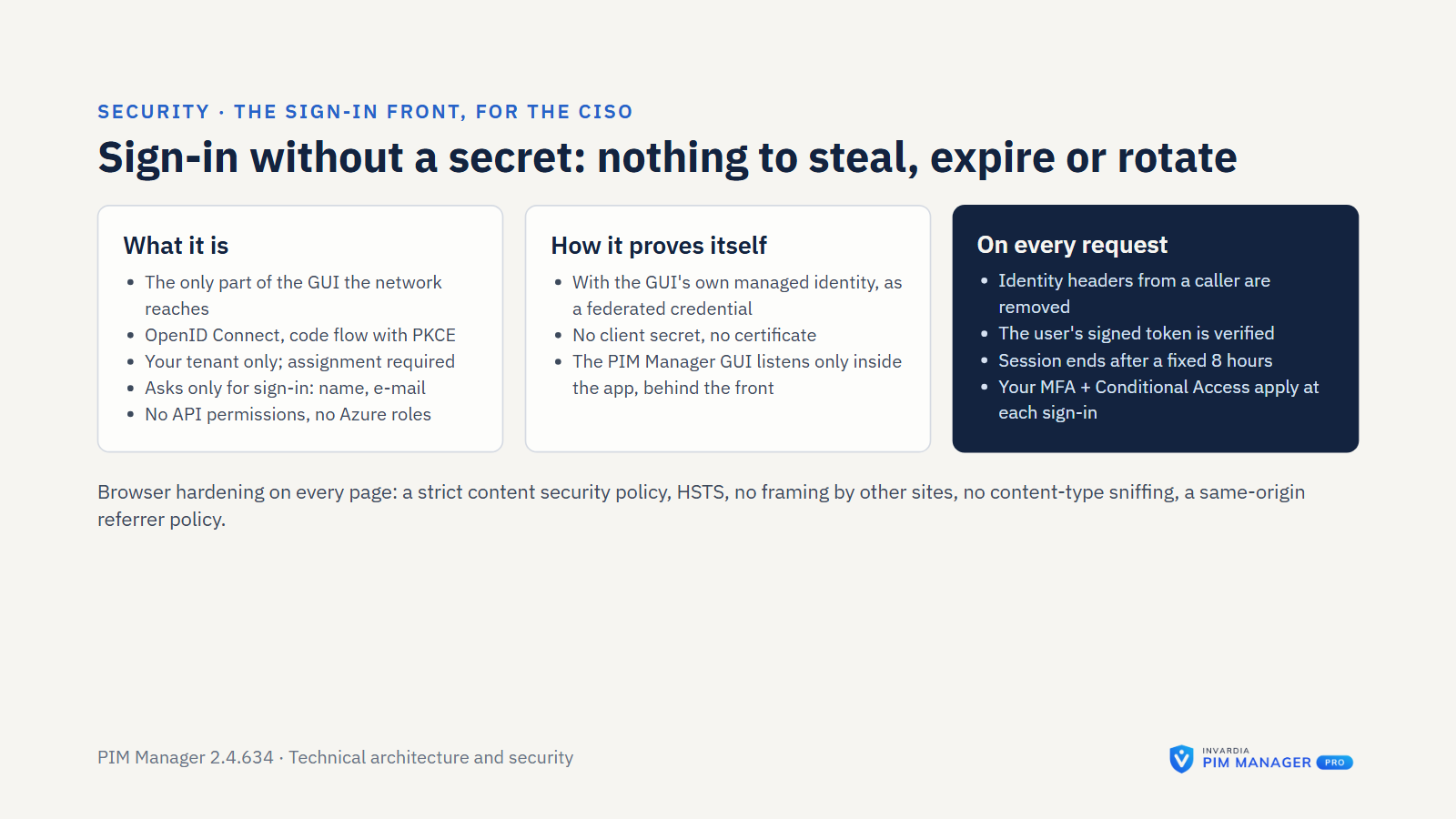
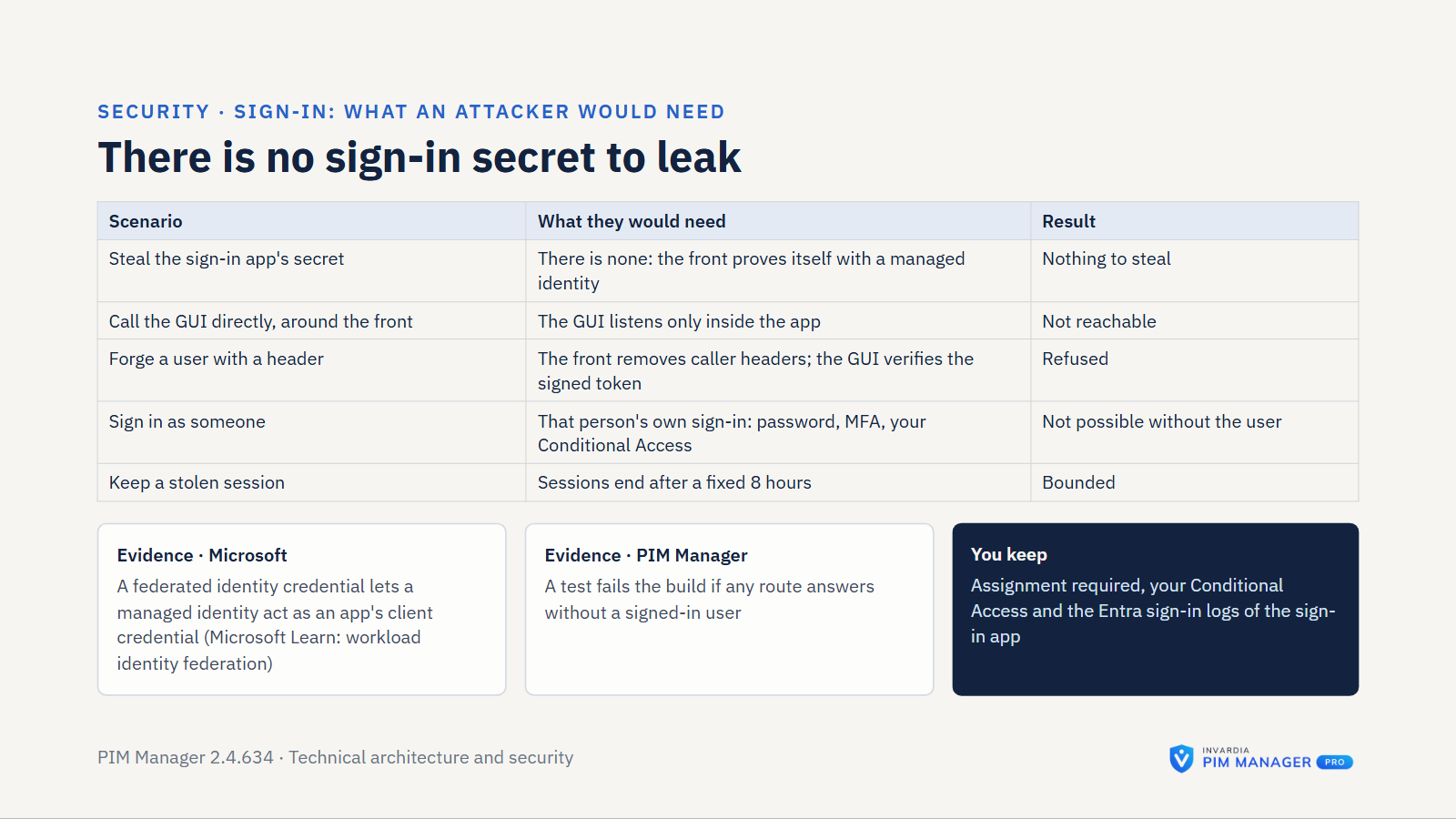
- No client secret is needed for sign-in. The sign-in front uses OpenID Connect, code flow with PKCE. Its client credential is a federated credential of PIM Manager’s managed identity, and it refuses to start with a client secret or a certificate. The install first sets up the built-in Azure Container Apps sign-in, which uses a client secret of the sign-in app, valid for 2 years; that secret stays on the app registration and as a container app secret, as a fallback, until you remove it. The sign-in front does not use it. Once people sign in through the front, remove it with the steps in Remove the old sign-in secret.
- Treat these as tier-0. The engine’s managed identity, PIM Manager’s managed identity, the updater, and anyone with Contributor or Owner on the PIM resource group. Monitor them with your workload-identity alerts.
The database
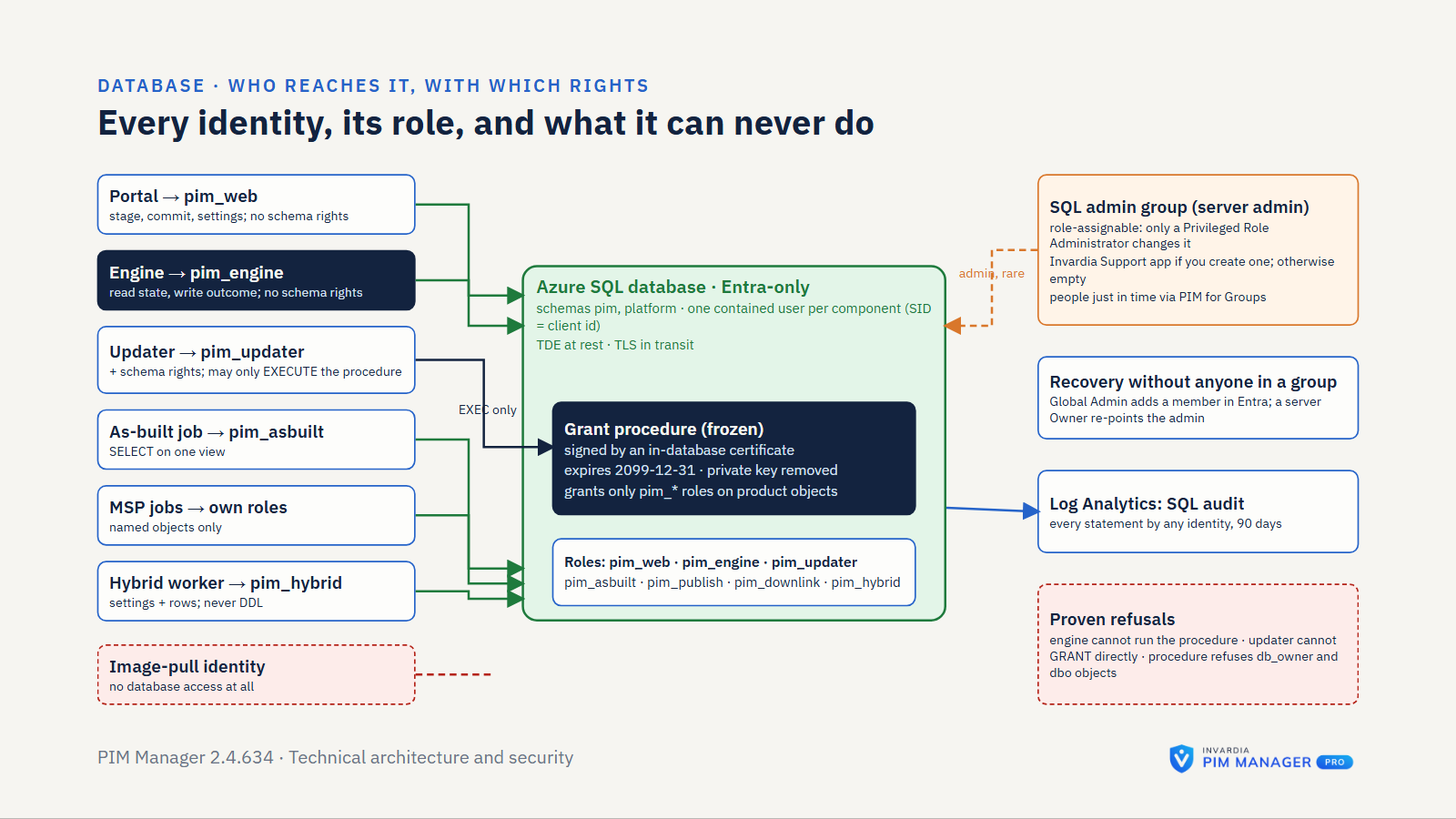
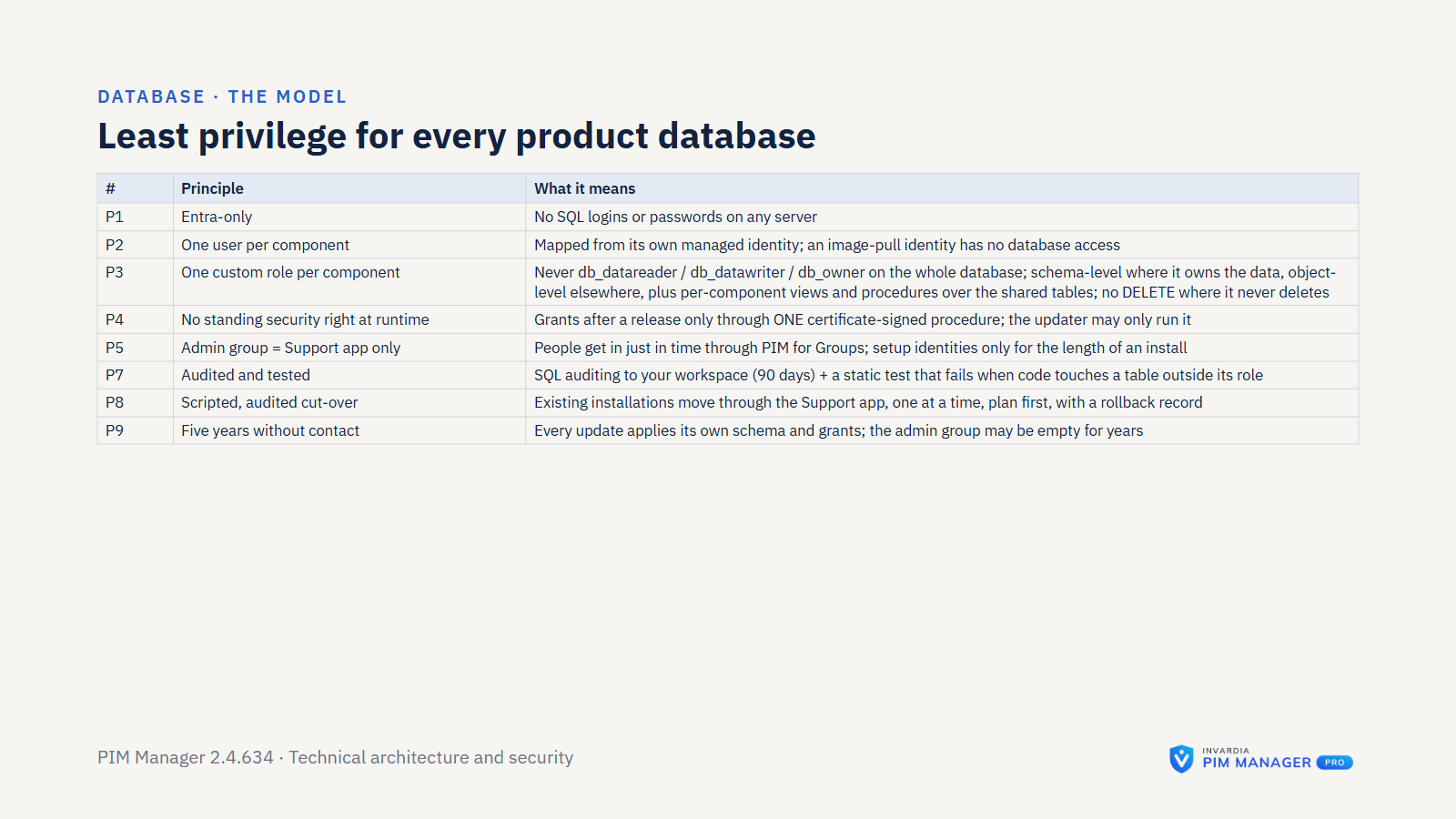
- Azure SQL runs with Entra ID authentication only, no SQL logins, and a minimum TLS version of 1.2 set by setup.
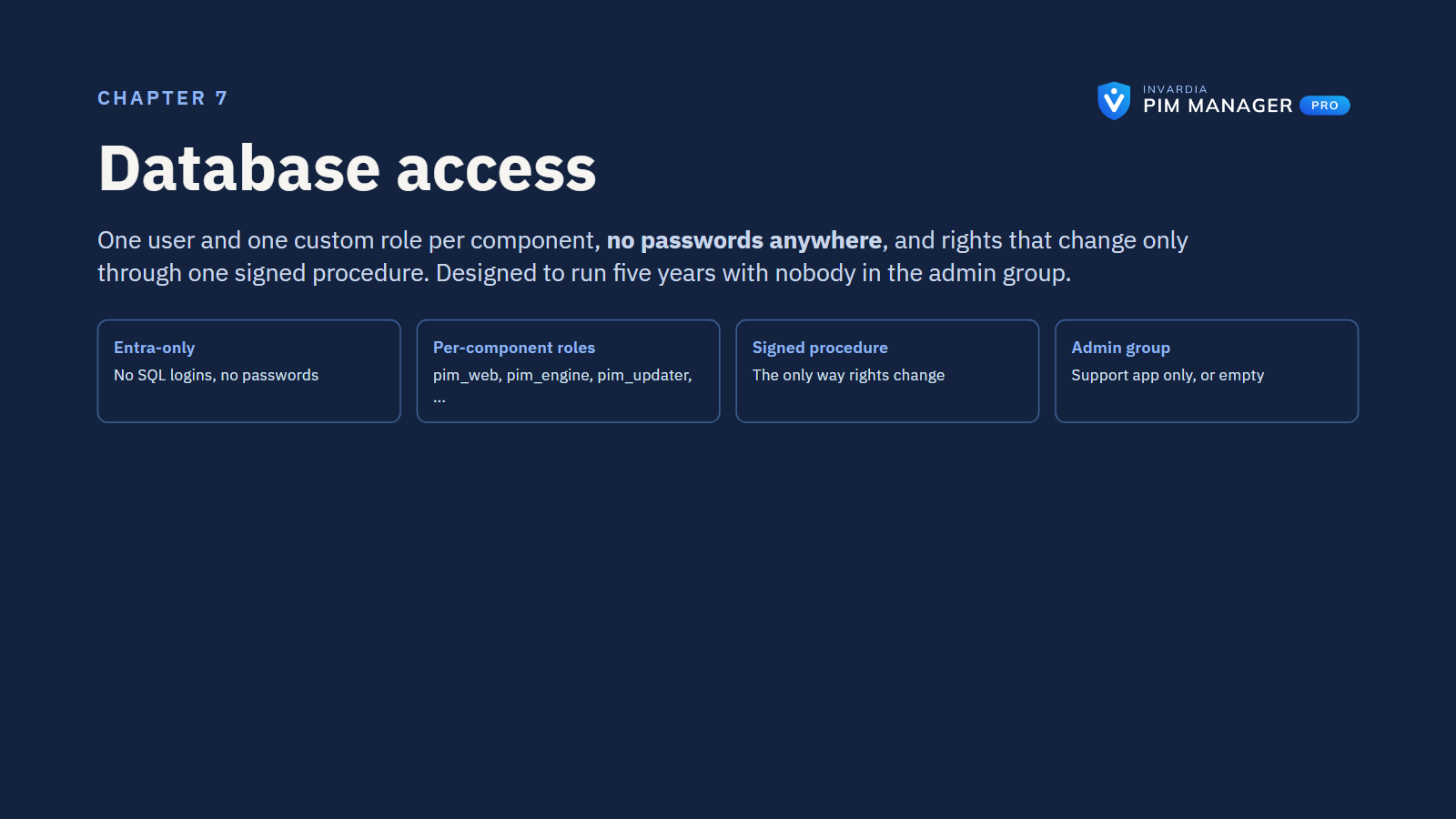
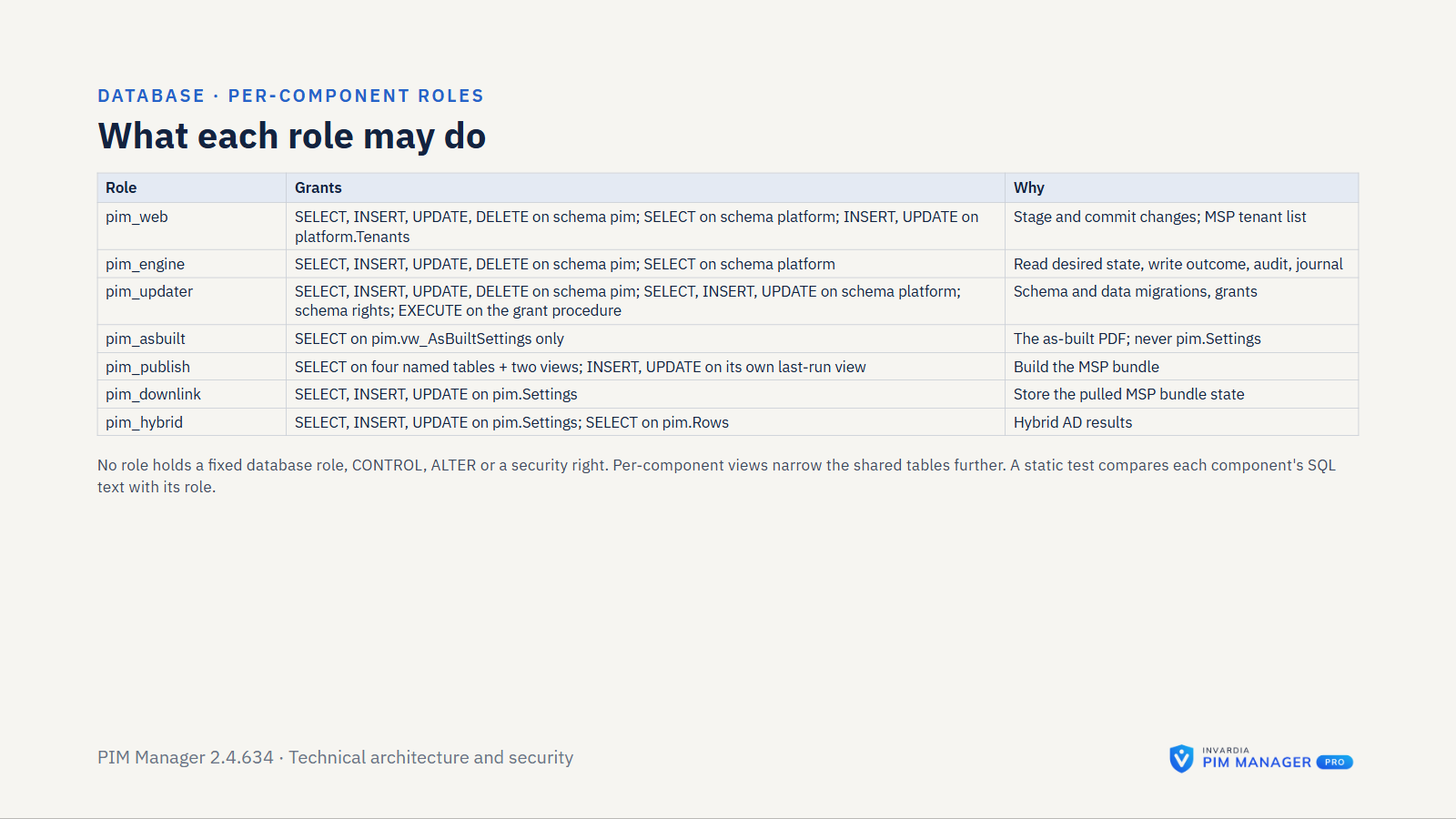
- Each component that uses the database has its own contained database user, created from its own managed identity, and its own custom database role (pim_web, pim_engine, pim_updater and one per optional job). PIM Manager’s role cannot change the schema.
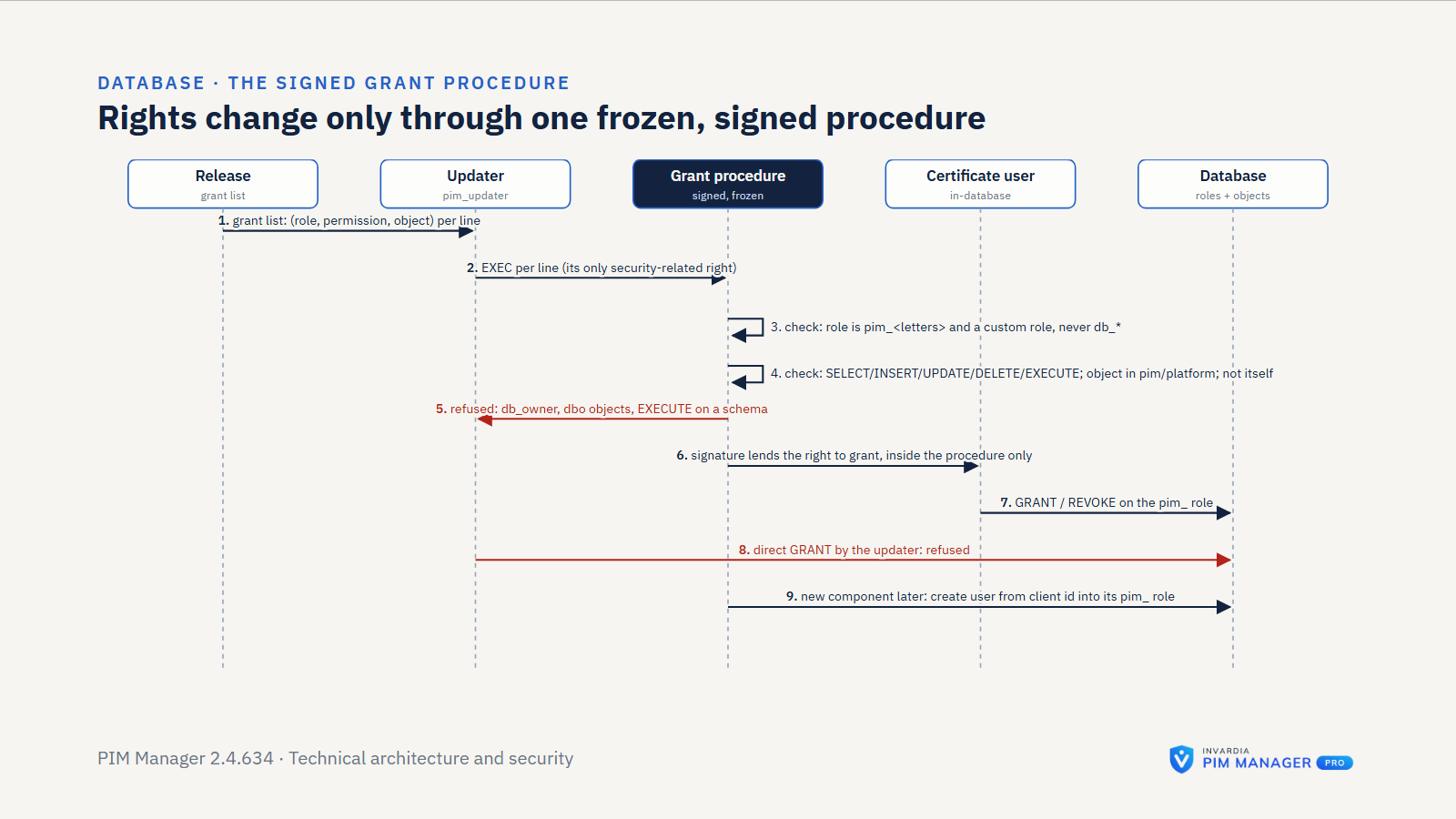
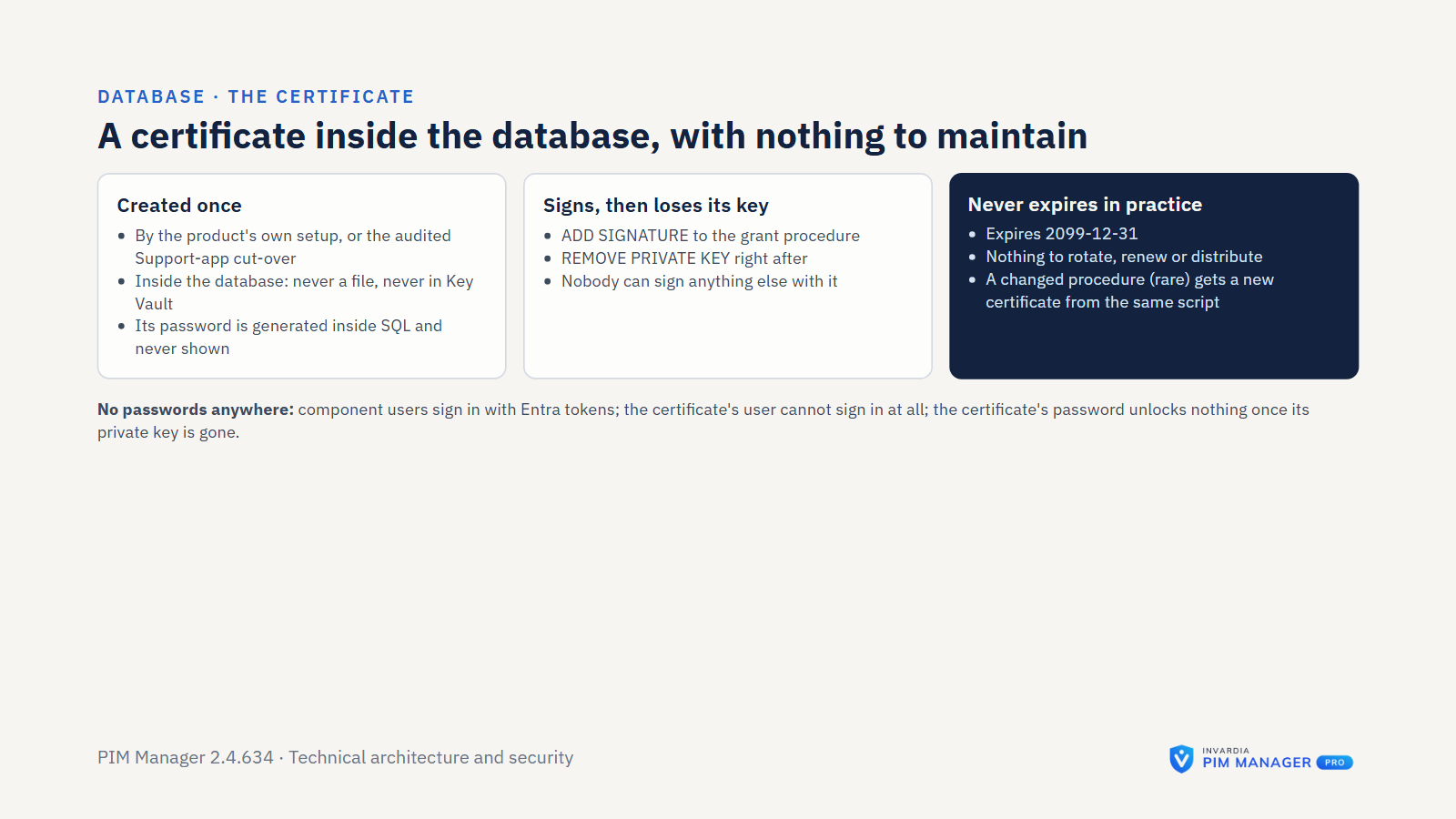
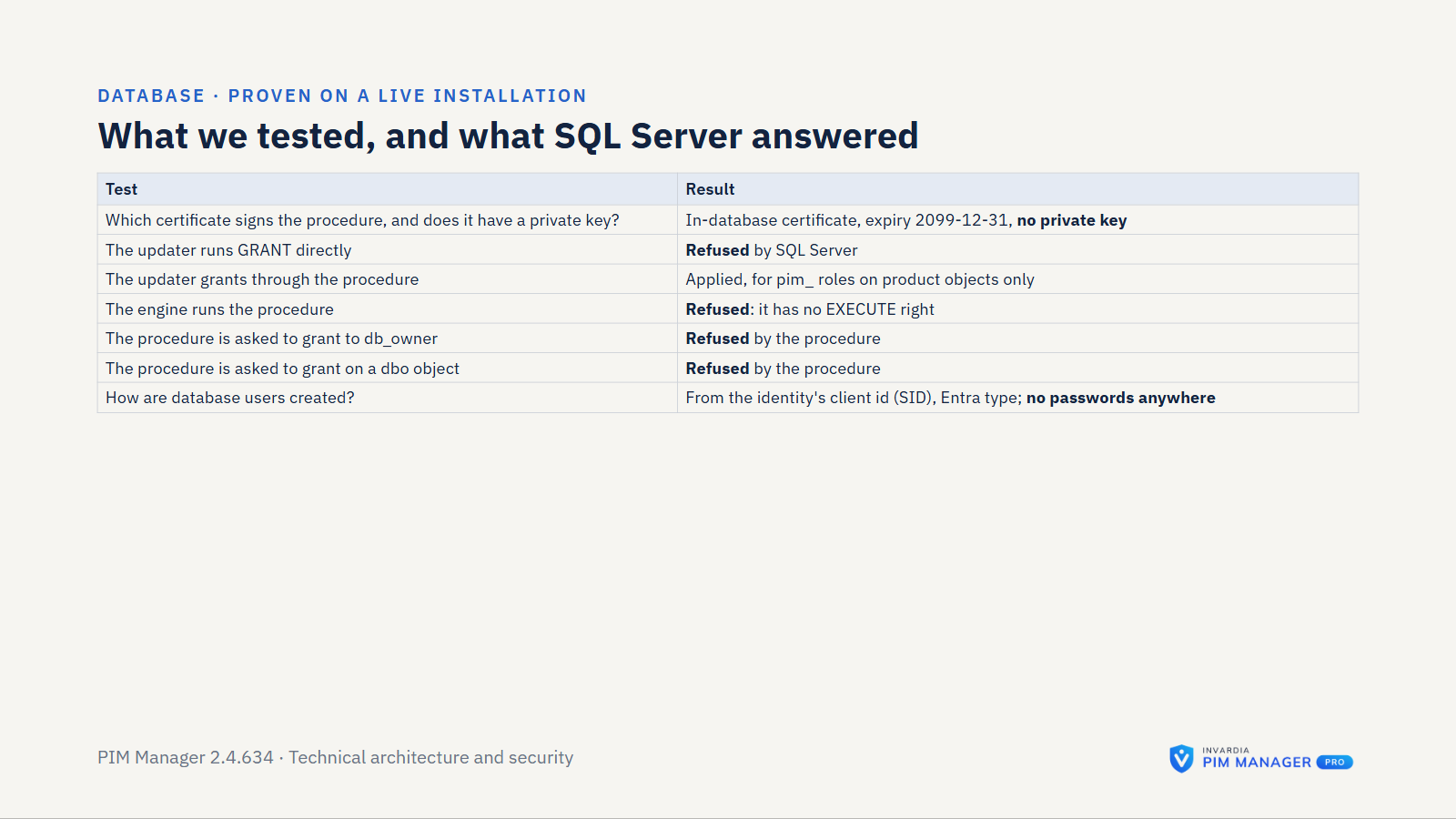
- After the install, the product’s own grants change only through one certificate-signed procedure. It grants only the product’s own roles, only data and execute rights, only on the product’s own schemas. Its certificate lives in the database, is valid until 2099 and has its private key removed after signing; altering the procedure drops its signature. The updater may run it; the engine cannot.
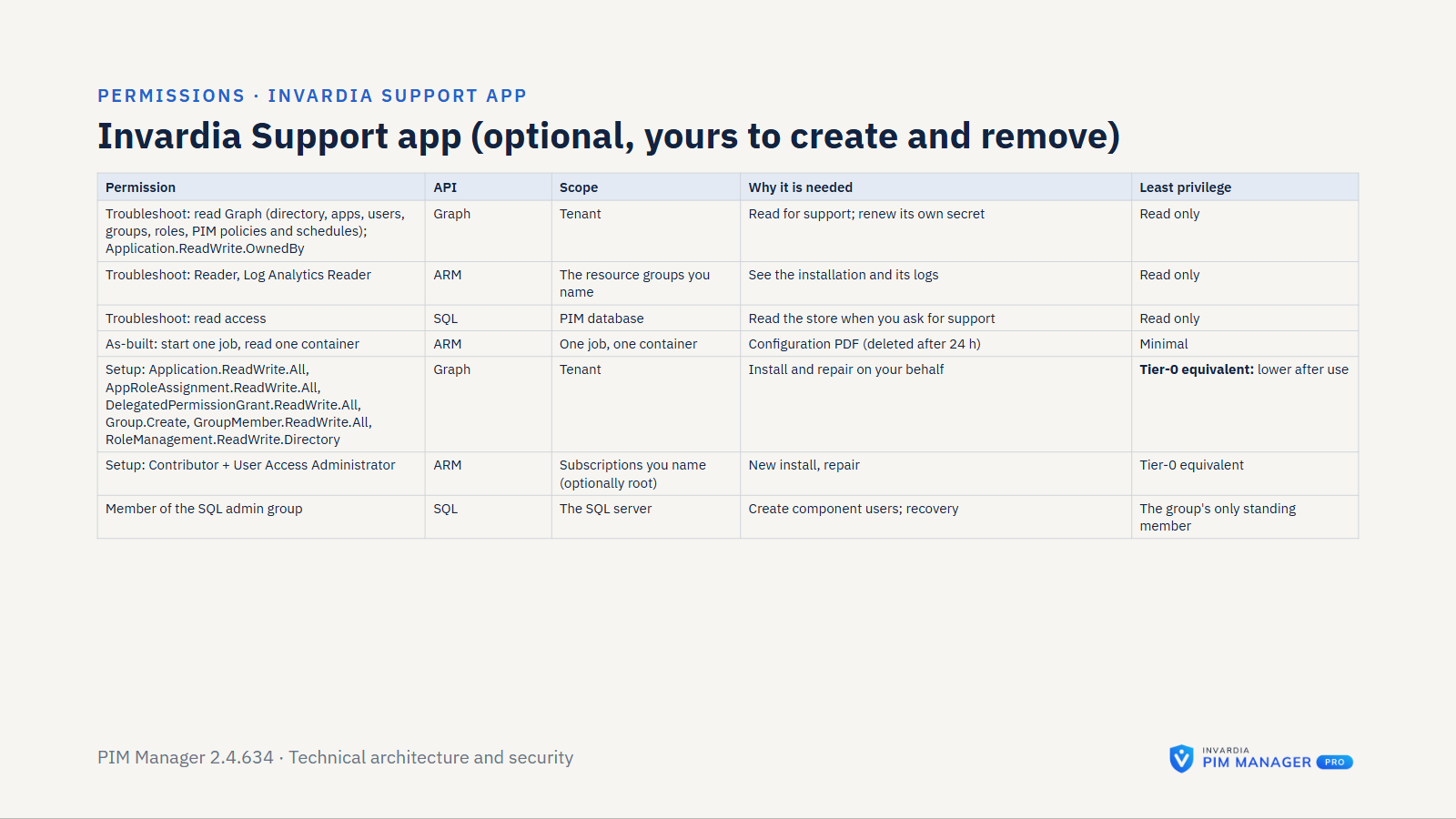
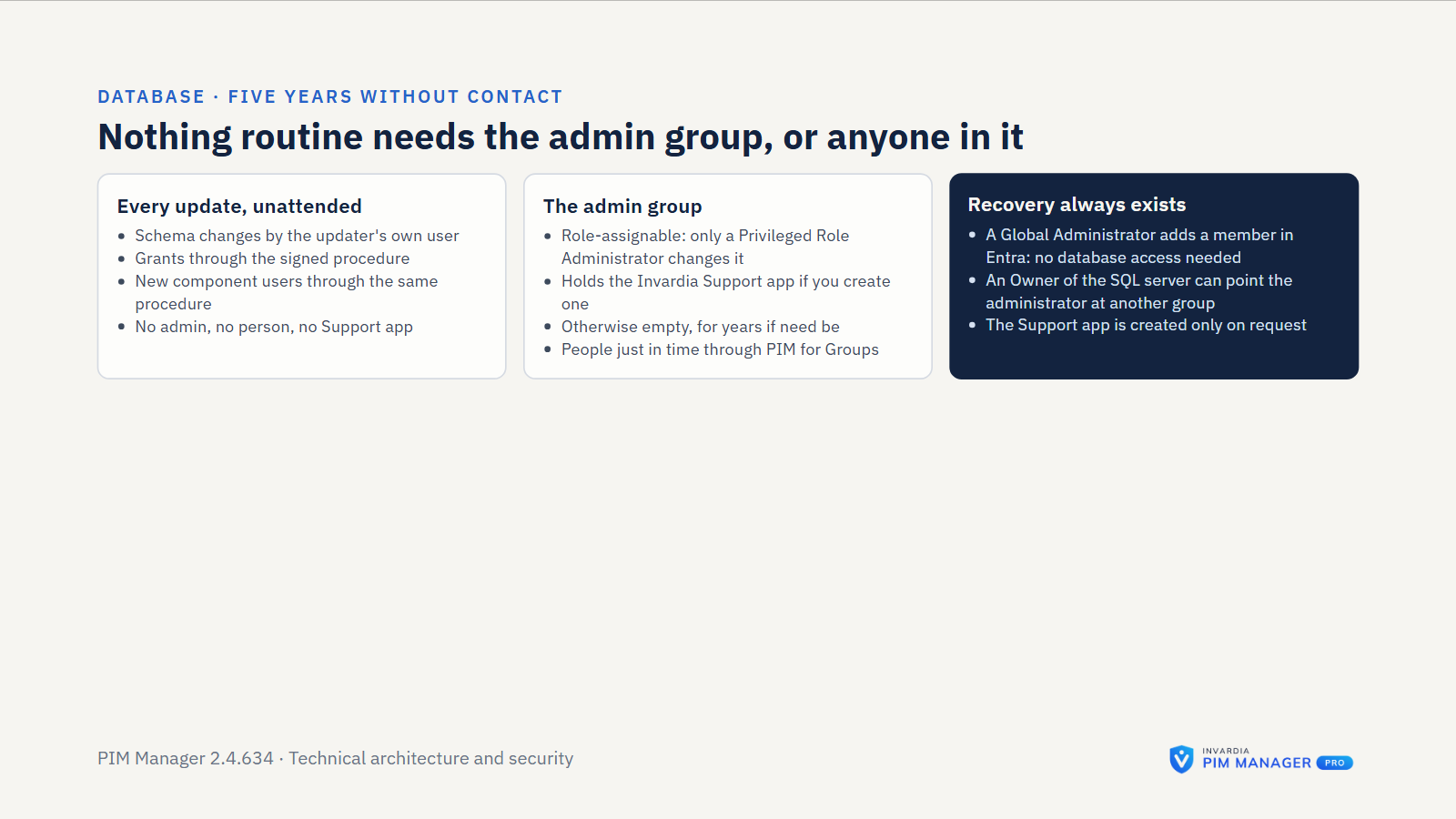
- The SQL server’s Entra administrator is a role-assignable security group. Microsoft Entra lets only a Global Administrator, a Privileged Role Administrator, an owner of the group, or an application holding the Microsoft Graph permission RoleManagement.ReadWrite.Directory change its members; check the group’s owners after the install. Every member is a full database administrator. The members are: the person who installs, for the length of the install only; the updater’s identity (Pro), which stays a member; on a private installation, the database setup identity; the Invardia Support app, only if you create it for a support case and grant it access; and anyone you add, best just-in-time through PIM for Groups.
- Because the updater is a full database administrator, it can change any table, disable the audit trigger and grant rights outside the signed procedure. You can remove it from the admin group, or remove the updater and update by hand; updates then still apply schema changes through the updater’s own database user and the signed procedure.
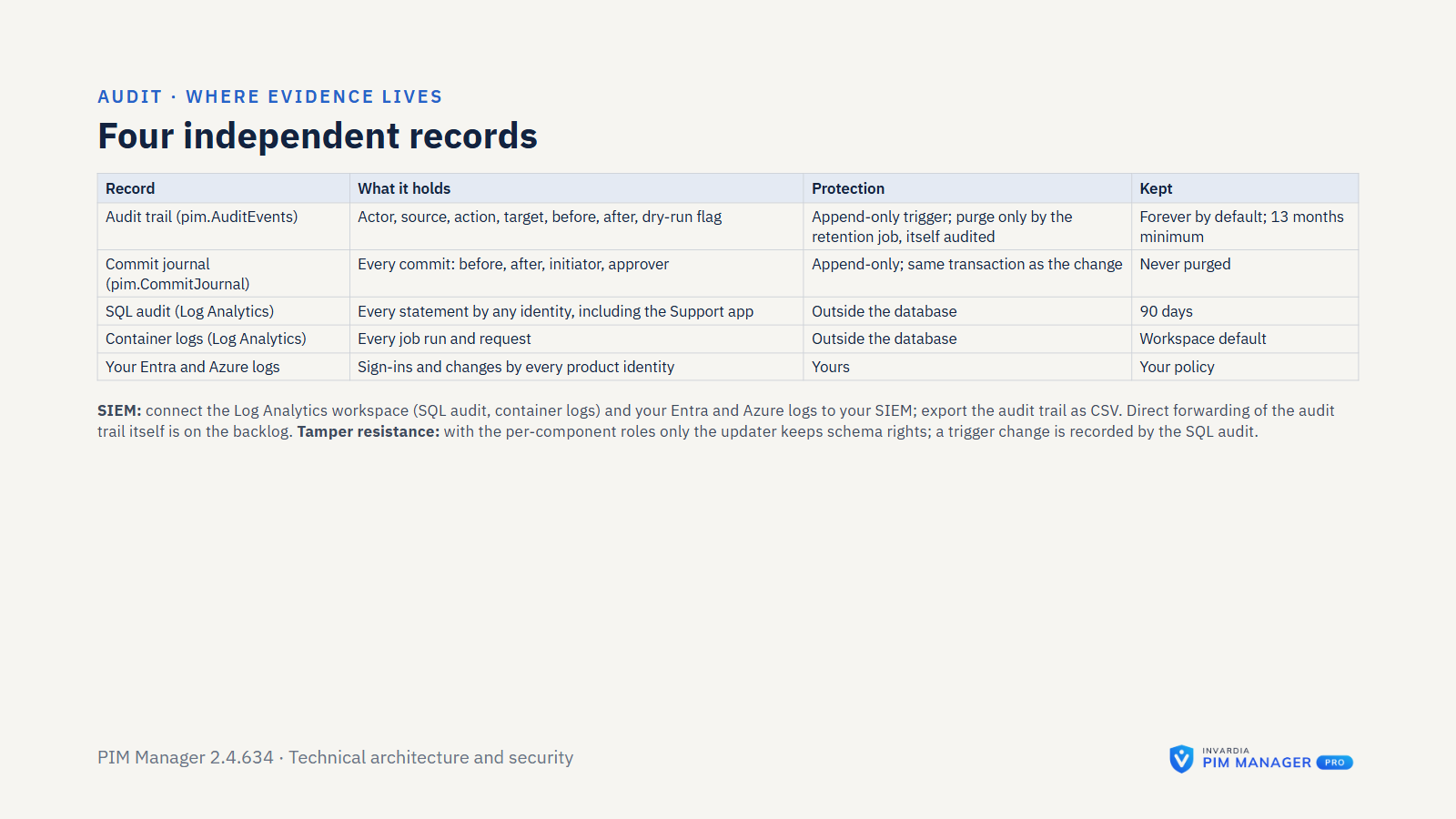
- The installer does not switch on Azure SQL auditing. Switch it on, with your Log Analytics workspace as the target, to record statements by the database administrators outside the database.
Network
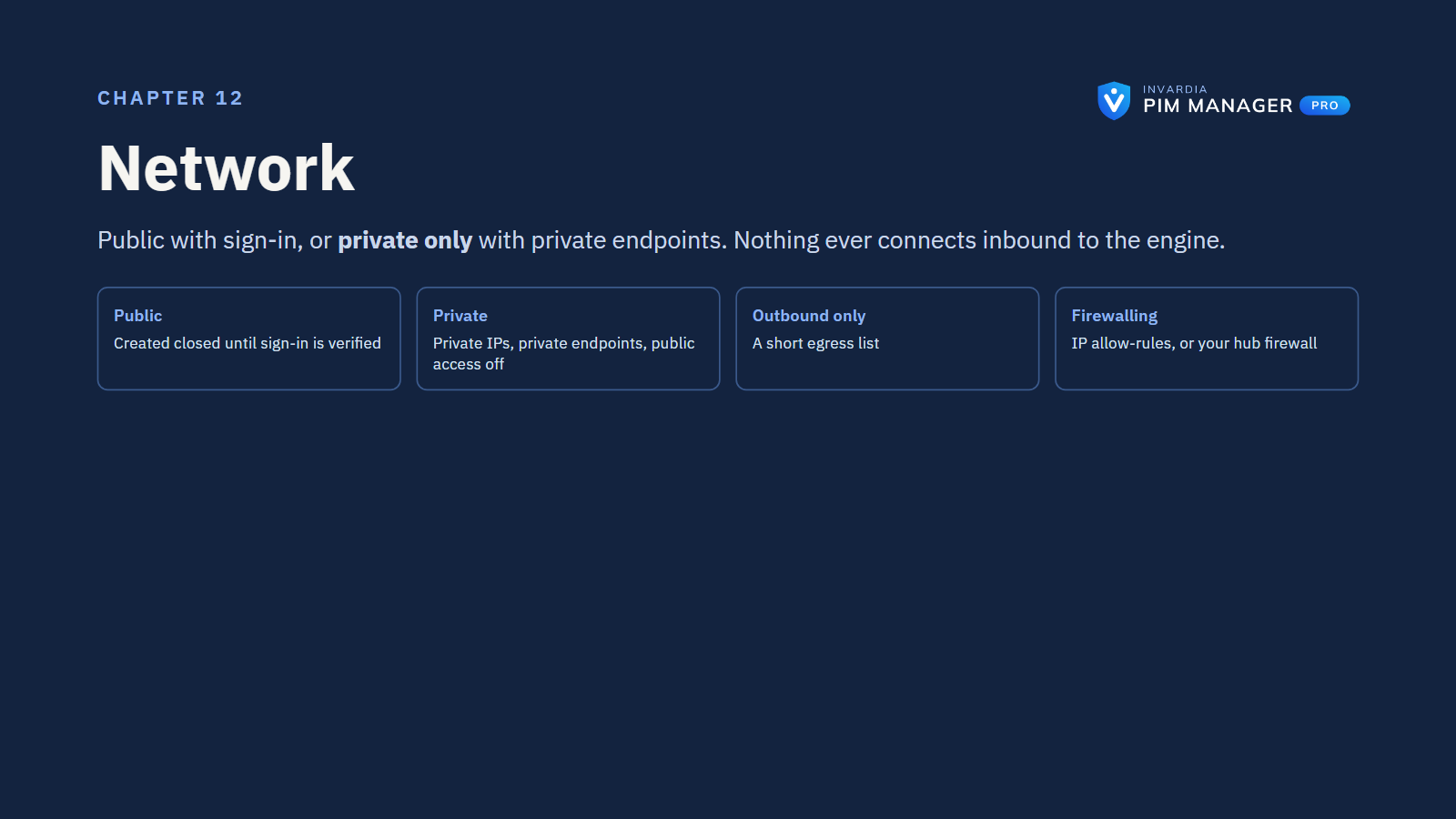
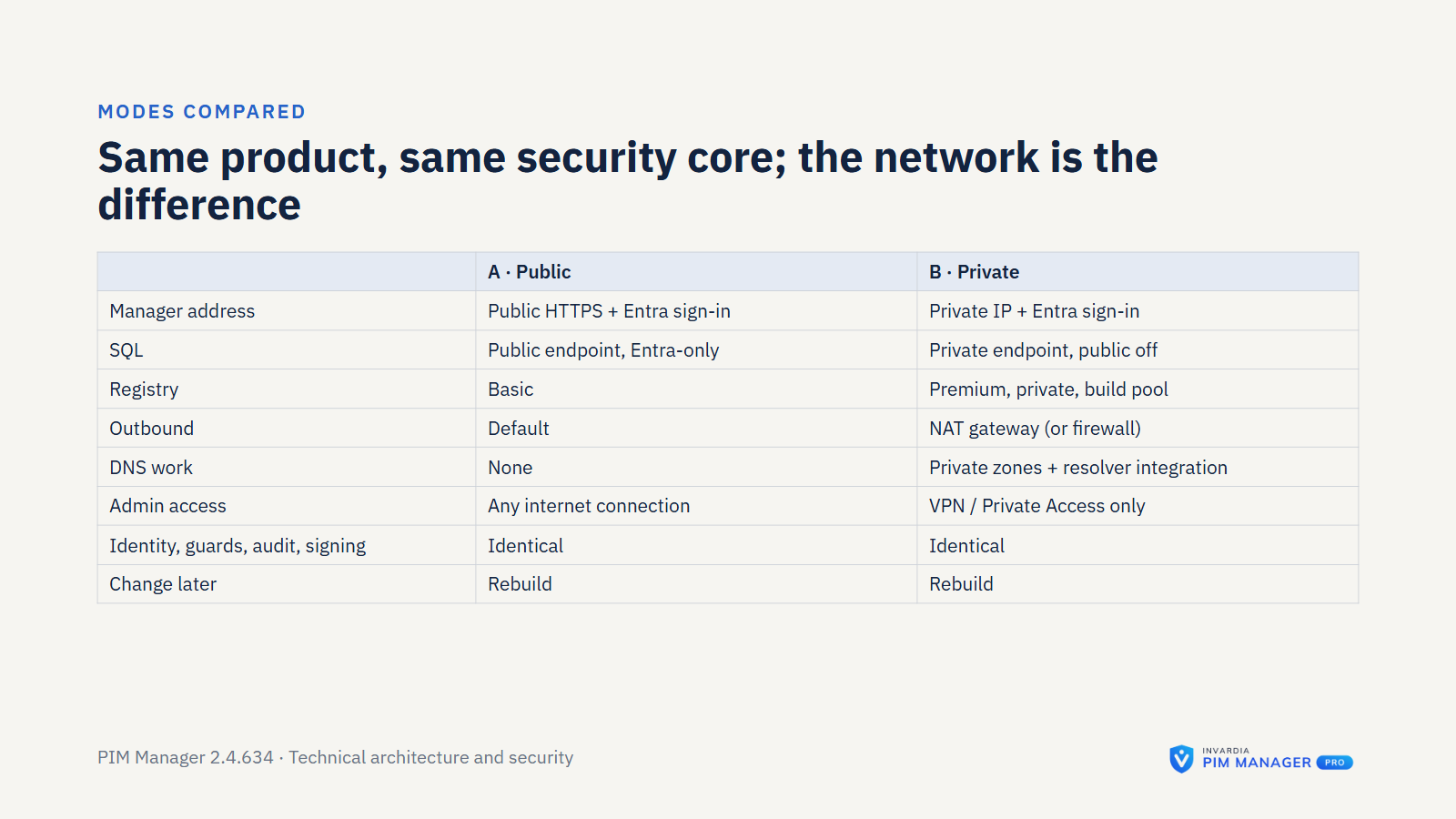
You choose the network mode when the environment is built.
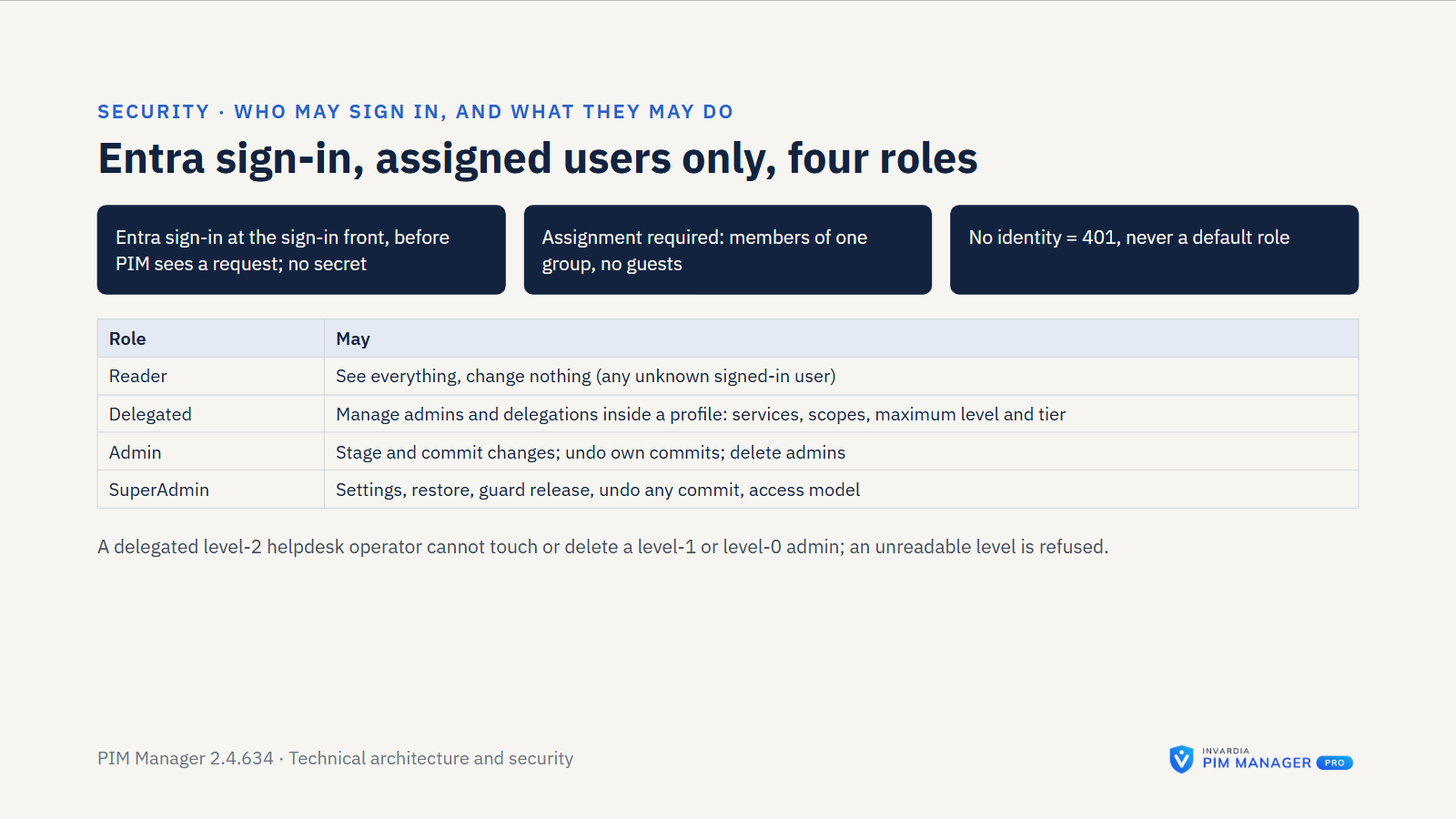
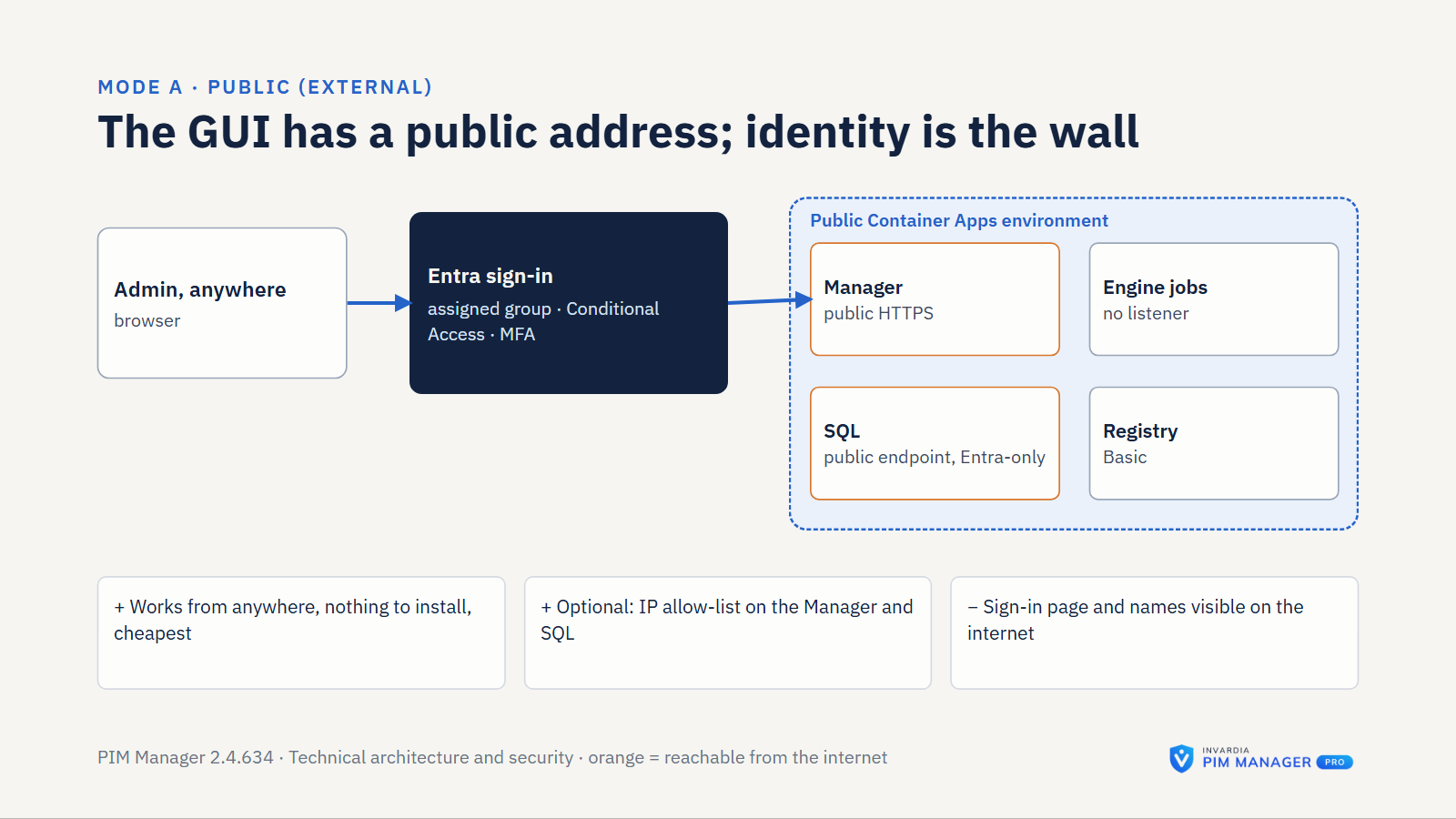
- Public. PIM Manager is reachable over the internet, behind Entra sign-in. The sign-in app has assignment required: you name the people and groups allowed in, or let every member account in through a members-only group, so guests cannot sign in. You can add IP allow-rules. The guided installer builds this mode. In public mode the database firewall admits Azure services, and each connection still needs an Entra token for one of the database’s users.
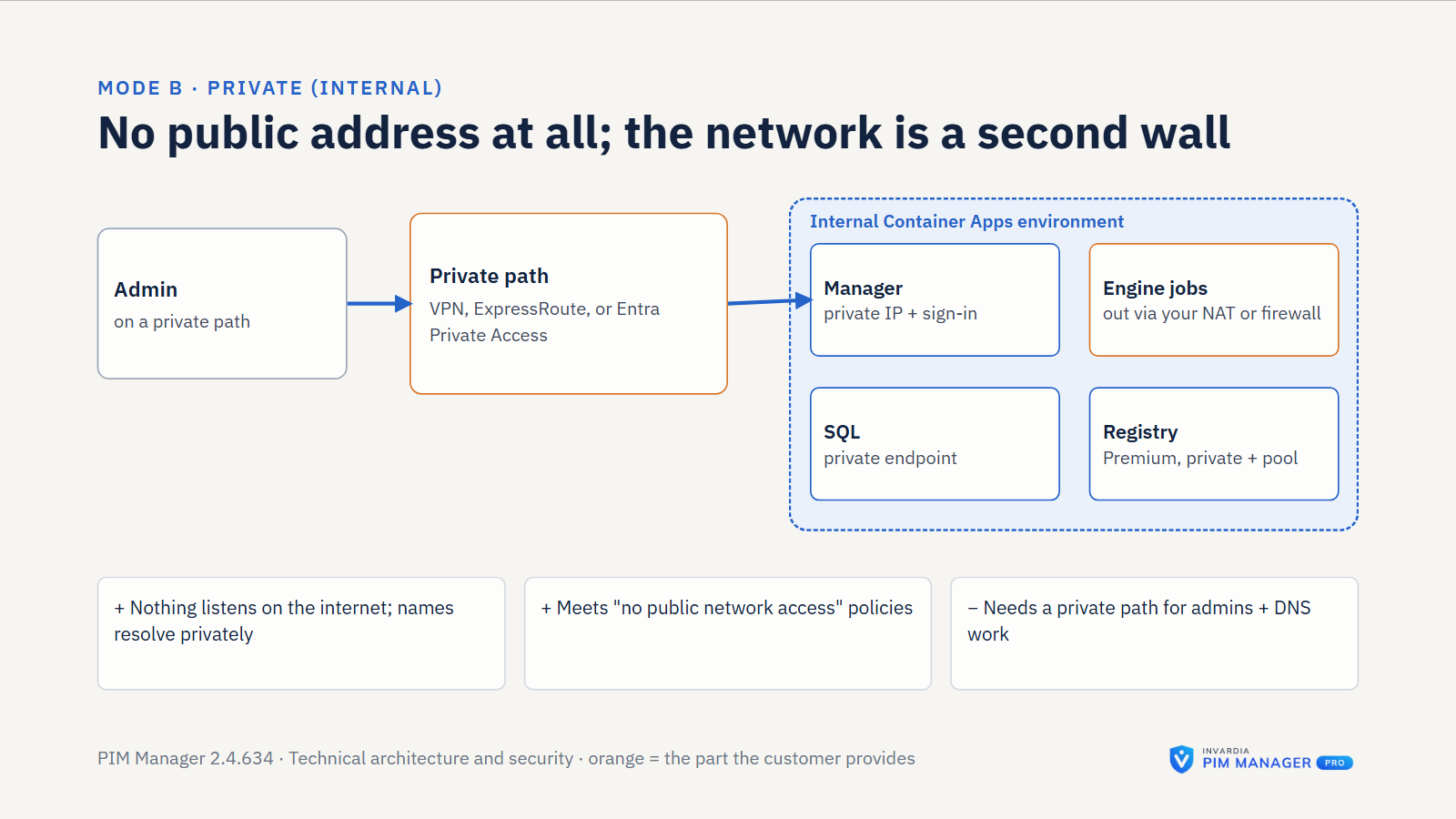
- Private. PIM Manager is reachable only from your virtual network and peered clients. Azure SQL gets a private endpoint and its public access is off. The registry is Premium, because Basic has no network controls. Sign-in is still required. You deploy private from the start with the deploy script, and the hub network owner runs a prepared script for the peering and DNS links.
Setup checks that the Azure region you choose offers every service PIM Manager needs. A public environment can be rebuilt as private with a conversion script, and PIM Manager’s address changes. Private is recommended for production. The engine job has no inbound endpoint in either mode.
For Pro MSP, each managed tenant reads the managing tenant’s one signed baseline file: through a private endpoint when the two networks are connected, or as a read of that one file from the networks the managing tenant names. The signature, not the network, is what the managed tenant relies on.
Sign-in and access layers
Access to PIM Manager is layered. Each layer is enforced on the server, not only hidden in the browser.
- Network. In private mode, only your virtual network and peered clients reach PIM Manager. In public mode you can add IP allow-rules.
- Identity. Microsoft Entra sign-in through the sign-in front, for the people and groups you assign. The front removes any identity header a caller sends and passes on only the user’s token, which PIM Manager verifies on each request; a request without it is refused. A session lasts 8 hours by default and is not extended by activity. The front renews the user’s token from Entra ID about once an hour, so disabling the account or revoking its sessions ends access at the next renewal. Your Conditional Access and MFA rules apply at each sign-in; PIM Manager does not enforce MFA itself.
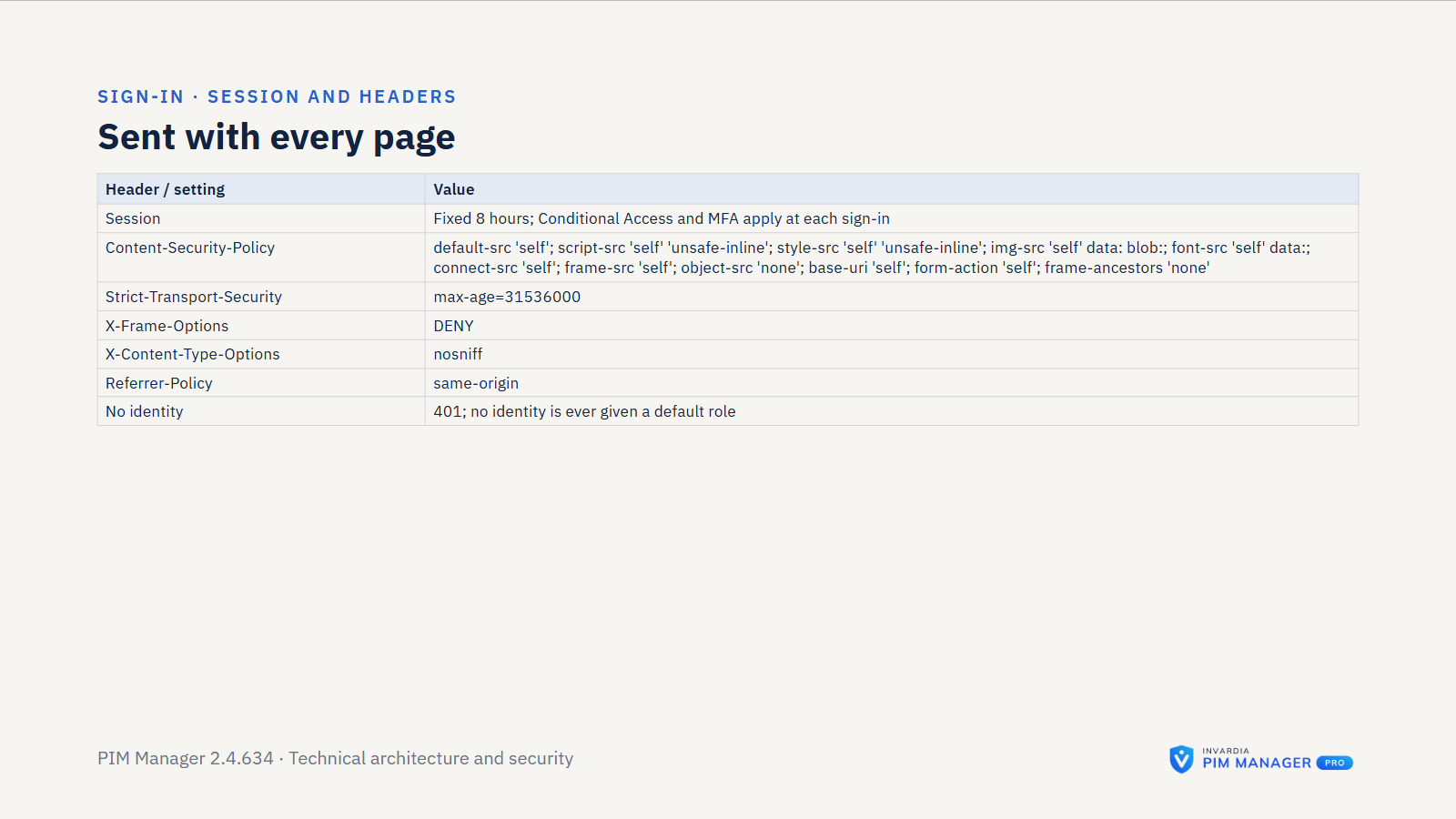
- Browser hardening. Pages are sent with a content security policy that allows only the app’s own sources, HSTS, no framing by other sites, no content-type sniffing and a same-origin referrer policy.
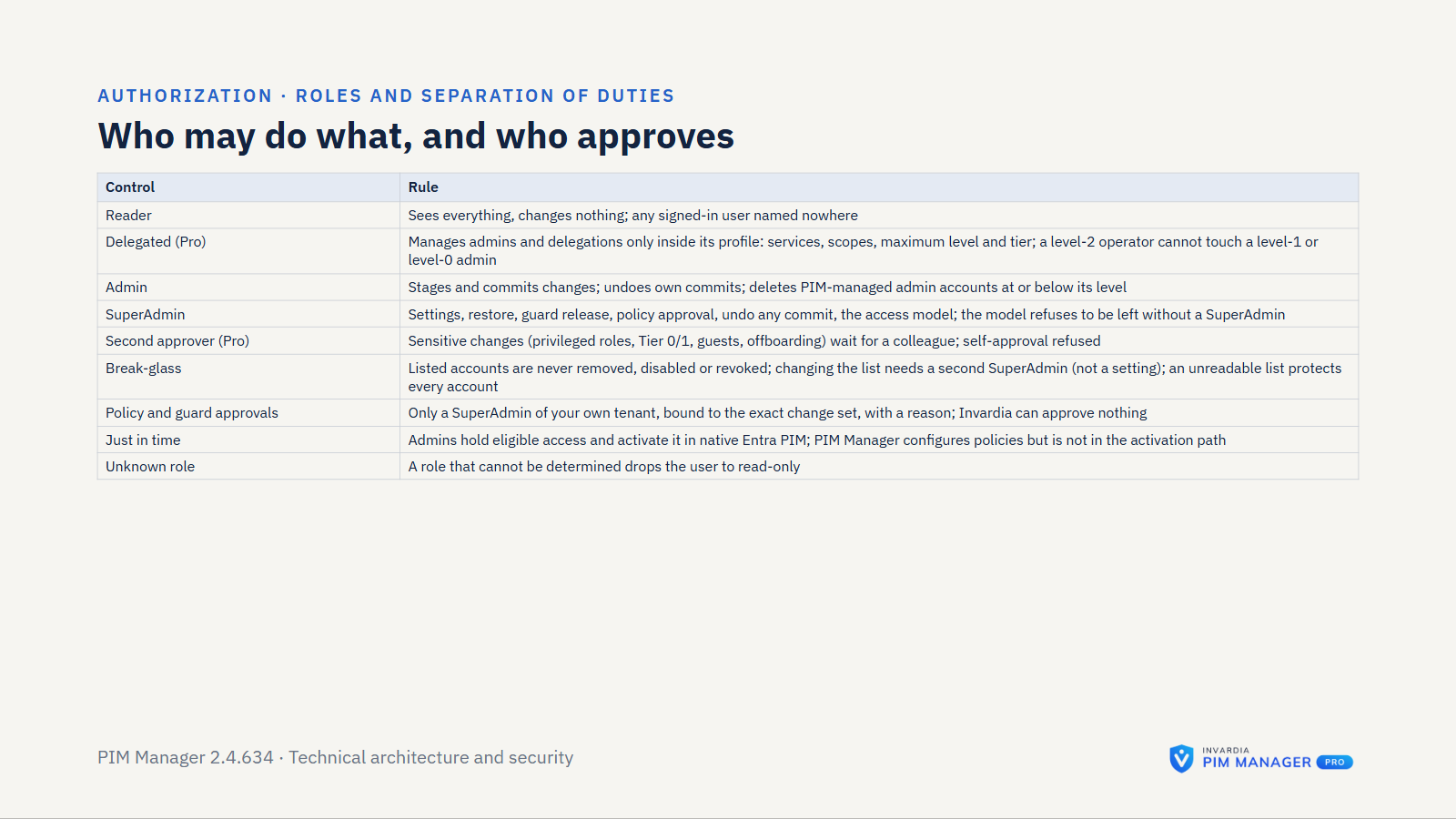
- Role. Each user is a Reader, Admin or SuperAdmin. Readers view. Admins stage and commit changes. SuperAdmins also edit templates and policies, approve guard holds and policy change sets, manage PIM Manager access and use the emergency override. Someone who signs in but is named nowhere becomes a Reader, and if a role cannot be determined the user gets read-only access. The access model refuses to be left without a SuperAdmin.
- Delegated administration (Pro). Delegated users are limited by tier, level, service and Azure scope. They stage and commit only the rows within their ceilings. Anything outside their scope is refused and audited.
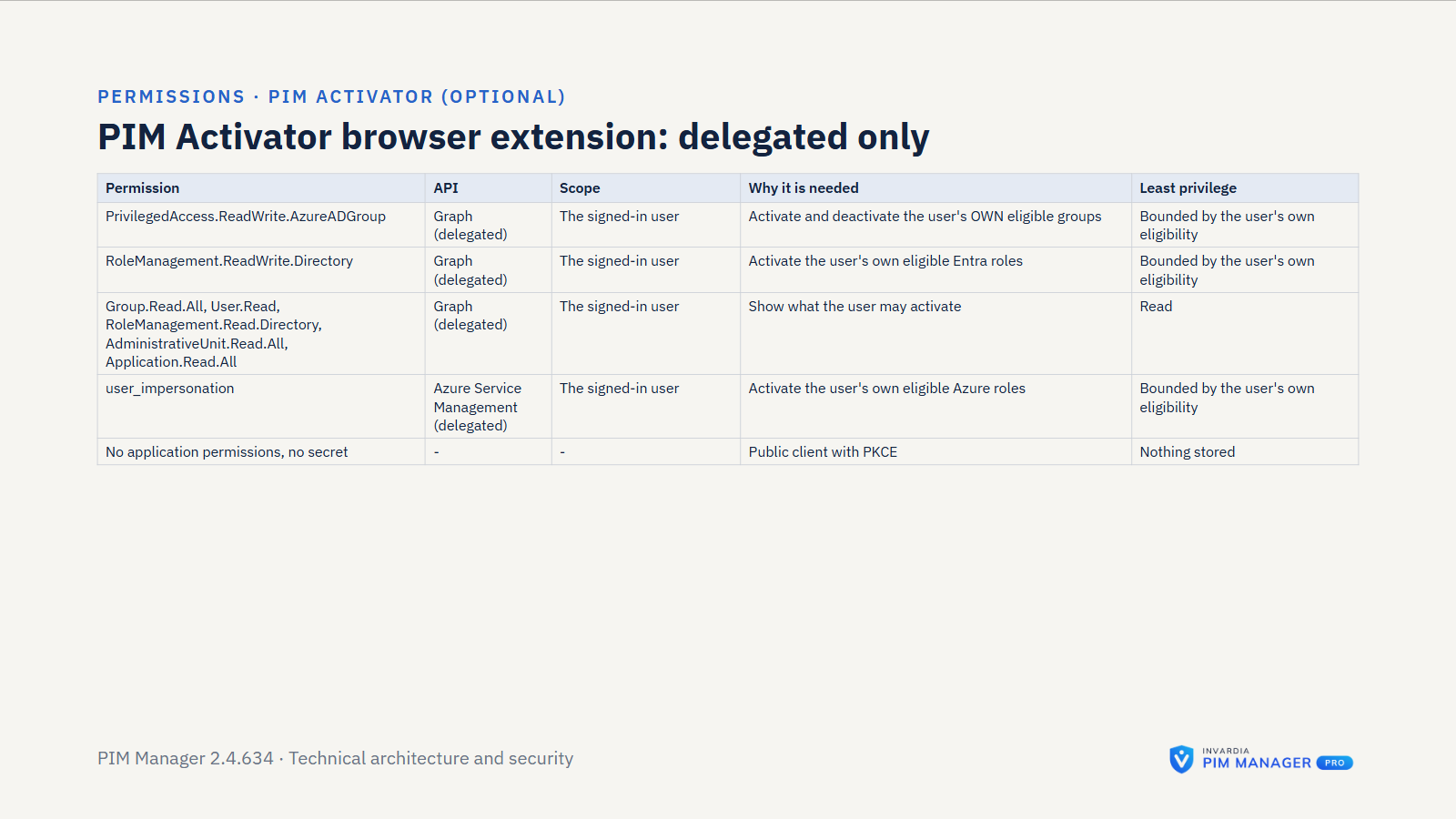
Privilege follows the tier model (T0 to T2) and levels L0 to L9. PIM Manager grants access through group membership. Approval of a role activation stays with native Entra PIM, which the engine configures; PIM Manager is not in the activation path.
Change control
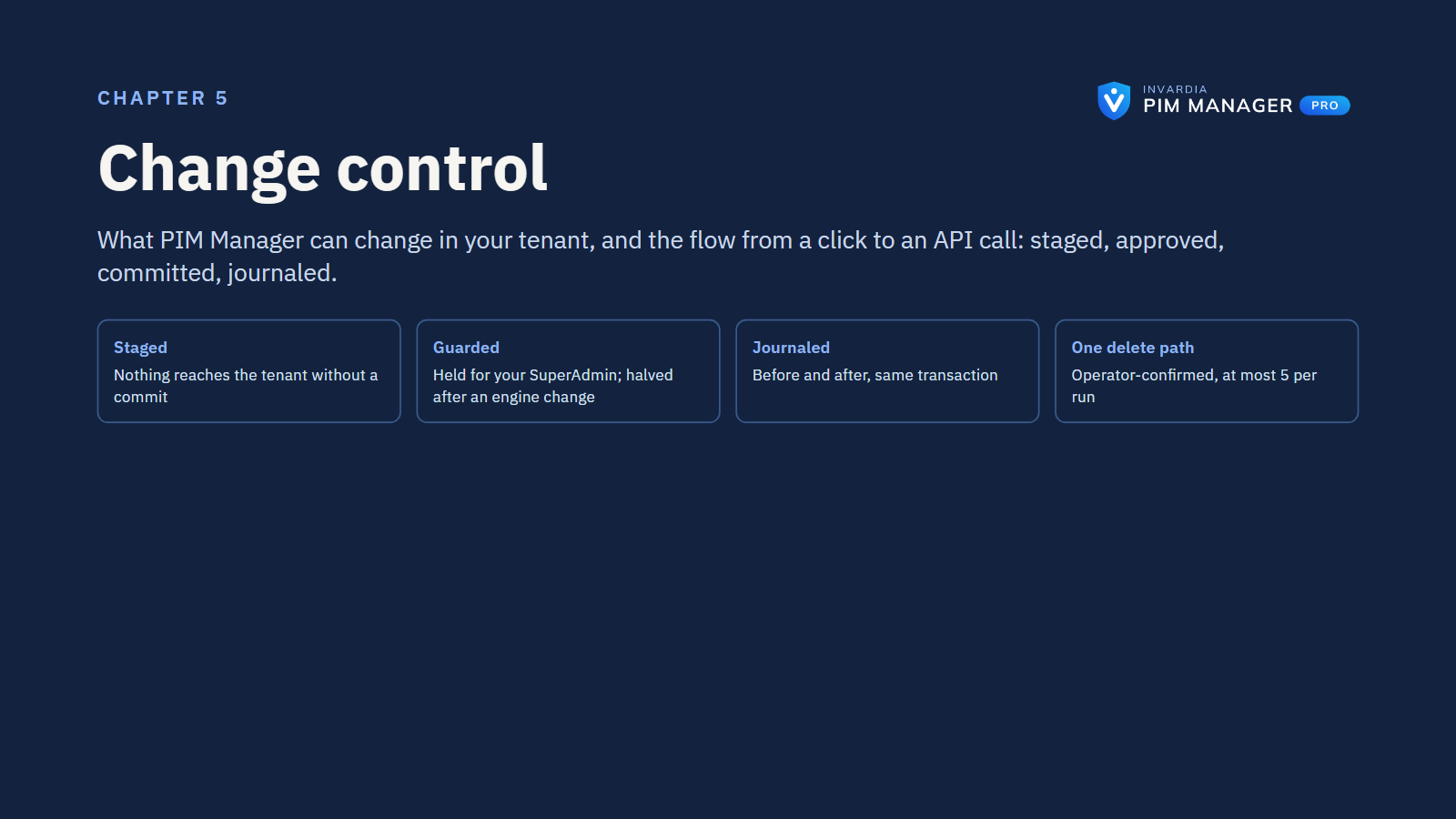
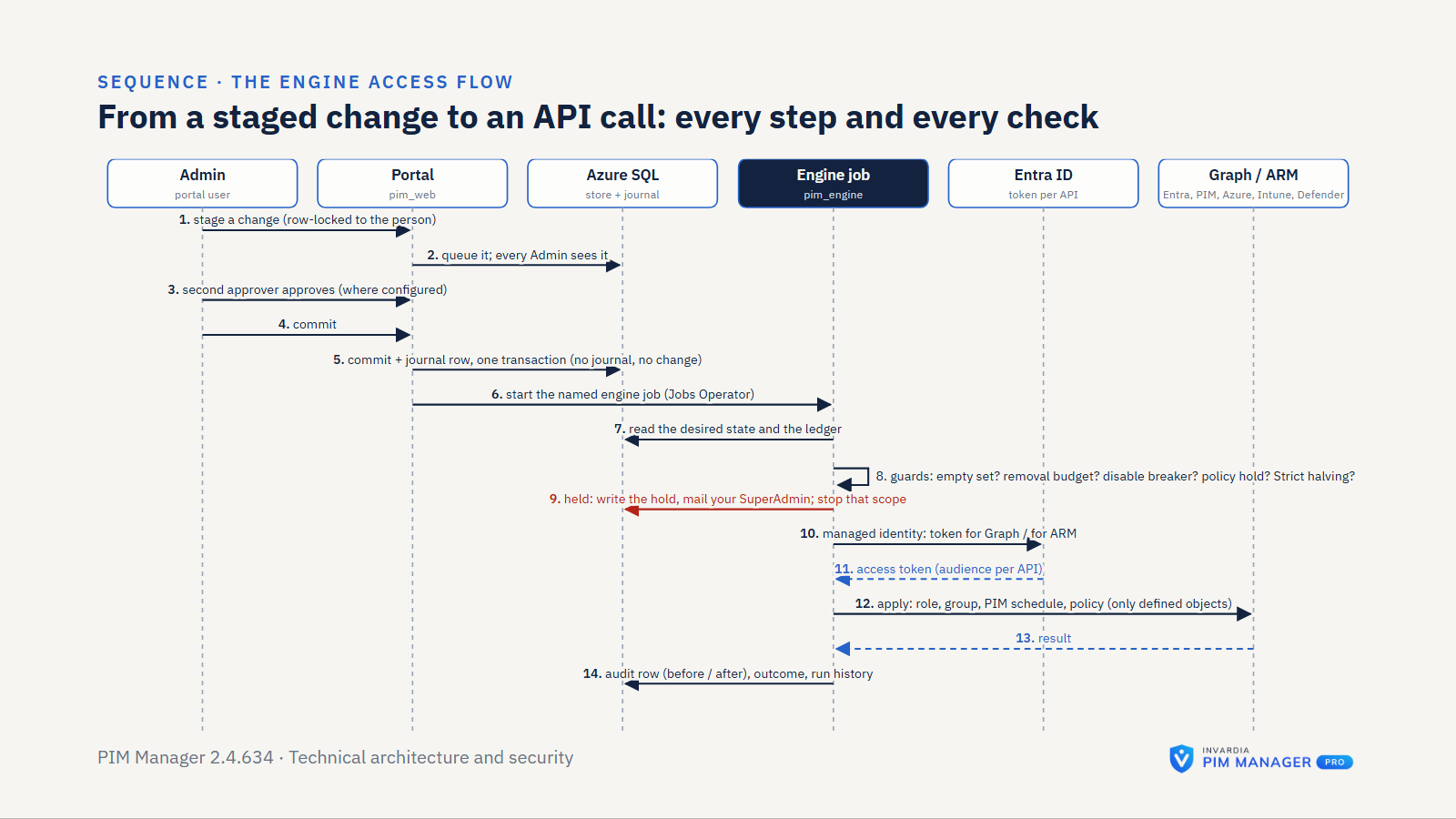
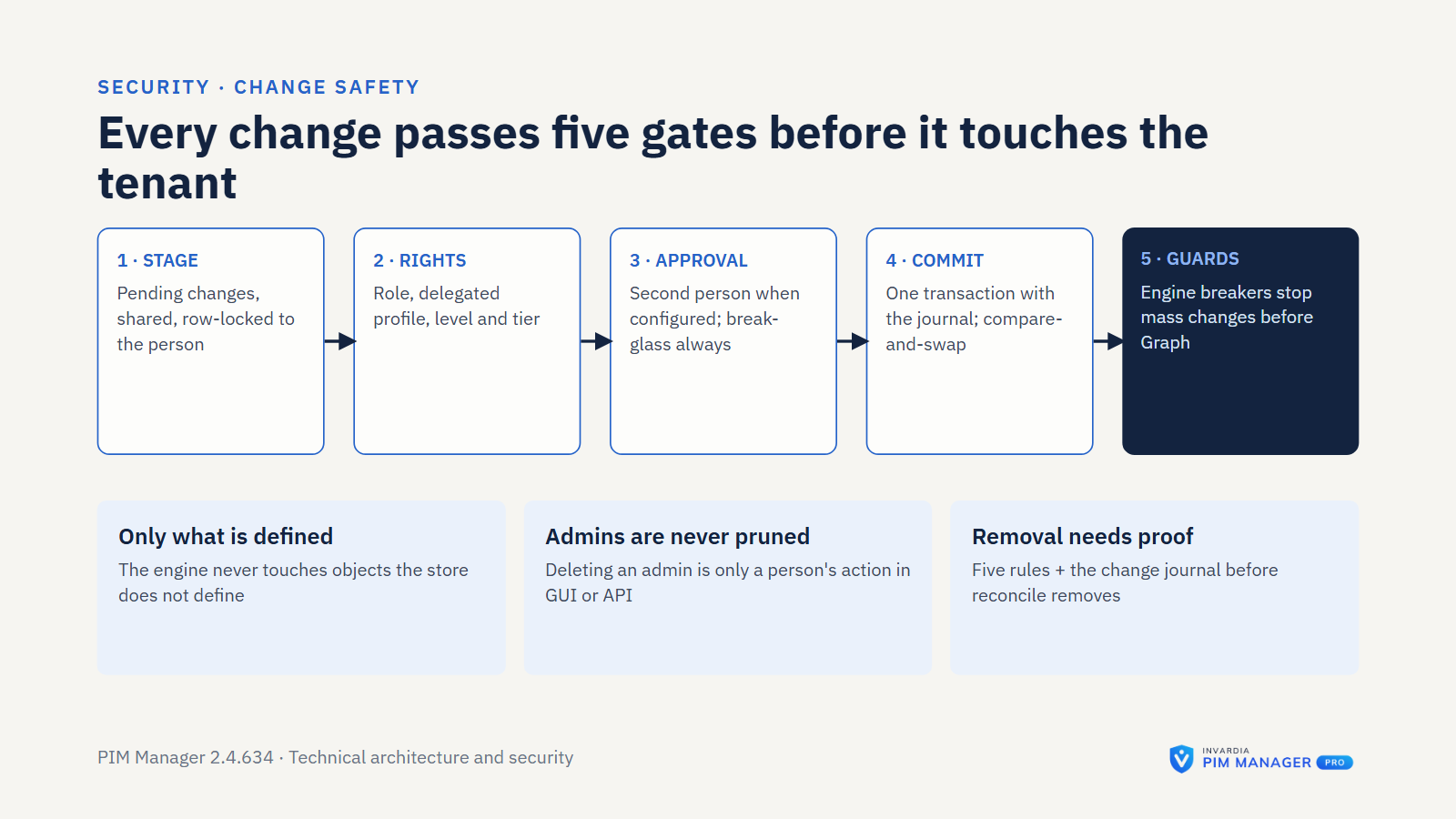
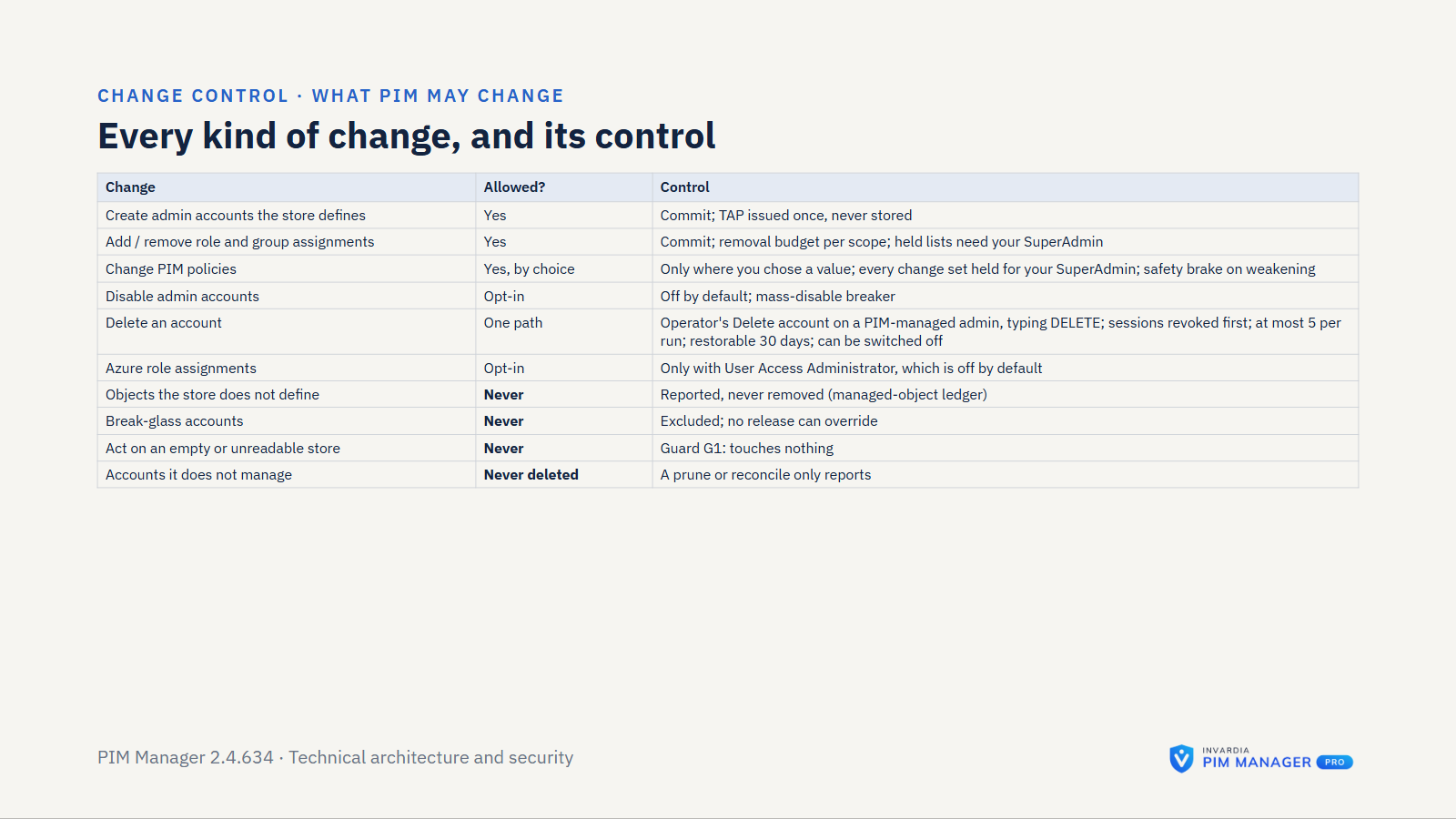
- One Pending-changes queue. Configuration edits and directory actions (revoke, Temporary Access Pass re-issue, session revoke) wait in one queue until someone commits them. Nothing you stage is committed automatically.
- Automatic paths you control. Some writes follow rules you set instead of a commit: the daily reconcile, auto-extend of time-bound assignments, the auto-disable date, automatic offboarding (off by default), consultant disable after a company review (Pro), access requests (Pro, off until you switch them on), the managed tenant pull (Pro MSP), the hybrid worker (Pro), the mail sender, the updater (Pro) and the Invardia Support app if you create one. The docs list each path and who authorizes it.
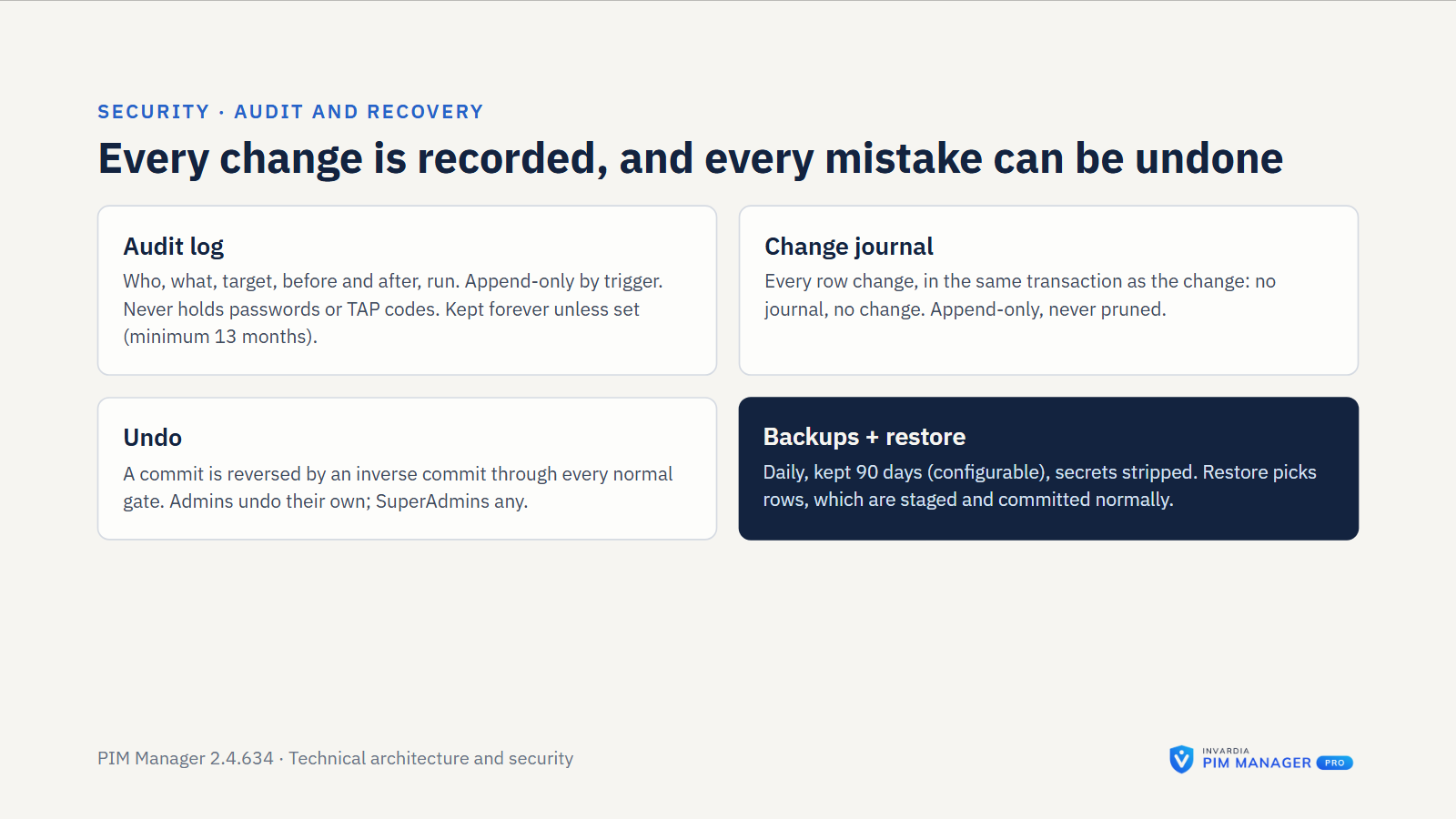
- Backed up first, reversible. Each commit backs up the stored model first and saves it in one database transaction; if saving fails, the stored model is restored. Changes already made in your tenant are undone through Backups or by committing the inverse: a SuperAdmin can undo any commit, an Admin their own.
- Shared and locked. Every administrator sees every staged change and who staged it. A staged row is locked to the person who staged it. A commit against changed data is refused, not merged over. An Admin can discard a colleague’s staged change with a reason, and it is audited.
- Second approver (Pro, off by default). When a SuperAdmin switches it on, a sensitive change (a privileged role or scope, tier 0 or tier 1, a guest in a privileged group) waits for a second administrator. Its requests use the approval request queue on Approvals, which acts only when a SuperAdmin switches on Approval-gated offboarding + revoke (off by default).
- Self-approval, scoped. An approver cannot approve their own request, with these exceptions: the setting Allow an administrator to approve their own requests (off by default, only a SuperAdmin can switch it on, audited, meant for a tenant with one administrator); a SuperAdmin may approve the policy change set from their own saved policy choices; and the break-glass list, which needs a second SuperAdmin unless self-approval is on.
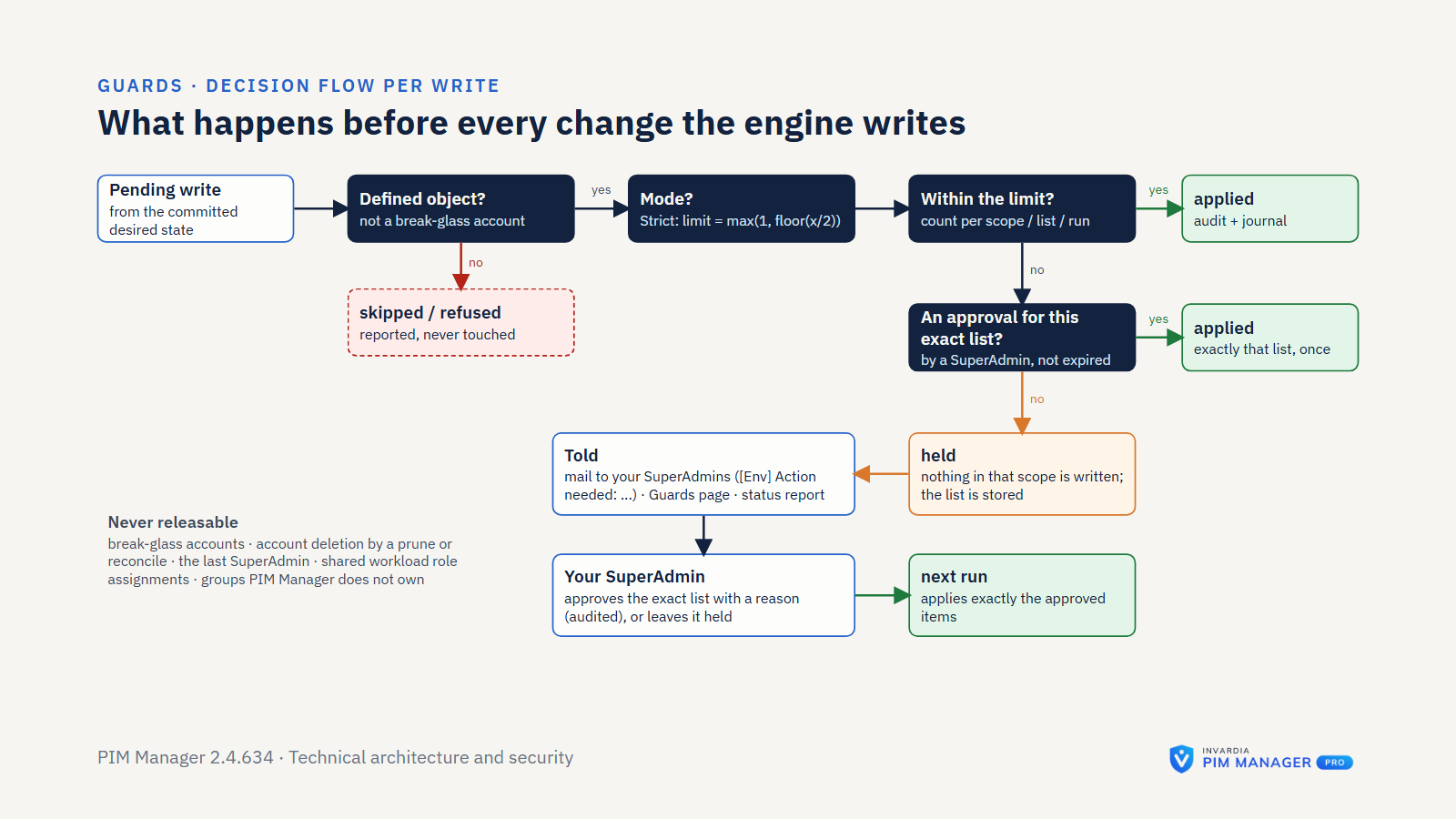
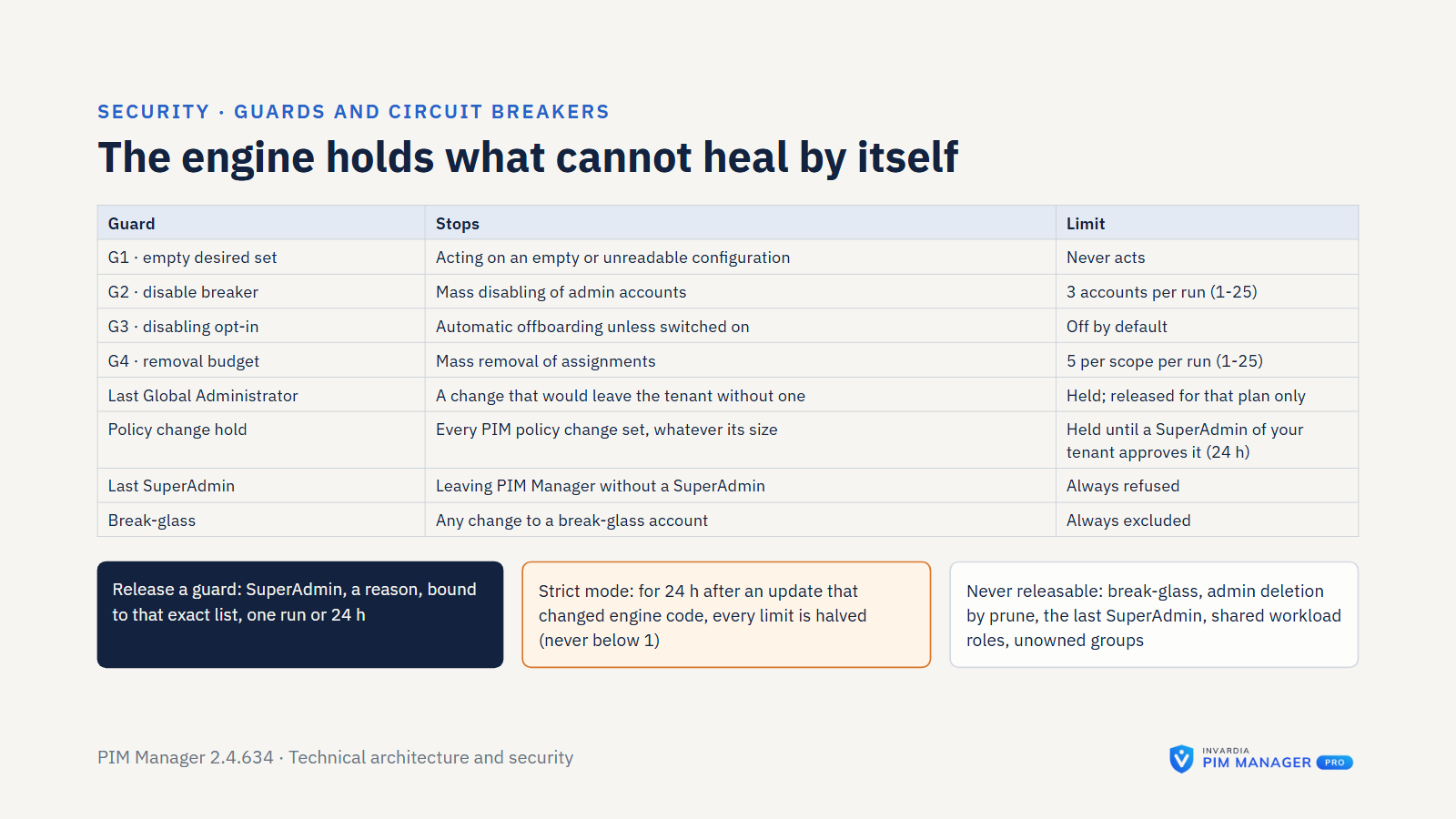
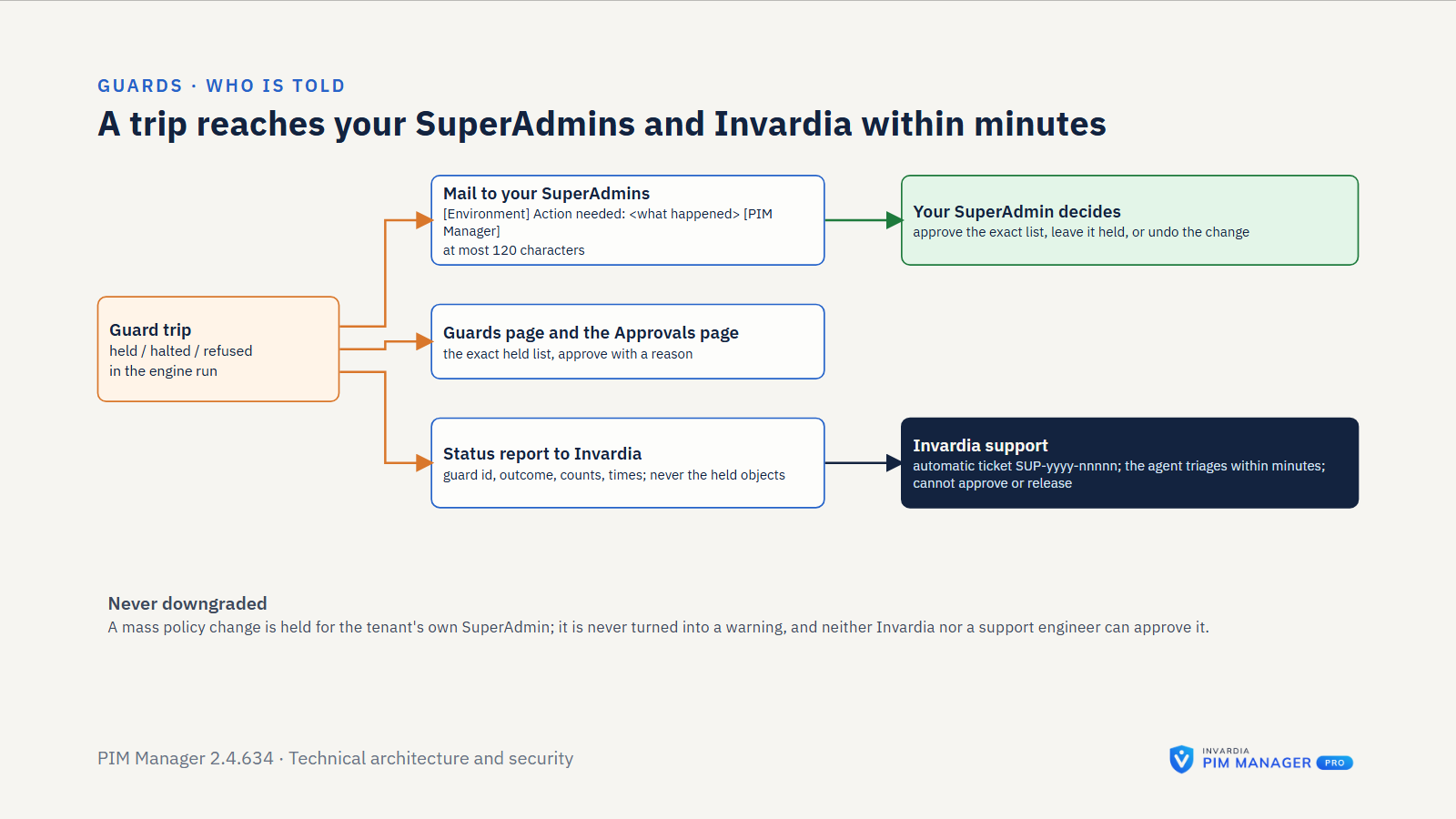
- Policy brake. PIM Manager changes no PIM policy on its own. After a SuperAdmin saves policy choices, every resulting policy change set is held on Approvals, listing each setting as current and new and how many of them weaken a setting. Any SuperAdmin approves it, and the approval covers exactly that change set for 24 hours. Approve all approves each waiting change set separately, each for its own exact plan and with its own audit record; a change set that differs afterwards waits again. For a second pair of eyes, download the change set for your change board before you approve.
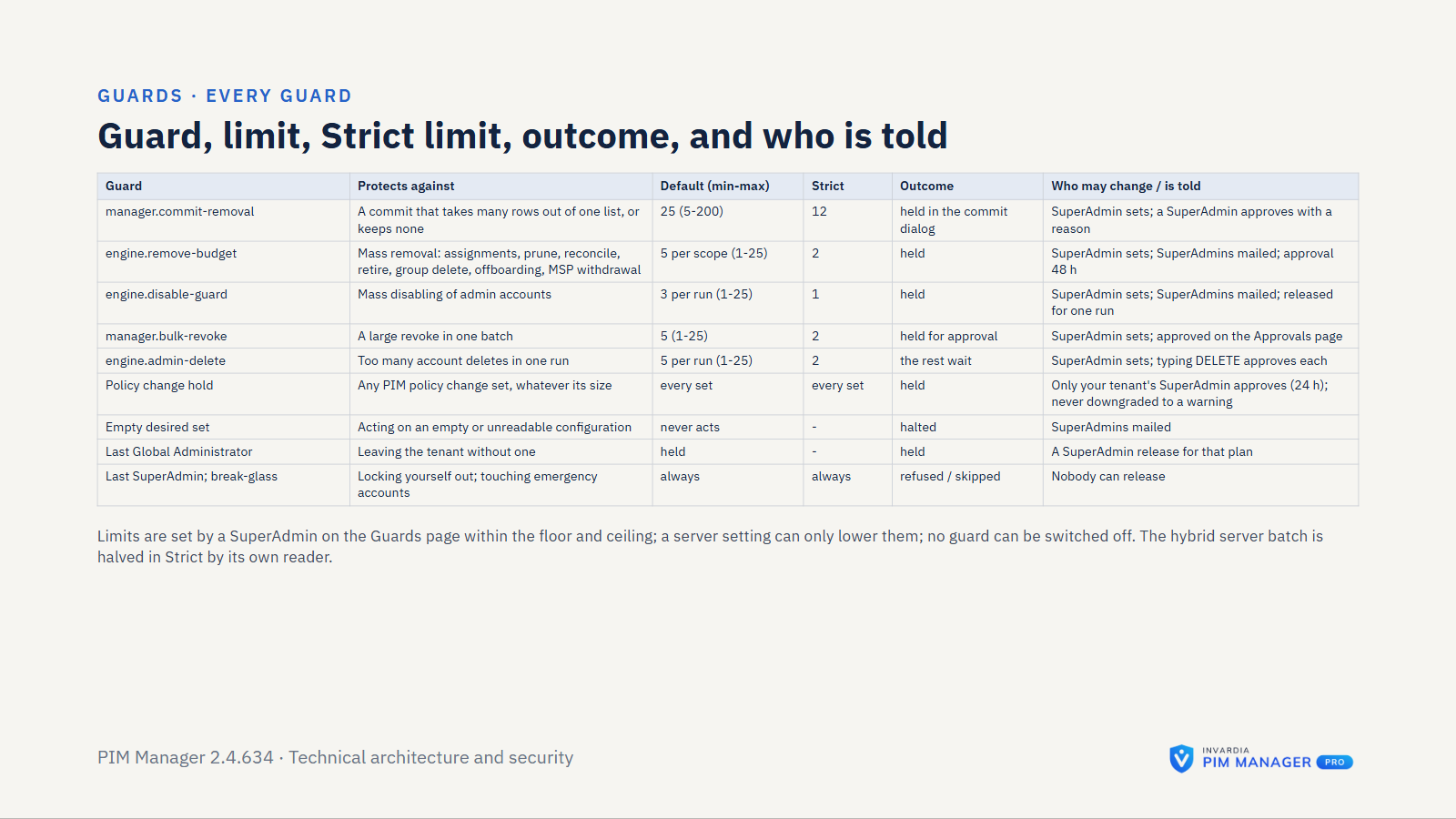
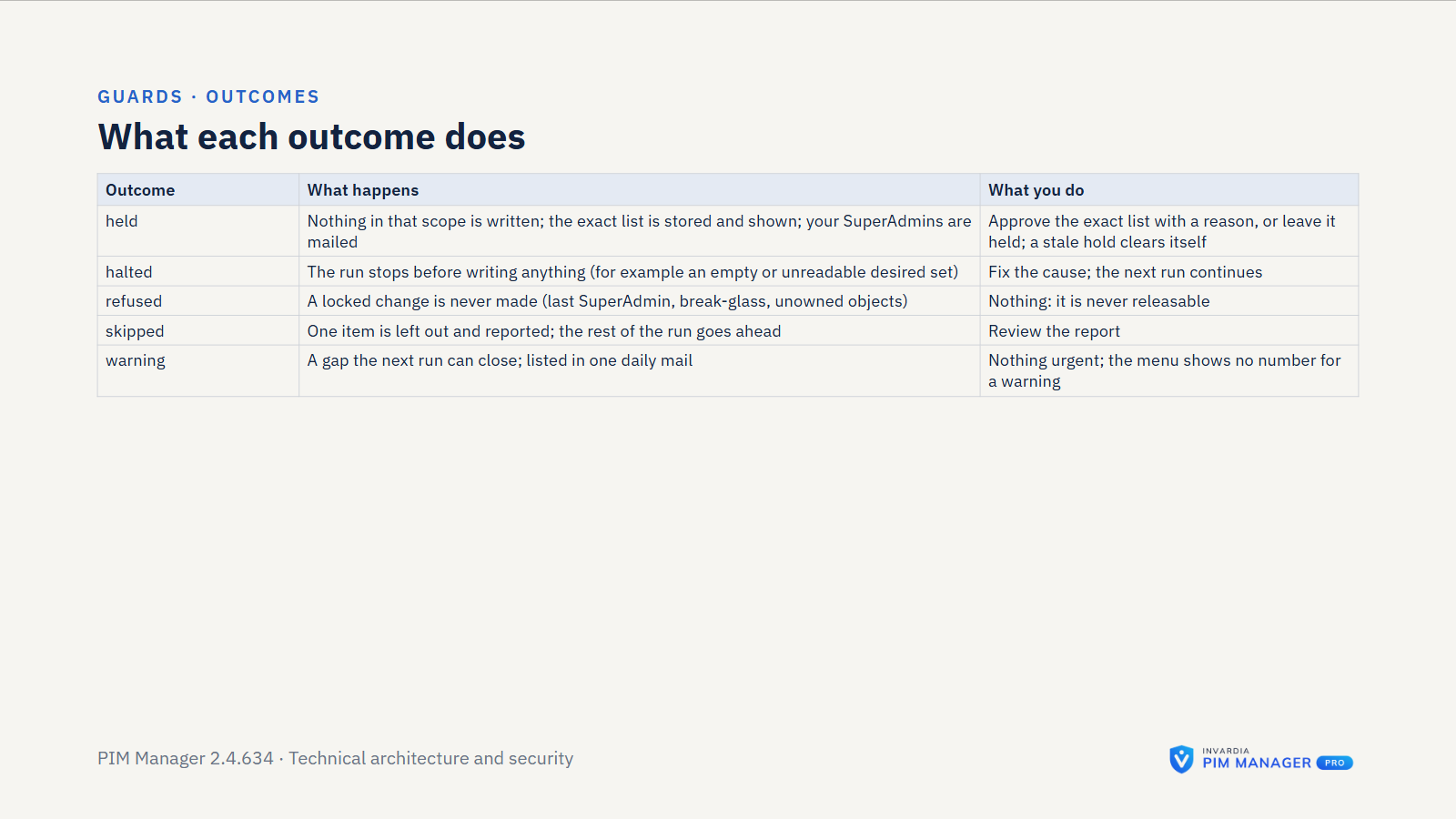
- Guards. A SuperAdmin sets numbered limits inside fixed ranges: rows one commit may take out of one list (default 25), removals per scope per engine run (5), accounts disabled per run (3), assignments revoked in one batch (5) and accounts deleted per run (5). Above a limit, the run changes nothing in that scope and holds the list for a SuperAdmin. With Require a second person, a different SuperAdmin approves guard releases.
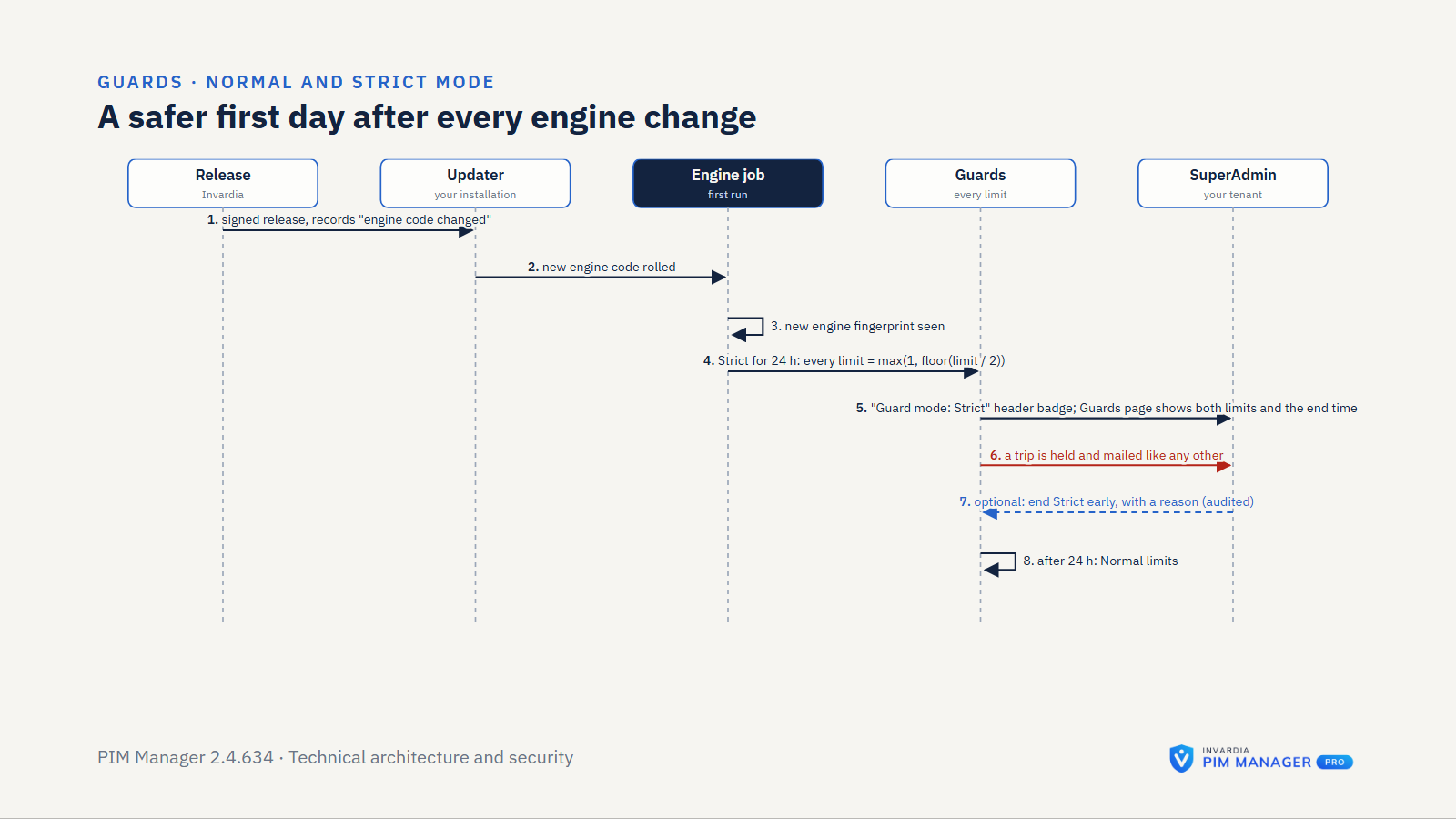
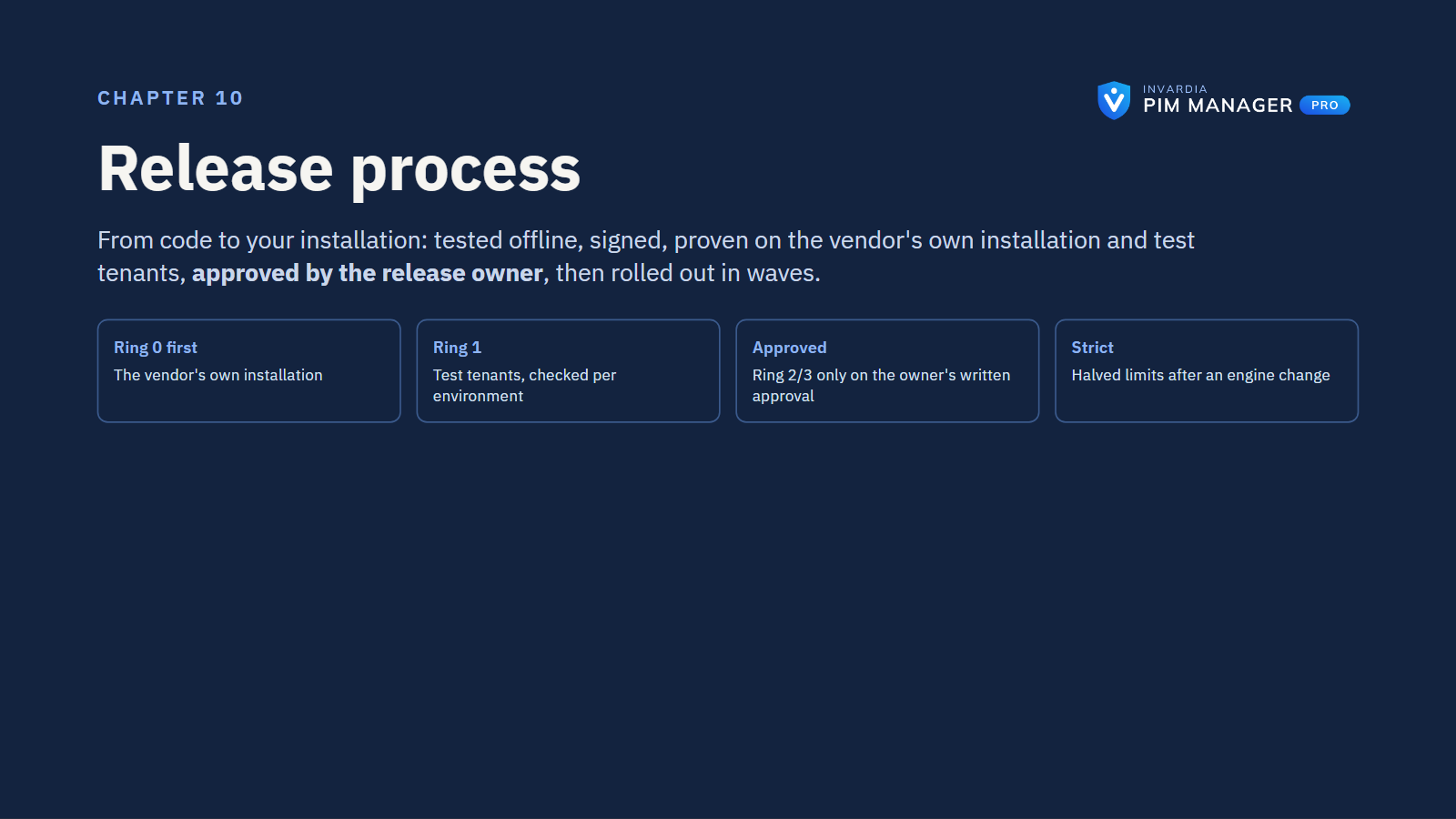
- Strict guard mode. For 24 hours after an update that changed engine code, every numbered limit is halved, never below 1. The Guards page shows the configured and the effective limit and when Strict ends. A SuperAdmin can end Strict early with a reason, which is audited. The first run on a new install only records the engine’s fingerprint.
- Touches only what is defined. The engine changes only objects your data defines. If the database defines nothing, the engine reads and writes nothing. It does not remove, disable or revoke your listed break-glass accounts. An object PIM Manager does not own is reported and not removed automatically; a SuperAdmin can delete it from the Drift page, as a commit.
- Offboarding by one administrator. One administrator can remove an admin from PIM, or disable or offboard an admin at once. A second administrator approves first only for a sensitive admin (level L0 or tier T0, the high-privilege naming pattern or Purpose HighPriv) or when the Pro second approver is on. That approval uses the Approvals page, which acts only when a SuperAdmin switches on Approval-gated offboarding + revoke (off by default). A request for a break-glass account also waits for a second administrator, and even an approved request does not offboard it: the engine excludes break-glass accounts.
- Automatic offboarding is off by default. With it off, an auto-disable date only disables the account on its date. With it on, the engine also revokes sign-in sessions and removes memberships and eligibilities in the groups PIM Manager defines. Neither deletes the account.
- Account deletion by a person. No date, reconcile or engine pass deletes an account, and PIM Manager does not delete an account it does not manage. Delete account on a PIM-managed admin account is decided by one person: a SuperAdmin, or an Admin whose delegated scope and level cover the account, typing DELETE with a justification. The engine then revokes the account’s sessions and deletes it, within the per-run limit. In an MSP setup, a managed tenant deletes at most one central admin per run, and only with the managing tenant’s SuperAdmin approval for that admin. Entra ID keeps a deleted user restorable for 30 days.
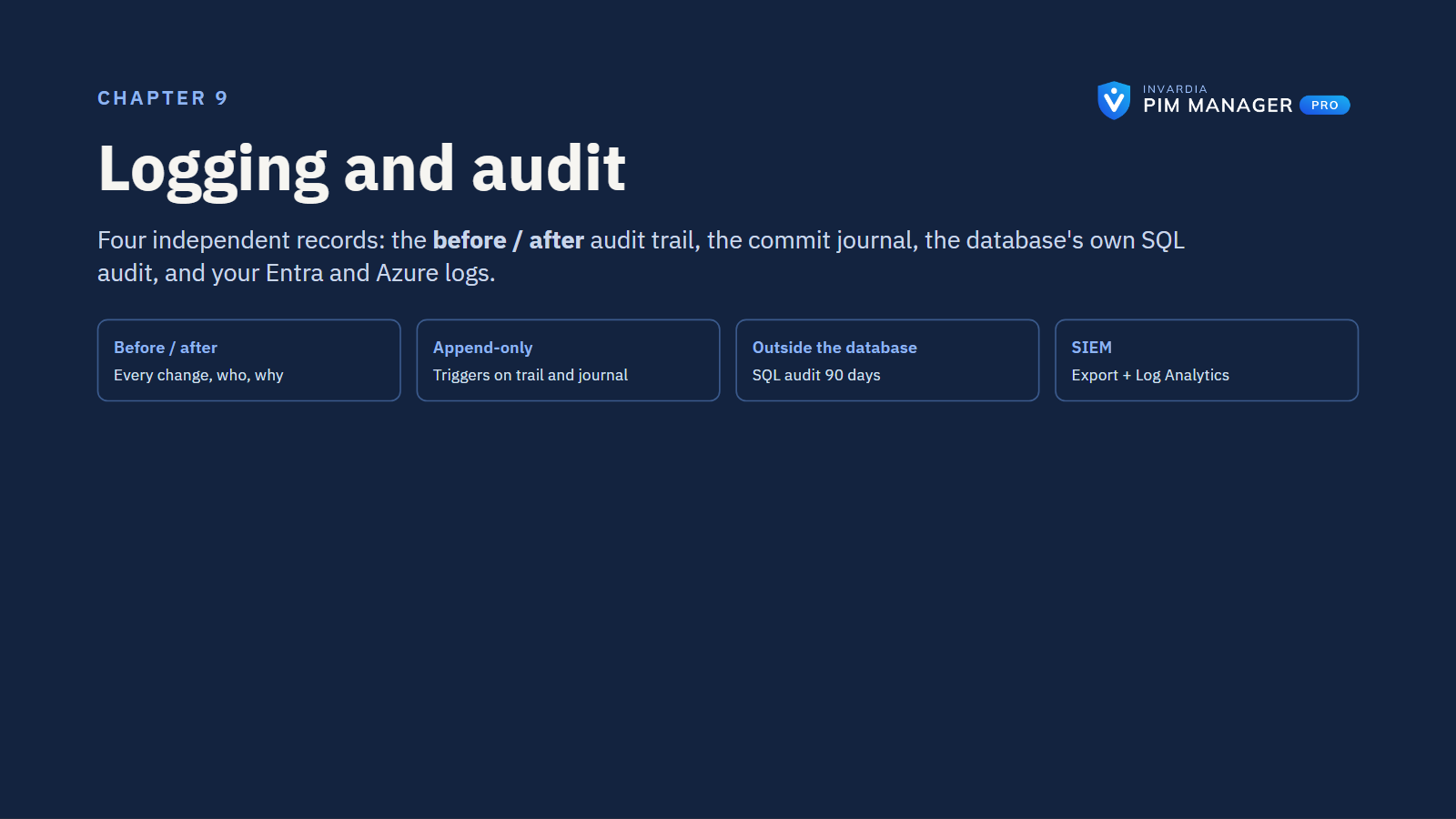
- Audit trail. PIM Manager and the engine write to one audit trail with before and after values. It is append-only for their identities, enforced by a database trigger; a database administrator can still change it. Exporting the full trail is available in Pro editions. Switch on Azure SQL auditing to keep a record outside the database.
- Mail you can sort. Mail subjects have one form:
[<Environment>] <Failed | Warning | Action needed:> <what happened> [<ticket>] [PIM Manager], at most 120 characters. The environment is the name your administrators gave the installation, and the severity word appears only when it matters.
Updates
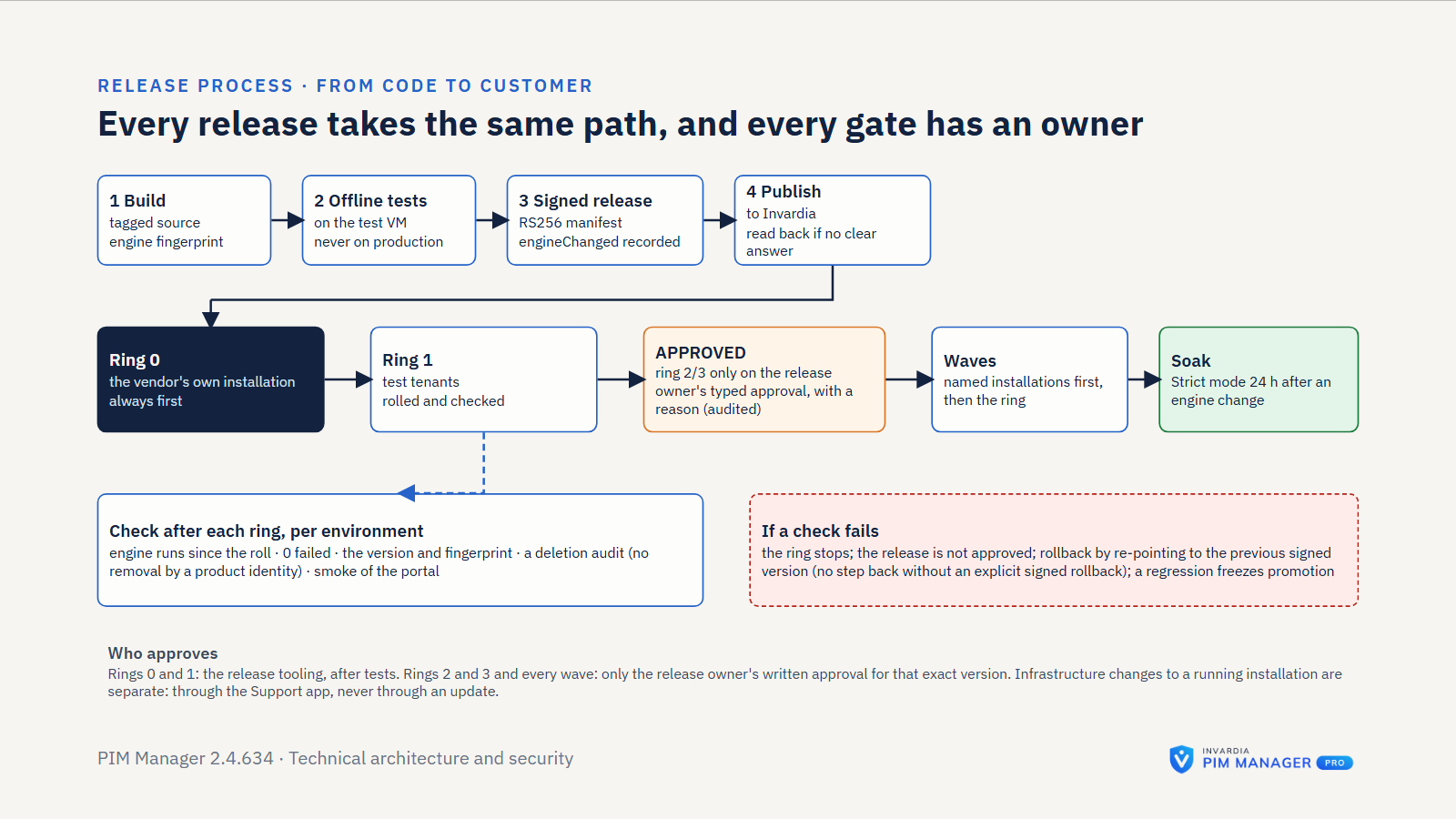
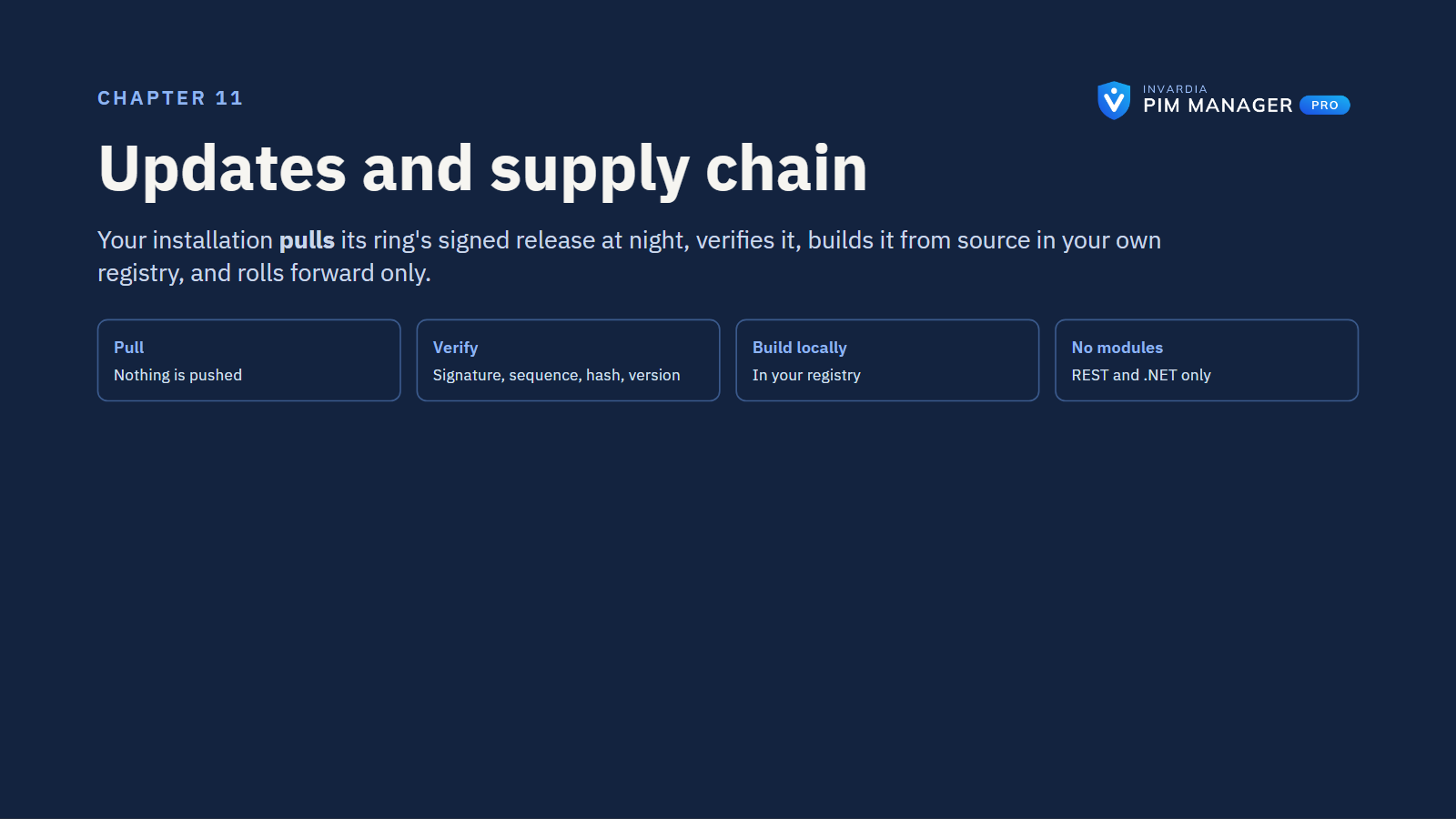
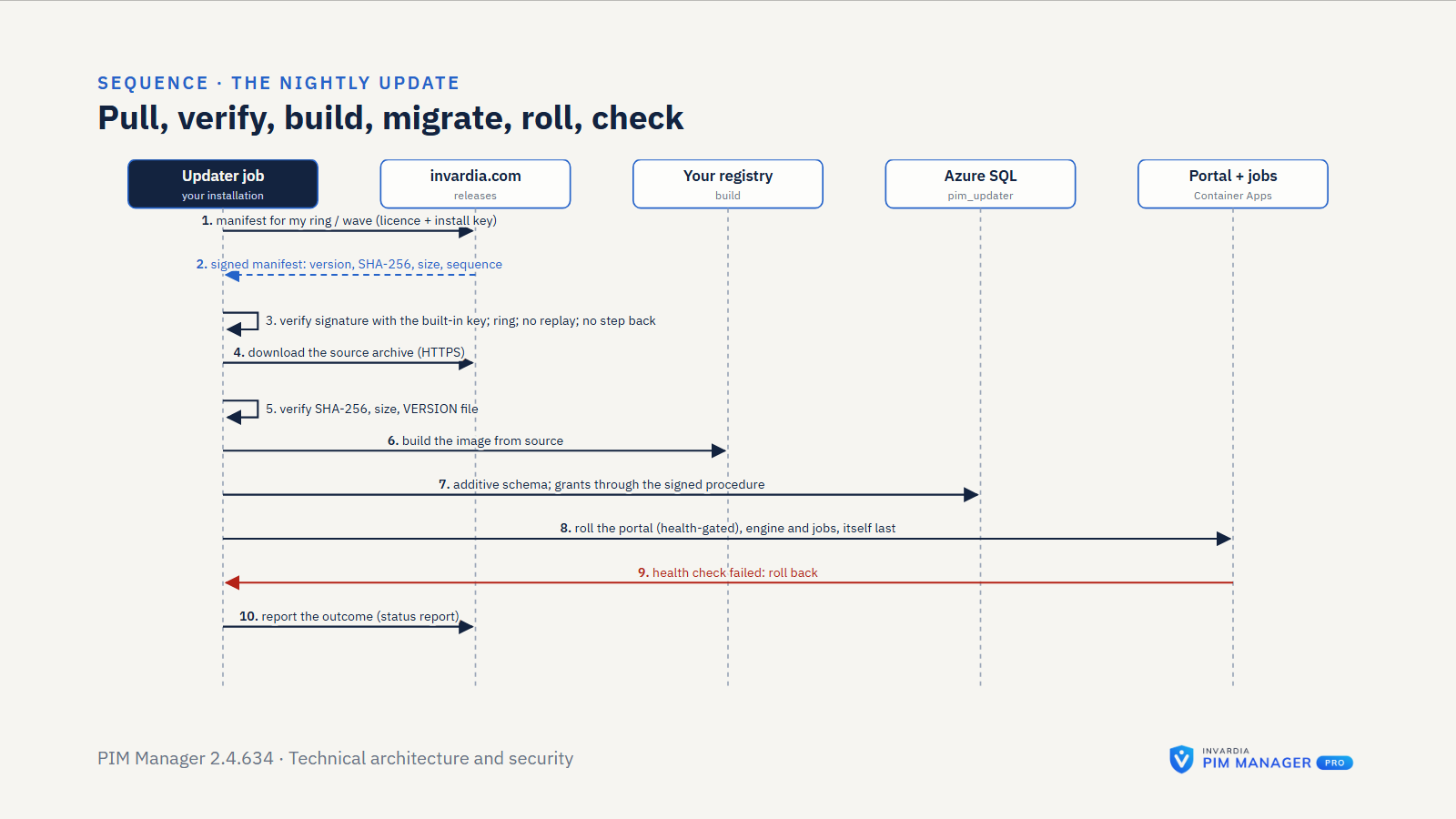
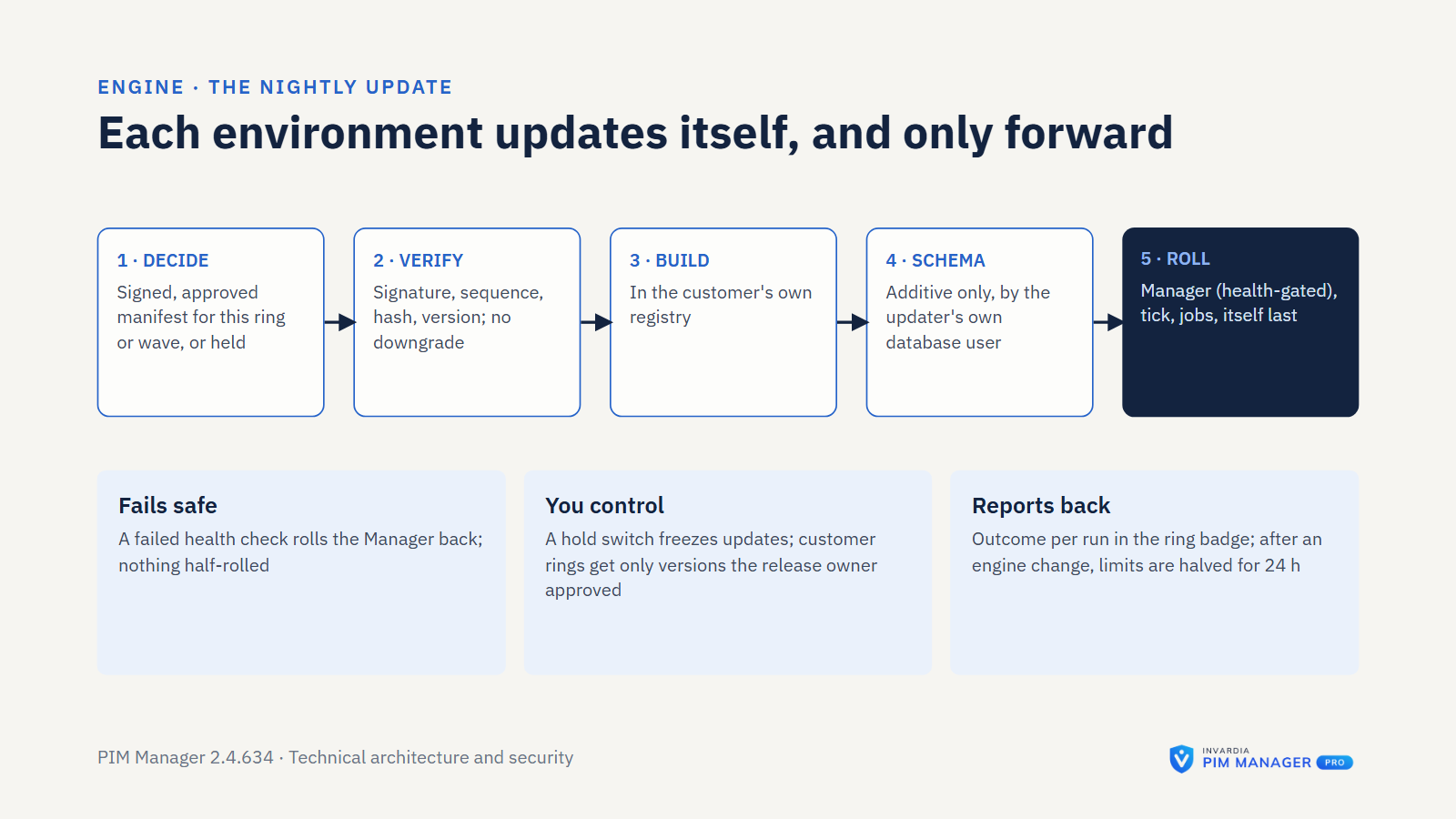
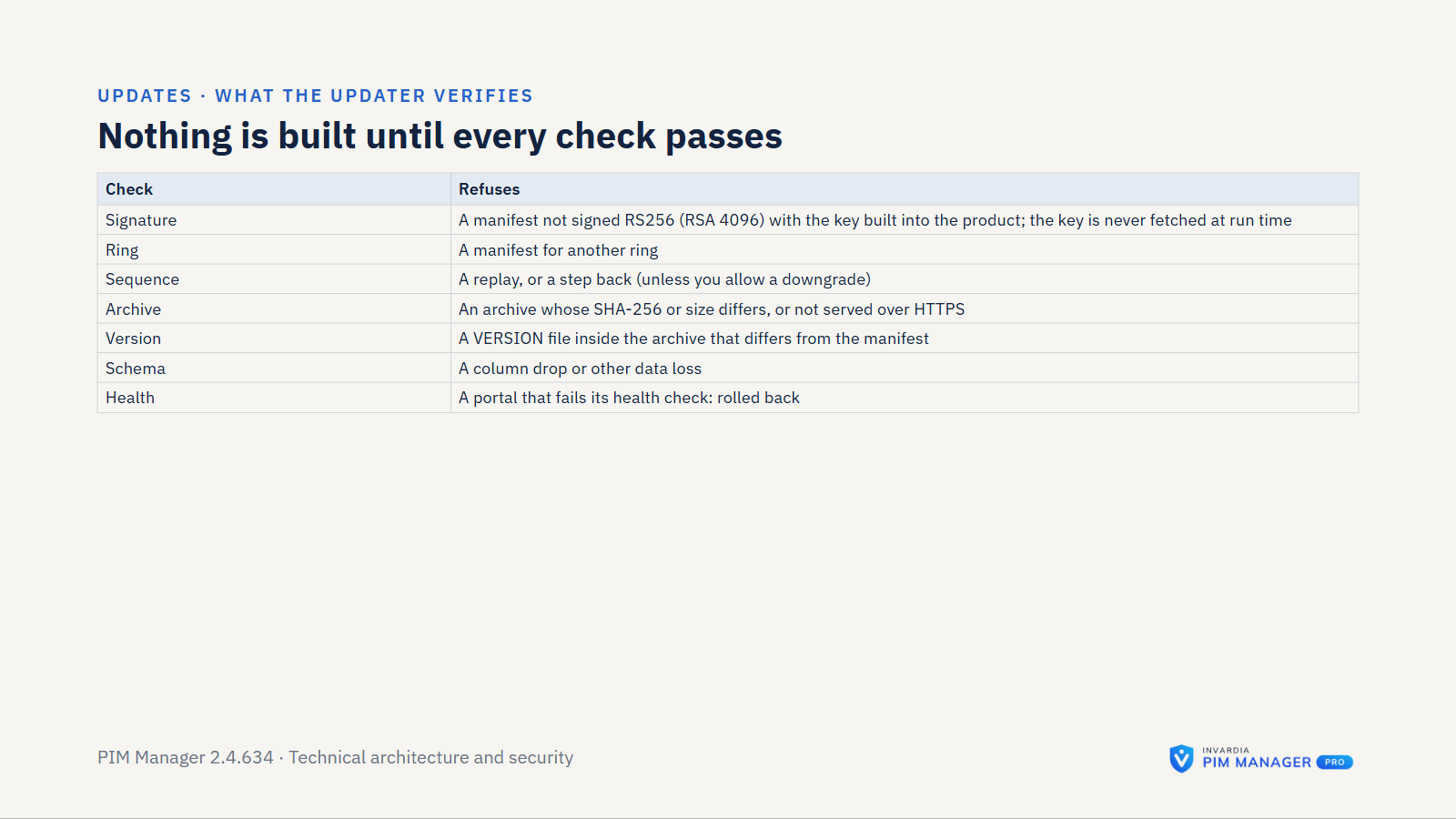
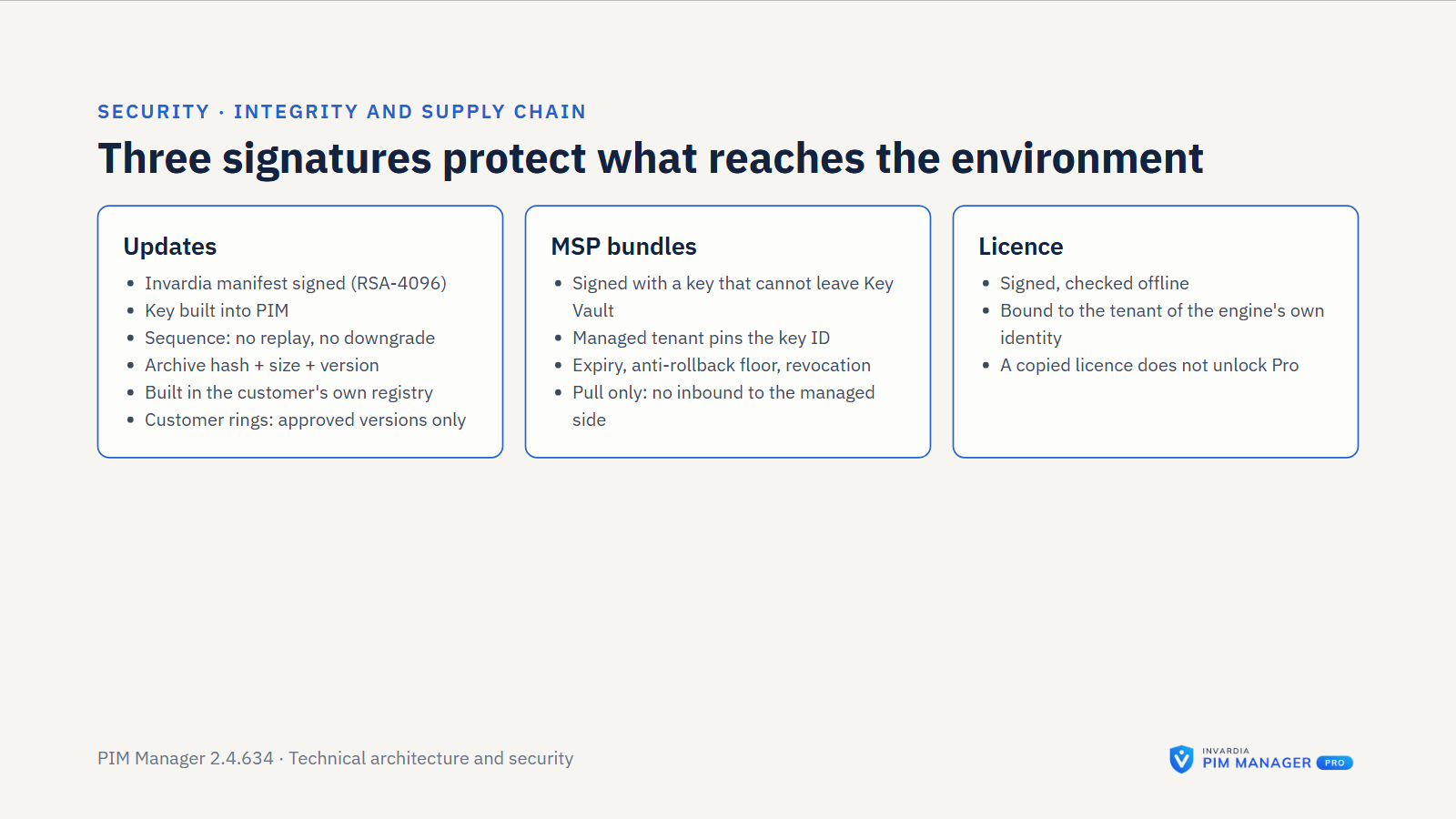
- Signed releases (Pro). The updater asks Invardia, outbound, which version is released for your installation. The release manifest is signed with RSA and SHA-256 and checked against public keys built into PIM Manager. It names the version, a sequence number, and the archive’s SHA-256 and size; an older sequence is refused.
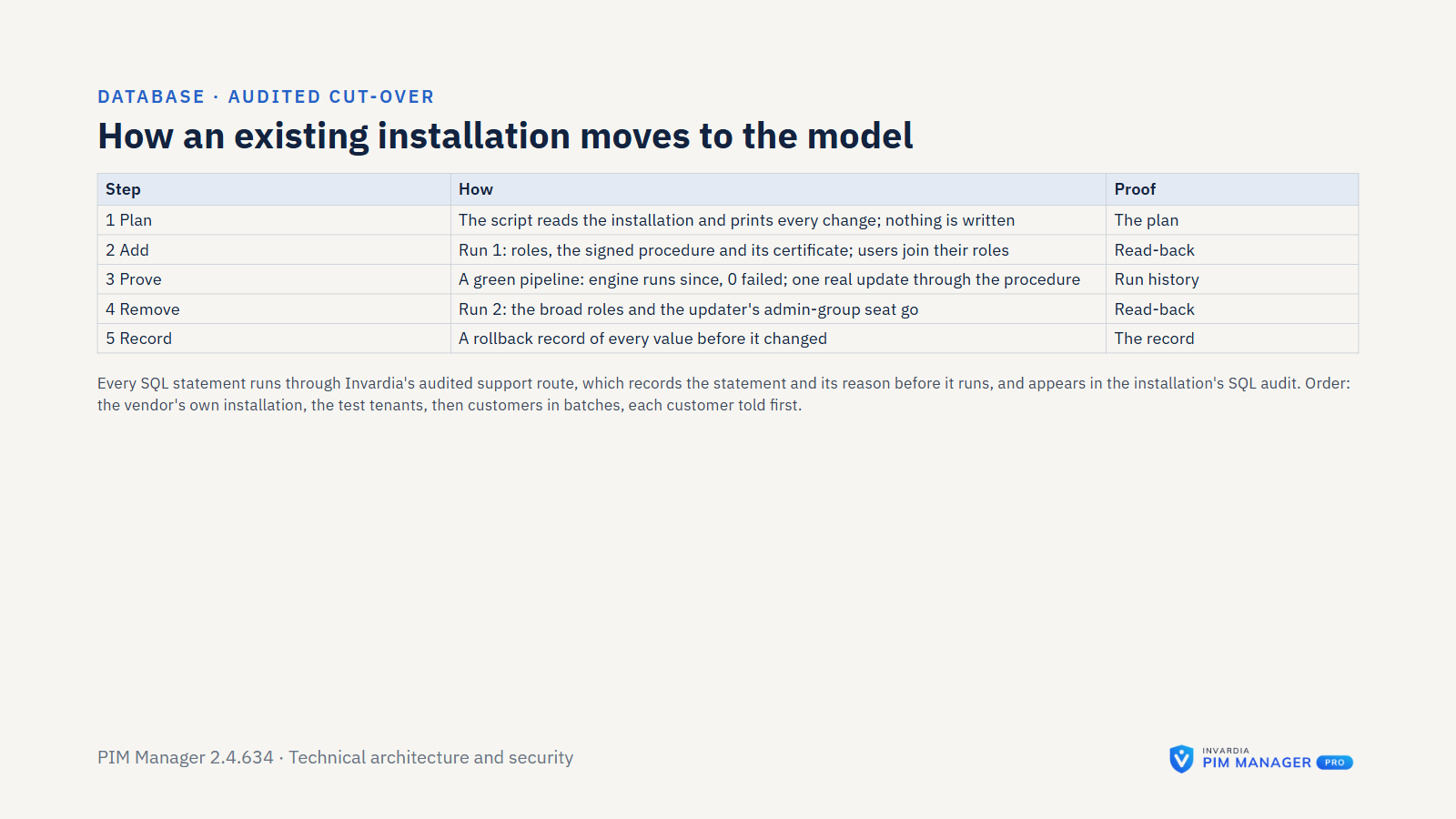
- Built in your registry. The updater builds the image from source in your own container registry; no pre-built vendor image is pulled. Additive schema changes are applied first, then each component is updated and health-checked, and a failed check rolls back automatically. A release that asks for a manual step is held. The updater does not move your installation to an older version by itself.
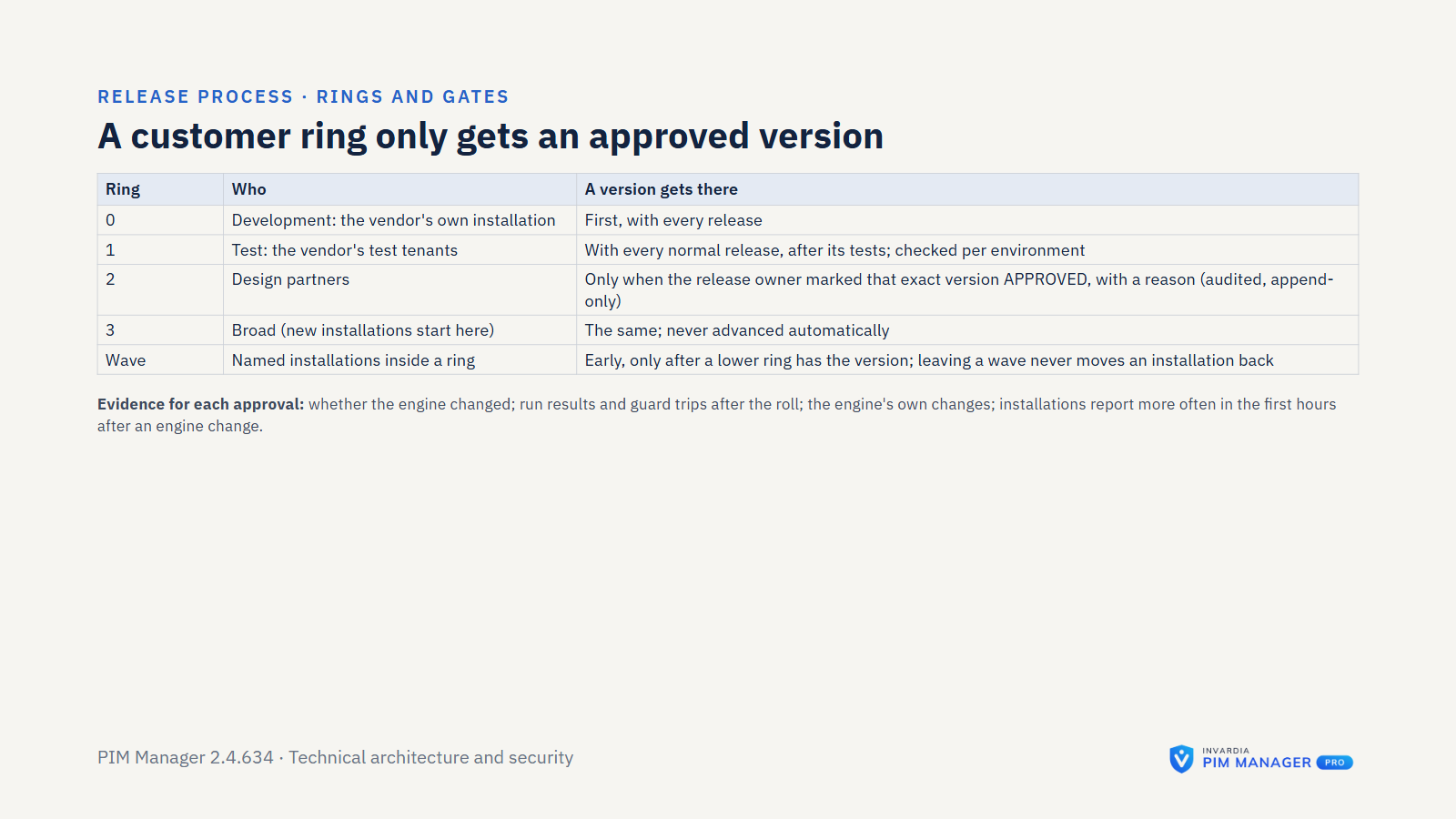
- Released after approval. Invardia releases a version to customer installations only after a person at Invardia has marked it approved, with a reason that is recorded and cannot be edited afterwards.
- Your controls. You can hold an installation at its version, refuse downgrades, change the update schedule, switch off Pro updates in Settings, or remove the updater and update by hand.
- Community updates. You run one update command on your own schedule. It pulls the latest public release from GitHub over HTTPS and re-runs your deploy.
- Setup scripts. Each published script is listed in a SHA256SUMS.txt, is one self-contained file with no PowerShell modules, signs in through your browser, and can show its plan with
-WhatIfor-PlanOnly.
Licensing and integrity
- Signed license. The license is a signed file (RSA with SHA-256). It names the customer, the features, the validity dates, a grace period and the tenants it covers. The check runs offline. A changed or wrongly signed file is refused before anything is stored.
- Bound to your tenant. A license that names no tenant is not valid. The tenant comes from the managed identity’s own sign-in token, not from a setting, so a copied license does not unlock Pro elsewhere.
- Renewal proves the license. When an installation asks Invardia for its license, it sends a fingerprint of the license it already holds and, with an install key, the key itself, so only that installation can ask for a renewal.
- No lock-out. Community features do not depend on the license, a SuperAdmin keeps full access, and your data is not behind a license. After a license ends, Pro keeps working through a grace period, 30 days unless the license says otherwise.
- Signed MSP definitions (Pro MSP). Managed tenants pull definition sets signed with a non-exportable Key Vault key in the managing tenant and check them on arrival. Each managed tenant chooses which signing keys it trusts, and an older set is refused. The managed tenant’s own pull job applies the baseline in its tenant.
Connections to Invardia
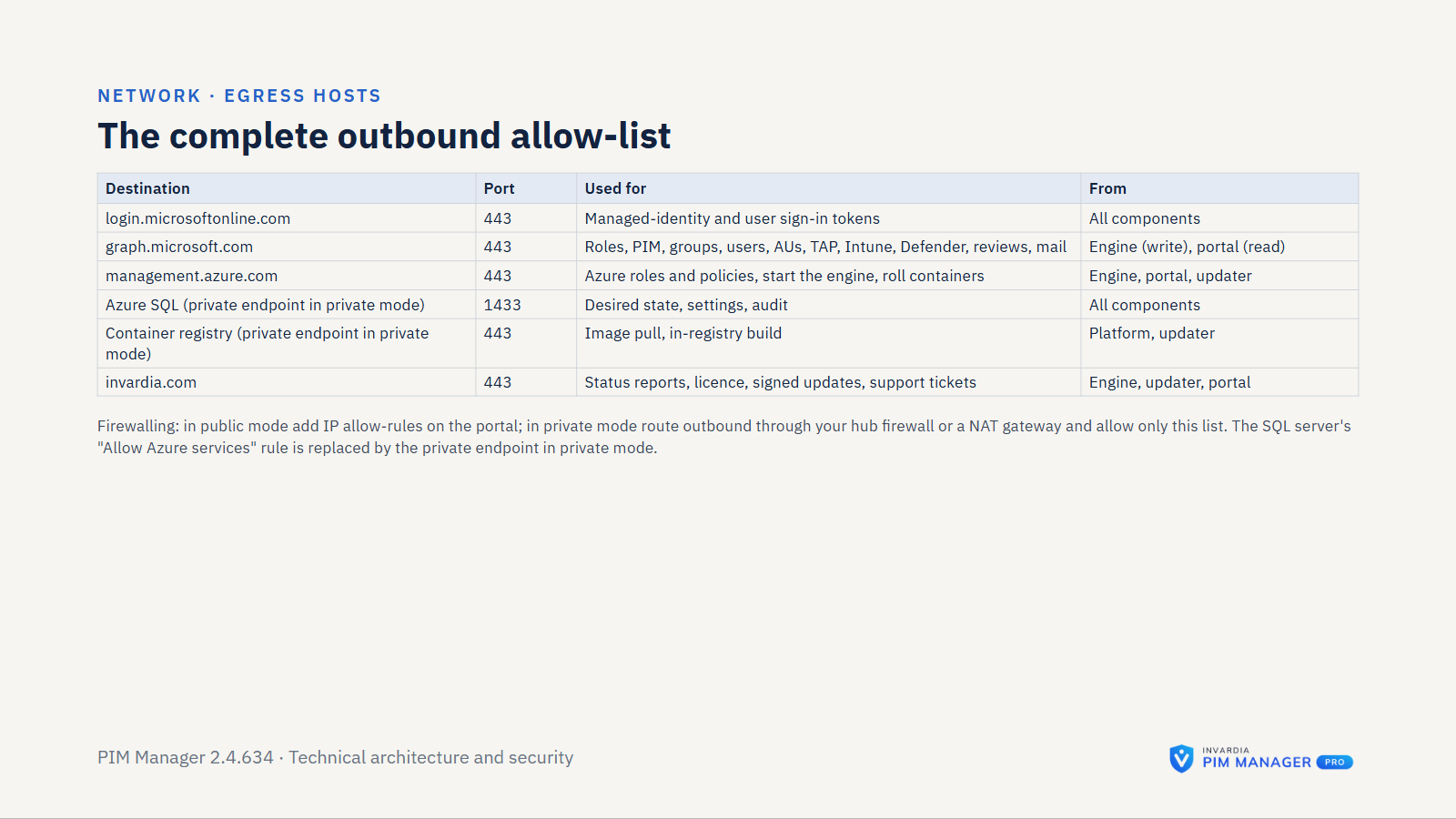
Your installation makes these connections, outbound, over HTTPS. No user, group or role records are sent. Each item has a switch under Settings > Features & edition.
- Status reports. On by default.
- What is sent: which jobs ran and whether they succeeded, the version, edition and license state, counts such as role assignments, when a safety guard steps in, and whether the Invardia Support app holds database access.
- Without a Pro install key, reports are anonymous: a random installation id, rounded counts and a failure class; no tenant, no host name, no error text.
- With a Pro install key, reports add the tenant id, the host name, exact counts and error text, with secrets, mail addresses, UPNs and object names removed by pattern before sending. Pattern-based redaction can miss an unusual value, so switch status reports off if error text must not leave your tenant.
- Switching status reports off sends one final opt-out record, and then nothing more. The install has no option to start with them off; a SuperAdmin switches them off right after the first sign-in.
- Error causes and setup health. On by default, only with a Pro install key: the stable error code and cause of each problem, and whether critical settings such as the updater, the mail sender and the engine permissions are in place. No names and no tenant data.
- License requests. On by default. When no Pro license is valid or yours ends soon, PIM Manager asks Invardia for its license. It sends the product, the tenant id, its version and an installation id, and, if a license is installed, that license’s id and end date plus the proof described above. It checks the delivered file itself before installing it.
- Pro updates. On by default, Pro only. The installation claims its install key and pulls the signed release for its tenant. Nothing is pushed.
Support access
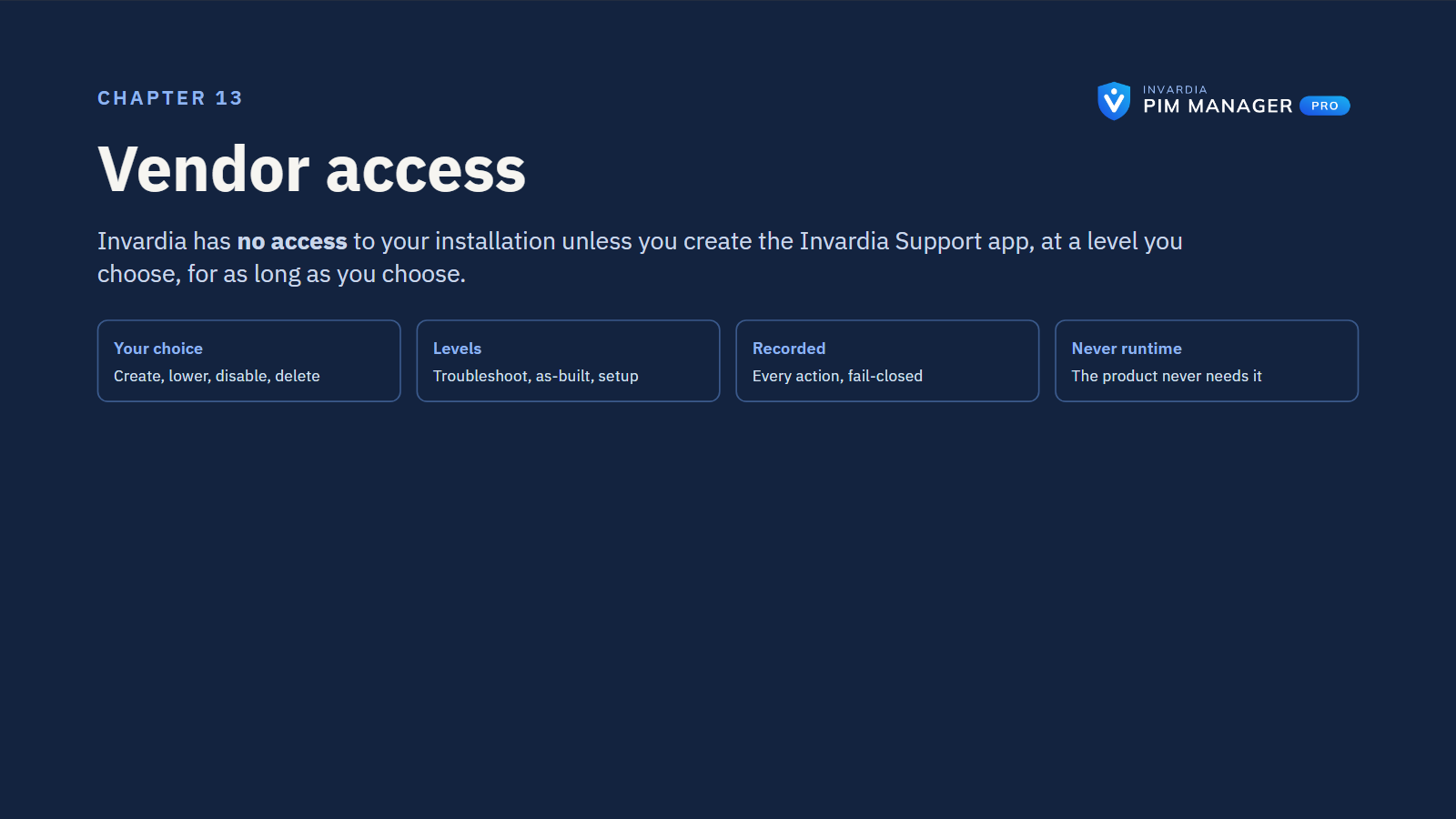
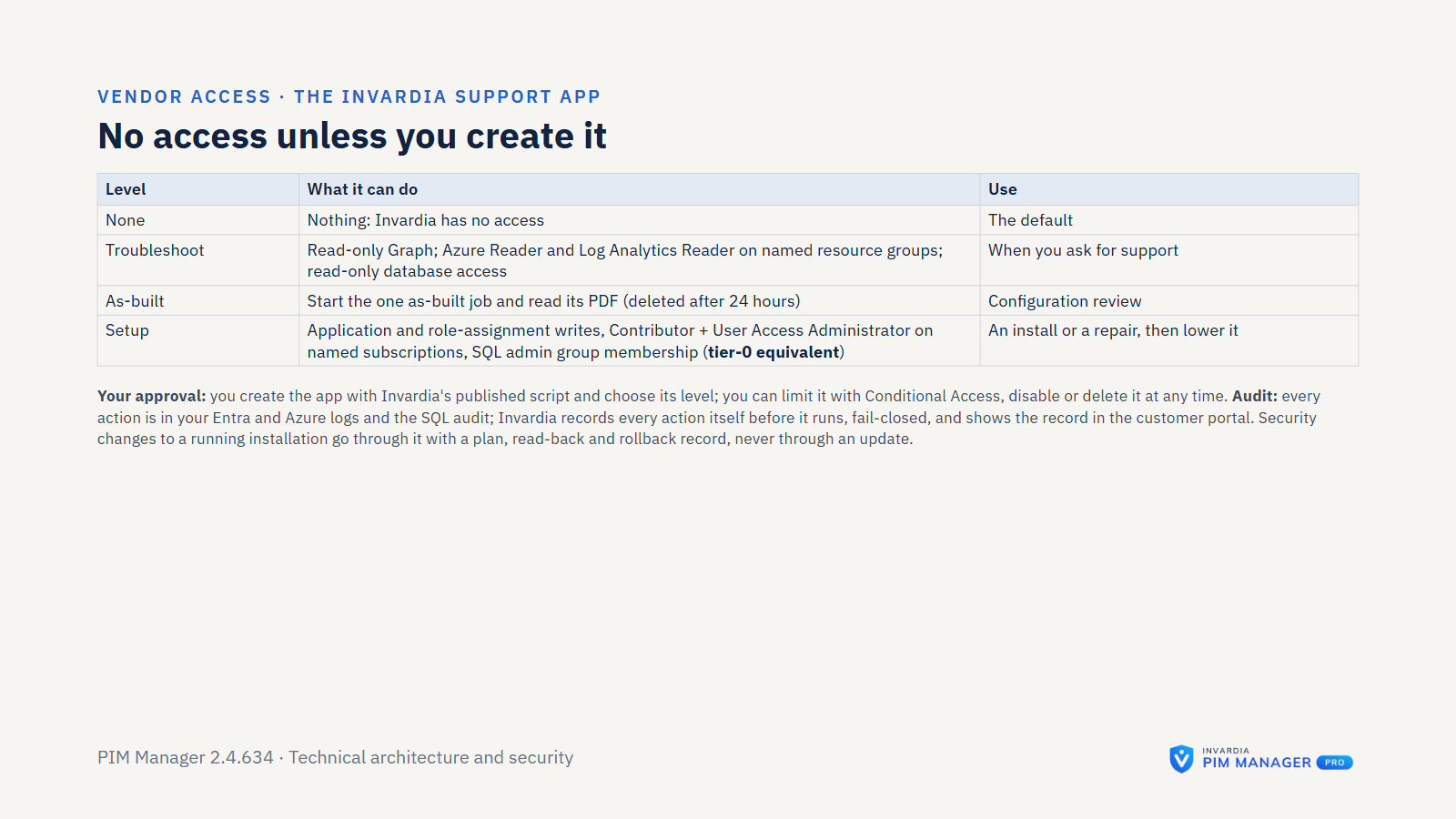
Invardia has no access to your installation by default. An installation has no Invardia Support app, and gives Invardia no identity, credential or network path into your tenant or subscription.
- Created on request. When you open a troubleshooting case and want Invardia to look inside, you create the Invardia Support app yourself, in your own tenant, and choose its level. You create its secret, decide how long it lives and upload it in the customer portal. By default the secret is not renewed without your approval. The steps are on Remote support access.
- What it can do. Troubleshoot has read-only Microsoft Graph and Azure rights. Setup adds write rights in Graph and Azure and is tier-0 equivalent. At both levels the app is the owner of itself and holds the Graph permission Application.ReadWrite.OwnedBy, so it can add its own next secret; every credential added or removed is in your Entra audit log. If you give the app access to this installation, at either level it also becomes a member of the database admin group and gets a database user in the database owner role (db_owner), until you take that back: Troubleshoot is read-only in Graph and Azure, but not in the PIM database. These database rights exist only if you create the Support app at that level and grant it access.
- IP lock. The setup script creates a Conditional Access policy that blocks the app everywhere except Invardia’s support address. It is created switched off; you switch it on. Conditional Access for workload identities needs Microsoft Entra Workload ID Premium licenses.
- Where you see its actions. Its sign-ins are in your Entra sign-in logs, its changes in Entra ID in your Entra audit log and its changes in Azure in your Azure activity log. Statements it runs directly against the database are not in PIM Manager’s audit trail; they are recorded only if you switch on Azure SQL auditing.
- Removed when the case is done. You take back its database access with one command and remove the app with another.
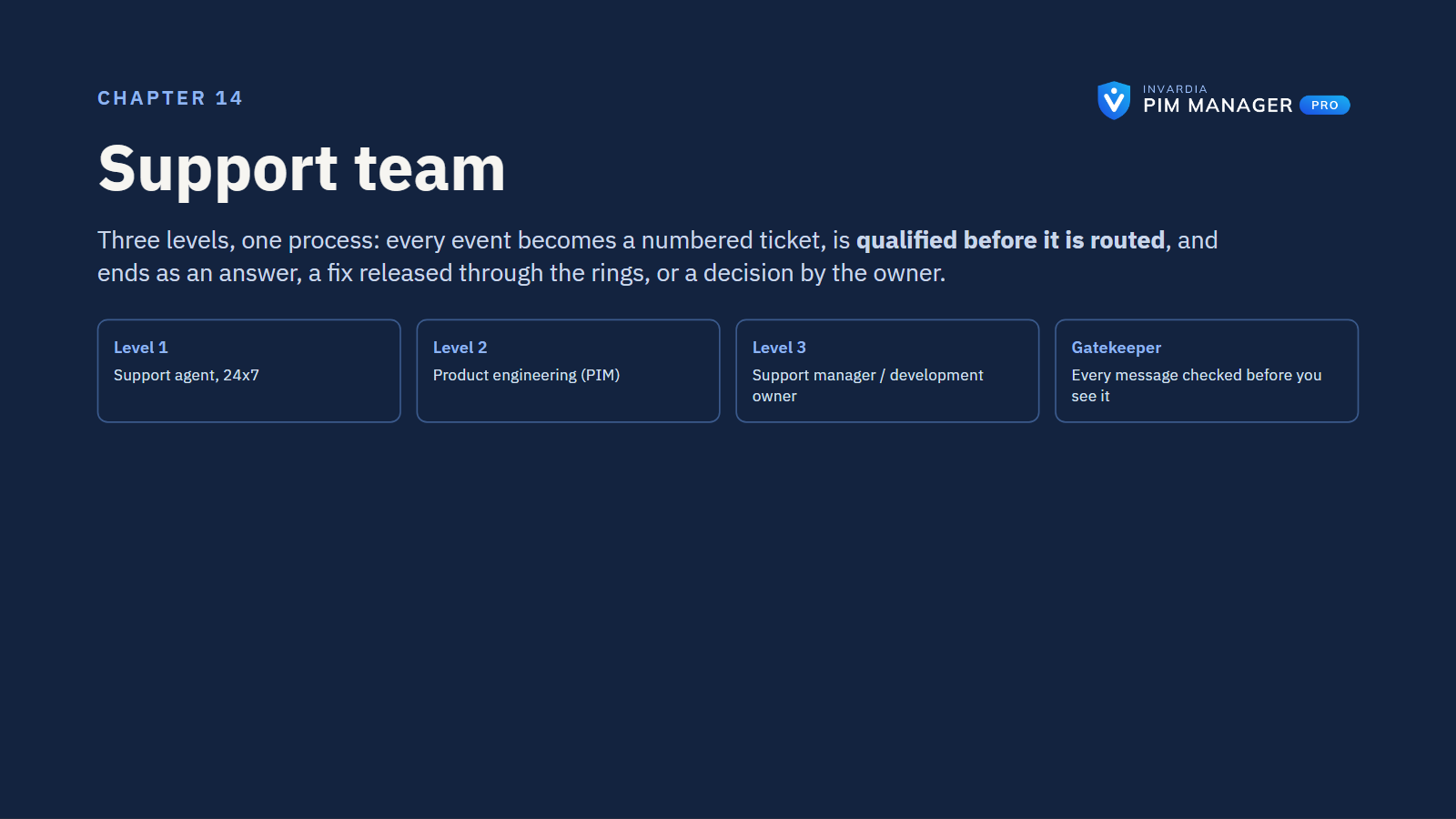
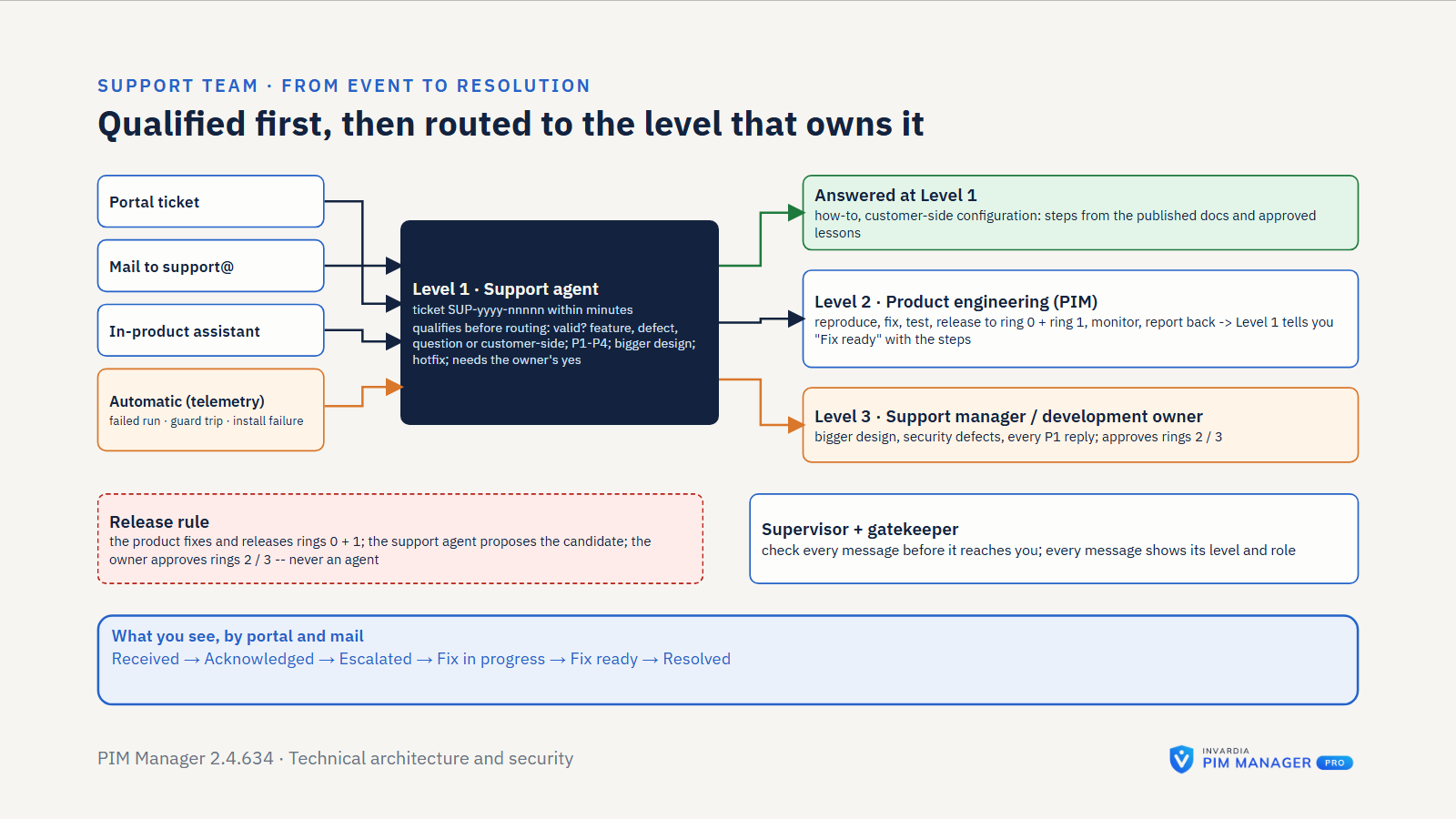
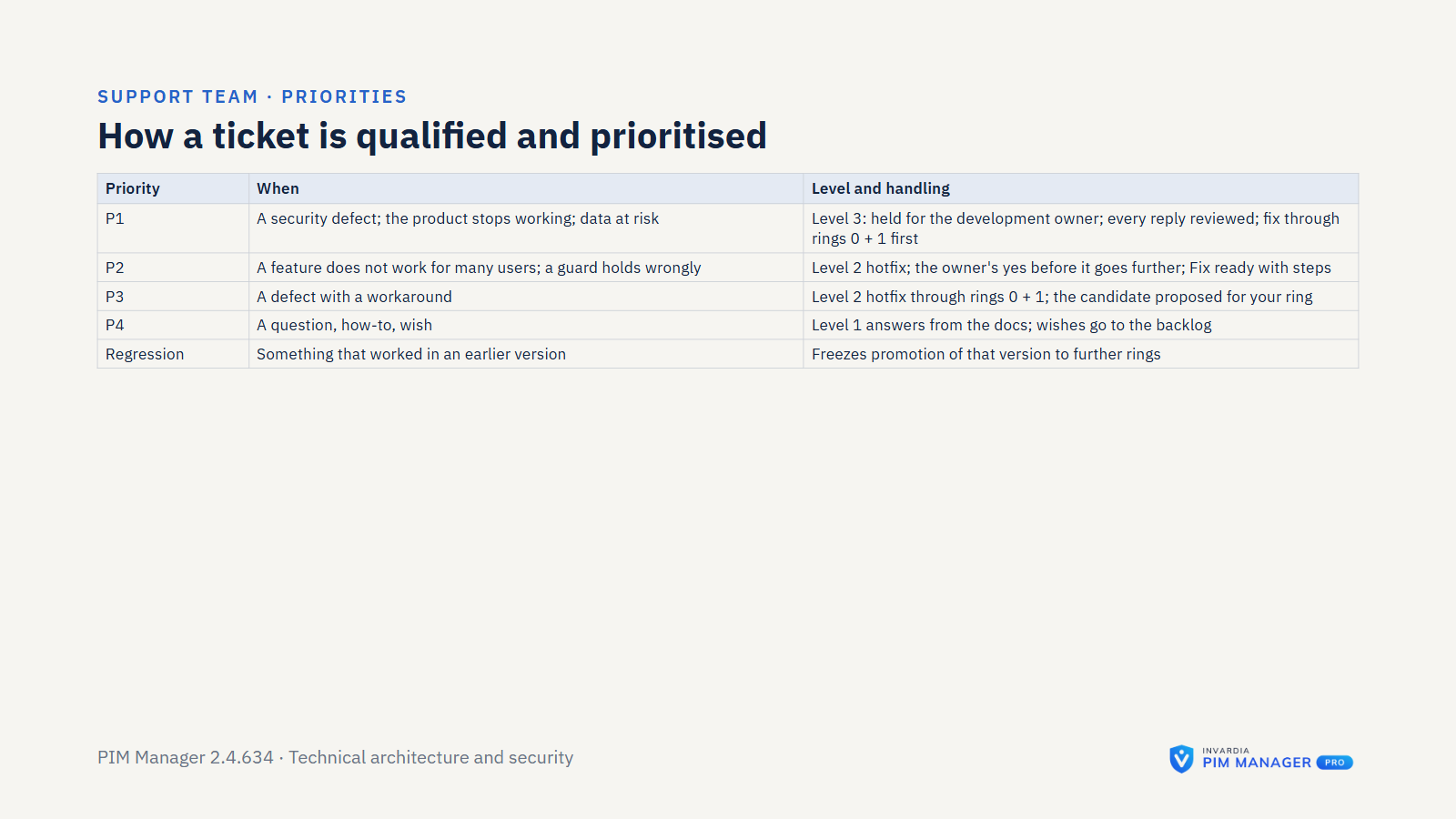
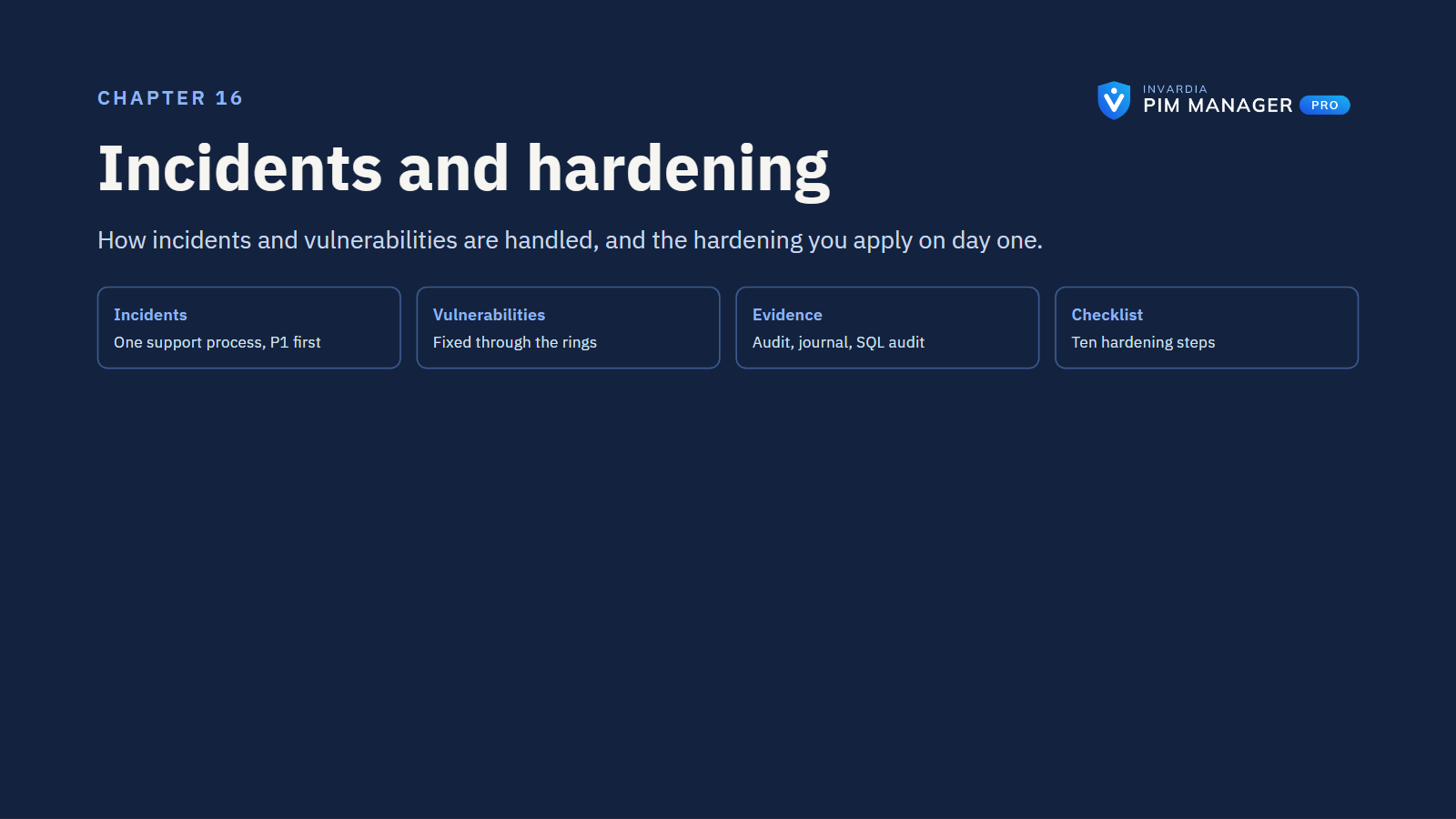
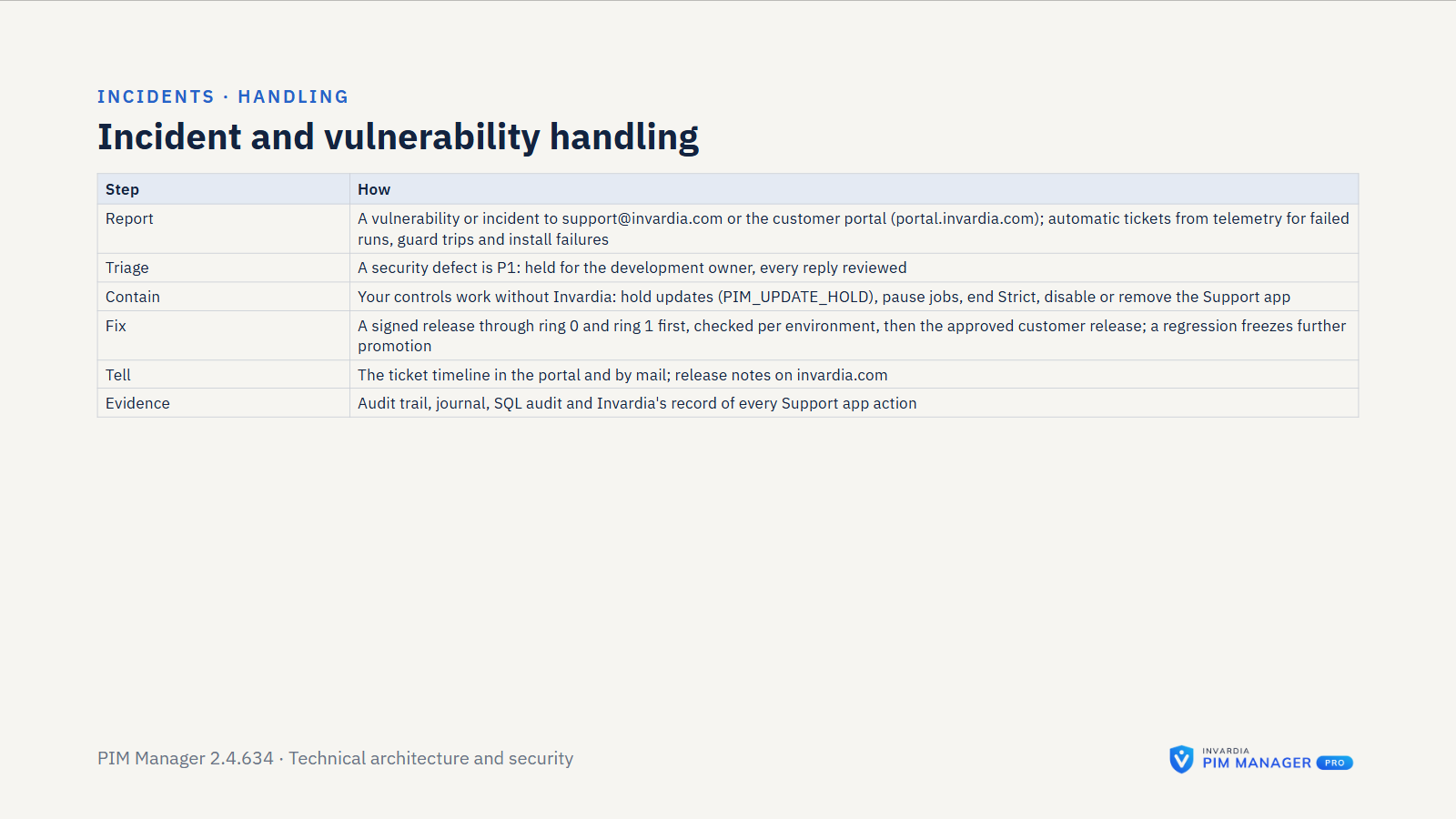
Pro support tickets go to support@invardia.com (one ticket per mail) or the customer portal. Each ticket has a number, one owner at Invardia and a priority from P1 to P4.
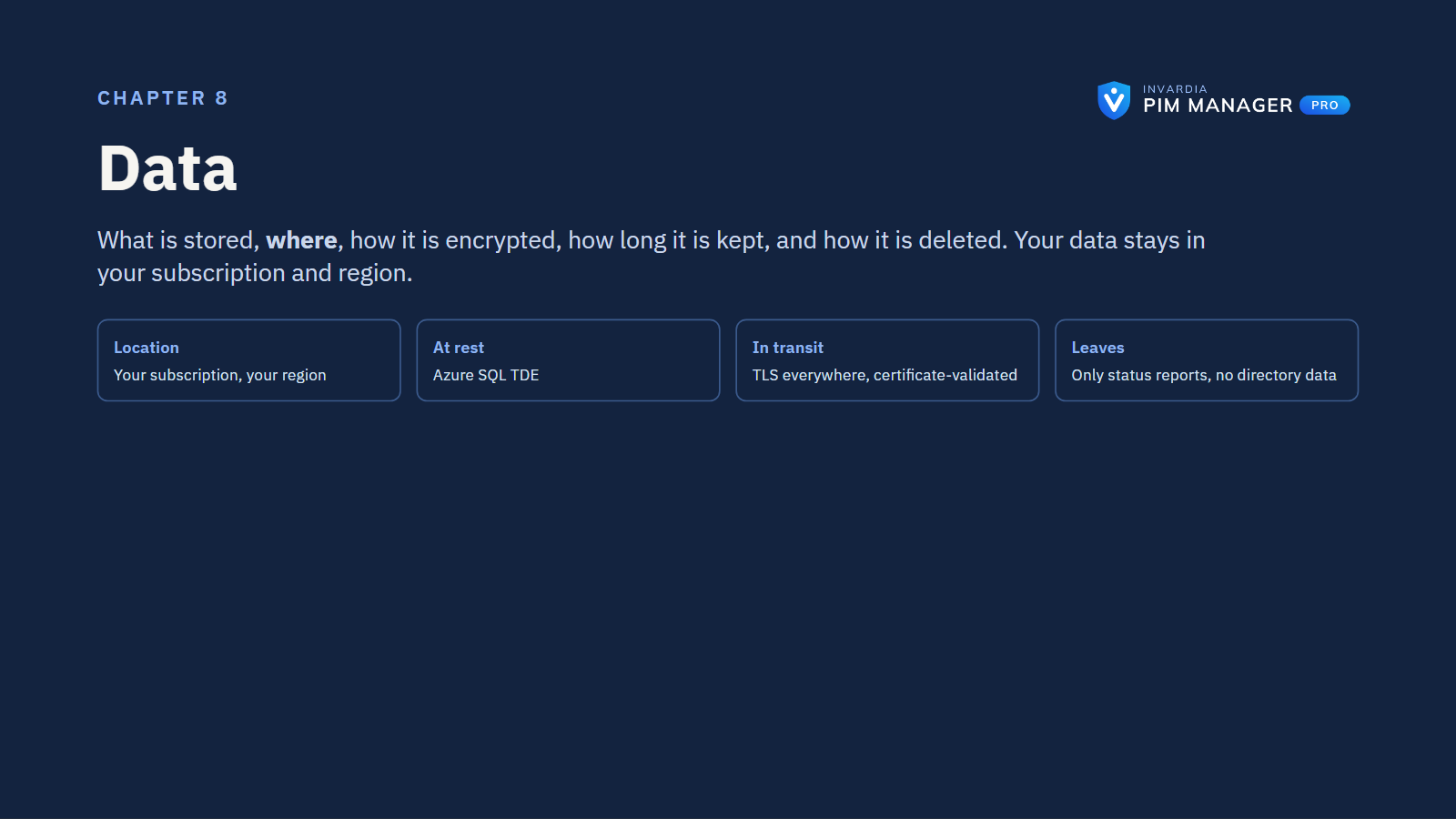
Data retention
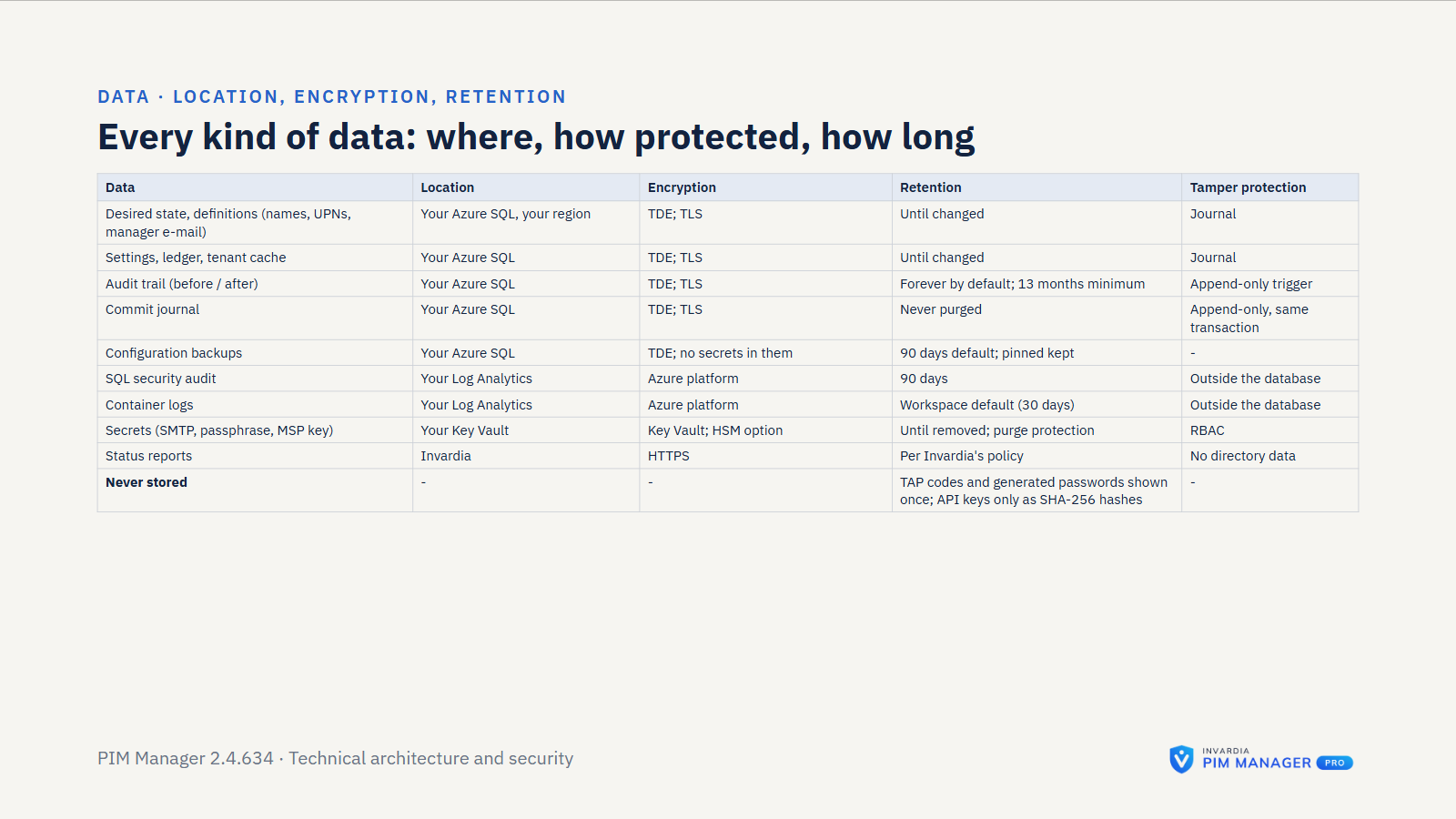
| Data | Kept for |
|---|---|
| Audit trail | Kept by default; a SuperAdmin can set a retention of 13 months or more, and a daily job then removes older rows and records its own run in the trail |
| Commit journal and change queue | Removed with the audit retention, and the removal is audited |
| Configuration backups | 90 days by default (a SuperAdmin setting); pinned backups longer. Secrets are not stored in a backup |
| Pre-commit snapshots | The most recent snapshots per data set |
| Job run history | The most recent runs per job |
| Container logs and SQL audit | Your Log Analytics workspace’s retention; the SQL audit only if you switch it on |
| Database backups | Azure SQL’s settings, which you control |
Compliance support
PIM Manager gives you evidence for access audits and recertification:
- An append-only audit trail with before and after values; the full export is available in Pro editions. Add the database’s own SQL audit by switching it on.
- “Who can do what” reports and Role Lookup exports with the exact granting path.
- A tier-impact report (Pro) of who can reach Tier 0 or Tier 1, including through nested groups.
- Access reviews (Pro) with recorded decisions and justifications, and an evidence export of who attested what.
- The policy brake, the guards, Strict guard mode and, where you switch it on, the second approver, all recorded in the audit trail.
- Each release to customer installations has a recorded approval with a reason.